
Compress Multiple Files Easily with Unizip – Fast & Secure Desktop Tool
2026-03-06 17:55:40
How to Open, View, and Convert RAR Files on Windows (Complete Guide)
2026-03-06 17:42:39

Can’t Open 7z Files on Windows? Simple Step-by-Step Guide
2026-03-06 17:25:13

How to Open ZIP Files Without Extracting on Windows (2026 Guide)
2026-03-06 17:22:18
How to Open ZIP Files Without Extracting on Windows (2026 Guide)
2026-03-06 17:22:18
How to View Files in Zip Without Extracting (2026 Guide for Windows)
Downloading a ZIP or RAR file is easy. But what if the archive is several gigabytes and you only want to quickly check what’s inside?
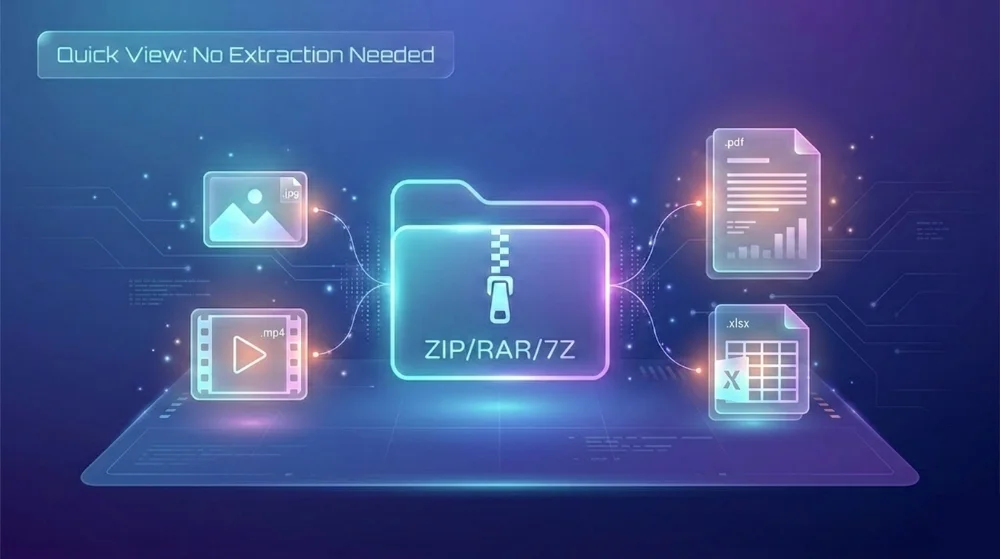
Instead of extracting everything and wasting time and disk space, you can preview files inside a ZIP archive without extracting. This guide shows you how to view images, PDFs, Word documents, Excel sheets, and videos directly inside compressed files on Windows.
Can You View ZIP Files Without Extracting?
Yes.
Most people think ZIP files must be fully extracted before viewing. However, modern archive tools allow you to:
- Open a ZIP file like a normal folder
- Browse the internal folder structure
- Preview supported file types instantly
- Avoid generating temporary extracted files
This is especially useful when:
- The archive is very large (4GB+)
- You only need to check a few files
- You want to confirm contents before extraction
- You’re comparing multiple compressed files
Why Not Just Use Windows Built-in ZIP Support?
Windows allows you to open ZIP files by double-clicking them. However:
It does not provide true file preview inside the archive
- Some formats like RAR or 7Z are not supported
- Large archives may load slowly
- You still need to extract files to fully view content
If you frequently work with ZIP, RAR, or 7Z files, and have trouble opening those formats, check our detailed guides on how to open RAR files on Windows and what to do when you can’t open 7z files.
How to View Files Inside a ZIP Without Extracting
Here’s the step-by-step method using Unizip.
Step 1: Open the Archive
1. Launch Unizip
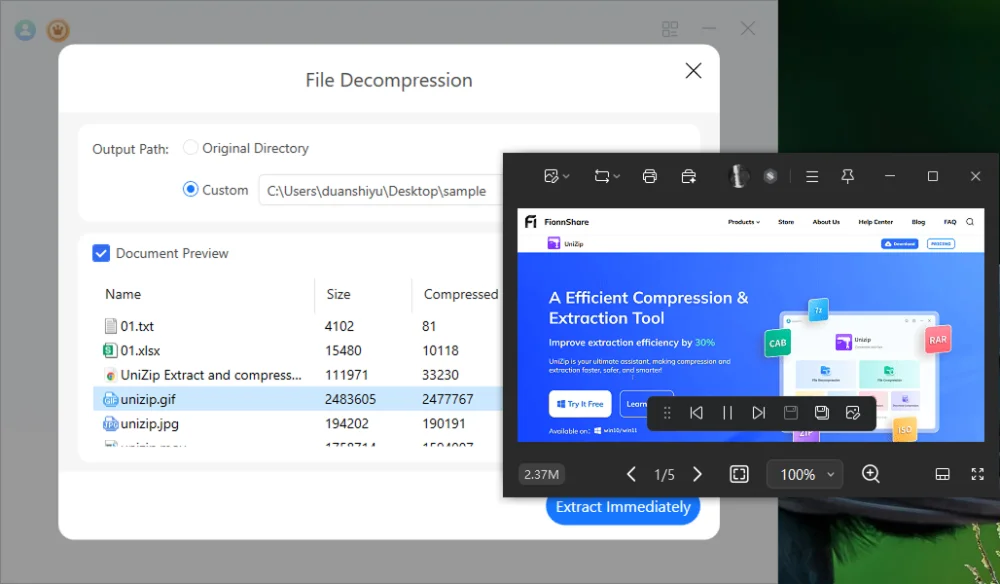
2. Click File Decompression
3. Select your archive file (.zip, .rar, .7z)
The software will display the archive structure just like Windows File Explorer.
You can:
- Expand folders
- Sort by file size
- Check file types
- View modification dates
Step 2: Double-Click to Preview
Instead of extracting the entire archive:
- Double-click any supported file
- The preview window opens instantly
- No extraction is performed
Supported preview formats include:
- Images: PNG, JPG, GIF
- Videos: MP4, MOV
- Documents: PDF, TXT, Word (.docx), Excel (.xlsx)
The preview is read-only and does not create additional files on your disk.
Real-World Use Cases
1. Previewing a Large Wallpaper Pack
You downloaded a 4K wallpaper archive containing hundreds of images.
Instead of extracting everything:
- Open the ZIP file
- Click any image
- Instantly preview it
If the images match your expectations, then extract the archive. If not, simply close it.
No wasted storage.
2. Checking Office Documents Before Extraction
You receive a large archive from a client containing
- PDF reports
- Word documents
- Excel spreadsheets
- Text notes
Before extracting:
- Browse the folder structure
- Preview key files
- Confirm which documents you actually need
This is especially useful when working with project archives or shared business files.
Benefits of Previewing ZIP Files Without Extracting
✔ Saves disk space
✔ Saves time
✔ Reduces unnecessary file clutter
✔ Improves workflow efficiency
✔ Allows faster archive comparison
For users who frequently download compressed image packs, document bundles, or project files, this workflow can significantly improve productivity.
Important Notes
- Preview mode is read-only.
- Files are not modified.
- Individual file extraction is not supported.
- To fully use files, you must extract the entire archive.
If you need permanent access or editing capability, use the Extract Immediately option.
Frequently Asked Questions
1. Can I preview RAR or 7Z files without extracting?
Yes, if your archive tool supports those formats. Windows built-in ZIP support does not handle RAR or 7Z files.
2. Does previewing slow down my computer?
No. Previewing reads the file directly from the archive without fully decompressing it to disk.
3. Is preview safe?
Yes. It does not modify the archive and does not create unnecessary temporary files.
Final Thoughts
If you regularly work with compressed files, knowing how to open ZIP files without extracting can save both time and storage space.
Instead of extracting everything blindly:
- Open the archive
- Preview what you need
- Extract only when necessary
This simple workflow improvement can make managing large compressed files much more efficient, especially when using tools like Unizip that support direct file preview.
If you often download image packs, office document bundles, or multimedia archives, using a tool with built-in preview support can streamline your daily tasks and improve productivity.


 Fionn
FionnCopyright © 2026 Wonderful Apps Limited.
 English