
Compress Multiple Files Easily with Unizip – Fast & Secure Desktop Tool
2026-03-06 17:55:40
How to Open, View, and Convert RAR Files on Windows (Complete Guide)
2026-03-06 17:42:39

Can’t Open 7z Files on Windows? Simple Step-by-Step Guide
2026-03-06 17:25:13

How to Open ZIP Files Without Extracting on Windows (2026 Guide)
2026-03-06 17:22:18
Can’t Open 7z Files on Windows? Simple Step-by-Step Guide
2026-03-06 17:25:13
Can’t Open 7z Files on Windows? A Beginner-Friendly Step-by-Step Guide
When downloading software, design resources, game files, or work documents from colleagues, you’ve probably come across files ending in “.7z”.
The frustrating part is that when you double-click them, Windows often has no idea what to do — either showing an error message or asking which program to use. That’s because Windows does not natively support the 7z format.
Don’t worry — the solution is simple.
This guide explains what 7z files are and shows you how to open them easily on Windows, even if you’re a beginner.
1. What Is a 7z File?
A 7z file is a high-compression archive format created by the open-source tool 7-Zip. Its main features include:
- Higher compression ratio (smaller file size)
- Support for large files and complex folder structures
- Encryption and multi-volume archive support
- Commonly used for software packages, asset collections, project files, and data backups
In simple terms, 7z is a more powerful alternative to ZIP.
2. Why Can’t Windows Open 7z Files by Default?
Although Windows can open ZIP files, it does not include built-in support for 7z archives. That’s why double-clicking a 7z file usually fails and requires third-party software.
There are many options available, but if you want something fast, clean, and powerful, Unizip is a great choice. It handles 7z perfectly and also supports RAR, ISO, and dozens of other formats, making it an ideal replacement for the built-in Windows tools.
3. How to Open 7z Files Using Unizip (Windows Tutorial)
Unizip is a high-performance compression and extraction tool and a practical alternative to WinRAR, WinZip, and 7-Zip. It supports 7z, RAR, ZIP, ISO, and many other popular formats.
Using Unizip is extremely simple — just follow these steps.
Step 1: Download and Install Unizip
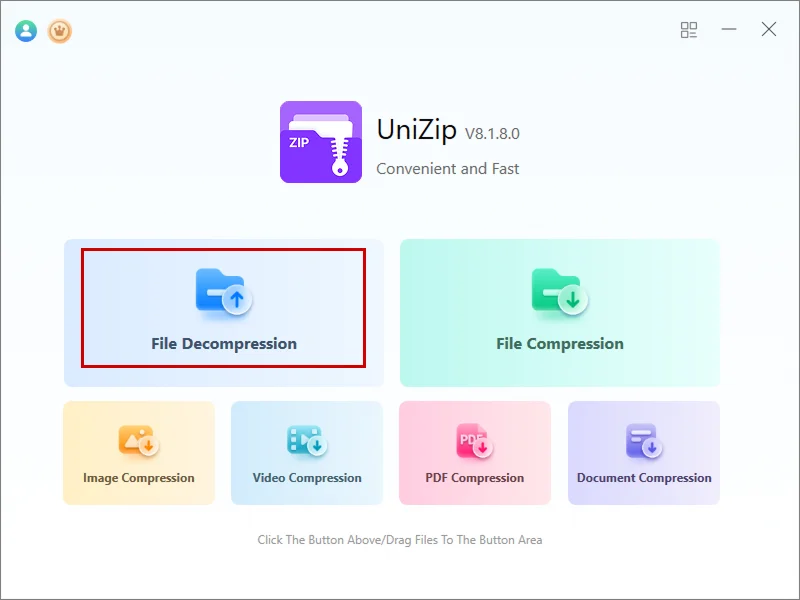
After installation, launch the application and you’ll see a clean, intuitive interface.
Step 2: Import the 7z File
You can add your file in either of these ways:
- Click “File Decompression” and select the 7z file
- Or simply drag and drop the file into the Unizip window
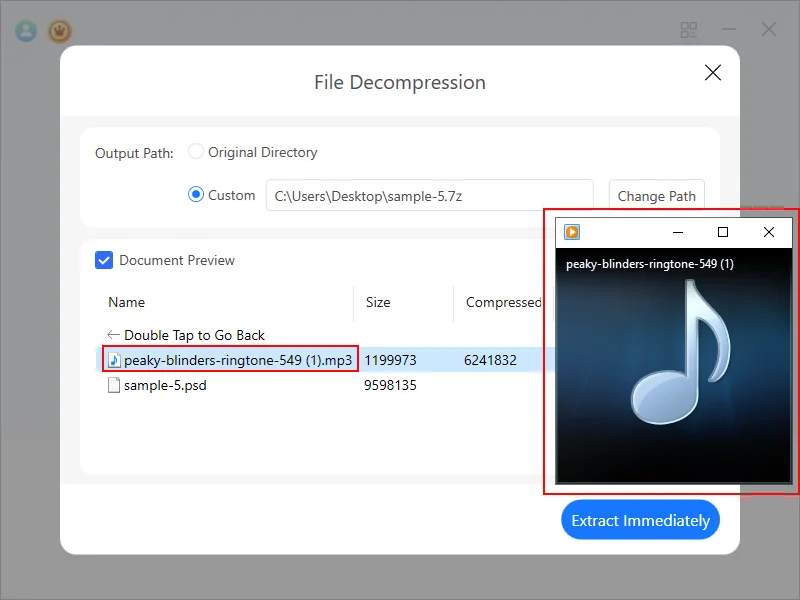
Step 3: Browse and Preview Contents
Unizip displays the archive in a folder-style view, allowing you to:
- Browse the file structure
- Preview common formats (images, PDF, TXT, Word, Excel, etc.)
- Confirm the contents before deciding whether to extract
Step 4: Extract the Files
Click “Extract Immediately”, choose a destination folder, and Unizip will handle the rest. Thanks to optimized performance, extraction is up to 30% faster than traditional tools.
4. A Few Safety Tips About 7z Files
The 7z format itself is safe — it’s just a container, security always depends on the source of the files.
Best practices:
- Only extract archives from trusted sources
- Be cautious with unknown .exe or .msi files inside archives
If you’re creating your own archives, Unizip offers AES-256 encryption, giving your important data a strong layer of protection.
5. Final Thoughts
7z is a powerful format, but Windows’ lack of native support can be inconvenient. Fortunately, Unizip makes the process simple.
With Unizip, you can easily open, preview, and extract 7z files, while benefiting from faster performance and broad format compatibility.
If you’re looking for a reliable and easy-to-use compression tool, Unizip is well worth trying.


 Fionn
FionnCopyright © 2026 Wonderful Apps Limited.
 English