
Compress Multiple Files Easily with Unizip – Fast & Secure Desktop Tool
2026-03-06 17:55:40
How to Open, View, and Convert RAR Files on Windows (Complete Guide)
2026-03-06 17:42:39

Can’t Open 7z Files on Windows? Simple Step-by-Step Guide
2026-03-06 17:25:13

How to Open ZIP Files Without Extracting on Windows (2026 Guide)
2026-03-06 17:22:18
How to Open, View, and Convert RAR Files on Windows (Complete Guide)
2026-03-06 17:42:39
How to Open, View, and Convert RAR Files: A Complete Windows Guide
When downloading software, assets, project files, or large resource packs, you will often encounter RAR files. However, many Windows users quickly discover that RAR files cannot be opened by default.
So what exactly is a RAR file? What is it used for? How is it different from ZIP? And what is the correct way to open and convert RAR files on Windows?
This guide explains everything clearly and practically.
What Is a RAR File?
A RAR file is a compressed archive format commonly identified by the .rar file extension.
It is used to bundle multiple files or folders into a single archive while reducing file size through advanced compression algorithms.
RAR stands for Roshal Archive, named after its creator, Eugene Roshal. Unlike regular files, RAR files usually require third-party software to open and extract.
What Are RAR Files Used For?
RAR files are widely used in scenarios such as:
- Packaging multiple files into one downloadable archive
- Compressing large files to save storage space
- Splitting very large data into multi-part archives
- Distributing image packs, video assets, games, or project files
- Protecting data with password encryption
Due to these advantages, RAR files are common in professional workflows and large file distribution.
RAR vs ZIP: What’s the Difference?
Although both RAR and ZIP are archive formats, they serve slightly different purposes.
| Feature | RAR | ZIP |
|---|---|---|
| System compatibility | Not supported natively | Supported by most systems |
| Compression efficiency | Generally higher | Moderate |
| Best use cases | Large files, complex archives | Daily use, quick sharing |
| Multi-volume support | Yes | Yes (basic) |
| Encryption support | Supported | Supported (varies by tool) |
| Ease of use | Requires extractor | Easier for beginners |
In short:
ZIP is more universal, while RAR is better suited for high-efficiency compression and professional use.
How to Open RAR Files Using Unizip?
If you cannot open a RAR file on Windows, Unizip provides a fast and reliable solution.
Unizip is a powerful compression and extraction tool that supports dozens of formats, including RAR, ZIP, 7z, ISO, and more. It is designed as a practical alternative to WinRAR, WinZip, and 7-Zip.
Steps to Open a RAR File with Unizip
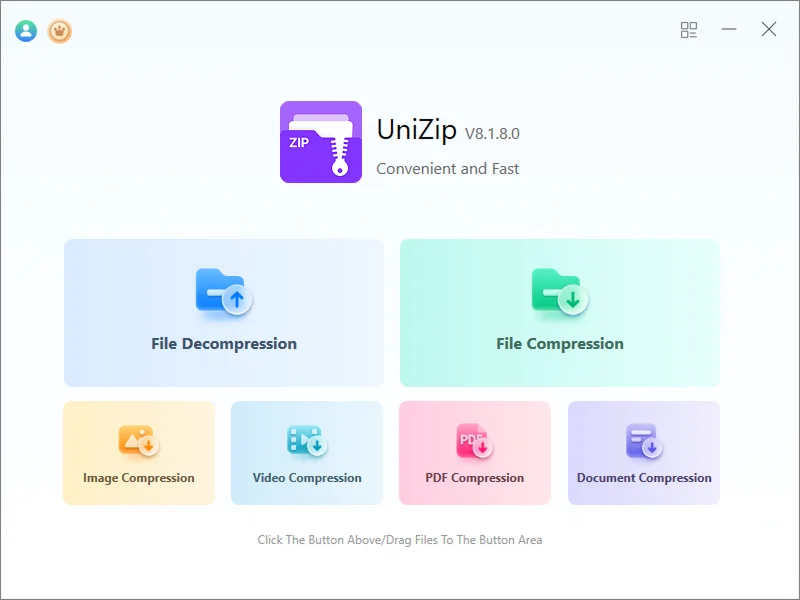
Step 1: Launch Unizip
Open the application to access its clean, user-friendly interface.
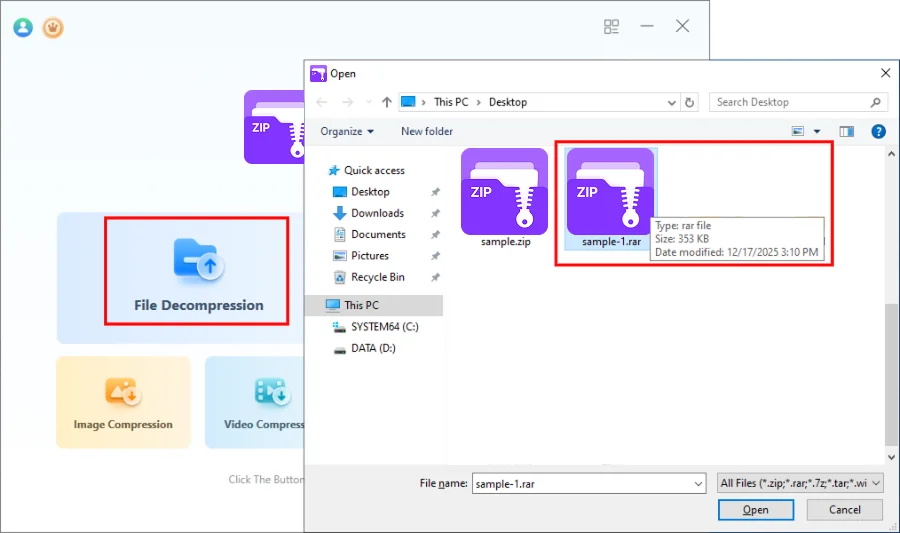
Step 2: Load the RAR File
Click “File Decompression” and select the .rar file you want to open.
Step 3: Browse and Preview Contents
Unizip displays the archive in a folder-style structure, allowing you to:
- Browse directories
- View file lists
- Preview common file types (such as images, PDF, TXT, Word, Excel) before extraction
This helps you confirm file contents without immediately extracting everything.
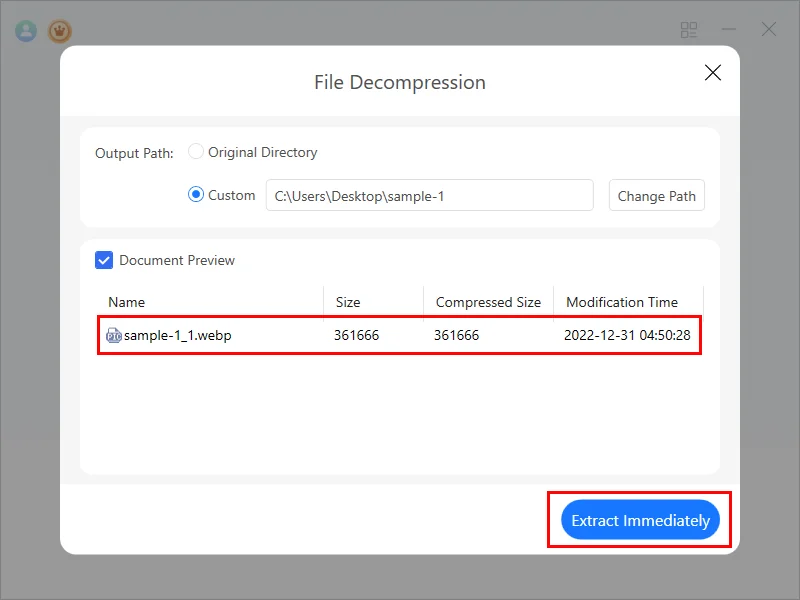
Step 4: Extract the Files
Click “Extract lmmediately” to fully extract the archive to your chosen location.
How to Convert RAR Files to ZIP?
Sometimes you may want to convert a RAR archive into a ZIP file for better compatibility or easier sharing. With Unizip, you can easily complete this process.
1. Open and extract the RAR file using Unizip
2. Select the extracted files or folders
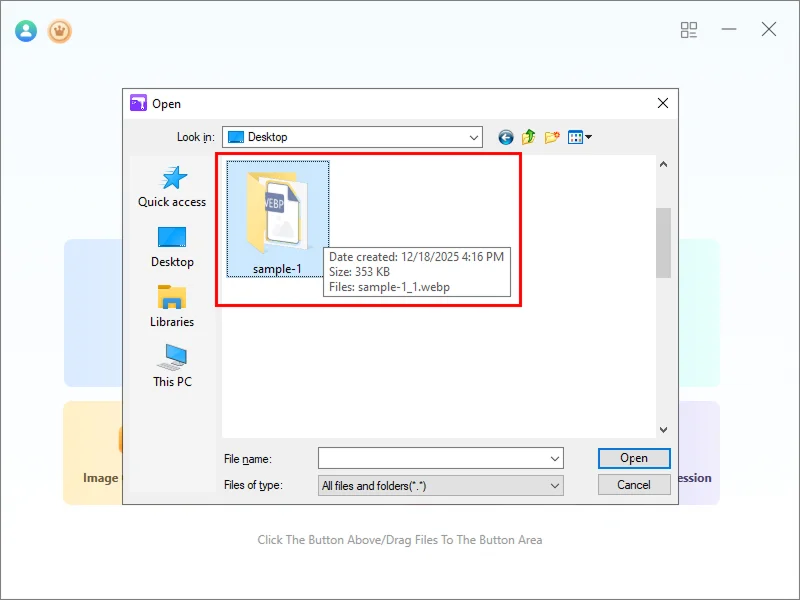
3. Use Unizip’s compression feature and choose ZIP format
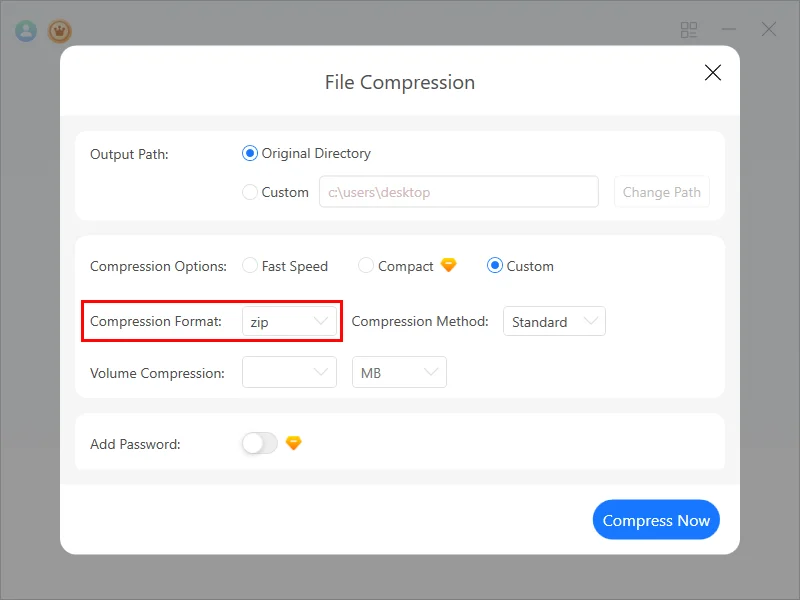
4. Create the new ZIP archive
This ensures compatibility and avoids data corruption.
Are RAR Files Safe?
In general, RAR files themselves are safe.
However, like any downloaded file, safety depends on the source.
For better security:
- Only extract RAR files from trusted sources
- Avoid running unknown executable files
- Be cautious with password-protected archives from unknown senders
Unizip supports AES-256 encryption, allowing you to protect your own archives with strong passwords when creating compressed files.
Conclusion
RAR is a powerful archive format that Windows does not support natively.
With Unizip, you can:
- Open and extract RAR files easily
- Preview archive contents before extraction
- Convert RAR files into ZIP through safe recompression
- Manage compressed files more efficiently and securely
Whether for everyday work, asset management, or professional data handling, Unizip makes working with RAR files simple and reliable. Try Unizip today and simplify your RAR workflow.


 Fionn
FionnCopyright © 2026 Wonderful Apps Limited.
 English