

Record Gameplay on Windows 10 Without Lag (2026 High-FPS Guide)
2026-03-02 15:19:13
How to Record Screen on Windows 10 & 11 (2026 Free & Easy Guide)
2026-02-24 09:14:14
Why Is My Screen Recording Lagging? 7 Ways to Fix Dropped Frames
2026-02-04 18:41:57

Best Screen Recording Software for Teachers | FionnShare Screen Rec
2026-01-04 16:06:55

Fionn Screen Rec: Lightweight & Reliable Screen Recorder for Teams
2025-12-12 14:35:19
Record Gameplay on Windows 10 Without Lag (2026 High-FPS Guide)
2026-03-02 15:19:13
Record Gameplay on Windows 10 Without Lag (2026 Guide – High FPS Settings for Warzone & Valorant)
Recording gameplay on Windows 10 sounds simple—until you try capturing fast-paced titles like Call of Duty: Warzone or Valorant at high frame rates. Frame drops, stuttering footage, audio sync issues, and blurry output are still common problems in 2026.
The good news? Smooth, high-FPS gameplay recording on Windows 10 is absolutely achievable—if you understand how system load, encoding, and bitrate work together.
In this guide, we’ll break down the performance logic behind lag-free recording, optimal high-FPS settings, and the best tools for stable screen capture.
Why High-FPS Gameplay Recording Causes Lag
Recording high-FPS gameplay pushes your hardware harder than normal screen capture. In fast-paced titles like Call of Duty: Warzone and Valorant, your CPU, GPU, and disk are often already near their limits. Adding real-time encoding can quickly cause dropped frames or stuttering.
Most recording lag comes from limited hardware headroom, slow storage, or bitrate settings that are too high.
If you want a full breakdown of causes and fixes, check out: Why Is My Screen Recording Lagging? 7 Ways to Fix Dropped Frames
The Best Encoder for High-FPS Recording
If you use an NVIDIA GTX 10-series or newer GPU, NVENC (new) is the ideal encoder. It shifts video encoding to a dedicated hardware chip on the GPU, dramatically reducing CPU load.
AMD users can use AMF hardware encoding with similar benefits.
Software encoding (x264) may offer slightly better compression efficiency, but for high-FPS gaming, it often introduces frame drops—especially on mid-range CPUs.
For most gamers in 2026, hardware encoding is the clear winner.
High-FPS Settings That Actually Work
Here’s a performance-balanced configuration that works well on mid-to-high-end Windows 10 systems:
•Resolution: 1920x1080
•Frame Rate: 60 FPS (stable > ultra-high)
•Bitrate: Start from 20,000 kbps
•Audio: 48kHz stereo
•Recording format: MP4 or MKV
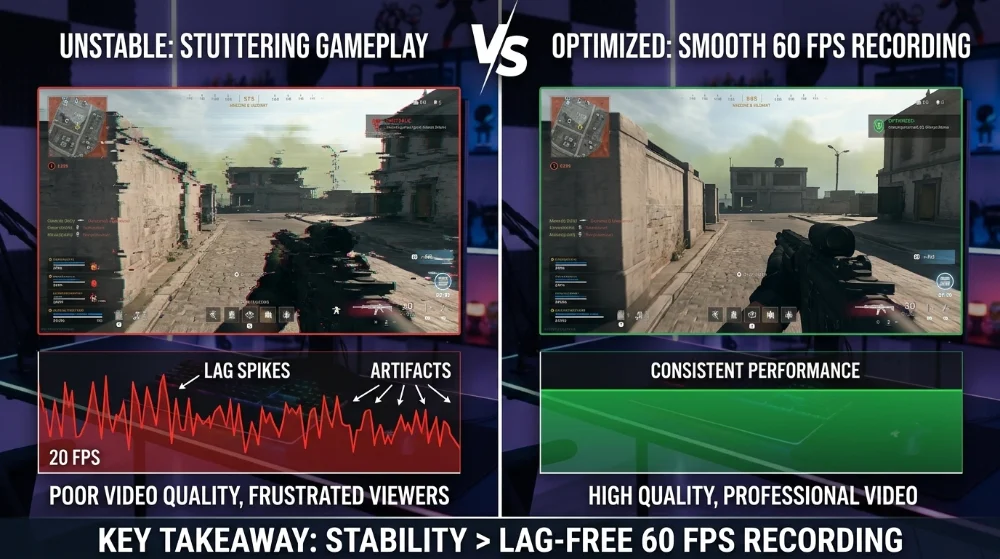
Trying to record 144 FPS gameplay footage sounds impressive, but unless your hardware has significant overhead, you’ll often get more consistent results by recording at 60 FPS while keeping in-game FPS uncapped.
Consistency beats theoretical maximum quality.
Disk Speed Matters More Than You Think
Even with proper encoder settings, recording to a slow HDD can introduce stuttering.
High-bitrate 1080p60 gameplay can easily require sustained write speeds of 20–30MB/s. If your disk can’t maintain that speed consistently, frames will drop during recording—even if gameplay itself feels smooth.
For best results:
•Record to SSD
•Avoid using the same drive as the game installation (if possible)
•Ensure at least 20% free storage
This alone resolves many “mystery lag” issues.
Comparing Recording Tools for Competitive Games
1. OBS Studio
OBS Studio remains a powerful option with extensive customization. However, its flexibility means misconfiguration is common among beginners.
2. Xbox Game Bar
Xbox Game Bar works for lightweight recording but lacks advanced bitrate and encoder control. It’s not ideal for high-bitrate competitive gameplay capture.
3. FionnShare Screen Recorder
If you want optimized performance without complex tuning, FionnShare Screen Recorder offers a balanced approach. It’s designed to work efficiently with hardware acceleration enabled by default, reducing the risk of CPU overload.
For creators who prioritize:
•Smooth highlight capture
•Stable frame pacing
•Minimal configuration friction
FionnShare Screen Recorder provides a cleaner workflow compared to heavily manual tools. Many users looking for a reliable screen recorder on Windows 10 prefer solutions that don’t require deep technical tweaking.
In high-FPS scenarios like Warzone gunfights or Valorant clutch moments, predictable performance matters more than endless configuration menus—and this is where FionnShare Screen Recorder fits naturally into the workflow.
Performance Tweaks for Competitive Titles
Competitive shooters stress hardware differently than casual games.
For example:
- Warzone demands heavy GPU usage due to large maps and dynamic effects
- Valorant is CPU-sensitive but lighter on GPU
To maintain recording stability:
- Slightly lower in-game shadows or post-processing
- Keep GPU usage under 90%
- Avoid background Chrome tabs during gameplay
- Disable power-saving mode on laptops
The goal is simple: always leave performance headroom for encoding.
Windows 10 vs Windows 11 Recording Performance
While this guide focuses on Windows 10, recording performance on Windows 11 is nearly identical when drivers and GPU acceleration are properly configured.
If you need a broader overview of screen capture methods (including built-in tools and beginner-friendly options), refer to our full tutorial: How to Record Screen on Windows 10 & 11
That article covers general screen recording scenarios, while this guide focuses specifically on high-FPS gameplay capture.
Final Thoughts
Recording gameplay on Windows 10 without lag isn’t about maxing out every setting. It’s about balance.
- Use hardware encoding
- Keep bitrate realistic
- Record to SSD
- Maintain performance headroom
Whether you’re building a YouTube highlight channel or saving ranked match replays, stable 60 FPS recording will always outperform unstable high-FPS experiments.
And if you prefer a streamlined tool that minimizes setup complexity while preserving performance, FionnShare Screen Recorder is worth considering as part of your workflow.
Smooth gameplay deserves smooth recording.


 Fionn
FionnCopyright © 2026 Wonderful Apps Limited.
 English