

Record Gameplay on Windows 10 Without Lag (2026 High-FPS Guide)
2026-03-02 15:19:13
How to Record Screen on Windows 10 & 11 (2026 Free & Easy Guide)
2026-02-24 09:14:14

Why Is My Screen Recording Lagging? 7 Ways to Fix Dropped Frames
2026-02-04 18:41:57

Best Screen Recording Software for Teachers | FionnShare Screen Rec
2026-01-04 16:06:55

Fionn Screen Rec: Lightweight & Reliable Screen Recorder for Teams
2025-12-12 14:35:19
How to Record Screen on Windows 10 & 11 (2026 Free & Easy Guide)
2026-02-24 09:14:14
How to Record Screen on Windows 10 & 11 (2026 Guide – Free & Easy)
Recording your screen on Windows is useful for tutorials, meetings, gameplay, and online courses. In this guide, you'll learn the best ways to record your screen on Windows 10 and Windows 11, including system audio, microphone, and webcam.
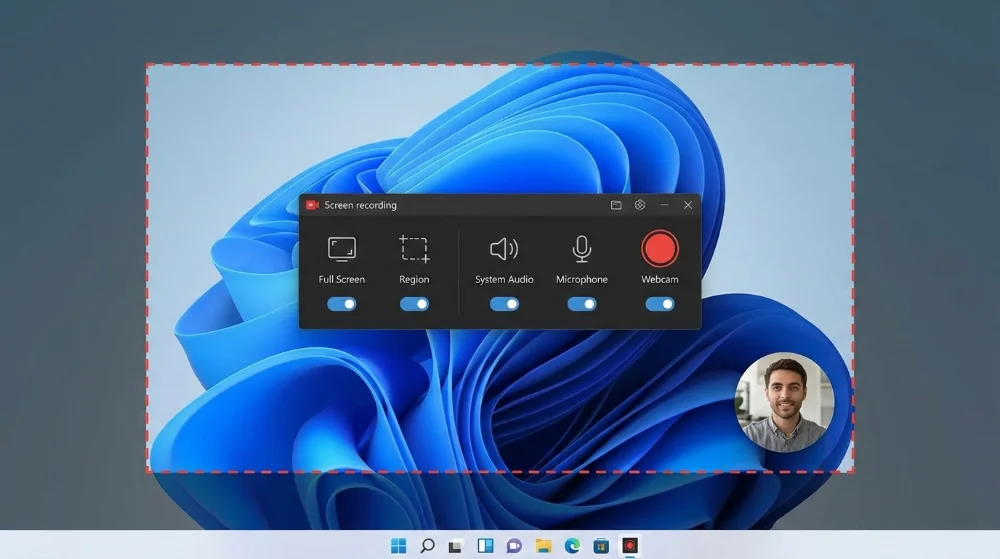
I. Can Windows record screen natively?
Yes. Windows includes a built-in screen recording tool called Xbox Game Bar.
Pros:
- No installation
- Free
- Works for basic screen recording
Cons:
- Cannot record desktop or File Explorer
- Limited audio control
- No webcam overlay
- No editing features
For professional recording, most users choose a dedicated screen recorder.
II. Best free screen recorder for Windows
A good Windows screen recorder should support:
- Full screen and region capture
- System audio and microphone
- Webcam overlay
- High FPS (60+)
- MP4 export
- Low CPU usage
Many tools exist, but lightweight recorders like Fionn Screen Recorder are designed specifically for Windows performance.
III. How to record screen on Windows step by step
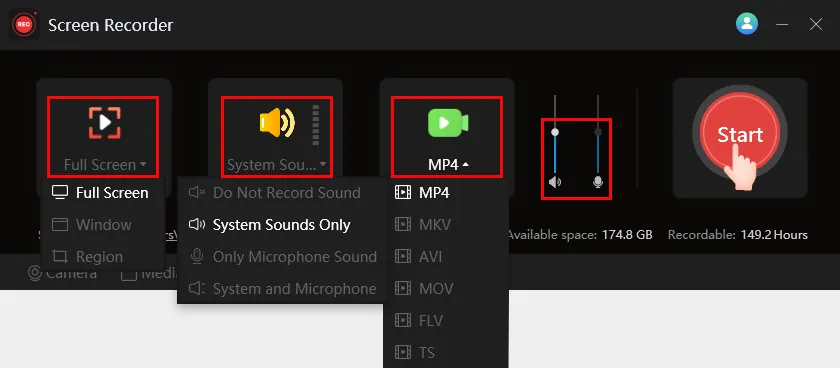
Recording your screen on Windows follows a similar process regardless of which tool you use. The key is to configure the right capture area, audio source, and performance settings before starting.
Here is a general workflow that works for almost all Windows screen recorders:
- Choose recording area (full / window / region)
- Select audio source (system / mic / both)
- Set resolution and FPS
- Start recording
- Stop and export video
Example: Recording with Fionn Screen Recorder
IV. How to record screen with system audio on Windows
Recording system audio on Windows allows you to capture internal computer sound when screen recording.
This feature is essential for:
- YouTube and online video recording
- Game capture
- Software tutorials and product demos
To record system audio on Windows:
Step 1: Enable system audio in your recorder
Make sure “System Audio” or “Desktop Sound” is selected in your recording software.
Step 2: Use headphones to avoid echo
If you are also using a microphone, wearing headphones prevents the system sound from being picked up twice.
Step 3: Adjust volume levels separately
Most screen recorders allow independent volume control for:
- System sound
- Microphone input
Lower the system volume slightly if it overpowers your voice.
Common issues and fixes:
- No system sound recorded? → Check Windows sound permissions and output device
- Audio delay? → Switch to hardware encoder (NVENC / QSV / AMF) if available
V. How to record screen and webcam
Recording your screen together with a webcam is called picture-in-picture recording. This is widely used in educational and content creation scenarios.
Webcam overlay is useful for:
- Online courses and training videos
- Presentations and webinars
- Game commentary and reaction videos
Most modern screen recorders allow you to:
Resize the webcam window
Adjust the camera size so it does not block important screen content.
Drag and reposition freely
Place the webcam in any corner or edge of the screen.
Keep webcam always on top
This ensures your face remains visible even when switching windows or apps.
Tips for better webcam recording:
- Use good lighting facing your face
- Keep webcam resolution at 720p or 1080p
- Avoid placing the webcam over important UI elements
VI. Best settings for screen recording on PC
| Scenario | FPS | Resolution | Encoder |
|---|---|---|---|
| Tutorials | 60 | 1080p | H.264 |
| Gameplay | 60~120 | 1080p/1440p | NVENC |
| Meetings | 30 | 1080p | Software |
VII. Common screen recording problems (and how to fix them)
Even with the best screen recorder, users may encounter issues such as no sound, laggy video, black screen, or poor quality. Below are the most common screen recording problems on Windows and how to fix them.
1. No audio recorded?
One of the most common issues is screen recording with no sound. This usually happens due to incorrect audio input settings.
Possible causes:
- Wrong audio device selected
- System audio not enabled
- Microphone permissions blocked
- Output device mismatch (headphones vs speakers)
How to fix:
- Open your screen recorder and check the audio source
- Make sure System Audio or Desktop Sound is enabled
- Go to Windows Settings → Sound → Input & Output devices
- Check app permissions for microphone and system sound
- Test audio using Windows Sound Mixer before recording
2. Laggy video or dropped frames?
If your screen recording looks choppy, stutters, or has delayed audio, this is usually caused by high CPU usage or incorrect recording settings. For a complete breakdown of causes and fixes, check our detailed guide: Why Is My Screen Recording Lagging? 7 Ways to Fix Dropped Frames
Common causes:
- Recording at very high FPS
- Resolution too high for your hardware
- Using software encoding instead of hardware
- Running heavy apps (games, browsers, editors)
How to fix:
- Lower FPS to 30 or 60
- Reduce resolution to 1080p
- Switch to hardware encoder:
- NVENC (NVIDIA GPU)
- QSV (Intel CPU)
- AMF (AMD GPU)
- Close unnecessary background programs
3. Black screen when recording?
A black screen during recording often occurs due to graphics driver conflicts or protected content.
Possible reasons:
- App running with administrator permissions
- GPU driver outdated
- Recording protected apps (Netflix, DRM content)
- Wrong capture mode selected
Solutions:
- Update GPU drivers
- Try window recording instead of full screen
- Disable hardware acceleration in the target app
- Avoid recording DRM-protected platforms
4. Poor video quality or blurry output?
If your recording looks blurry or pixelated, it's usually a bitrate or resolution issue.
How to improve quality:
- Increase bitrate
- Use 1080p or 1440p resolution
- Avoid scaling during export
- Use H.264 or H.265 encoder
5. Audio out of sync?
Audio delay happens when the system cannot process video frames fast enough.
Fixes:
- Use hardware encoding
- Lower FPS
- Reduce resolution
- Record to SSD instead of HDD
VIII. Final thoughts
Recording your screen on Windows doesn't require complex software. Start with a simple workflow, choose the right settings, and use a lightweight screen recorder that fits your needs.
Tools like Fionn Screen Recorder provide a balance between ease of use and professional features for both beginners and advanced users.


 Fionn
FionnCopyright © 2026 Wonderful Apps Limited.
 English