 Emily CarterAuto Clicker
Which auto clicker for PC should you choose
Choose an auto clicker for PC according to the repeated task: one click requires an interval, repeat count, and a way to stop it, while several actions require recording and playing back a sequence. Fionn Auto Clicker covers both Windows use cases: automatic mouse clicks and repeating recorded actions.
Repeating one click is not the same as looping a recording. In the first case, the program clicks in a specified location at a set interval; in the second, it replays a saved sequence of actions and can repeat it the required number of times.
Quick recommendations
- For automatic clicks and repeating recorded actions in Windows: Fionn Auto Clicker — adjustable intervals and repeat counts, hotkeys, recording, playback, and looping of a recorded sequence.
- For Windows, macOS, and Android: Auto Clicker by Playsaurus — basic clicking across several platforms; the full version states that it includes recordings and macros.
- For clicking at the current cursor or a fixed point in Windows: MurGee Auto Clicker — adjustable delay, click count, and a global hotkey.
- For a free open-source auto clicker: OP Auto Clicker — single, double, and triple clicks with configurable hotkeys.
- For precise coordinates on multiple monitors: AutoClicker (TheChrisCross) — a portable Windows 10/11 program with X/Y coordinates.
- For programmable multistep workflows: Auto Clicker (Fluffer) — recordings with dragging, scrolling, keys, and visual search.
Quick comparison
Fionn Auto Clicker
It is a practical Windows choice when you need both repeated clicking and recording followed by looped playback of actions.
The program configures the mouse button, interval, repeat count, and hotkeys. In addition to a standard mouse auto clicker, it records keyboard and mouse actions and allows you to play back, edit, or export a recording; workflows can run continuously or a specified number of times. Current position, fixed coordinates, and clicking within an area are supported.
Suitable for repeated tasks in browsers and Windows programs, as well as for users who need to record an action sequence and run it in a loop. Official page: Fionn Auto Clicker .
How to use the standard auto clicker
- For standard clicks without recording only: open Fionn Auto Clicker and select “Mouse Clicks” → “Standard Click.” Choose the mouse button, method, and click position. Set the interval and repeats, then select “Start Auto Click” or press F6.

- Once you have confirmed that the sequence works, stop standard clicking with “Stop Clicking” or F6. Before moving the pointer or changing settings, confirm that automatic clicks have stopped.

Auto Clicker by Playsaurus
Choose Auto Clicker by Playsaurus if you need basic automation on Windows, macOS, or Android, and the option to upgrade to the full version matters more than precise pricing information.
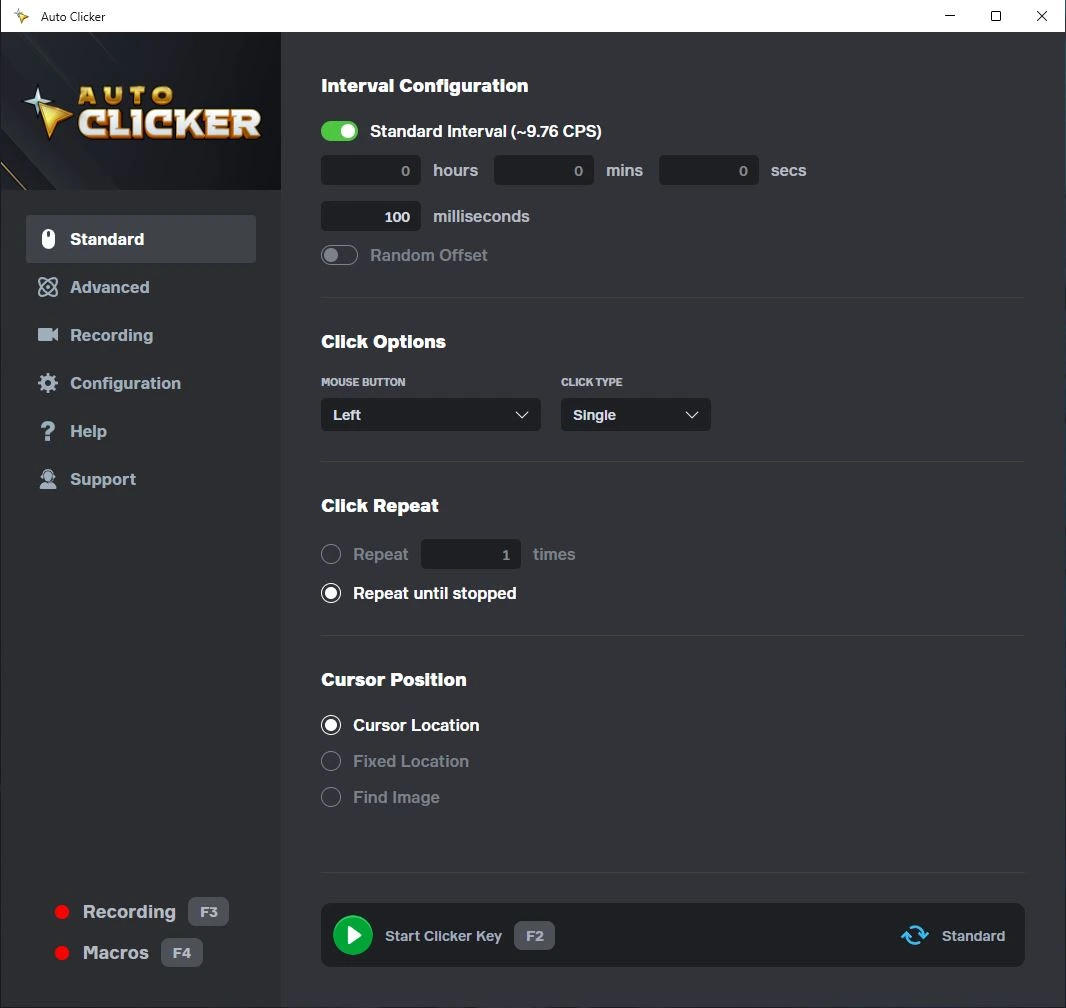
The program configures intervals, including random variation, and runs a fixed number of clicks or continues until stopped. The full version states that it includes key presses, scrolling, recordings, and macros.
Suitable for people using different desktop and mobile platforms. Visit the official download page to select a version.
MurGee Auto Clicker
Consider MurGee Auto Clicker for clicking at a fixed point or the current cursor in Windows if installation with administrator rights is acceptable.
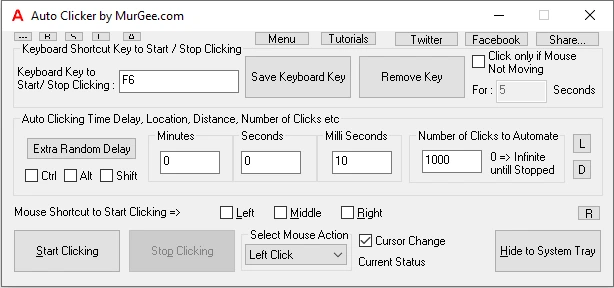
It automates the left, right, and middle mouse buttons, lets you set a delay, and supports a finite or unlimited number of clicks. A system-wide hotkey is available for starting and stopping.
Suitable for Windows users who value coordinates and a traditional auto-clicker workflow. Details are available on the official MurGee page .
OP Auto Clicker
OP Auto Clicker is an option for people who need a free open-source auto clicker that works at the current cursor or a specified position.
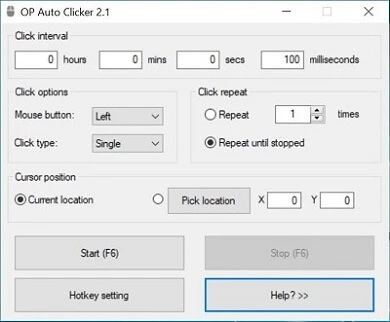
It performs single, double, and triple clicks, lets you specify a repeat count, or run without a limit. Hotkeys are configurable and work in the background.
Suitable for basic clicking on the stated platforms and for users seeking an open license. Information and downloads are available on the official OP Auto Clicker website .
AutoClicker (TheChrisCross)
AutoClicker (TheChrisCross) is a sensible choice for precise repeated clicks at X/Y coordinates across multiple monitors running Windows 10 or 11.
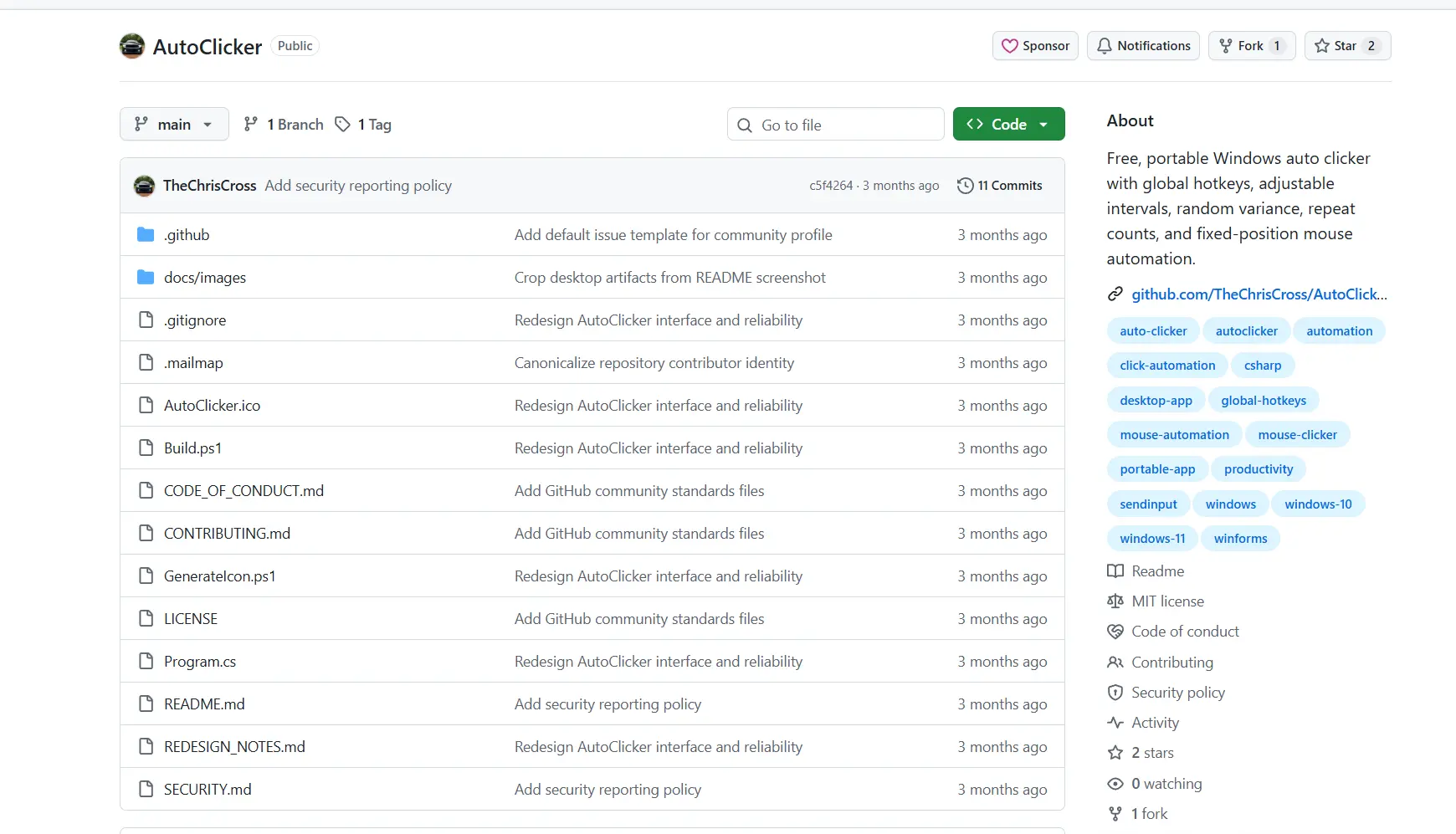
The portable program automates the left, right, or middle button at a fixed position. It offers intervals from 10 ms to 10 minutes, random variation, single and double clicks, and global F6 and F7 shortcuts.
Suitable for a stable on-screen target when precise coordinates matter. The code and description are published in the official project repository .
Auto Clicker (Fluffer)
Auto Clicker (Fluffer) is intended for Windows users who need programmable sequences with actions beyond standard clicking.
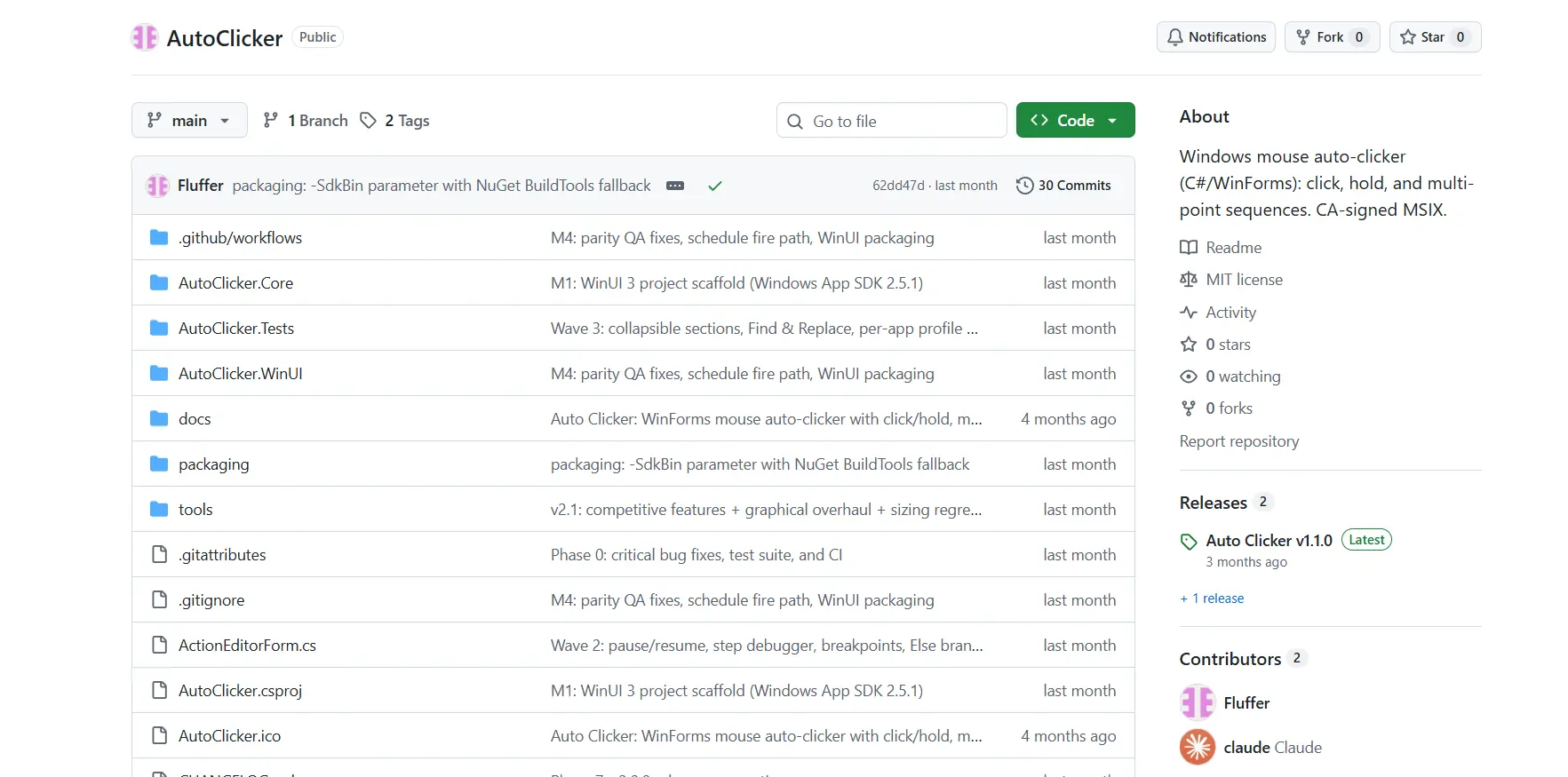
It can record and run sequences of clicks, drags, scrolling, and key presses, and can use control blocks and visual search by image or text. Current cursor, X/Y, window binding, and profiles are available.
Suitable for complex desktop automation with conditions and multiple actions. The description and source code are in the official Fluffer repository .
How we compared the programs
The comparison uses information from the official pages and repositories of the six programs. The same criteria were applied: supported operating systems, intervals and repeats, hotkeys, position handling, automation depth, and licensing.
Particular attention was given to the difference between repeating one click and replaying a recorded sequence: these are different tasks and not interchangeable capabilities.
How to choose an auto clicker for Windows
- For one click at a regular interval, choose a program with clear interval, repeat, and safe stop settings.
- For different points, keys, or scrolling, look for action recording and playback rather than only repeated-click mode.
- When precise on-screen coordinates matter, compare fixed-position and multiple-monitor support.
- When using games or services, first check the platform rules; automation may be prohibited.
- Before running continuously, perform a short test in a safe window and confirm that the stop hotkey works.
Final verdict
For Windows, consider Fionn Auto Clicker first if you need to configure repeated clicks in one application and then record, replay, and loop actions. Keep in mind the three free runs and that unlimited clicking, recording, workflows, and scheduling are part of membership.
Choose Playsaurus for stated Windows, macOS, and Android operation; TheChrisCross for precise Windows 10/11 coordinates; and Fluffer for programmable multistep workflows. MurGee or OP Auto Clicker can suit simple point clicking, subject to their platform and licensing terms.
Frequently asked questions
How does an auto clicker differ from mouse action recording?
An auto clicker repeats one configured click at a specified interval. Action recording saves a sequence of operations, such as several clicks, movements, or scrolling, so that it can be replayed in full.
Can I record mouse clicks and repeat them?
Yes. Fionn Auto Clicker supports keyboard and mouse action recording, playback, and loop configuration. Membership is required for this feature.
Can I run a recorded sequence in a loop?
Yes, Fionn Auto Clicker can run a workflow continuously or a specified number of times. Before a long loop, check the result with a short repeat and make sure the stop command is available.
How do I stop automatic clicks?
Use the assigned hotkey or the stop command in the program itself. In Fionn Auto Clicker, standard clicking can be stopped with “Stop Clicking” or F6.
Is Fionn Auto Clicker suitable for Windows 10 and 11?
Yes, Fionn Auto Clicker states support for Windows 10 and Windows 11. For a specific program or game, also consider its own rules and restrictions.
Can I use an auto clicker in games?
This depends on the rules of the particular game and service. Automation may be prohibited, and some DirectInput games do not accept software-generated input.


