 Emily CarterAuto Clicker
Introduction: Which Roblox Macro Tool to Consider
For simple repeated clicking on Windows, start with Fionn Auto Clicker or the free OP Auto Clicker. If you need a recorded keyboard-and-mouse sequence, consider Fionn Auto Clicker, Pulover's Macro Creator, Jitbit Macro Recorder, or Macro Recorder. AutoHotkey suits people who prefer writing scripts. Compatibility with the Roblox desktop client is not confirmed for any tool, and whether automation is allowed depends on the specific Roblox experience or service.
Top Picks
Choose Fionn Auto Clicker when you need configurable repeated clicks as well as recorded actions on Windows. Choose OP Auto Clicker for free position-based clicking. For script-based automation, consider AutoHotkey; for a graphical recorder with AutoHotkey export, consider Pulover's Macro Creator. Jitbit Macro Recorder adds recorded-macro logic and image search, while Macro Recorder supports Windows and Mac with visual click context.
Summary Comparison Table
Fionn Auto Clicker
For a Windows user who wants one tool for repeated clicks and recorded actions, Fionn Auto Clicker is worth considering first: it lets you configure click type, interval, repeats, and hotkeys, while internal information confirms recording, playback, and editing.
For more complex tasks, recorded actions, editing, and image, color, or text recognition are available. This is useful when a single fixed click is not enough. It is best for Windows users who are allowed to automate a specific action and need either simple repeated clicking or a saved keyboard-and-mouse sequence. Learn more at Fionn Auto Clicker .
How to Use It
- For regular clicks only, open Fionn Auto Clicker and select Mouse Clicking → Regular Click. Choose the click button, method, and position, set the interval and repeats, then start auto-clicking or press F6. This is a separate path; to record actions, start with the next step.

- To record, open the keyboard and mouse recording section, enter a recording name, choose clicks, action interval, scroll wheel, and movement, then start recording with F7.
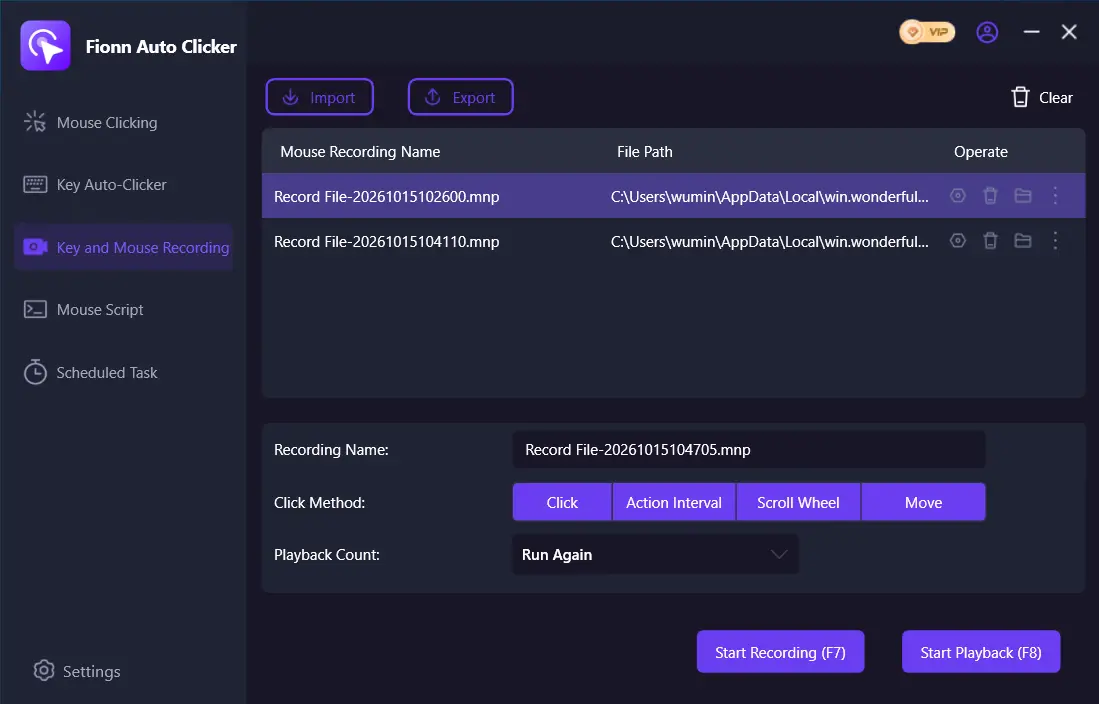
- Perform the required actions. During recording, the button changes to Stop Recording; F7 also works.
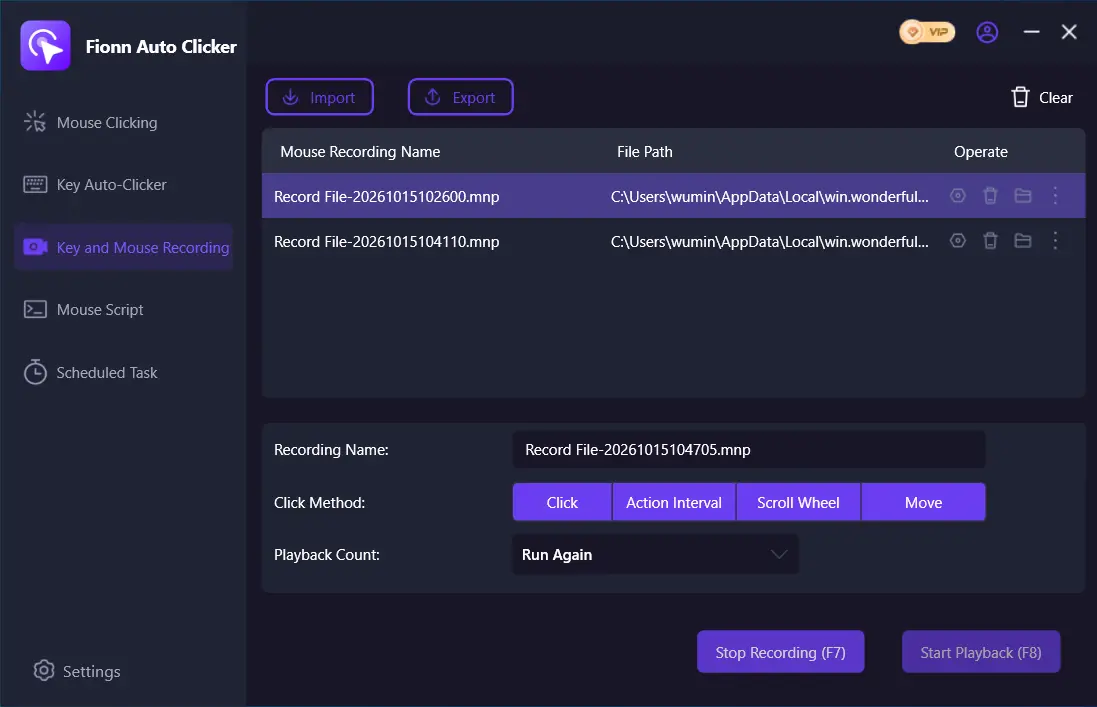
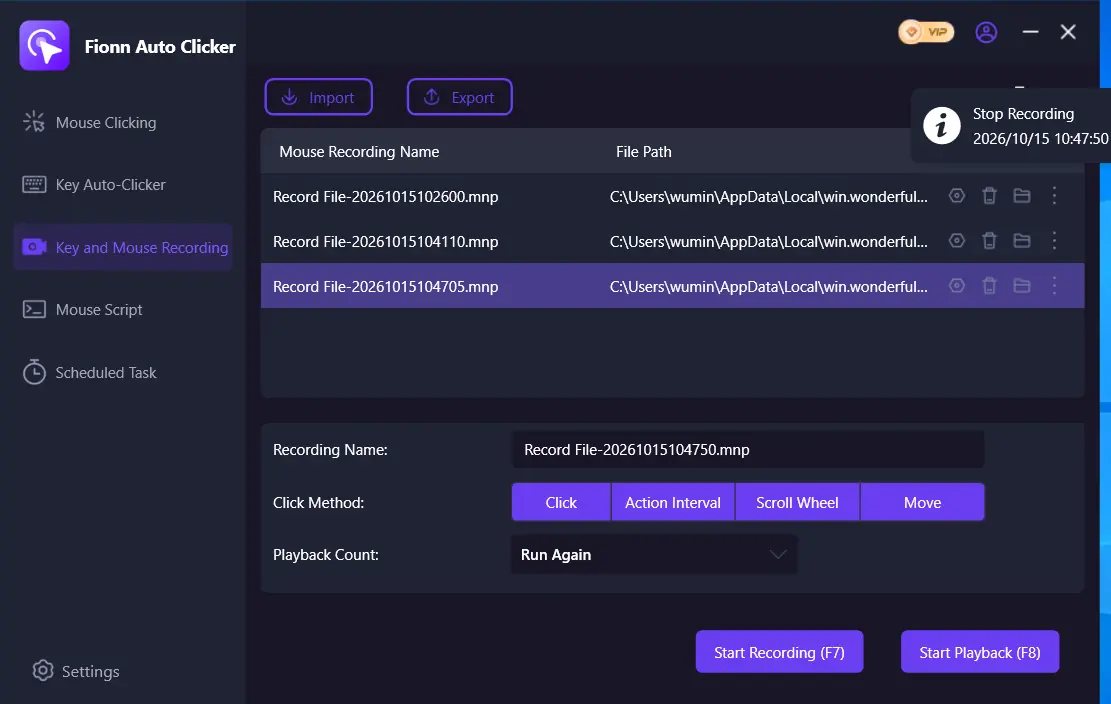
- Stop recording with the button or F7, make sure it appears in the list, and select it for playback.
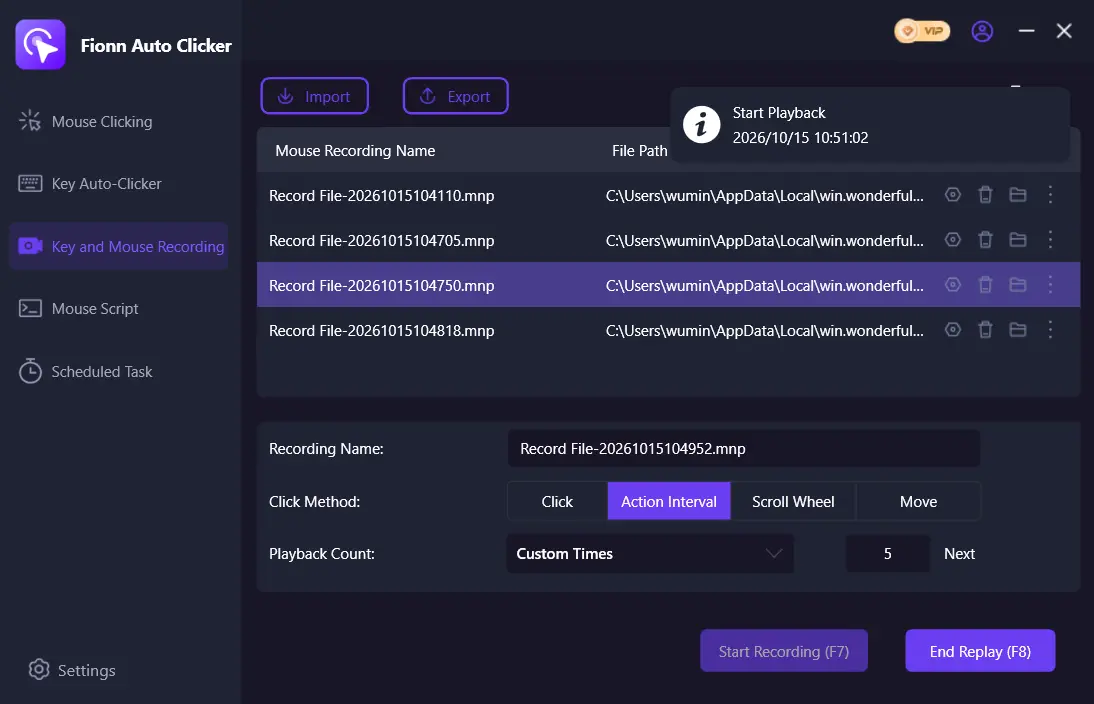
- Set the number of playbacks; for a specified amount, choose a custom number and enter the value. Start playback with F8 and stop it with the same key.
- After testing a regular click, stop it with the Stop button or F6. Before moving the pointer or changing settings, make sure auto-clicking has stopped.

OP Auto Clicker
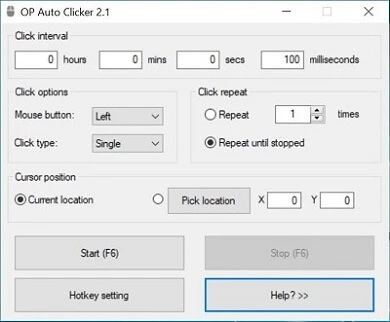
Choose OP Auto Clicker if you need a lightweight free auto clicker without confirmed macro recording. The official page confirms clicking at the current cursor or a fixed point, choosing the button and single, double, or triple clicking, plus hotkeys and a finite or infinite number of clicks. It is aimed at Windows users who need position-based clicking. Visit the official OP Auto Clicker page .
AutoHotkey
Choose AutoHotkey when you are ready to create automation with code rather than a recorder. It is a free, open-source Windows utility that uses its own scripting language and hotkeys. It is intended for Windows users who need a script to define actions. See the official AutoHotkey repository .
Pulover's Macro Creator
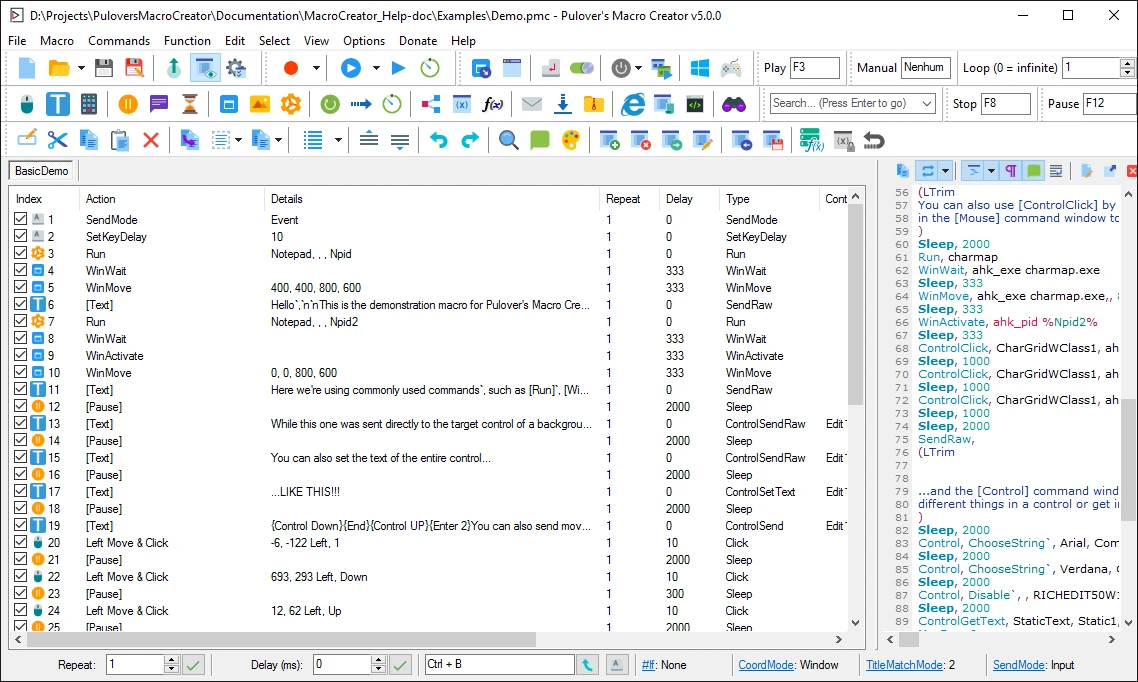
Consider Pulover's Macro Creator for graphical recording and editing with export to AutoHotkey scripts. Its built-in recorder, input capture, playback hotkeys, editable commands, variables, loops, and export are confirmed. It is an option for Windows 7–10 users who prefer a recorder to writing a script from scratch. Official information is available in the Pulover's Macro Creator repository .
Jitbit Macro Recorder
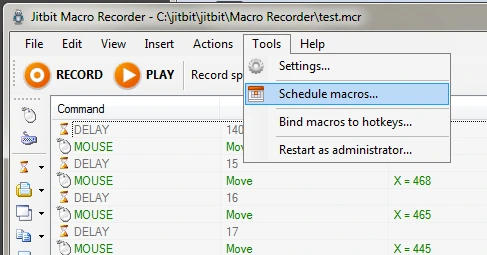
Jitbit Macro Recorder suits recorded macros that need visual editing and logic. It records, edits, and plays back keyboard and mouse activity; IF/THEN, REPEAT, image search, window-position detection, hotkeys, and C# snippets are confirmed. It is a choice for Windows users who need advanced conditions in a recorded macro. Information and licenses are listed on the official Jitbit Macro Recorder page .
Macro Recorder
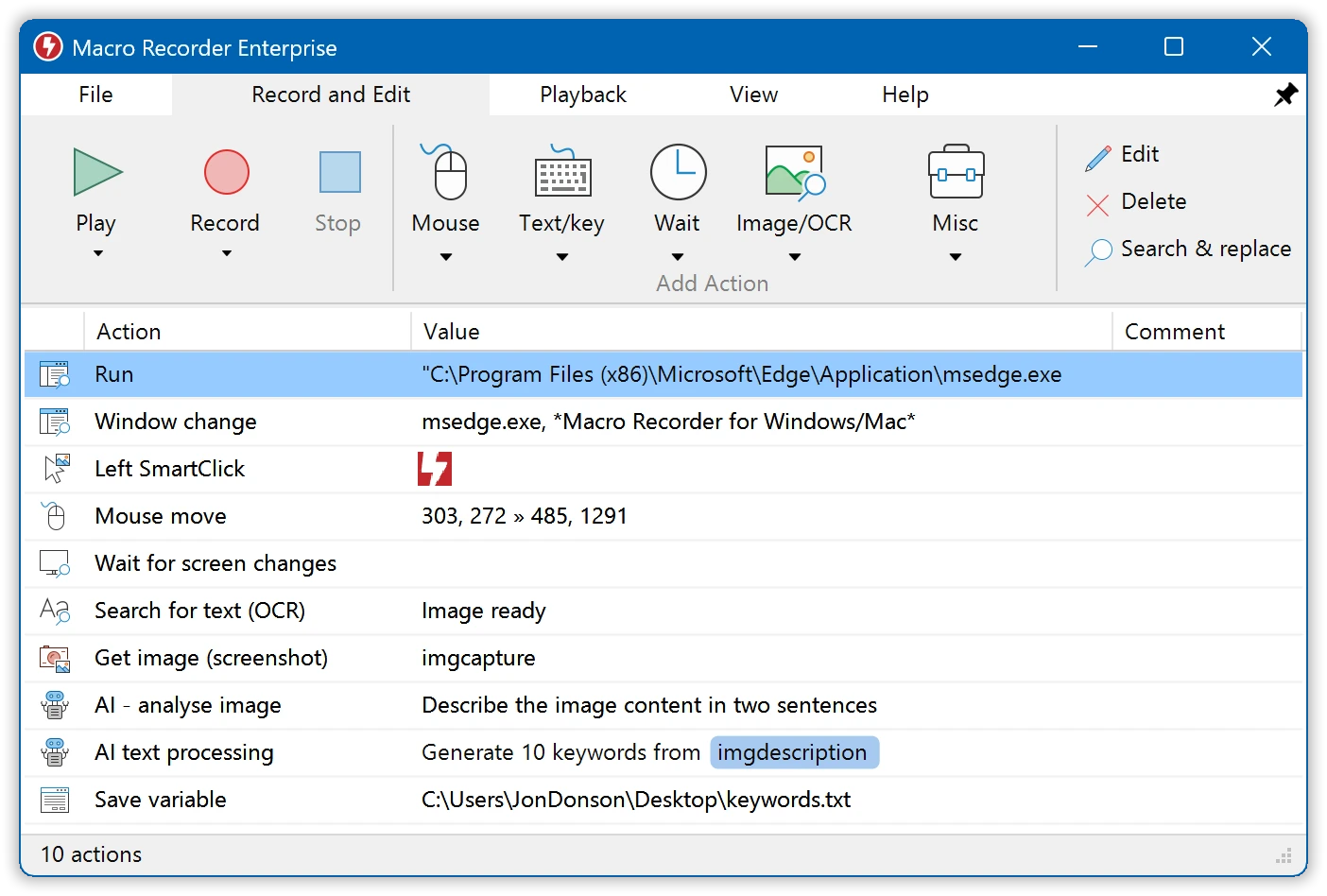
Macro Recorder is an option for Windows or Mac when visual target anchoring matters during playback. It records and plays back mouse and keyboard input, includes an editor and hotkey launch; SmartClick searches for saved visual context rather than relying only on coordinates. It suits recorded sequences without writing code when elements may move. Visit the official Macro Recorder website .
How We Compared
The comparison is based on manufacturer-stated capabilities and provided information about Fionn rather than hands-on testing. It considers operating system, automation type, price or license, repeat control, editing capabilities, and confirmed information about Roblox rules.
The main tradeoff is between simple position-based clicking, scripting, and recorded workflows with editing or visual targeting. Roblox client compatibility is not confirmed for any option.
How to Choose
If you only need clicks at a position and a free license, choose OP Auto Clicker. If you need recording, playback, and a path to condition recognition on Windows, consider Fionn Auto Clicker, taking membership into account for advanced features. Choose AutoHotkey for open scripting; choose Pulover's Macro Creator for a graphical recorder with export. If you need IF/THEN or image search, weigh Jitbit against its price; for Windows and Mac with visual context, choose Macro Recorder.
Final Verdict
For a Roblox macro on Windows, consider Fionn Auto Clicker first if you need both configurable clicks and recorded actions; it offers three free tries, while advanced capabilities are included with membership. Choose OP Auto Clicker for free position-based clicking. AutoHotkey suits code, Pulover's suits free graphical recording, Jitbit suits paid logic and image search, and Macro Recorder suits Windows/Mac and visual context. In every case, use automation only where the rules of the specific experience allow it.
Frequently Asked Questions
Is a Roblox macro allowed?
No general approval for all Roblox experiences is confirmed here. The rules of the specific game or service determine whether automation is allowed; check them before running it.
Which option is suitable only for repeated clicks?
OP Auto Clicker confirms clicks at the current cursor or a fixed position, a finite or infinite number of clicks, and background hotkeys. Fionn Auto Clicker also supports intervals, repeats, and hotkeys on Windows.
Can I record keyboard and mouse actions?
Recording and playback are confirmed for Fionn Auto Clicker, Pulover's Macro Creator, Jitbit Macro Recorder, and Macro Recorder. They are not confirmed for OP Auto Clicker; AutoHotkey is described in the provided information as a scripting tool.
Is there a free option for complex macros?
AutoHotkey is free and script-based. Pulover's Macro Creator is also free and provides a recorder, editable commands, loops, and export to AutoHotkey. Their compatibility with the Roblox desktop client is not stated.
How do I stop recording or playback in Fionn Auto Clicker?
During recording, use F7 to stop. For playback, use F8 to start and stop; regular auto-clicking stops with the Stop button or F6.


