 Emily CarterAuto Clicker
Introduction
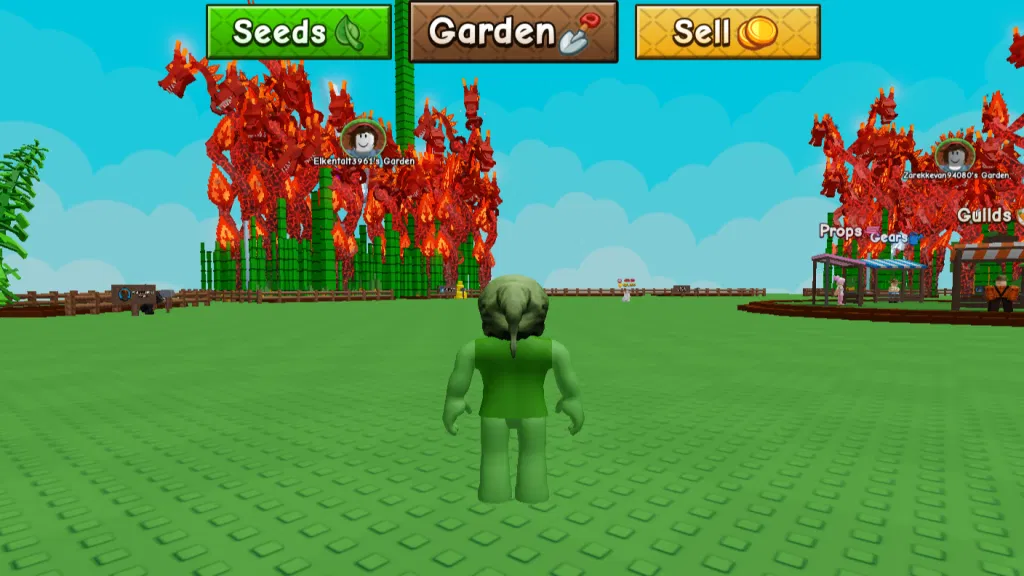
Fionn Auto Clicker provides a way to record and replay keyboard and mouse actions. This guide shows how to save a short recording, replay it, and observe its behavior in a Grow a Garden 2 session you control.
The supplied workflow confirms the Fionn recording controls, but it does not establish that Grow a Garden 2 receives recorded input, permits automation, or currently has any particular rule. Treat the in-game check as a test you perform yourself.
Before you record
Open Fionn Auto Clicker and decide on a short sequence you can watch from start to finish. Recording can capture Click, Action Interval, Scroll Wheel, and Move actions. A short recording makes it easier to confirm what was saved and what happens during replay.
Do not assume that a saved recording will create a particular in-game result. The game-side behavior must be checked in your own current session.
Record and replay a macro with Fionn Auto Clicker
Use this single recording path to capture keyboard and mouse actions, save them, and replay the saved sequence. Fionn is relevant here because its supplied workflow includes selectable capture types, saved recordings, playback counts, and F7/F8 controls.
Configure the recording
- Open
Key and Mouse Recording
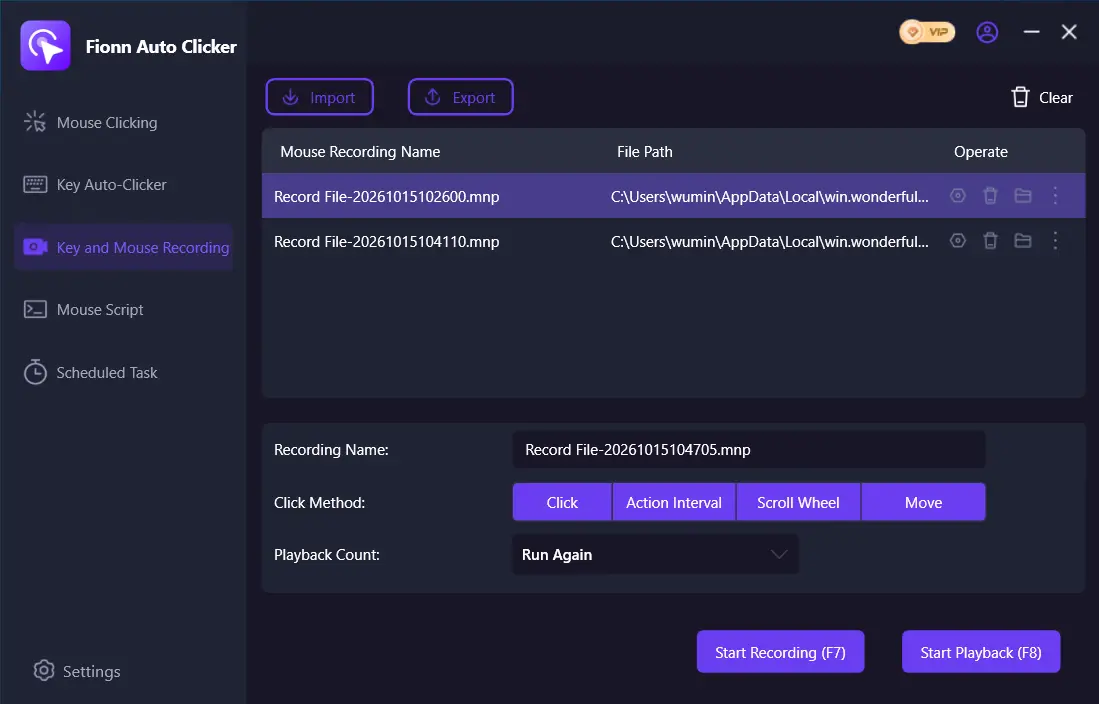
. Enter a Recording Name, select the action types to capture—Click, Action Interval, Scroll Wheel, and Move—then select
Start Recording (F7)
.
Record and save actions
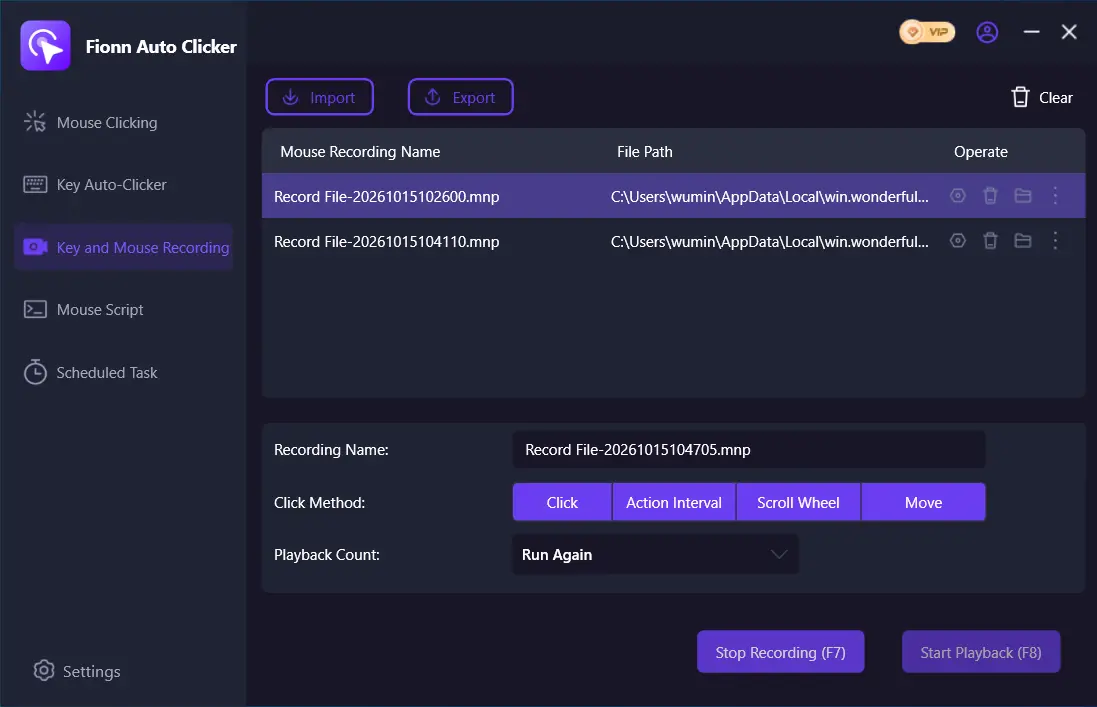
- Perform the keyboard and mouse actions you want to capture. The active control is
Stop Recording (F7)
.
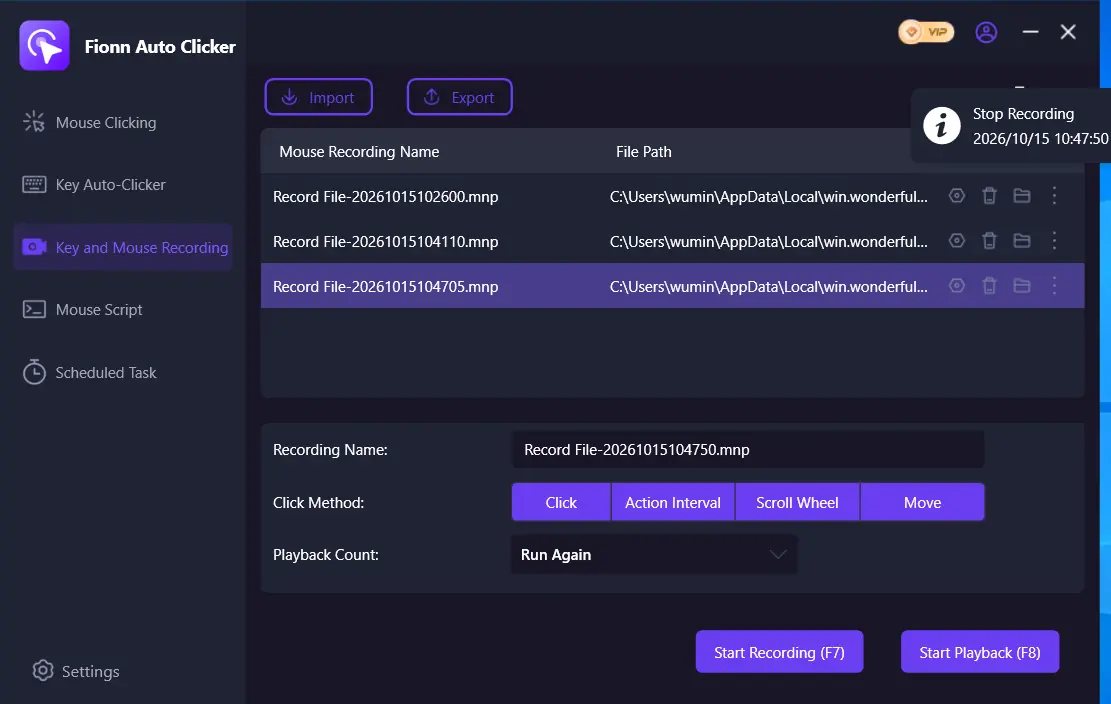
- Select
Stop Recording
or press
F7
. Confirm that the new item appears in the recording list.
Choose playback and replay
- Select the saved recording and set
Playback Count
. For a fixed number of replays, choose
Custom Times
and enter the number. Select
Start Playback (F8)
to begin. Select
End Replay (F8)
to end playback.
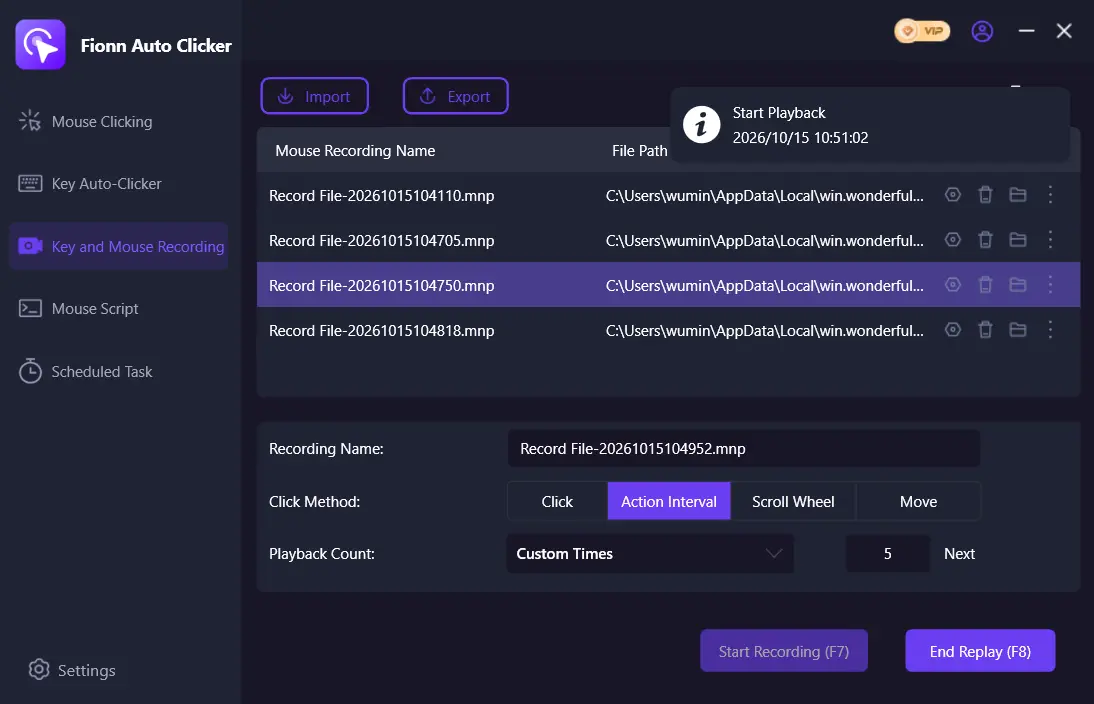
Use Custom Times only when you want a fixed repeat count. F8 also ends an active replay.
Test the recording in your session
After the recording appears in Fionn’s list, it has been saved locally. Starting playback shows that Fionn began replaying the selected recording. Those are intermediate checks; neither proves that Grow a Garden 2 received the inputs.
- Check the current applicable experience and Roblox rules before attempting automation.
- In a session you control, run a short, low-risk replay while watching the game window.
- Observe whether the intended inputs behave as expected in that session, and use F8 to end replay when needed.
- If the captured sequence needs changing, create a new recording and repeat the test.
This test establishes only the behavior you observe in your current session. It does not establish universal compatibility, permission to automate, or that a macro is safe to leave unattended.
Troubleshooting recording and playback
The recording is not in the list
Stop the active recording with Stop Recording or F7, then check the recording list. The recording must appear there before it can be selected for replay.
The wrong sequence replays
Select the intended saved recording and review the Playback Count. If the captured actions themselves need changing, re-record the sequence.
Replay repeats an unexpected number of times
Review Playback Count. Choose Custom Times only when you need a specified fixed number of replays.
Fionn replays actions but the game shows no response
That result does not by itself prove incompatibility. Record the exact active-window, focus, device-label, and client-version context for review; the supplied material does not document a game-specific input-routing fix.
Conclusion
To use this recording workflow, configure Key and Mouse Recording, capture and save a sequence, select the saved item, choose its Playback Count, and start replay with Fionn Auto Clicker. Then perform a short observed test in your own session. Verify current applicable rules before using automation, and rely only on the behavior you actually observe.
FAQ
Is recording and playback the same as normal auto-clicking?
No. This workflow records and replays keyboard and mouse actions through Key and Mouse Recording; it does not use the separate Normal Click path.
What do F7 and F8 do?
F7 starts recording and stops it while recording is active. F8 starts playback and ends replay while playback is active.
Do I always need to use Custom Times?
No. Use Custom Times only when you want a fixed number of replays. Otherwise, choose the Playback Count appropriate to the replay you intend to observe.
How do I change the recorded actions?
Create a new recording with the revised sequence, stop it, confirm it appears in the list, select it, and test its replay.
Does this confirm that Grow a Garden 2 allows macros?
No. The supplied evidence does not confirm current experience rules, automation permission, or game compatibility. Check the current applicable rules before using automation.


