 Emily CarterAuto Clicker
Which keyboard auto clicker should you choose
If you need a keyboard auto clicker for Windows without writing code, start with Fionn Auto Clicker: it records and replays mouse and keyboard actions. AutoHotkey is suitable for customizable code-based workflows on Windows. Linux users running X11 should consider AutoKey, while Mac owners should consider Keyboard Maestro. This comparison is based on stated capabilities and official materials, not hands-on testing.
Best options by task
- For Windows and recording a ready-made sequence: Fionn Auto Clicker — combines standard clicking with recording and replaying keyboard and mouse actions.
- For Windows scripts: AutoHotkey — a free project with a scripting language, hotkeys, remapping, and macros.
- For Linux and X11: AutoKey — uses phrases, abbreviations, hotkeys, and Python scripts for keyboard and mouse input.
- For macOS: Keyboard Maestro — lets you create or record macros and trigger them with keyboard shortcuts and other triggers.
Quick comparison table
Fionn Auto Clicker
It is a practical first choice for a Windows user who needs to configure clicks first and then, when needed, record repetitive keyboard and mouse work. The software supports recording, replaying, editing, and exporting these actions; you can also configure standard clicks by button, position, interval, and repeat count. It is suitable for Windows workflows where a simple auto clicker is not enough and a saved sequence must be replayed. Learn more at Fionn Auto Clicker .
How to use it
- For standard auto-clicking only, without recording: open Fionn Auto Clicker and select the mouse clicking section, then Standard Click. Specify the mouse button, click method, and click position, set the interval and repeats, then start auto-clicking with F6. This is a separate feature; for recording, go directly to step 2.

- For recording and replay, open the keyboard and mouse recording section. Enter a recording name, choose whether to capture clicks, action intervals, scroll-wheel activity, and movements, then start recording with F7. Step 1 is not required.
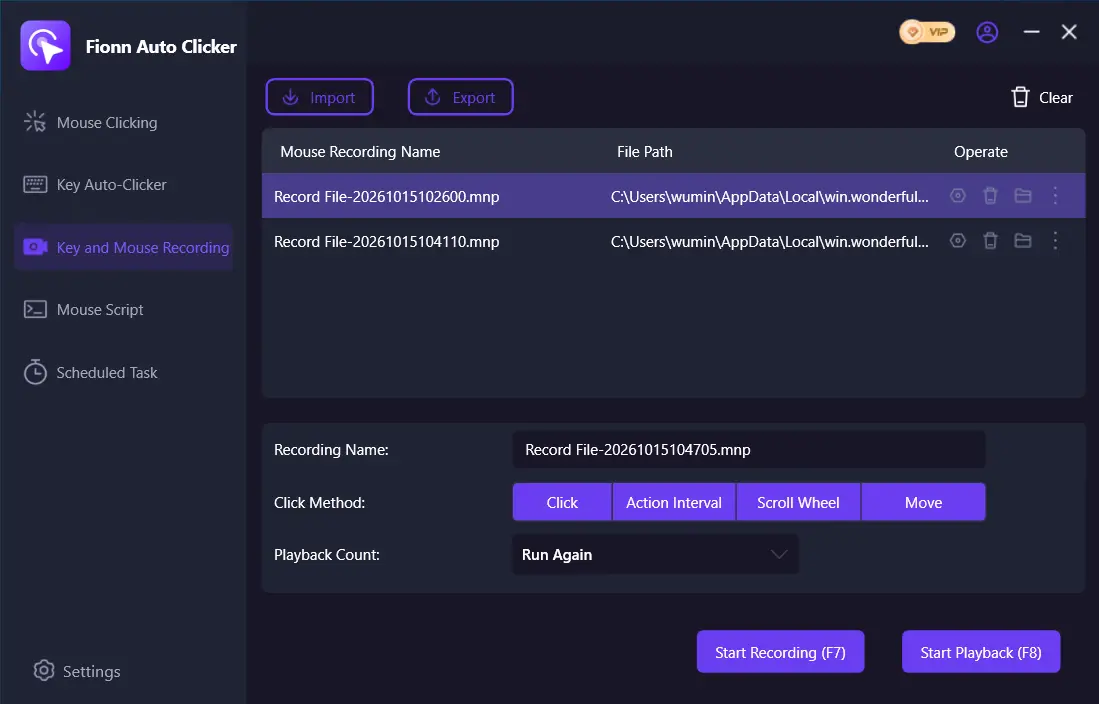
- Perform the actions you want to record. While recording, the button changes to Stop Recording, and F7 also works.
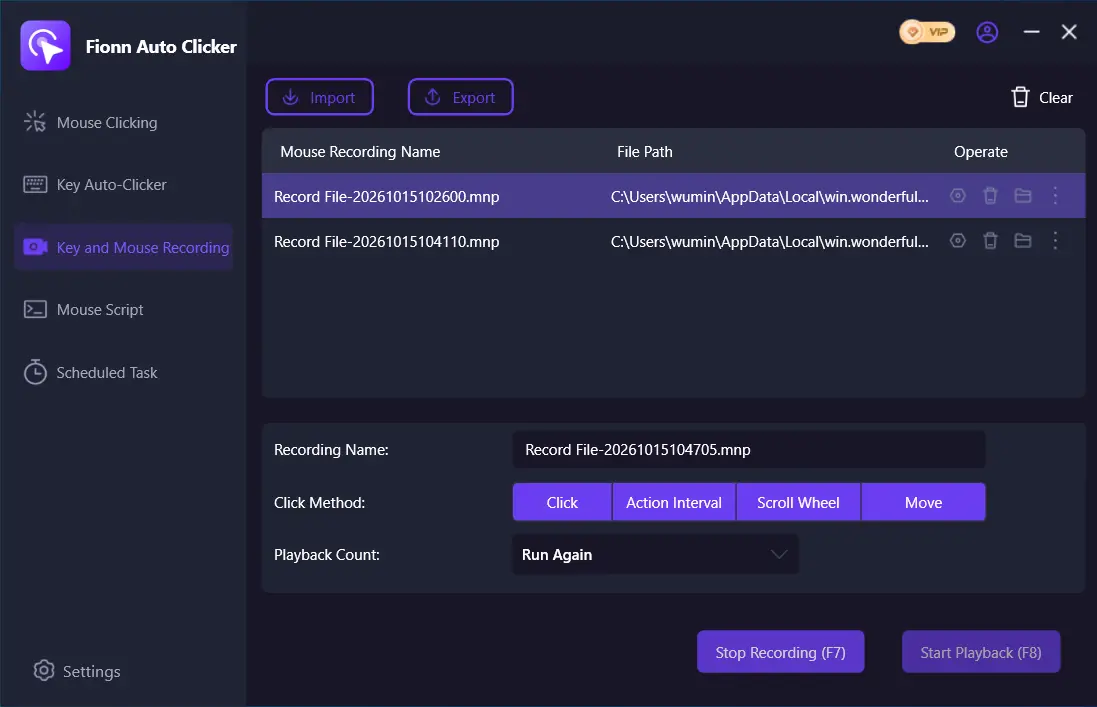
- Select Stop Recording or press F7. Confirm that the new recording appears in the list, then select it for replay.
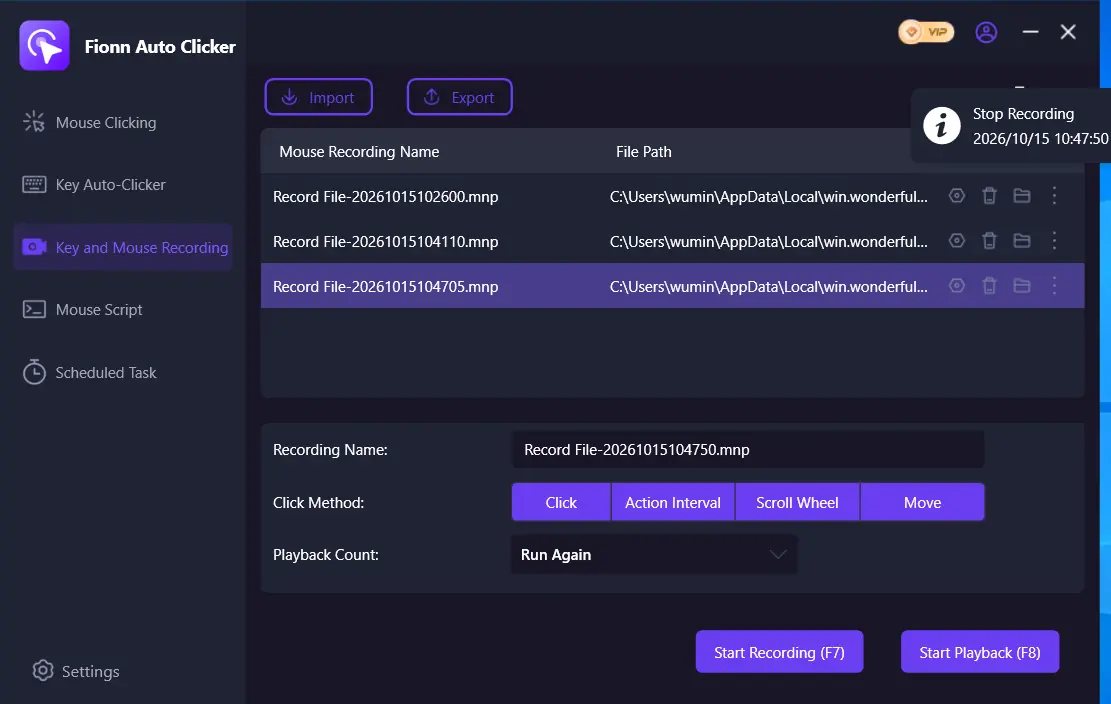
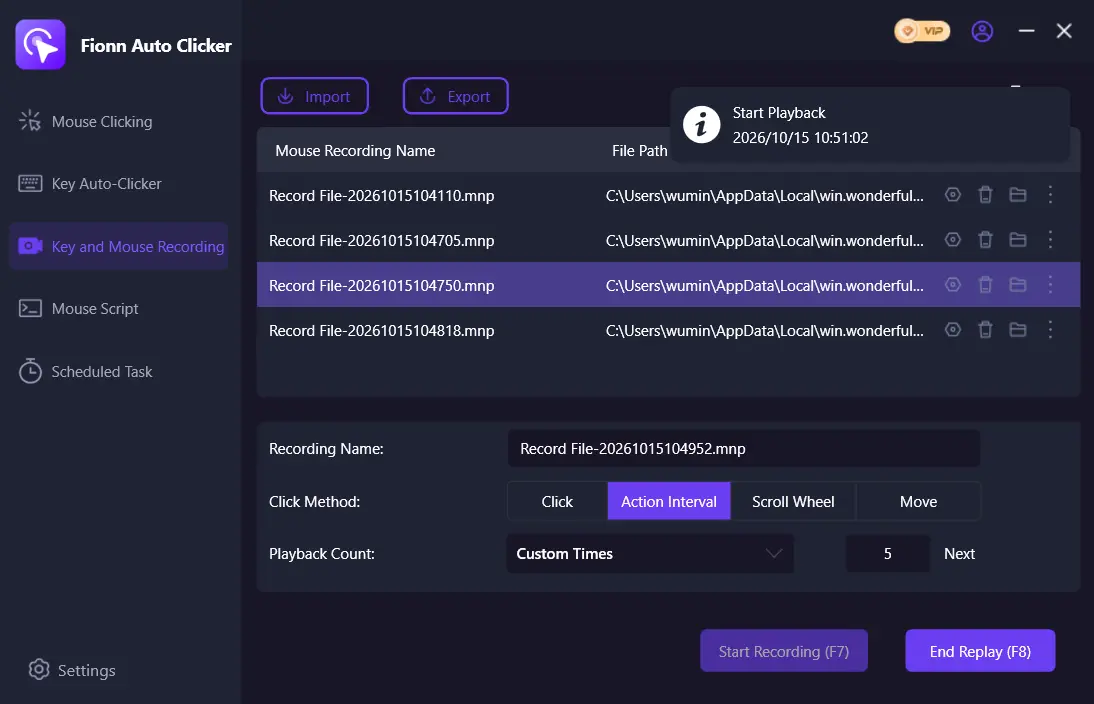
- Set the repeat count if needed. For an exact amount, select Custom Count and enter a value; start replay with F8. To stop playback, use F8.
- After checking standard clicking, stop it with the Stop button or F6. Before moving the pointer or changing settings, make sure automatic clicks have stopped.

AutoHotkey
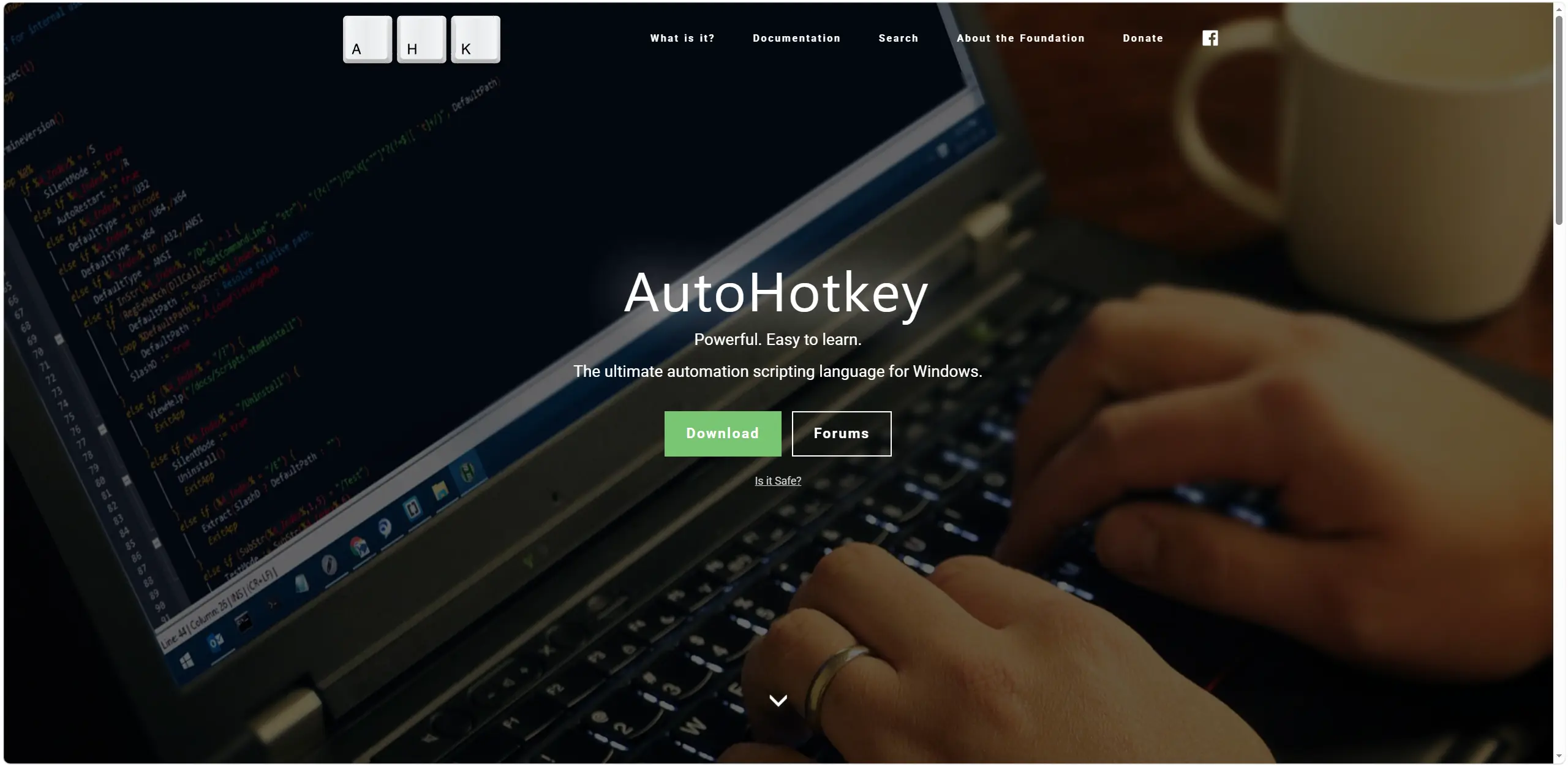
Choose AutoHotkey if you are willing to describe automation in scripts on Windows and want to control keys, buttons, auto-clicking, and macros. It lets you define mouse and keyboard hotkeys, remap keys and buttons, and create auto-clickers and macros. It is an option for people who need scripting flexibility rather than recording a ready-made sequence. Descriptions of the language and its capabilities are available on the official AutoHotkey website .
AutoKey
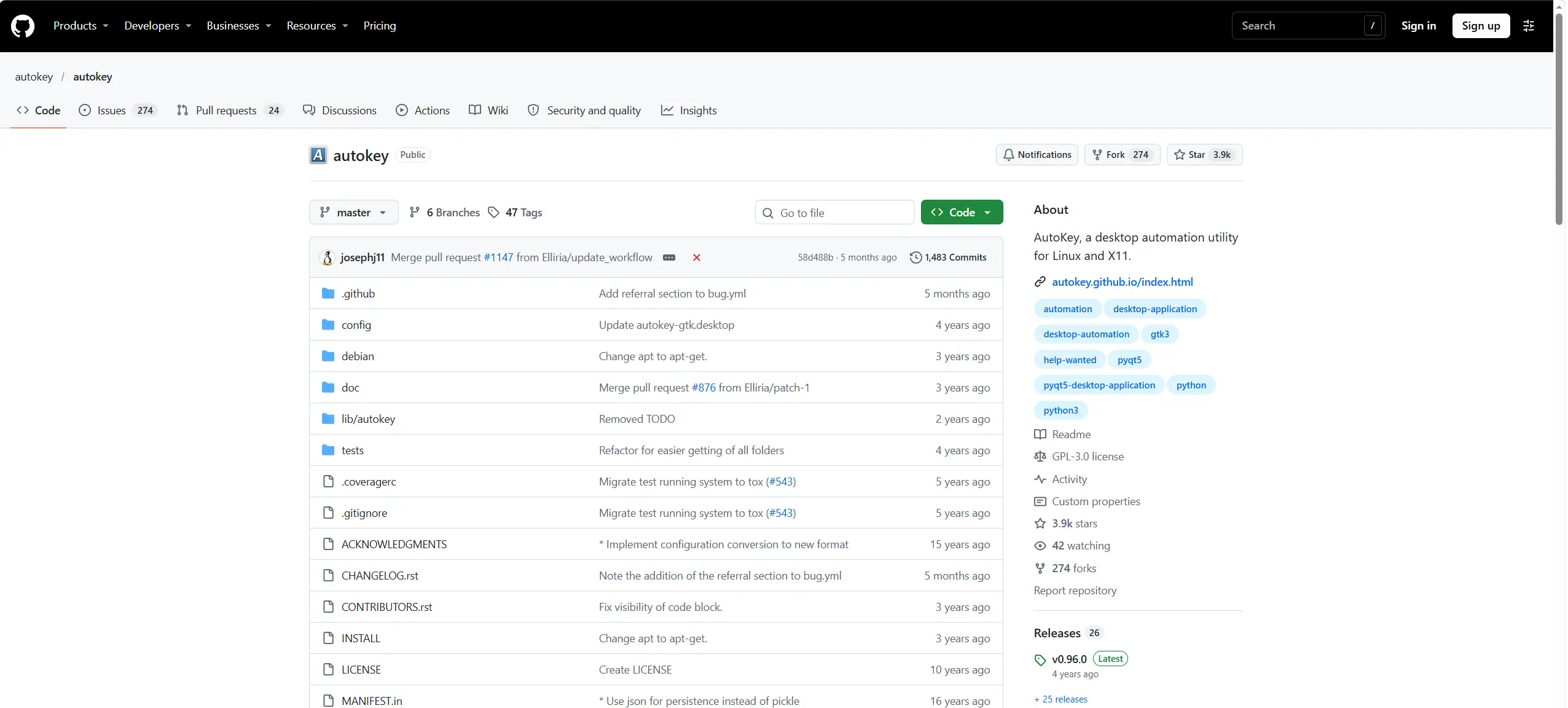
Choose AutoKey for Linux with X11 when automation needs to send input to different applications through Python scripts, phrases, abbreviations, or hotkeys. Scripts can send keyboard and mouse input, while phrases, scripts, and abbreviations are used across multiple applications. It is a solution for a Linux/X11 user who prefers a scripting approach. Get started at the official AutoKey website .
Keyboard Maestro
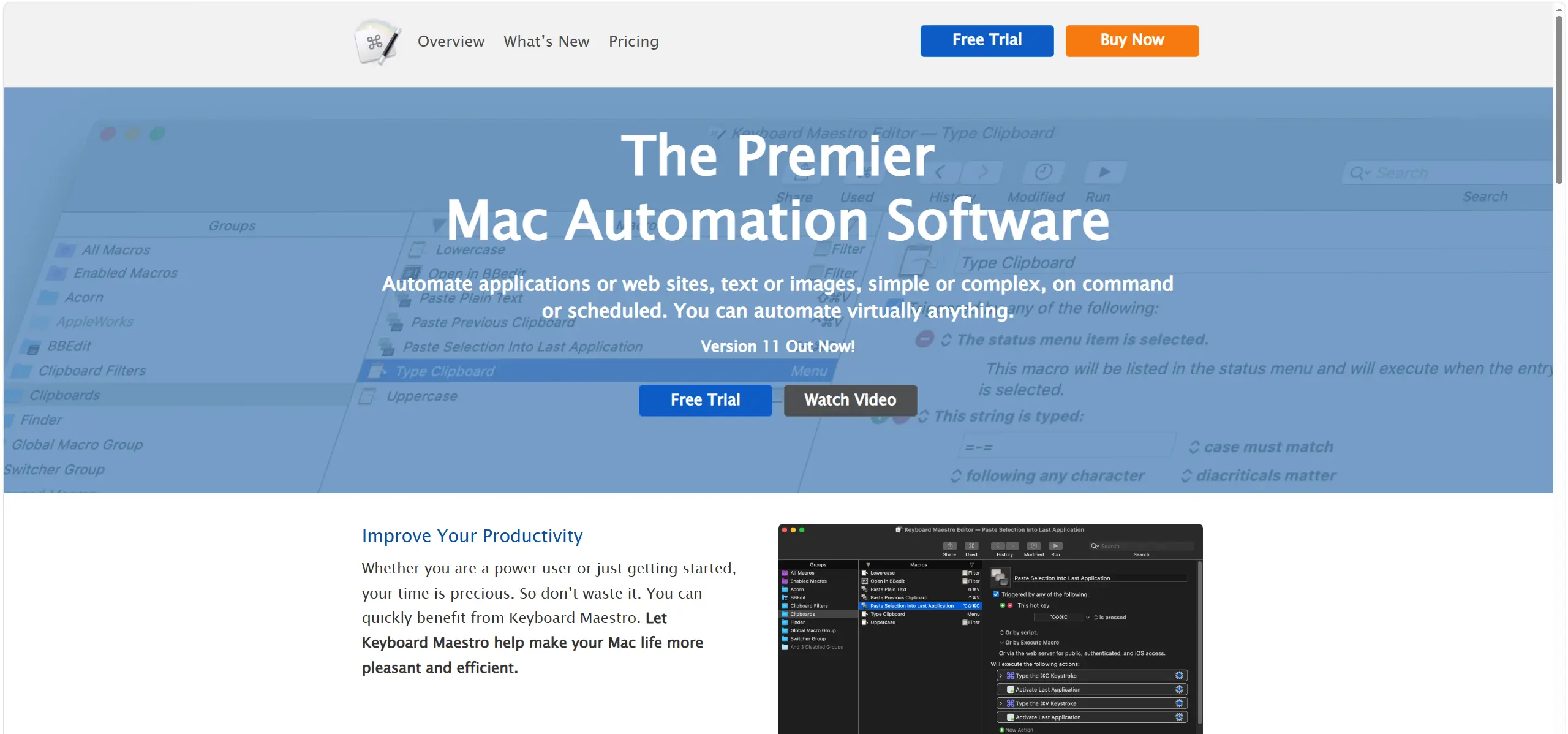
For macOS, start with Keyboard Maestro if you want to create or record macros and trigger them at the right moment. It lets you create and record custom macro shortcuts and combine built-in actions, conditions, and loops. It is designed for Mac users who need recordable or customizable macros with keyboard and other triggers. Terms and purchasing details are described on the official Keyboard Maestro page .
How we compared the software
All four options are compared using the same criteria: supported operating system, keyboard and mouse automation, licensing model, material limitations, setup method, and hotkeys. The main decision is determined not by the software name, but by the platform and approach: recording actions or writing scripts.
How to choose software
First, identify your operating system. On Windows, choose Fionn Auto Clicker for recording and replay without writing a script, or AutoHotkey for text-based scripts. On Linux, check whether you use X11: with Wayland, AutoKey will not be the right choice. On macOS, you need Keyboard Maestro and a compatible system version. Then check the licensing terms: Fionn Auto Clicker's advanced features require membership, AutoHotkey and AutoKey are free software, and Keyboard Maestro requires a license after the trial period.
Final selection
For Windows, consider Fionn Auto Clicker first if your task is to combine auto-clicking with recording and replaying keyboard and mouse actions; remember its three free tries and the membership requirement for advanced features. Choose AutoHotkey for fully script-based Windows automation. AutoKey is intended for Linux/X11, while Keyboard Maestro is for macOS 10.13 High Sierra and later if you are prepared to purchase a license after the trial period.
Frequently asked questions
Can Fionn Auto Clicker record keyboard and mouse actions?
Yes. The software can record, replay, edit, and export mouse and keyboard actions. To record, open the appropriate section and start recording with F7; recording is among the features unlocked by membership.
Which option is free for Windows?
AutoHotkey is free and open source under GNU GPLv2. Fionn Auto Clicker provides three free tries and a membership plan.
Will AutoKey work on Wayland?
No. The project states that, as an X11 application, AutoKey does not function correctly when Wayland is used instead of Xorg.
Does Keyboard Maestro require a subscription?
No. Version 11 is listed as a one-time US$36 purchase with no subscription, but a license is required to continue after the trial period.


