 Emily CarterAuto Clicker
Introduction
For a scheduled auto clicker on Windows, start with Fionn Auto Clicker if you need scheduled tasks alongside basic clicks and recorded keyboard-and-mouse routines. Choose Infinite Autoclicker instead when macOS or Linux X11 support matters. Osenpa Auto Clicker fits supervised, active-desktop routines, while Auto Clicker is the more programmable Windows option for multi-step profiles.
Top Picks
- Fionn Auto Clicker: A practical first choice for Windows 10/11 users who want scheduled tasks, repeat clicking, and recorded routines in one tool.
- Infinite Autoclicker: The relevant alternative for Windows, macOS 12+, or Linux X11 users who want free, MIT-licensed scheduled macros.
- Osenpa Auto Clicker: Suits visible, supervised Windows automation that needs image, color, or number checks.
- Auto Clicker: Fits Windows workflows that need control flow, visual lookups, and varied action sequences.
Quick Comparison Table for a Scheduled Auto Clicker
Fionn Auto Clicker
For Windows 10/11 schedules that may grow from repeat clicks into recorded routines, Fionn Auto Clicker is the first tool to consider: it supports configurable click type, interval, repetitions, and hotkeys, plus documented recording/playback and scheduled tasks. It is suitable for fixed desktop routines where you want to save a keyboard-and-mouse sequence rather than recreate it manually. It is best for Windows users who need simple repeated clicks or scheduled recorded playback. Visit Fionn Auto Clicker for its official details.
How to use
- Normal auto-clicking only, without recording: open Fionn Auto Clicker and select Mouse Clicking > Normal Click. Choose the mouse button, click method, and click position. Set the click interval and repetition options, then select Start Auto-Click (F6).

- After confirming the click routine works, stop Normal Click by selecting Stop Clicking or pressing F6. Confirm that clicking has stopped before moving the pointer or changing settings.

Osenpa Auto Clicker
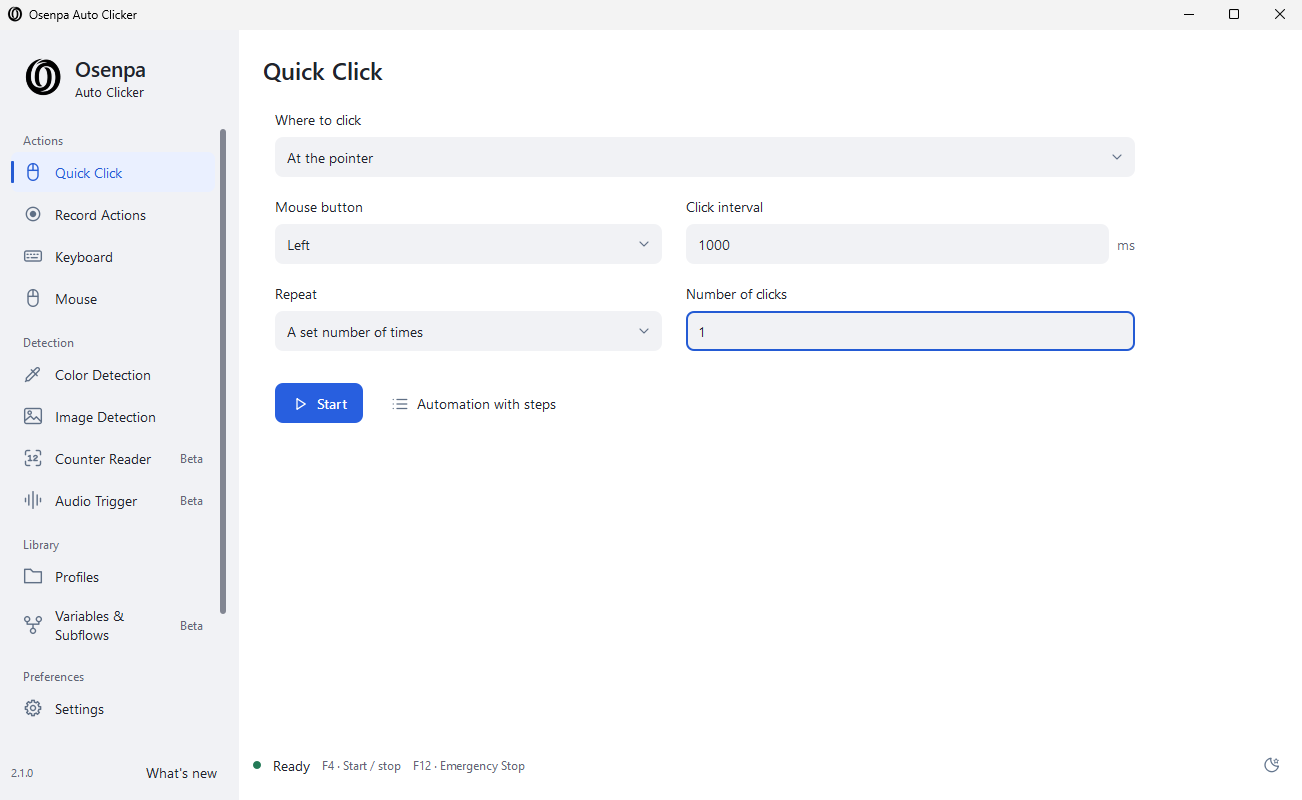
Choose Osenpa Auto Clicker for a visible Windows macro that can record and edit mouse and keyboard actions, then use image, color, or number checks to decide when an action runs. It is best for users who can supervise an active desktop and need screen-based conditions. See the official Osenpa Auto Clicker page .
Infinite Autoclicker
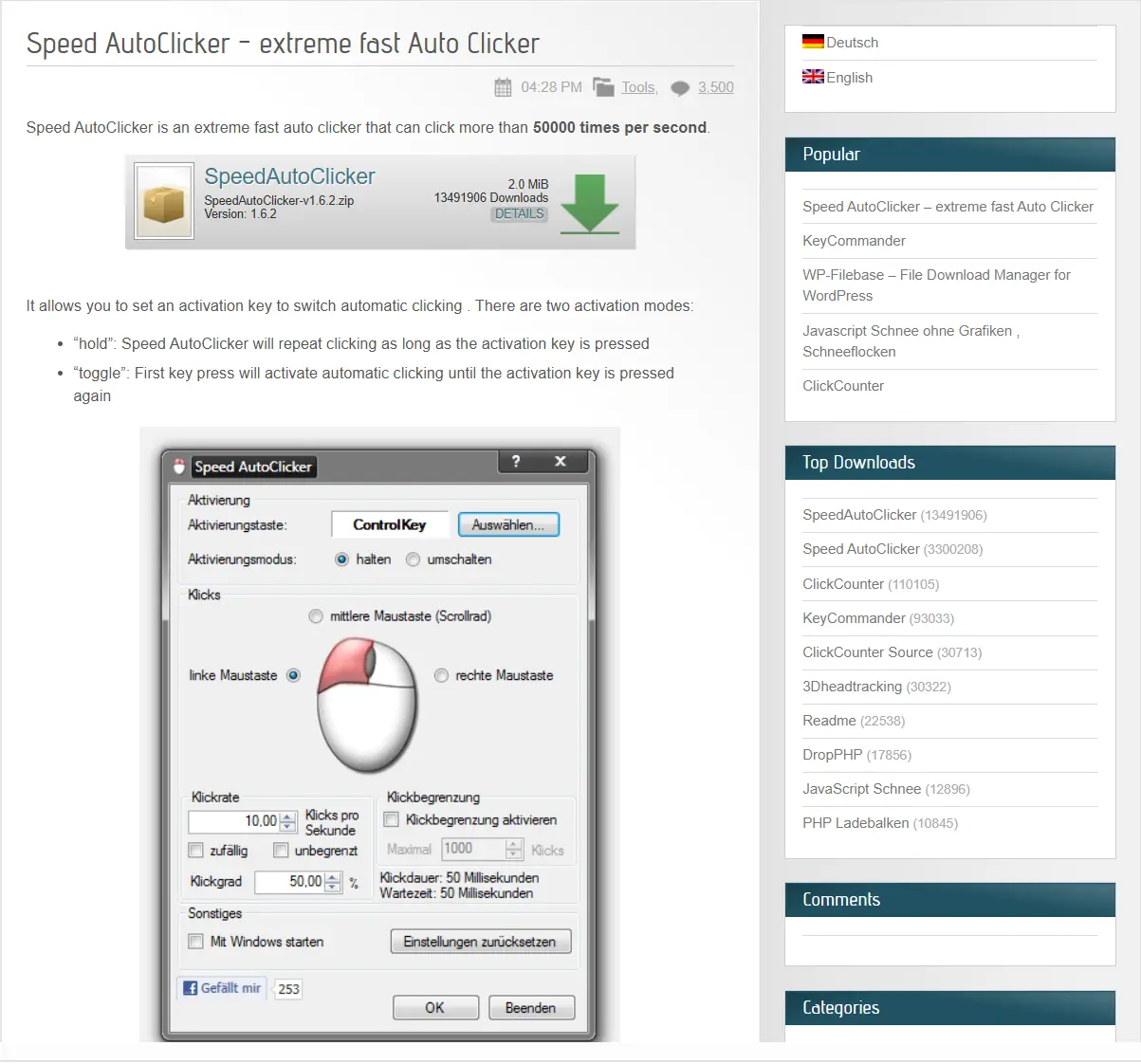
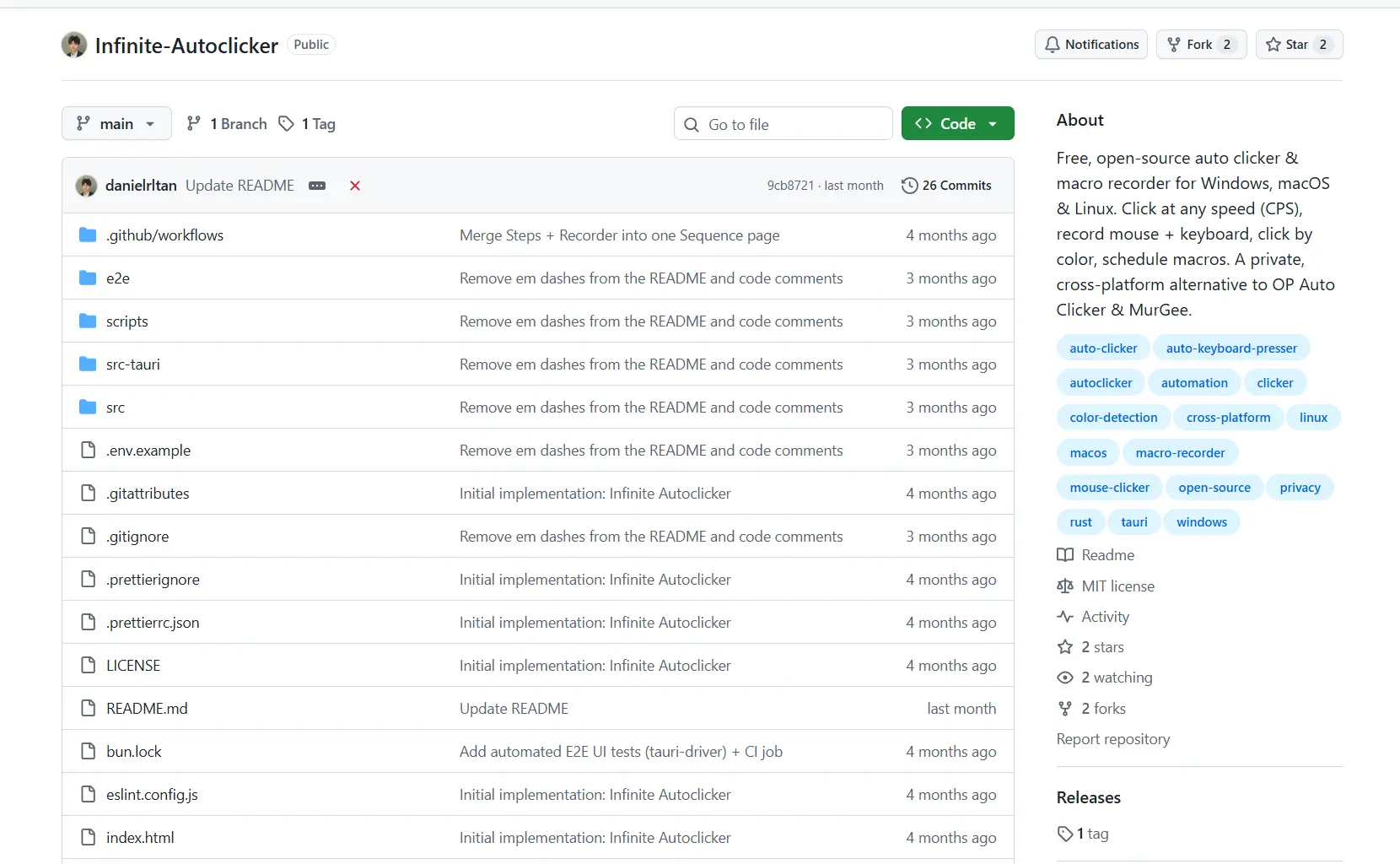
Infinite Autoclicker is the clearest cross-platform choice because it offers clicks, mouse-and-keyboard recording/replay, color targeting, and scheduled macros on Windows, macOS, and Linux X11. It is best for people who need the same scheduled macro concept across supported desktop systems. Review the official Infinite Autoclicker repository .
Auto Clicker
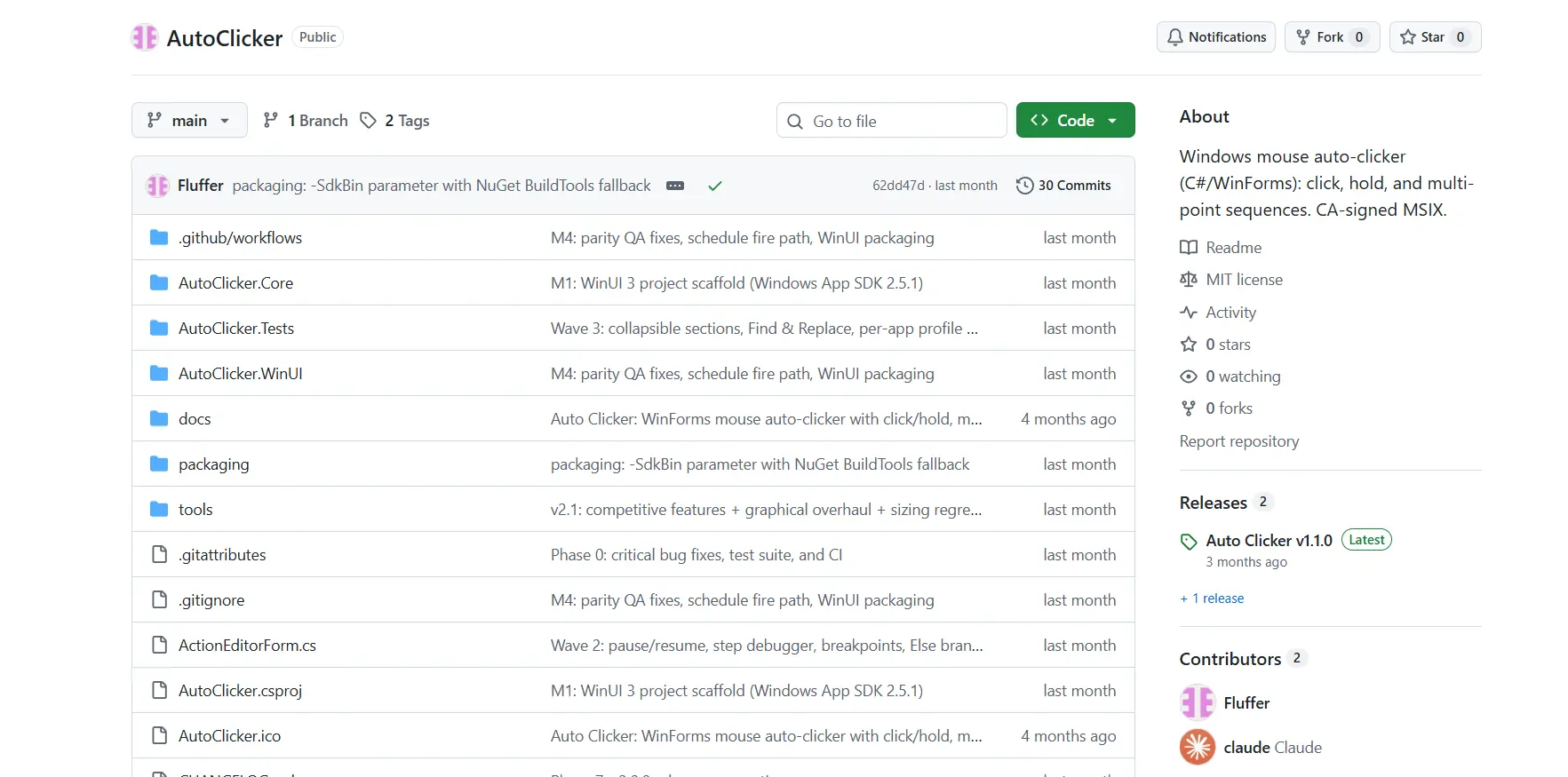
Auto Clicker is the Windows-focused option for constructing richer profiles: its sequences can combine clicks, drags, scrolling, keys, text, waits, control flow, visual lookups, and OCR text targeting. It is best for Windows users who need programmable multi-step desktop workflows rather than a simple repeated click. Consult the official Auto Clicker repository .
How We Compared
We compared the supplied tools on the same decision points: supported operating systems, whether schedules require an open app, click and macro capabilities, licensing, and documented limits or stop controls. The comparison relies on supplied official product information and documented publisher facts, not hands-on testing.
How to Choose
Before scheduling any routine, confirm that automation is permitted by the app, game, or service you plan to use.
Final Verdict
Consider Fionn Auto Clicker first for a Windows 10/11 scheduled auto clicker when you need repeat clicks now and may need recorded or scheduled desktop routines later; its plan includes three free trials and a membership model. Choose Infinite Autoclicker for supported macOS or Linux X11 systems and a free MIT-licensed option. For Windows-only work, select Osenpa when an open, supervised desktop and screen checks are acceptable, or Auto Clicker when you need detailed control flow and visual targeting.
Frequently Asked Questions
Can a scheduled auto clicker run while the application is closed?
For Osenpa Auto Clicker, Infinite Autoclicker, and Auto Clicker, the supplied information says the app must remain open. For Fionn Auto Clicker, whether it must remain running is not verified.
Which option works on macOS?
Infinite Autoclicker supports macOS 12 and later. Its automation features require Accessibility and Input Monitoring permissions.
Which tools include a stop control?
Osenpa reserves F12 for Emergency Stop. Infinite Autoclicker documents F12 and a screen-corner stop action. Auto Clicker documents an Esc panic-stop, and the Fionn normal-click workflow uses F6 to start and stop clicking.
Can these tools automate games?
Use automation only when the game allows it. Auto Clicker specifically notes that DirectInput games receive only real input, so its background methods are not a solution for that type of game.


