 Emily CarterAuto Clicker
A Genshin auto clicker can be configured for two different tasks: simply repeating one click, or recording a sequence of mouse and keyboard actions for later playback. For the first task, a standard click with an interval and repeat count is enough; the second requires recording and replaying a saved sequence. Begin with a short test outside the game. Configuring a tool does not itself mean automation is permitted in Genshin Impact or guarantee account safety.
Check the game rules first
Before configuring and starting an auto clicker, review the current rules for the specific game or service. If the rules do not permit automation or their meaning is unclear, do not use it in the game.
- Open the current Genshin Impact rules and make sure your chosen automation method is allowed.
This is also a required condition in the Fionn Auto Clicker documentation.
Choose the right mode
These are two independent modes: you do not need to enable standard clicks before recording. If the window position, interface, or response timing changes, test the saved sequence again. Having a recording does not confirm compatibility with Genshin Impact or override the game rules.
Two automation modes in Fionn Auto Clicker
This approach is suitable for one repeated click without action recording. Fionn Auto Clicker supports Windows 10 and Windows 11, and its standard clicks are a separate feature: you do not need to record and replay actions for this task.
First, outside the game, physically click a safe test target and make sure it responds to normal mouse input.
Then determine the exact location of the future click or target key, and make sure the cursor lands in the intended area.
Scenario 1: simply repeat one click
- Open Fionn Auto Clicker and select “Mouse Clicks” → “Standard Click.” Choose the mouse button, click method, and position. Set the interval and repeat settings, then select “Start Auto Click” or press
F6. For the first check, set a small, finite number of repeats. Compare the visible result of this short run with the result of physically clicking the same test target.
- After confirming the sequence works, stop standard clicks with the “Stop Clicking” button or
F6. Before moving the cursor or changing settings, make sure the automatic clicks have stopped.
For standard clicks, you can set a repeat count or continuous mode. To verify the position, use a short finite run: a successful configuration means the test target shows the same result as a manual click and clicks stop after you stop the run.
Fionn Auto Clicker is suitable for readers who need to quickly configure repeated clicking with a choice of button, position, interval, and repeats. Complete a local test outside the game first; only then decide whether to use it in the game according to its rules.
Scenario 2: record a complex sequence and replay it in a loop
Choose this approach if one repeated click is not enough and the order of several actions, cursor movements, keyboard input, or pauses matters. Recording lets you repeat the entire segment instead of manually configuring each run. Recording availability and advanced automation depend on Fionn Auto Clicker membership terms.
- Open the “Keyboard and Mouse Recording” section. Enter a recording name and select the actions to capture: “Click,” “Action Interval,” “Scroll Wheel,” and “Movement.” Select “Start Recording” or press F7. Standard click mode is not required.
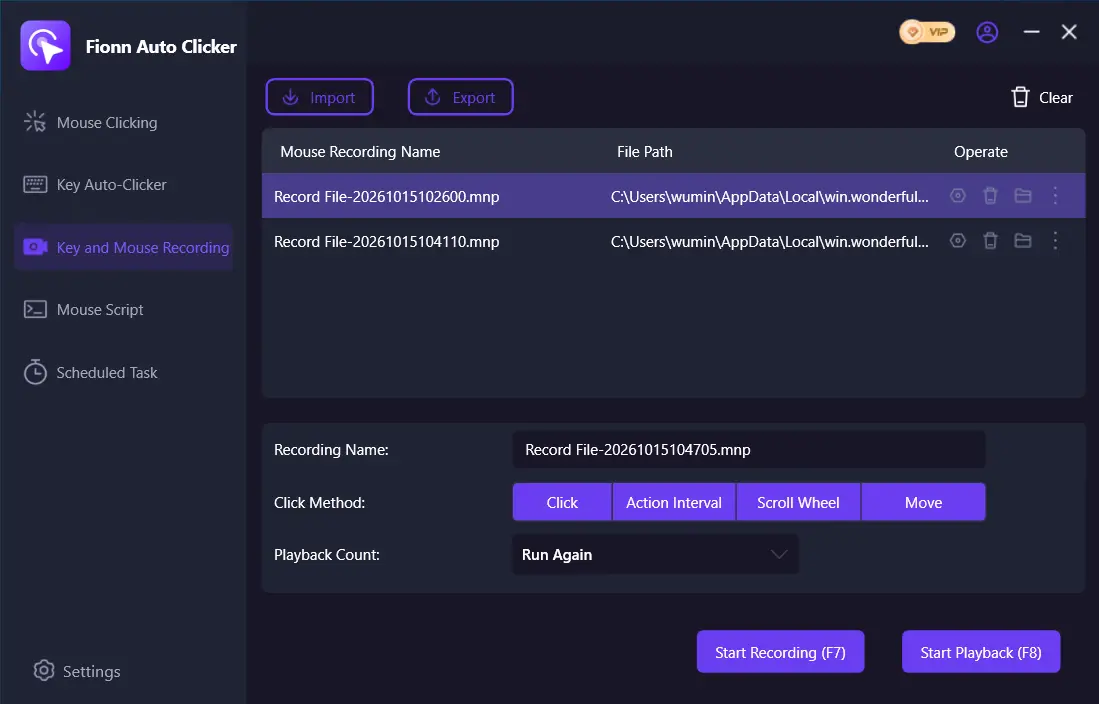
- Perform the required sequence in the correct order: movements, clicks, key presses, and necessary pauses. During recording, the button changes to “Stop Recording” (F7). Record a short segment that can be tested separately.
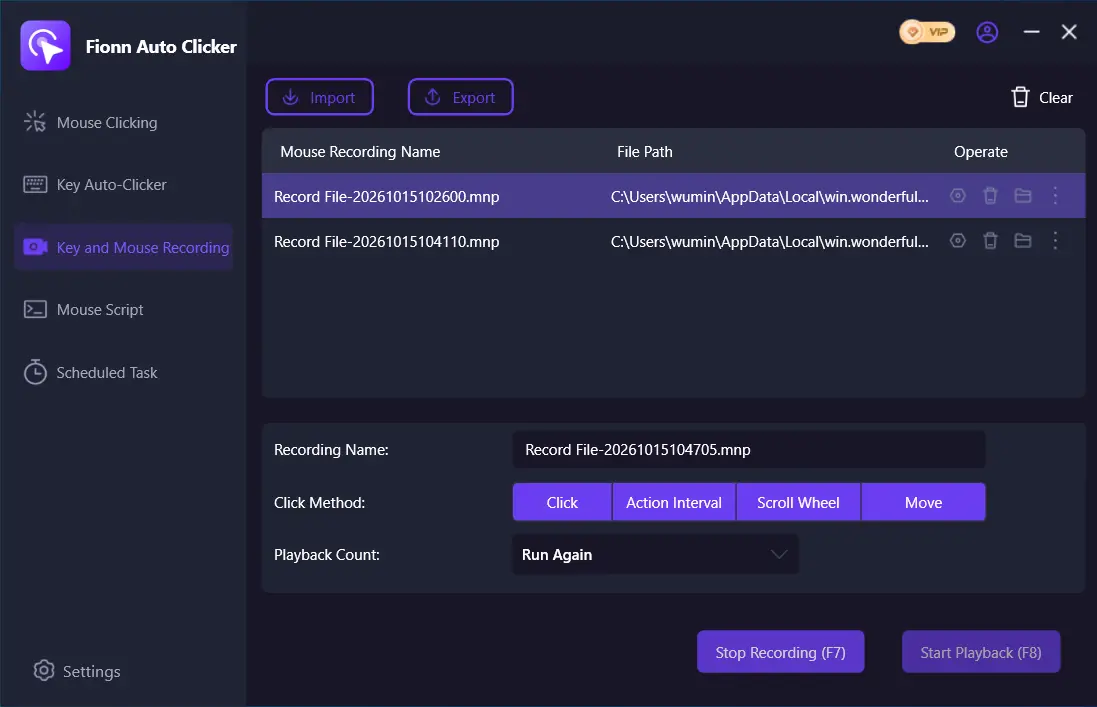
- Select “Stop Recording” or press F7. Confirm that the recording appears in the list, then select it for playback. Return the test window and cursor to their initial state before testing.
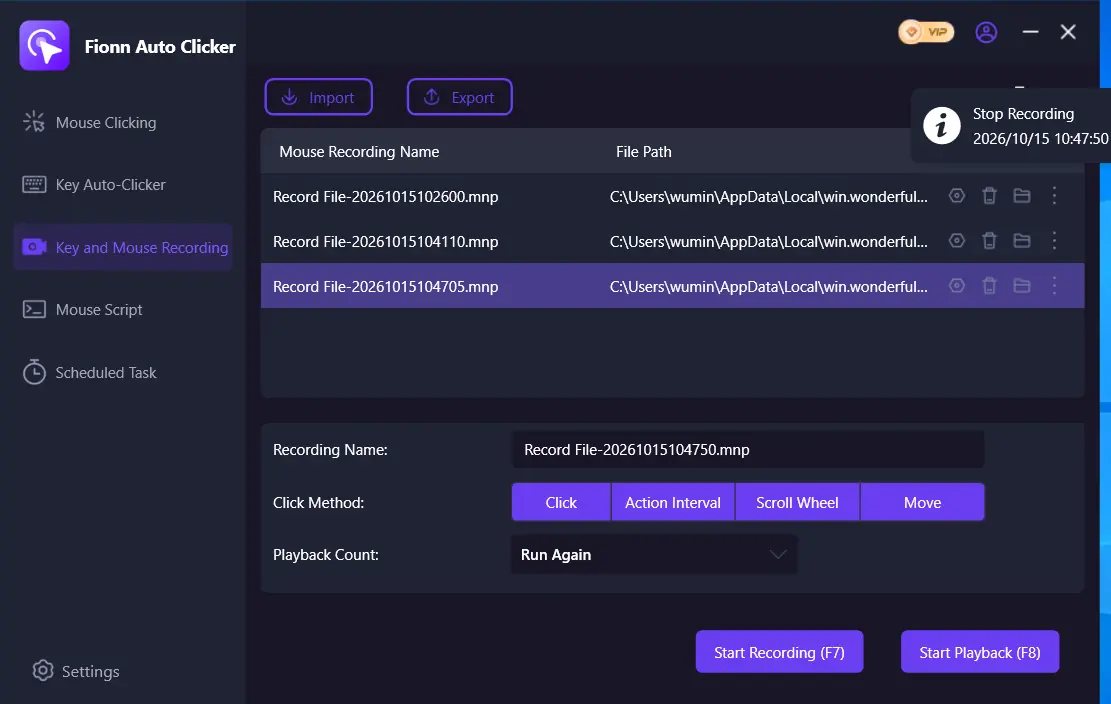
- For “Number of Playbacks,” choose “A Specified Number of Times” and first enter 1. Select “Start Playback” or press F8. If one pass performs the required actions in the correct locations and order, set the required finite number of repeats to replay the entire recording in a loop. During playback, select “End Playback” or press F8 to stop it.
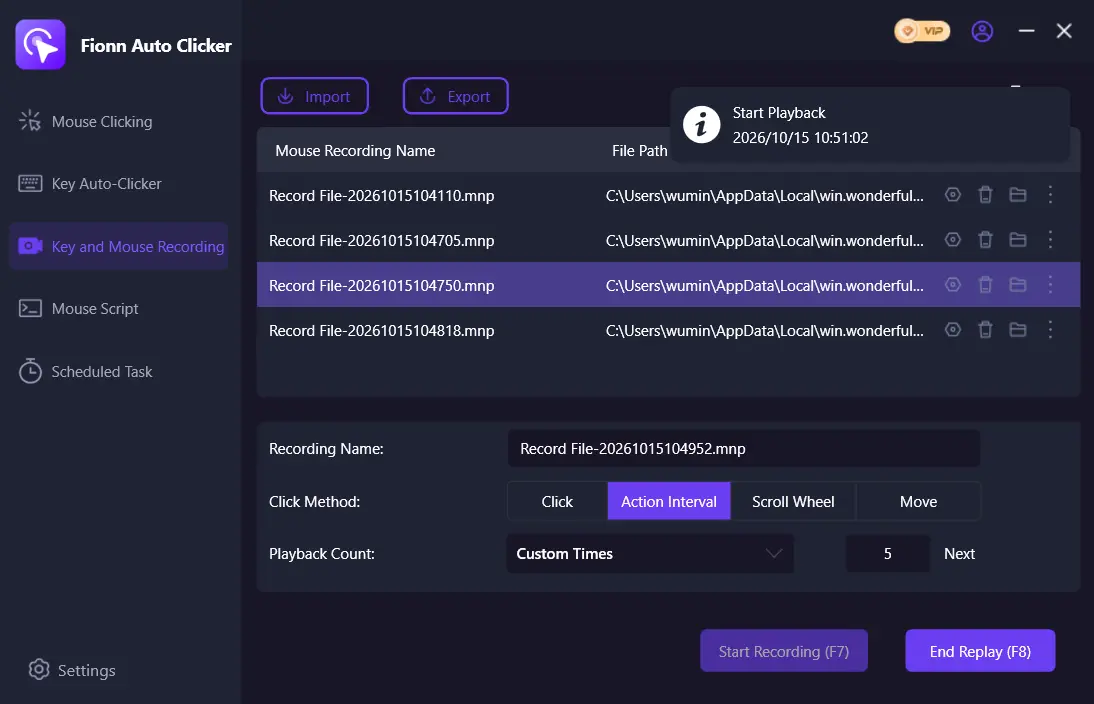
Test the full cycle: first perform the actions manually, then compare them with one playback, and then test several repeats. Before every repeat, the initial state must be suitable for the same recording. If actions shift, the window changes position, or the interface does not respond in time, stop playback and adjust or record the sequence again. Stopping must end further actions, not merely change the program status.
When you need an independent portable option
AutoClicker (TheChrisCross) is a free portable option for Windows 10 and Windows 11. It also lets you choose the button, interval, repeat count, and a fixed screen position. This is not evidence of an advantage over Fionn Auto Clicker: both tools are suitable for simple repeated clicks.
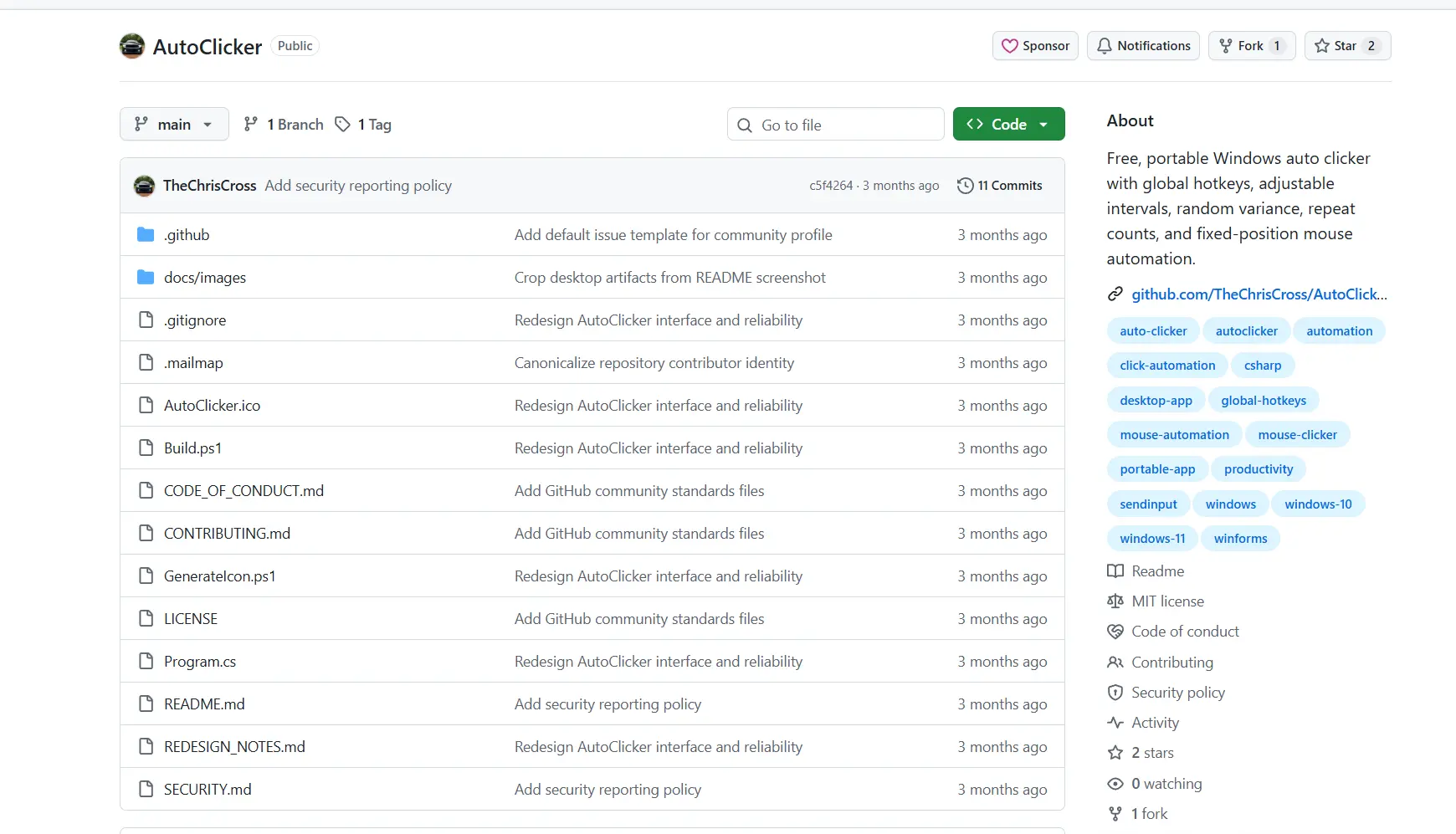
Choose this option if you specifically need a portable tool for a visible fixed point. To get started:
- Run
AutoClicker.exe. - Set the interval, click type and button, and repeat count; a value of
0means it runs until stopped. - Choose a position: point the cursor at the target and press
F7, use the two-second capture, enter X/Y, or move the marker. - Press
F6or select Start clicking; stop it withF6, Stop clicking, orEscapewhile the application window has focus.
Check the click counter, running status, and progress of a finite run. These indicators show the program state, but they do not confirm that use is permitted in the game or the result of a specific in-game action.
What to check if clicks go to the wrong place
- Check whether the window position, interface scale, or target itself changed after selecting the coordinate.
- Make sure the selected button and click type match the manual action you tested.
- Reduce the repeat count and repeat a short test outside the game before changing the interval.
- Do not rely on background clicking without testing it: some windows may not support it. AutoClicker (TheChrisCross) explicitly states that hidden and background windows are not supported.
A local test confirms only that the configured sequence worked on the test target. It does not prove that the game will accept the input or replace checking the rules.
Conclusion
First check the Genshin Impact rules, then perform a short finite test outside the game. For identical repeated clicks, choose standard clicking; for several actions in a set order, choose recording and playback. Test one pass first, then several repeats and the required stop. Only after that should you assess further use within the game rules.
Frequently asked questions
Can I use an auto clicker for Genshin?
Only if current game or service rules allow it. A configuration guide is not permission and does not guarantee account safety.
Do I need macro recording for simple repeated clicks?
No. In Fionn Auto Clicker, standard clicks are a separate feature: for one repeated click, simply choose the button, position, interval, and repeats.
How do I repeat a recorded sequence multiple times?
After stopping the recording, select it in the list, set one pass in the number of playbacks setting, and check the result. Then set the required repeat count. Each cycle repeats the full recording, so the initial state of the window must remain suitable. Start and stop playback with F8.
How do I verify the selected position?
First manually click a safe test target outside the game. Then run a small finite number of automatic clicks, compare the visible result, and stop the sequence.
Why might an auto clicker not work in a background window?
Support depends on the specific window. AutoClicker (TheChrisCross) does not send clicks to a hidden or background window; Fionn Auto Clicker also notes that some windows may not support background clicks.
How do I stop standard clicks in Fionn Auto Clicker?
Select “Stop Clicking” or press
F6
, then make sure clicks have stopped before moving the cursor or changing settings.


