 Emily CarterAuto Clicker
An auto clicker can perform repeated clicks at a selected screen location; this is useful only for a task that the game or service rules explicitly allow you to automate. First, manually check that the required element responds to a regular click. Then run a short series with a finite number of repeats and make sure you can stop it.

Steal the Egg is listed on Yandex Games as a casual arcade game rated 6+. Do not start automation until you have checked the current rules of the game and platform; do not use it to bypass technical restrictions.
Set Up Repeated Clicks with Fionn Auto Clicker
Fionn Auto Clicker works on Windows 10 and Windows 11 and lets you set the click type, interval, number of repeats, and a hotkey. For a simple repetitive task, this can replace identical manual presses with a controlled series: you choose the button and position in advance, then control starting and stopping. Use this method if the rules of the target game or service allow such automation.
First, manually click the required game element and make sure it responds to physical mouse input.
Identify the exact click location and do not change the window position during the test.
- Open Fionn Auto Clicker and select “Mouse Clicks” → “Normal Click.” Choose the mouse button, method, and click position, then set the interval and repeat settings; for testing, enter a small finite number of repeats, then select “Start Auto Click” or press F6.

Compare the visible result of the short automated run with the result of a manual click: the response should occur at the same selected location.
- After confirming that it works, stop normal clicking with the “Stop Clicks” button or F6. Before moving the pointer or changing settings, make sure the automated clicks have stopped.

Documented setup path: the Fionn Auto Clicker guide to normal clicks.
A successful tool setup means the series starts and stops with F6 or the stop button. Confirm the game task separately: in a permitted mode, a short series should produce the same visible response as a manual click. If a manual click does not work, do not increase the frequency; first check the game state and selected target.
Alternative: AutoClicker Standard Mode
AutoClicker is an independent option when you need Standard Mode with interval, click type, and location settings. It is not a confirmed better choice for this game; use it only when automation is permitted and its setup method suits you.

- Open AutoClicker and select Standard Mode.
- Set the interval and click type.
- Select the click location.
- Press F6 to start; pressing F6 again stops the clicks.
Before using it in a game, perform a short, finite test and make sure the series stops. Source: AutoClicker documentation .
Alternative: OP Auto Clicker
OP Auto Clicker is suitable when you need clicks at the current cursor position or a fixed point. Its official page also describes a finite or unlimited number of clicks and hotkeys. This is a difference in setup method, not proof of better compatibility with Steal the Egg.
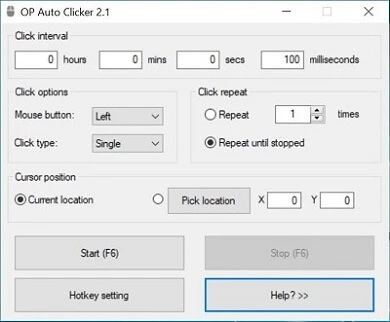
- Select clicks at the current cursor position or at a fixed point.
- For testing, set a finite number of clicks rather than unlimited mode.
- Select the mouse button and a single, double, or triple click.
- Set up a hotkey for control.
After testing, make sure input has stopped before changing the window or cursor position. Source: OP Auto Clicker official page .
Conclusion
For a permitted repetitive task, begin by manually checking the element, then configure a short series with a finite number of repeats and verify that it stops. Fionn Auto Clicker suits Windows users who need position, interval, repeat, and hotkey settings. Do not consider setup complete until you have confirmed that automation is permitted and the game visibly responds to a short test.
Frequently Asked Questions
Can I use an auto clicker in Steal the Egg?
Check the current rules of the game and platform before starting; do not use automation to bypass technical protection measures.
What is the safest way to begin setup?
Start with a manual click on the required element and a short series with a finite number of repeats. This lets you check the selected position and your ability to stop it without a long sequence of actions.
How do I choose the click location?
Choose a point where a manual click already causes the desired visible response. If the window or interface changes position, identify the point again.
How do I stop Fionn Auto Clicker?
In the documented normal-click mode, use “Stop Clicks” or F6. Before moving the pointer or changing settings, make sure the automated clicks have stopped.
Will an auto clicker work in the background?
Fionn Auto Clicker supports background clicking, but individual windows may not support it. For this task, first test it in the active window; compatibility of a particular game with background or synthetic input is not confirmed.


