 Emily CarterAuto Clicker
An auto clicker for Cookie Clicker can repeat clicks at the large cookie while you keep the game window in a stable position. Start with a slow, finite test rather than a continuous run: confirm that a physical click works, set the target position, run a few automated clicks, compare the result, and stop the routine.
Cookie Clicker is available as a free web game and as an official Steam version; this guide focuses on a Windows browser or focused Windows game window.
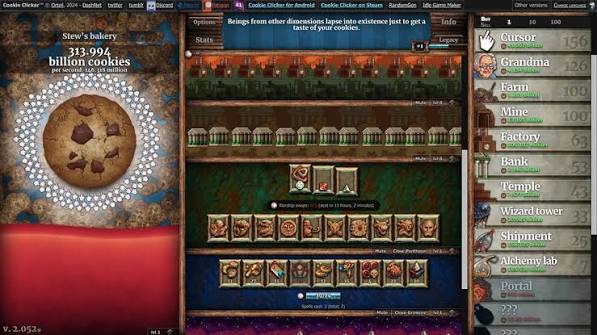
Use automation only where the applicable game or service rules permit it. If you change browser zoom, move the window, or switch displays, recheck the click position before starting again.
Quick Method Comparison
| Method | Best For | Efficiency | User Effort |
|---|---|---|---|
| Fionn Auto Clicker | Windows users who want configurable click type, interval, repetition, and hotkey control | High for a repeatable click setup | Low after the first configuration |
| OP Auto Clicker | Users who prefer a free, open-source Windows alternative with fixed-position clicking | High when the cookie remains in one screen position | Low to moderate |
Both approaches rely on a stable target position. If the cookie moves, resize the window, or change display scaling, pause and set the position again.
Method 1: Configure Cookie Clicker Clicks with Fionn Auto Clicker
Fionn Auto Clicker is the recommended option here for Windows 10 or Windows 11 when you want to choose the click type, interval, repetition count, and hotkey in one setup. It supports current-pointer or fixed-coordinate clicking, so fixed coordinates are useful when the large cookie stays in the same place.
First, click the large cookie once with the physical mouse and confirm that its visible cookie total responds.
Place the pointer over the center of the large cookie and keep the Cookie Clicker window, zoom level, and display arrangement unchanged for the test.
- Open Fionn Auto Clicker and select
Mouse Clicking > Normal Click
. Choose the mouse button, click method, and click position. Set the click interval and repetition options, then select
Start Auto-Click
or press
F6. Compare the visible cookie-total change from this small automated run with the physical click you made at the start. If the total does not respond, stop and correct the position before another run.
- After you have confirmed the click routine is working, stop Normal Click by selecting
Stop Clicking
or pressing
F6. Check that automatic clicking has stopped before moving the pointer or changing the settings.
A visible cookie-total increase during the short run, followed by no further increase after stopping, is the practical success signal. If
F6
does not behave as expected, check for a hotkey conflict before retrying.
Method 2: Use OP Auto Clicker for Fixed-Position Clicking
Choose this alternative if you want a free, open-source Windows tool. Its publisher lists Cookie Clicker among its supported browser-game use cases and documents custom intervals, click-count limits, fixed-position mode, and an
F6
start/stop hotkey. Download it only from the
official OP Auto Clicker website
.
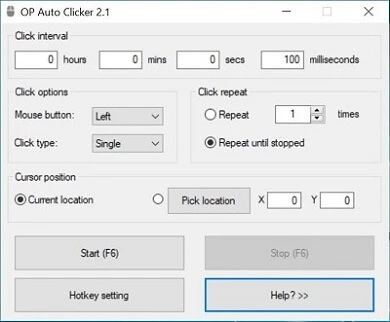
- Set the click interval in milliseconds, seconds, minutes, or hours.
- Choose the mouse button and click type.
- Enable Fixed Position Mode and set the coordinate while the pointer is centered over the large cookie.
- Switch to the focused Cookie Clicker window and press
F6to start; pressF6again to stop.
Watch for repeated visible clicks in the focused Cookie Clicker window, then use
F6
again and confirm that they cease. This method is less suitable when the target changes position between runs.
Keep the Setup Predictable
- Use a single-click action for a task that needs ordinary cookie clicks; do not select a double-click mode by accident.
- Keep Cookie Clicker visible and focused while testing. This guide does not assume that background clicking will work.
- Choose an interval you can observe at first. Increase the rate only after position and stopping behavior are clear.
- Recheck the target after changing browser zoom, moving the game to another monitor, or resizing the window.
Conclusion
For a configurable Windows setup, start with Fionn Auto Clicker and use a small finite test before any longer session. OP Auto Clicker is a practical alternative when a fixed-position, free open-source option suits your setup. In either case, verify success by observing the cookie total respond during the test and confirming that it stops changing after the stop control. If clicks miss the cookie, reset the target position after restoring the game window and display layout.
Frequently Asked Questions
Can I use an auto clicker with the Cookie Clicker web game and Steam version?
Cookie Clicker is available on the web and on Steam. This guide covers a Windows browser or focused Windows game window. Use automation only if the applicable rules allow it.
Should I use the current pointer position or fixed coordinates?
Fixed coordinates are useful when the large cookie stays in the same location. Current-position clicking can be useful when you deliberately place the pointer before starting. Either choice should be retested after moving or resizing the game window.
Why are automated clicks landing in the wrong place?
The most likely setup issue is that the window, zoom level, display arrangement, or target position changed after configuration. Stop the routine, return the game to its intended layout, point at the cookie again, and run a short finite test.
How do I stop Fionn Auto Clicker normal clicking?
Select
Stop Clicking
or press
F6
, then confirm that automatic clicking has stopped before moving the pointer or editing settings.
Does Fionn Auto Clicker support Windows 10 and Windows 11?
Yes. The official product page states support for Windows 10 and Windows 11.


