 Emily CarterAuto Clicker
An auto clicker for VimeWorld should only be configured after you confirm that automation is allowed for the specific activity. VimeWorld has a forum process for reporting AFK machines, so repetitive input should not be assumed to be permitted. This guide starts with a small, observable test and uses a finite click count rather than continuous clicking.
Fionn Auto Clicker is a Windows option for a permitted repeated-click task. It supports configurable intervals, click positions, and repetition counts. First confirm the target responds to a physical click; then configure a limited automated test and compare the visible result.
Before You Configure an Auto Clicker for VimeWorld
- Read the current rules for the VimeWorld mode or service you plan to use. A forum page about reporting AFK machines does not grant permission to automate clicks.
- Use a visible, low-consequence target for the first check. Do not begin with continuous execution.
- Keep the pointer over the intended target before starting a cursor-position click routine.
Quick Method Comparison
| Method | Best For | Efficiency | User Effort |
|---|---|---|---|
| Fionn Auto Clicker Normal Click | A permitted Windows task needing a chosen button, position, interval, and count | Direct configuration with an F6 start/stop control | Low after the target position is identified |
| OP Auto Clicker | A permitted generic Windows clicking task using a separate tool | Documented interval, button, repeat, and location setup | Configure each setting before starting |
Method 1: Configure a Permitted Click Test with Fionn Auto Clicker Recommended
Use this method when the relevant VimeWorld rules explicitly allow the action and one repeated mouse click is all that is needed. Normal Click is separate from recording, so no recording setup is needed for this task. Fionn Auto Clicker supports Windows 10 and Windows 11.
Click the intended visible target once with your physical mouse and note its visible response.
Identify the exact screen position of that target while it is visible and unchanged.
- Open Fionn Auto Clicker and select Mouse Clicking > Normal Click. Choose the mouse button, click method, and click position. Set the click interval and repetition options, then click Start Auto-Click (F6). For this first test, set a small finite repetition count.

- Compare the visible automated result with the physical-click result before changing any setting.
After you have confirmed the click routine is working, stop Normal Click by clicking Stop Clicking or pressing F6. Check that automatic clicking has stopped before moving the pointer or changing the settings.

A successful local check means the configured click produces the same visible response as the physical baseline and then stops on command. Only repeat the test in VimeWorld when its rules explicitly permit that use.
Method 2: Configure OP Auto Clicker for a Permitted Local Click Task
Choose this alternative only for a generic Windows clicking task that is already permitted. Its documentation does not establish VimeWorld permission or compatibility.
- Set the click interval in
OP Auto Clicker’s getting-started guide
.
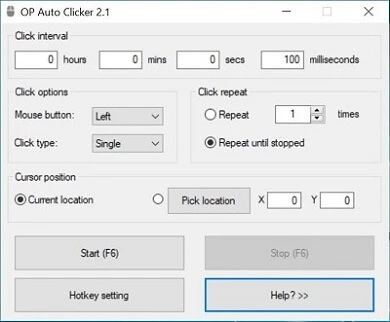
- Select the mouse button and click type.
- Set the repeat mode and a finite number of clicks.
- Select the click location.
- Start the configured local action with the start button or the default F6 hotkey.
Confirm the selected local target responds as expected. If it does not, do not increase the repeat count; return to a physical click to confirm the target and position.
When the Intended Result Does Not Appear
If a physical click works but the automated test does not, recheck the selected position and whether the target moved after you identified it. If the service rules do not clearly allow automation, do not continue testing there. A missing visible result is not a reason to raise the interval speed or repetition count.
If F6 does not behave as expected in Fionn Auto Clicker, check for a hotkey conflict before retrying. The product supports global hotkeys and conflict detection.
Conclusion
For an allowed task, begin with one physical click, identify the intended target, and run only a small finite automated test. Fionn Auto Clicker provides a Normal Click path for selecting the button, position, interval, and repetition options, with F6 available to stop the routine. The meaningful success signal is the same visible response as the physical click, followed by a confirmed stop. If the target does not respond or the VimeWorld rules are unclear, do not continue.
Frequently Asked Questions
Is an auto clicker allowed on VimeWorld?
Do not assume it is allowed. Permission depends on the current rules for the specific mode or service. Check those rules before configuring or running automation.
Does a physical click prove an auto clicker will work?
No. A physical click only establishes the expected visible response and target location. Use one small, permitted automated test to compare the result, and stop if the behavior differs.
Why should the first test use a finite number of clicks?
A finite count lets you observe the result and prevents a routine from continuing while you assess whether the action is permitted and behaving as intended.
Do I need to record mouse and keyboard actions for simple repeated clicks?
No. Fionn Auto Clicker’s Normal Click feature is separate from recording and is intended for one repeated mouse action. Recording is only relevant when a permitted task requires a sequence of actions.


