 Emily CarterVoice Changer
Want to learn how to change voice through microphone on your PC for Discord, a game, a call, or a stream? First, make sure Windows receives a signal from the correct input, then enable an effect in voice-changing software and check the result in headphones. Below are five separate methods: check Windows, enable an effect in Fionn VoxMagic , then connect the processed voice to Discord, OBS, or a browser call.
What to Check Before You Start
- Connect your microphone or headset and turn off its physical mute switch, if it has one.
- Prepare headphones: you need them for voice preview without extra sound from speakers.
- Close apps that do not currently need the microphone so you can control the test more easily.
Quick Comparison of 5 Methods
| Method | When to choose it | What to do | How to check the result |
|---|---|---|---|
| 1. Windows: microphone and permissions | The meter does not respond or an app does not receive sound | Select the physical microphone and allow access | Windows records and plays back a test sample |
| 2. Fionn VoxMagic: enable an effect | You need a changed voice in real time | Select an input and output, choose an effect, and enable voice changing | You hear the selected effect in headphones |
| 3. Discord: send the effect to other participants | The effect works in the app, but Discord uses your normal voice | Select the virtual microphone in the input device settings | The built-in microphone test responds to speech with the effect |
| 4. OBS Studio: streaming or recording | You need the changed voice in an OBS scene | Add an audio input capture source using the virtual microphone | The OBS meter moves and the test recording has no echo |
| 5. Teams or a browser call | You need the effect for a meeting, webinar, or call | Select the virtual microphone in the service settings | A test call or the service meter receives a signal |
Method 1: Check Your Microphone and Permissions in Windows
When to use it: before configuring an effect, after a Windows update, or when the level meter does not move. This method does not change your voice itself, but it confirms that the original microphone is ready for processing.
- Open
Start > Settings > System > Sound.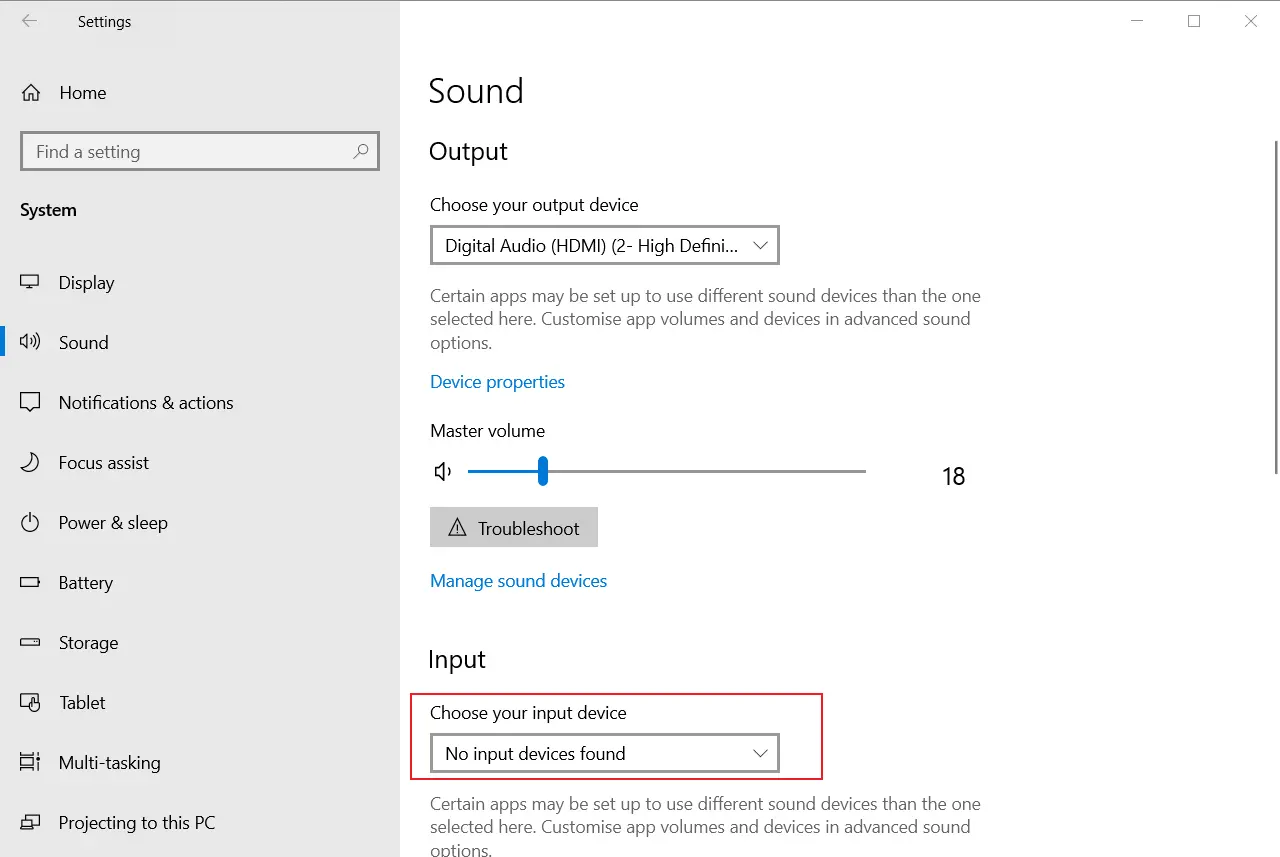
- Under Input, select the microphone you will speak through.
- Open the selected device properties and start the microphone test.
- Say a short phrase, stop the test, and listen to the sample.
- If an app does not receive sound, open
Settings > Privacy & security > Microphoneand enable microphone access for apps.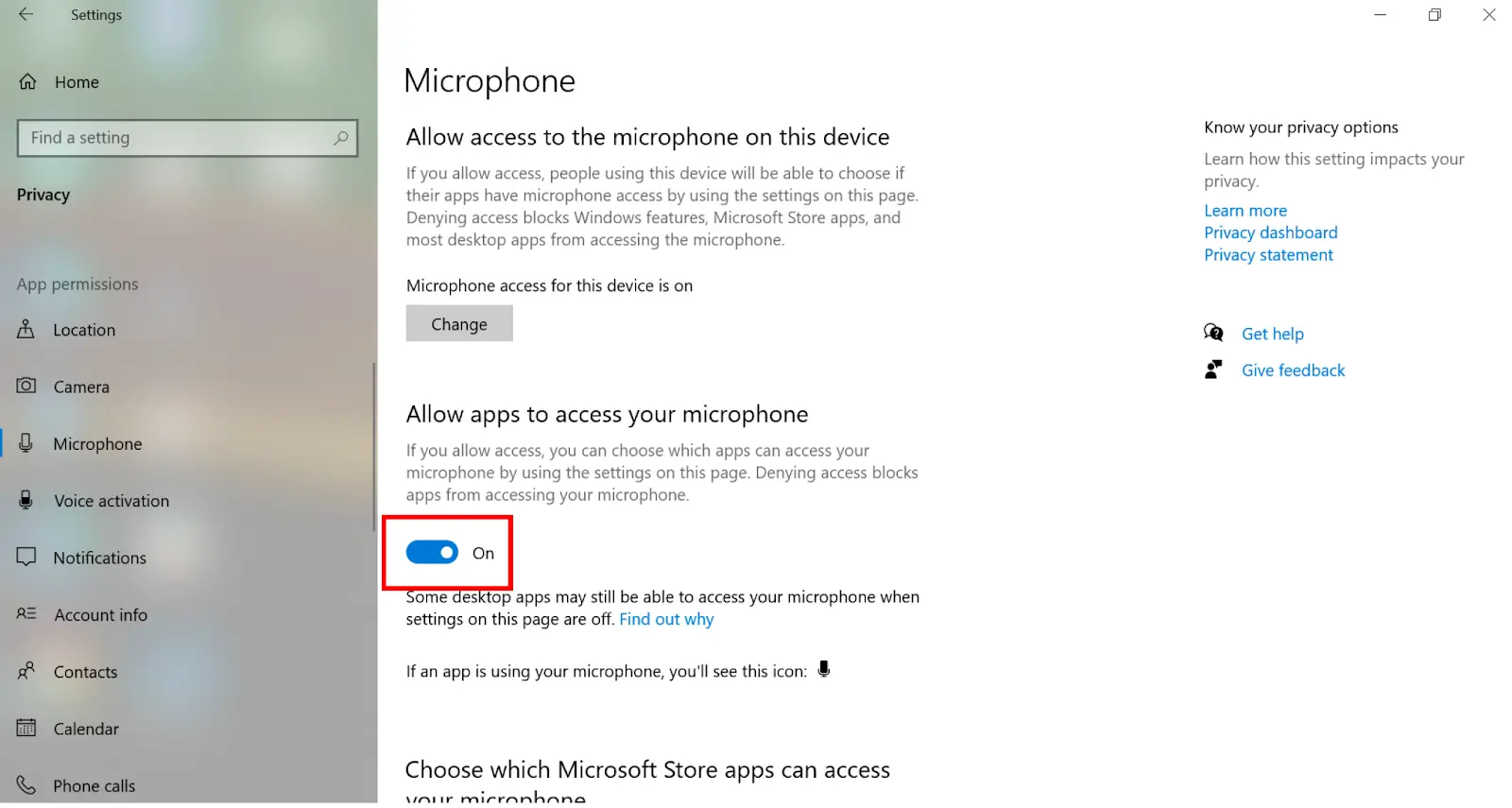
Expected result: Windows records your voice and shows level activity. Current detailed paths for Windows 10 and Windows 11 are described in the official Microsoft microphone troubleshooting guide .
Method 2: How to Change Voice Through Microphone on a PC with Fionn VoxMagic
When to use it: when you need a real-time voice effect and want to preview it before communicating. This is the recommended option for configuring an effect: the software lets you choose an input and output, select a classic or AI voice, enable voice changing, and check it inside the software.
Need a quick start? Download Fionn VoxMagic, select your microphone, enable a voice effect, and listen to the result before connecting to Discord, a game, or a call.
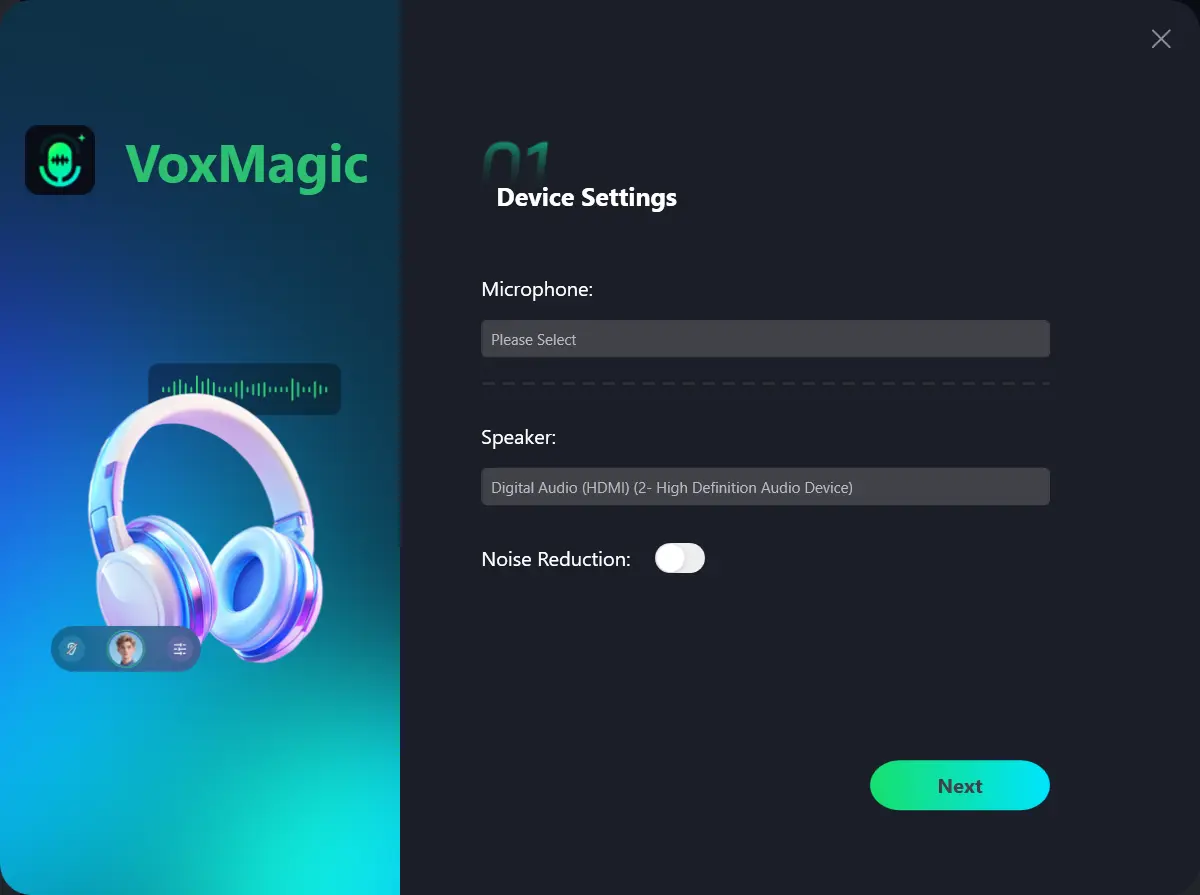
- Open Fionn VoxMagic. In the device settings section, select your microphone and playback device. If needed, enable noise reduction, then click Next.
- If the core components installation window appears, wait for the installation to finish before continuing.
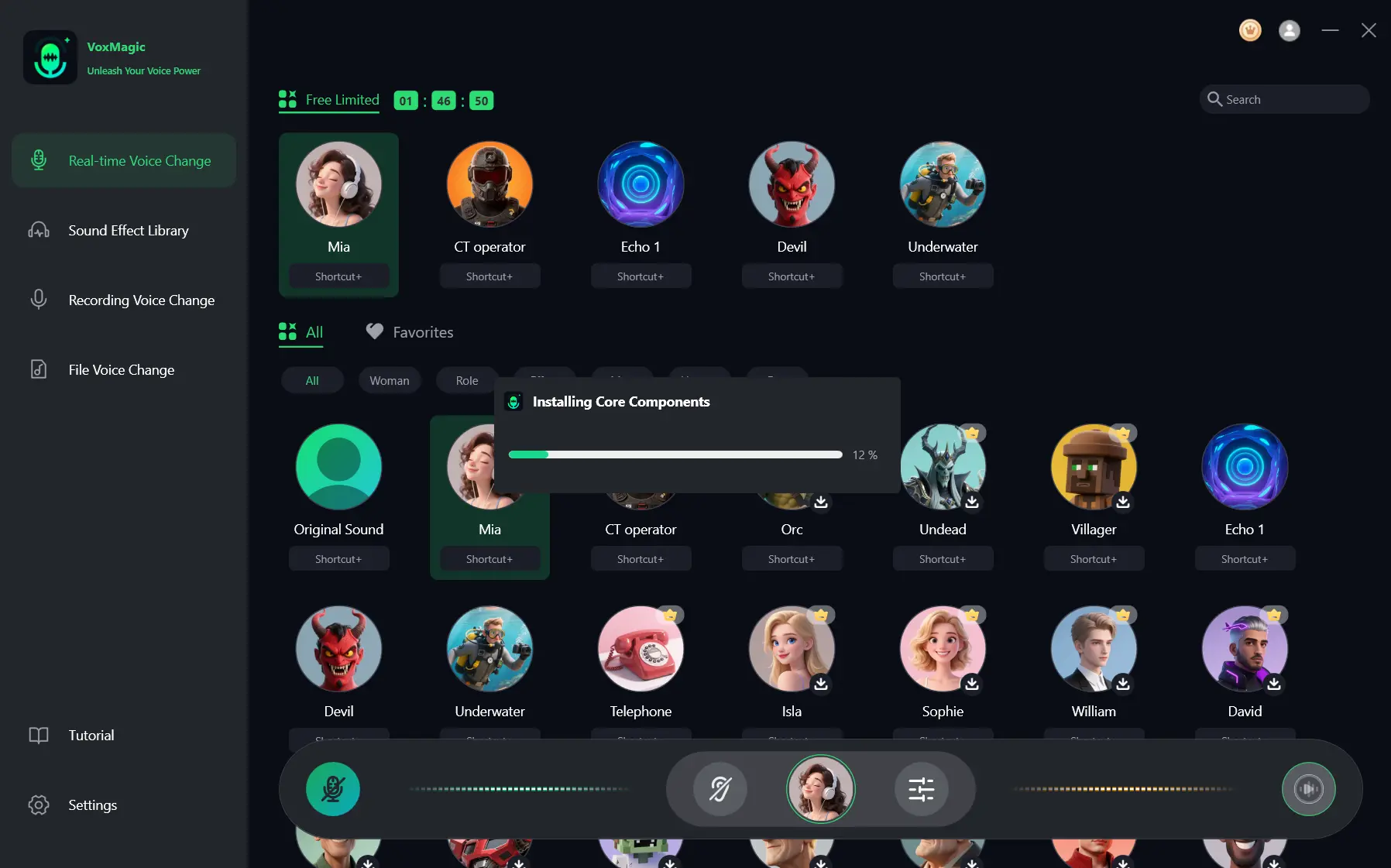
- Open the real-time voice changing section and select a voice effect, such as Mia. The selected effect will be highlighted and appear in the bottom control bar.
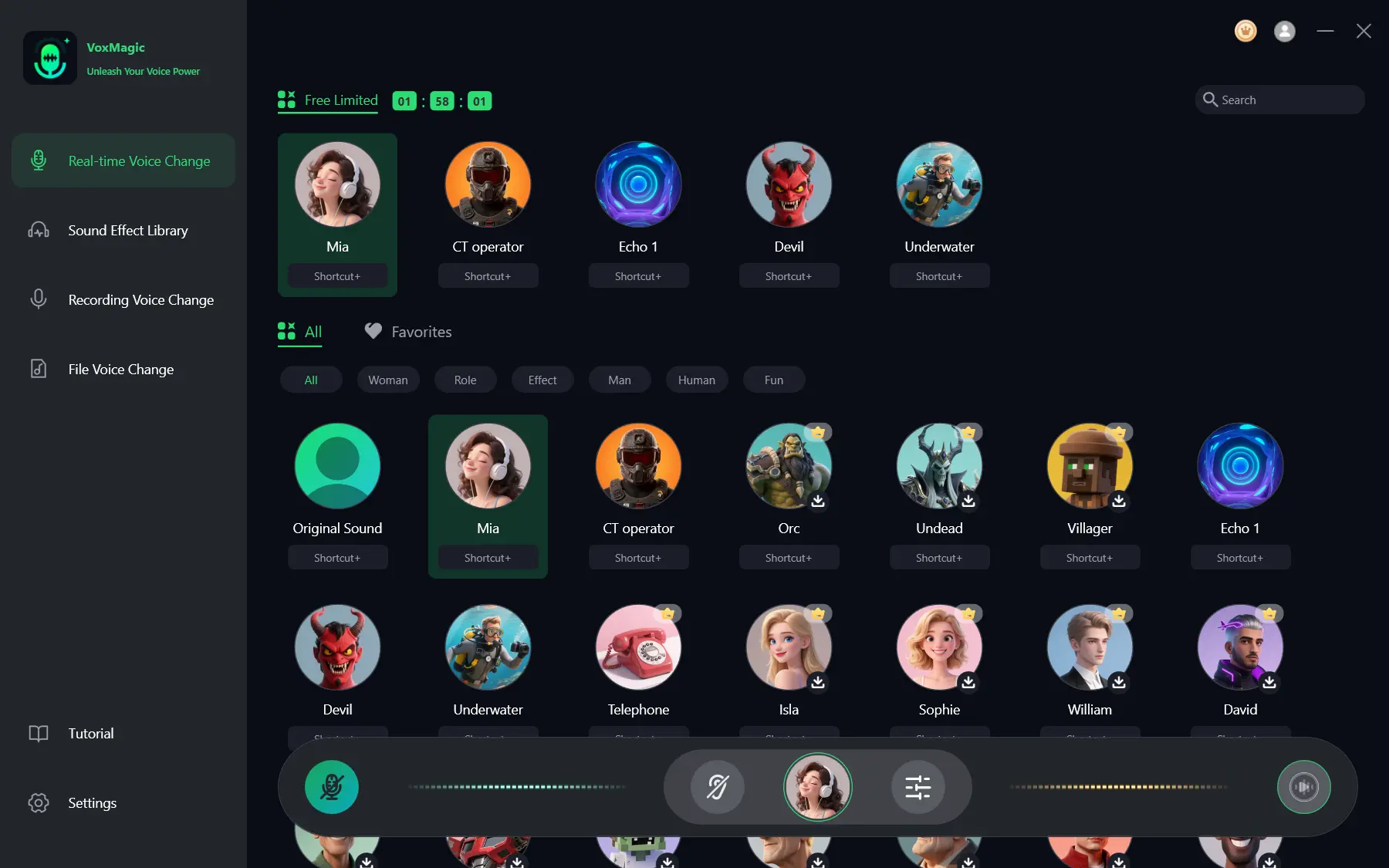
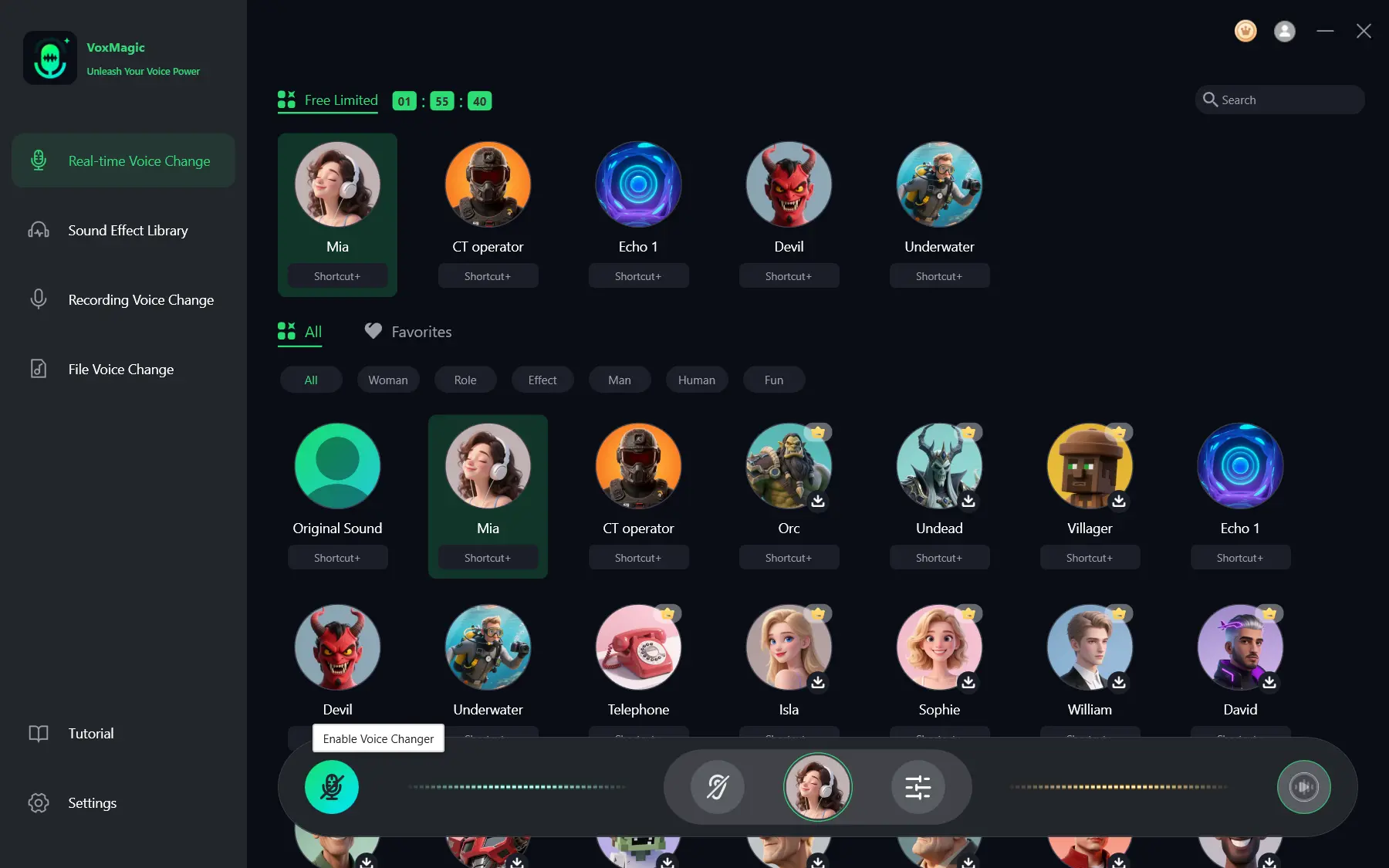
- Click the microphone button labeled Enable Voice Changer in the bottom-left corner of the control bar to turn on voice changing.
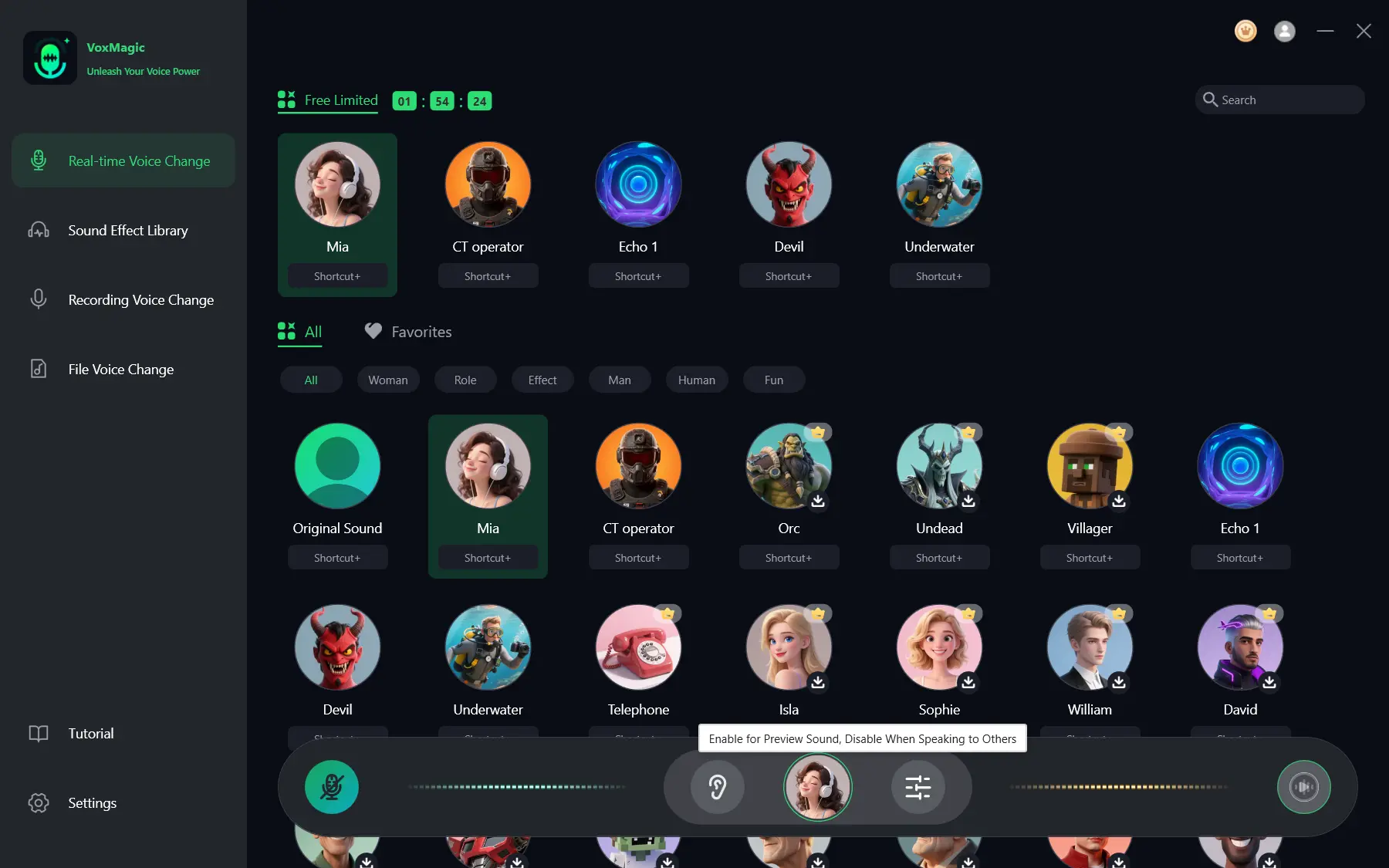
- Click the ear icon in the bottom control bar to enable voice preview. During testing, use headphones to listen to your voice with the selected effect.
- Speak into the microphone and listen to the result to check the selected effect. Make sure the audio level meters respond to speech. Turn off voice preview before speaking with other people.
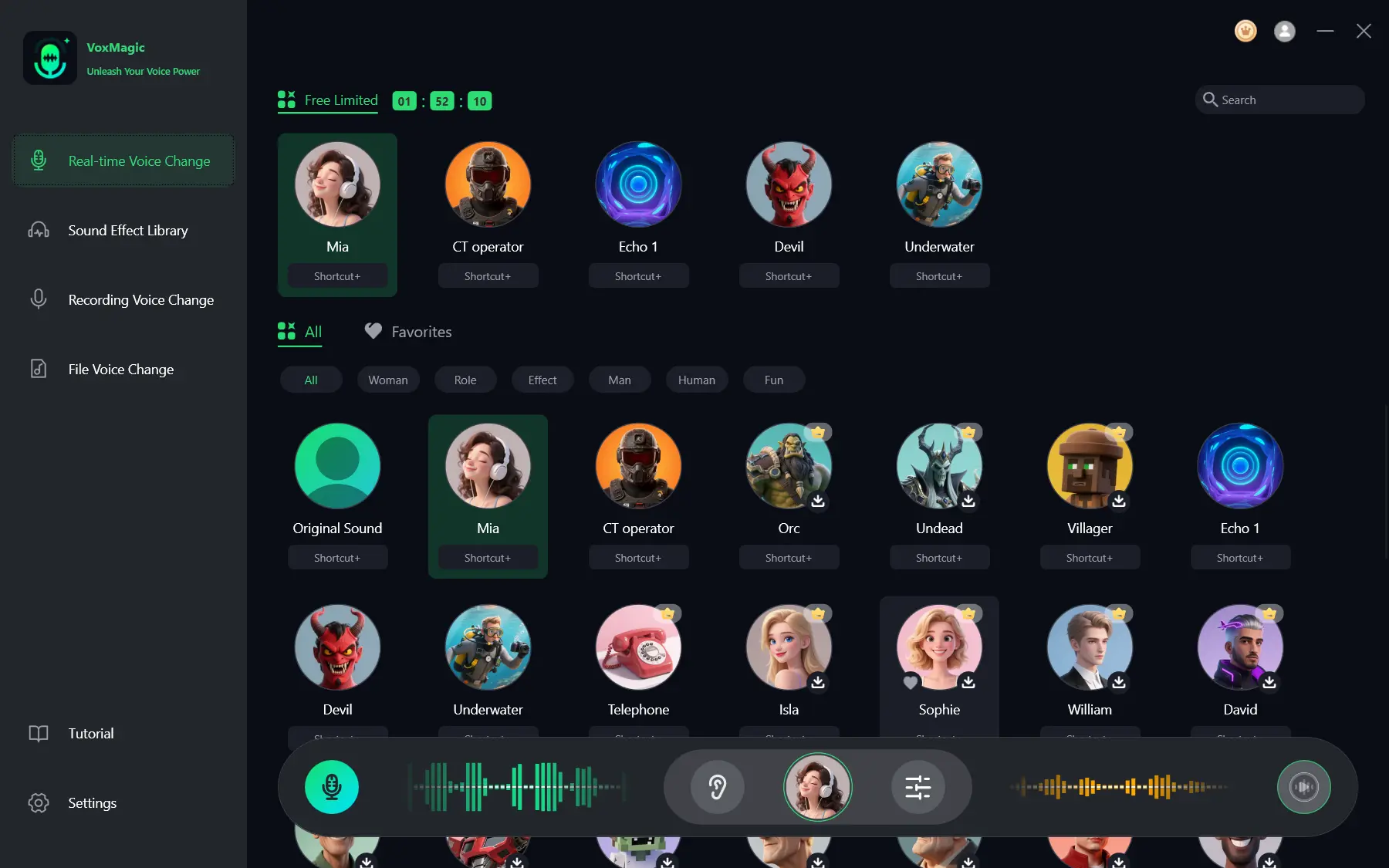
Expected result: you hear the changed voice in preview and the level meters respond to speech. If the voice sounds unnatural, first try another effect or adjust the pitch; when using a high level of noise reduction, keep in mind that it can affect audio quality.
How to Check the Routing in the Target App
When voice preview works, open the audio settings of the app you need and find the microphone or input device selection. Fionn VoxMagic creates the virtual microphone
Fionnshare Virtual Audio
, which third-party apps can select. If the app does not see this input, do not change random settings: first make sure the virtual microphone has been created, then use a verified guide for that specific app.
This order is useful in three different situations: if the meter does not respond, return to the Windows check; if you hear your normal voice, check whether voice changing is enabled in Fionn VoxMagic; if the effect is audible only in preview, check the input selected in the target app.
Method 3: Change Your Voice in Discord
When to use it: the effect is already audible in VoxMagic preview, but your friends hear your normal voice in Discord. Discord recommends selecting an input device separately in its voice settings; this is more important than changing the system microphone at random.
- Keep Fionn VoxMagic open, select an effect, and enable voice changing.
- In Discord, click the gear icon next to your profile and open Voice & Video settings.
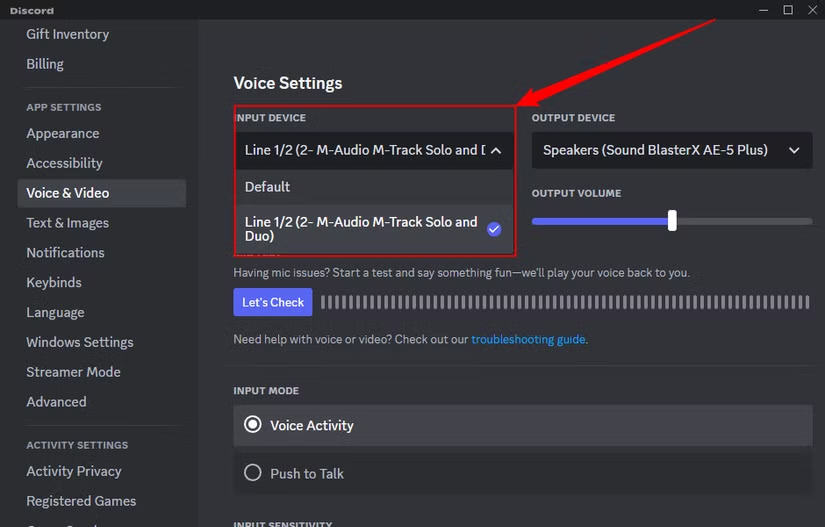
- For Input Device, select
Fionnshare Virtual Audio. - Start the built-in microphone test and say a short phrase. The meter should move and play back the processed voice.
- If the beginning of phrases is cut off, switch between Voice Activity and Push to Talk, then adjust input sensitivity.
Expected result: Discord receives a signal from the virtual microphone rather than the physical device. The official steps for selecting an input device and testing the microphone are described in Discord Help Center .
Method 4: Add Your Changed Voice to OBS Studio for Streaming or Recording
When to use it: you want the changed voice to reach an OBS scene. In OBS, it is better to select the device explicitly and avoid capturing one source twice, which makes echo easier to avoid.
- Enable the effect in Fionn VoxMagic and perform a short check in headphones.
- In the required OBS scene, click
+
in the Sources panel and add an audio input capture source.
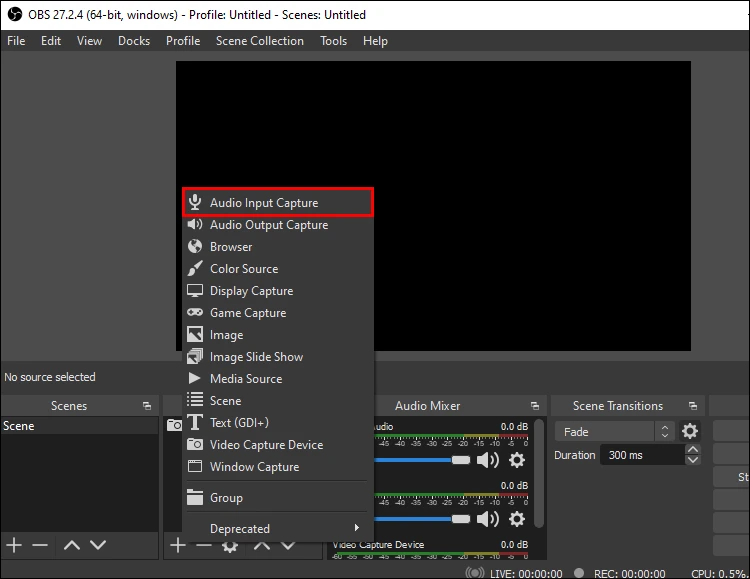
- In the source properties, select
Fionnshare Virtual Audioand confirm the selection. - Say a phrase and watch the meter for this source in the audio mixer.
- If the same microphone has already been added in OBS global audio settings, disable one duplicate before going live; then make a local test recording and listen to it.
Expected result: the meter for the selected source in OBS responds to speech, and the test recording contains the effect without a doubled voice. OBS warns that simultaneous global and scene capture of the same device can cause echo; the principle for configuring an audio input capture source is confirmed in the OBS guide .
Method 5: Use a Changed Voice in Teams or a Browser Call
When to use it: for work calls, webinars, or browser-based services. Configuration happens inside the specific app or browser: Windows can see the device while the service continues using the previously selected microphone.
- First, enable the effect in Fionn VoxMagic and make sure its input level meter moves.
- Open the meeting audio settings before joining, or open the device menu during the call.
- In the microphone list, select
Fionnshare Virtual Audio. - Start the available device test or test call and say a short phrase.
- If the device does not appear in the browser, allow the site to access your microphone and refresh the device list; then select the virtual input again.
Expected result: the selected service shows level activity for speech and sends the processed voice. For example, Microsoft recommends selecting a microphone from the drop-down list in Teams and choosing Make a test call ; see the Microsoft instructions .
If Others Hear Your Normal Voice: Quick Routing Check
| What happens | What to check | Next action |
|---|---|---|
| There is no level activity in VoxMagic | The physical microphone and Windows access | Return to method 1 and complete the system test. |
| There is an effect in VoxMagic but a normal voice in the app | The app input device | Select
Fionnshare Virtual Audio
, not the physical microphone.
|
| You hear echo in OBS | A duplicate source | Keep one device capture: global or in the scene. |
| The voice cuts out in Discord | The input mode and sensitivity | Check Voice Activity or Push to Talk, then repeat the built-in microphone test. |
Tips for a Clear Result
- Select one input microphone and one output device for testing so you do not confuse the source with the playback device.
- Test the effect with a short phrase before starting a game, call, or broadcast.
- If there is noise, start with a low level of noise reduction and assess voice clarity after every change.
- Do not use speakers for voice preview: headphones help prevent the microphone from picking up sound again.
Conclusion
The most practical order is this: first confirm that Windows sees and records the original microphone, then configure and preview the effect in Fionn VoxMagic, and finally select the virtual microphone in the target app. Checking the meters and a recorded sample helps separate an input issue, an effect problem, and a routing error. If sound does not appear even in the system test, return to permissions and the input device. If preview works but the app does not receive sound, find the input microphone setting in that app. To configure the effect, use Fionn VoxMagic .
Frequently Asked Questions
How do I change voice through microphone on a PC in real time?
Connect a working microphone, enable an effect in voice-changing software, and select its virtual microphone in the communication app. Before a call, check the level meter and listen to a short phrase in headphones.
Can I change my voice through a microphone in real time?
Yes, with a working microphone input and software that applies an effect in real time. First check the original signal, then enable the effect and use voice preview.
Why do other people hear my normal voice?
Check whether voice changing is enabled and make sure the target app settings select the virtual microphone
Fionnshare Virtual Audio
, rather than the physical microphone.
Why are the level meters not moving?
Return to Windows Sound settings, select the correct input, and perform a microphone test. Also check whether apps have permission to access the microphone.
Do I need to use headphones?
They are especially useful for voice preview: they let you evaluate the effect and reduce the chance that the microphone picks up sound from speakers again.
Does noise reduction affect the voice?
A high level of noise reduction can affect voice quality. Start at a low level and compare clarity before and after changing the setting.


