 Emily CarterVoice Changer
To change your voice in Discord, you need an audio source that sends your processed voice to the app as a microphone. Then, select that virtual microphone in Discord's voice settings and check the result. Below are four methods: first configure the input in Discord, then check the microphone test and Windows permissions, and use Fionn VoxMagic to create and preview the effect.
Quick Comparison of Methods
| Method | Best for | Effectiveness | User effort |
|---|---|---|---|
| Selecting a virtual microphone in Discord | An effect has already been created by another program | High | Low |
| Checking the input and microphone test | Other participants cannot hear the changed voice | Medium | Medium |
| Allowing microphone access in Windows | Discord receives no audio from any input | Medium | Medium |
| Configuring Fionn VoxMagic | Choosing and previewing an effect in real time | High | Low |
Method 1: Select a Virtual Microphone in Discord
When to use: a voice-changing program is already installed and creates a virtual audio device. This is the main step that routes processed audio into Discord.
- Open Discord on your computer.
- Click the gear icon next to your username to open User Settings.
- Open the
Voice & Video
section.
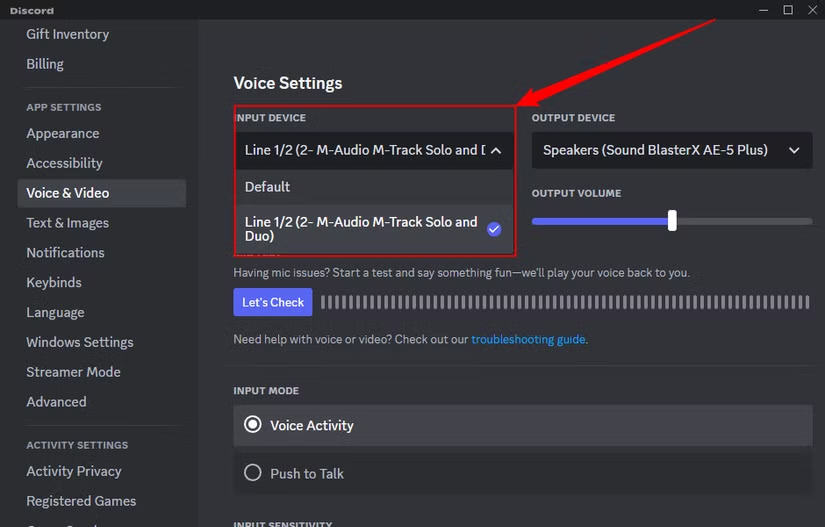
- From the input device list, select the virtual microphone from your voice-changing program.
- Select your headphones or speakers as the output device.
Check: join a test voice channel and say a few phrases. If the input indicator responds, Discord is receiving the selected device.
Method 2: Check Discord Input and Microphone Test
When to use: the virtual microphone is selected, but there is no sound in the channel, the voice is too quiet, or you are unsure which signal other participants hear.
- Open Discord User Settings and the Voice & Video section.
- Make sure the correct virtual microphone is selected as the input device.
- Check that the input mode matches how you communicate: voice activity or Push to Talk.
- Start the microphone test with the
Let's Check
button in the microphone test area.
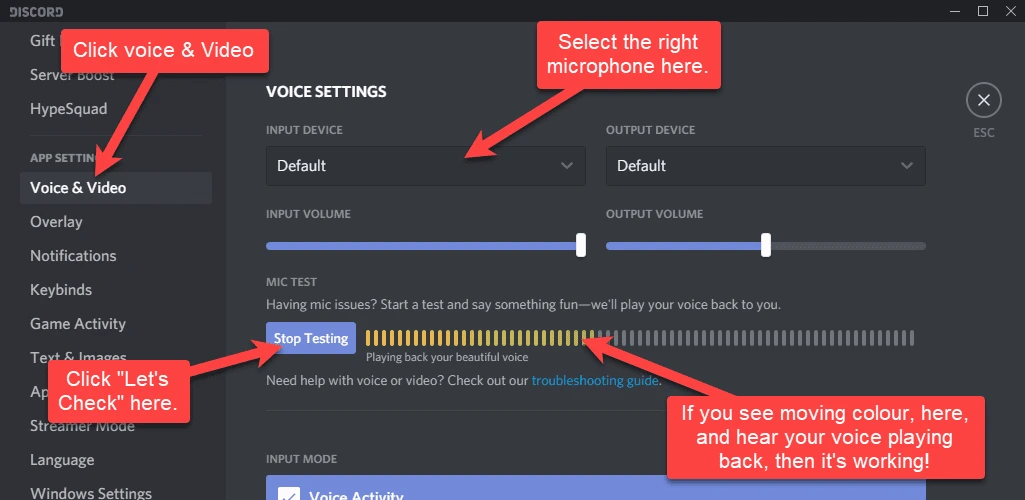
- Listen to the playback and adjust the input volume if necessary.
Check: the test plays your voice through the selected output device. This feature is available in the desktop app and browser version of Discord.
Detailed instructions for selecting devices and using the test are available in the official Discord voice and video guide .
Method 3: Allow Discord to Access Your Microphone in Windows
When to use: Discord cannot see the input device, or the microphone test does not respond even though the correct device is selected.
- Open Windows Settings .
- Go to the privacy and microphone permissions section.
- Turn on microphone access for apps.
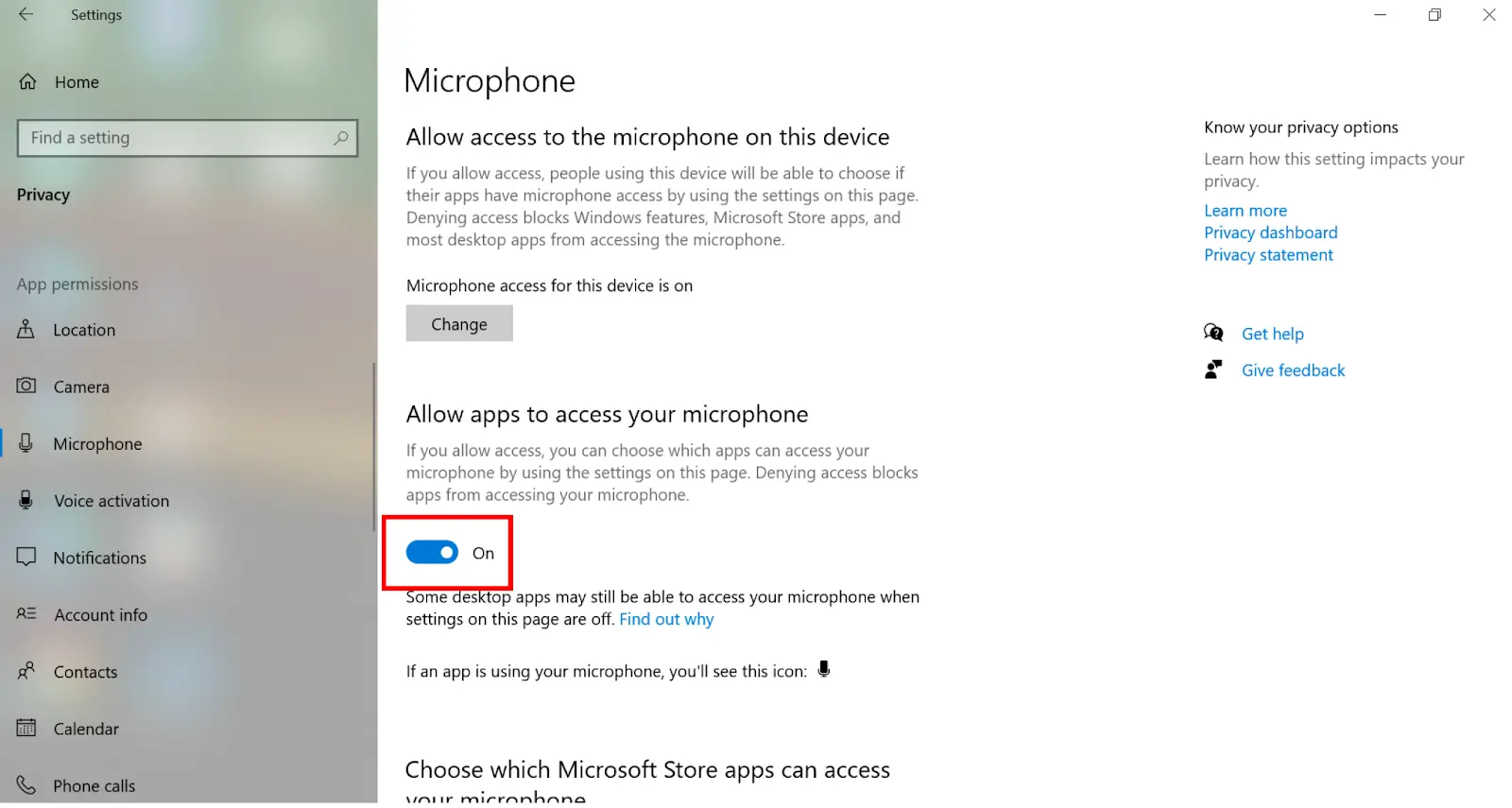
- Make sure Discord has access to the microphone.
- Fully close and reopen Discord.
Check: return to Discord's Voice & Video section and repeat the microphone test.
Method 4: Configure an Effect with Fionn VoxMagic
When to use: you need a real-time voice effect and a preview before speaking. Fionn VoxMagic creates the Fionnshare Virtual Audio virtual microphone, which you can select in a third-party application.
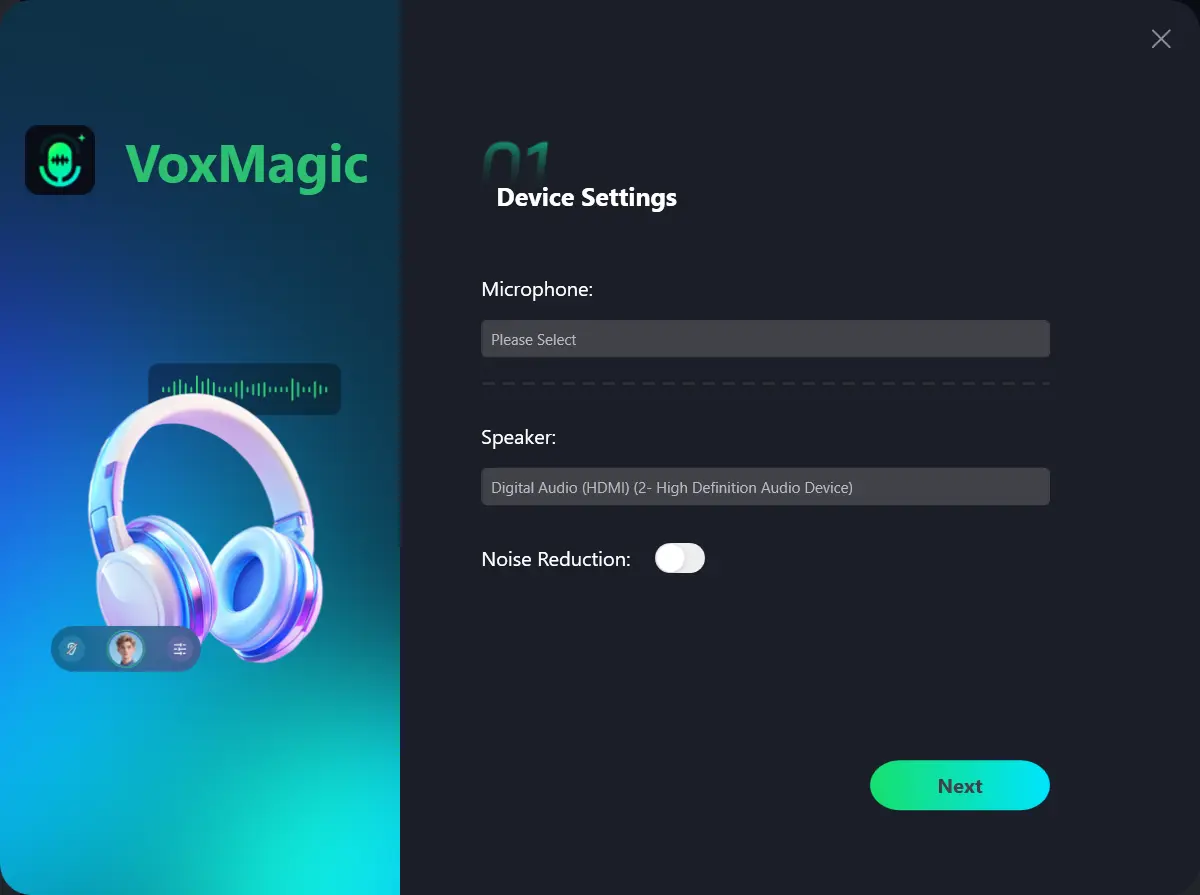
- Open Fionn VoxMagic. In device settings, select a microphone and playback device. Turn on noise reduction if needed, then click Next.
- If the Installing Core Components dialog appears, wait for the installation to finish before continuing.
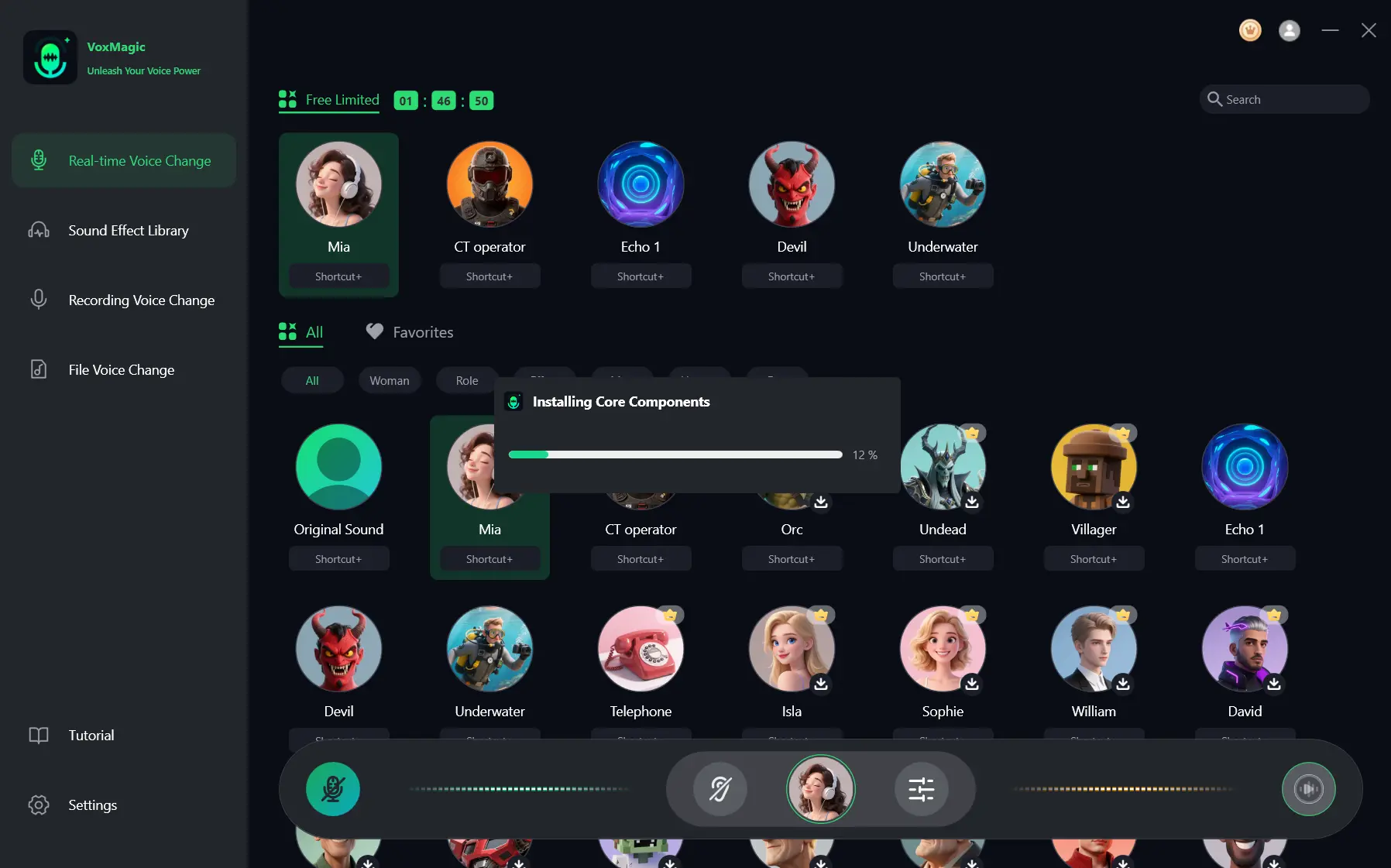
- Open the real-time voice change section and select a voice effect, such as Mia. The selected effect is highlighted and appears in the bottom control bar.
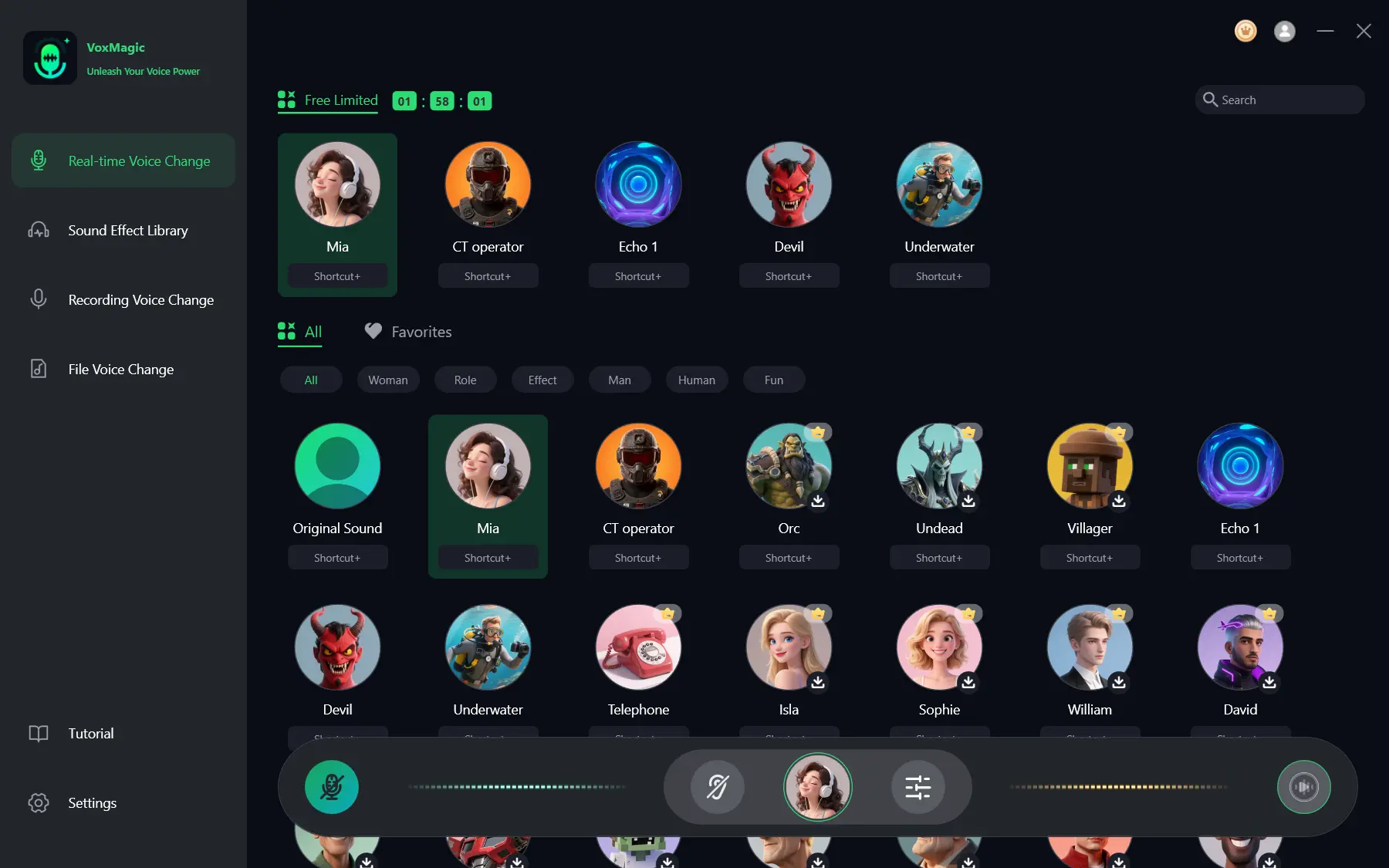
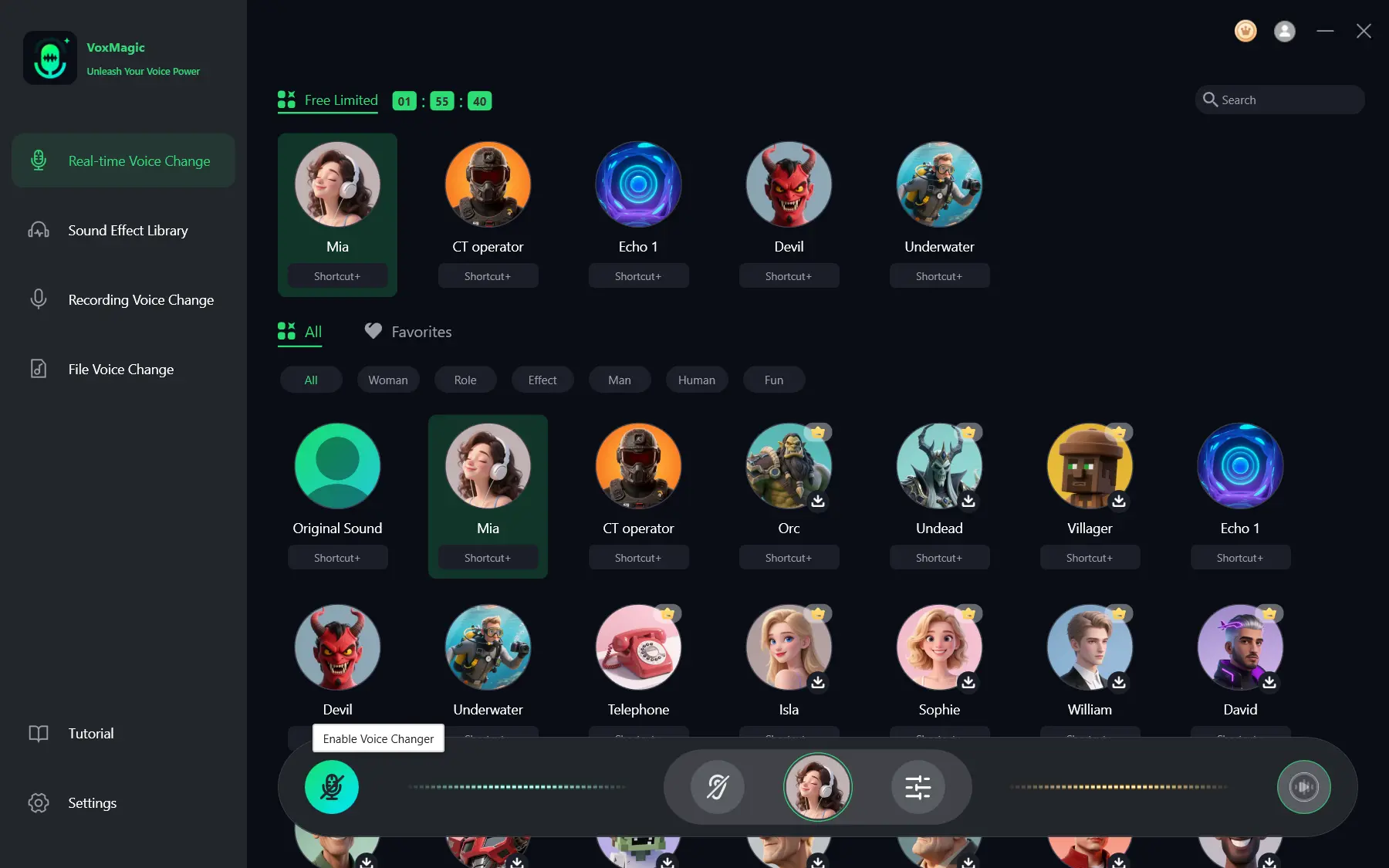
- Click the microphone button labeled Enable Voice Changer in the lower-left corner of the control bar.
- Click the ear icon in the bottom control bar to enable preview. To check the selected effect, listen to your voice through headphones.
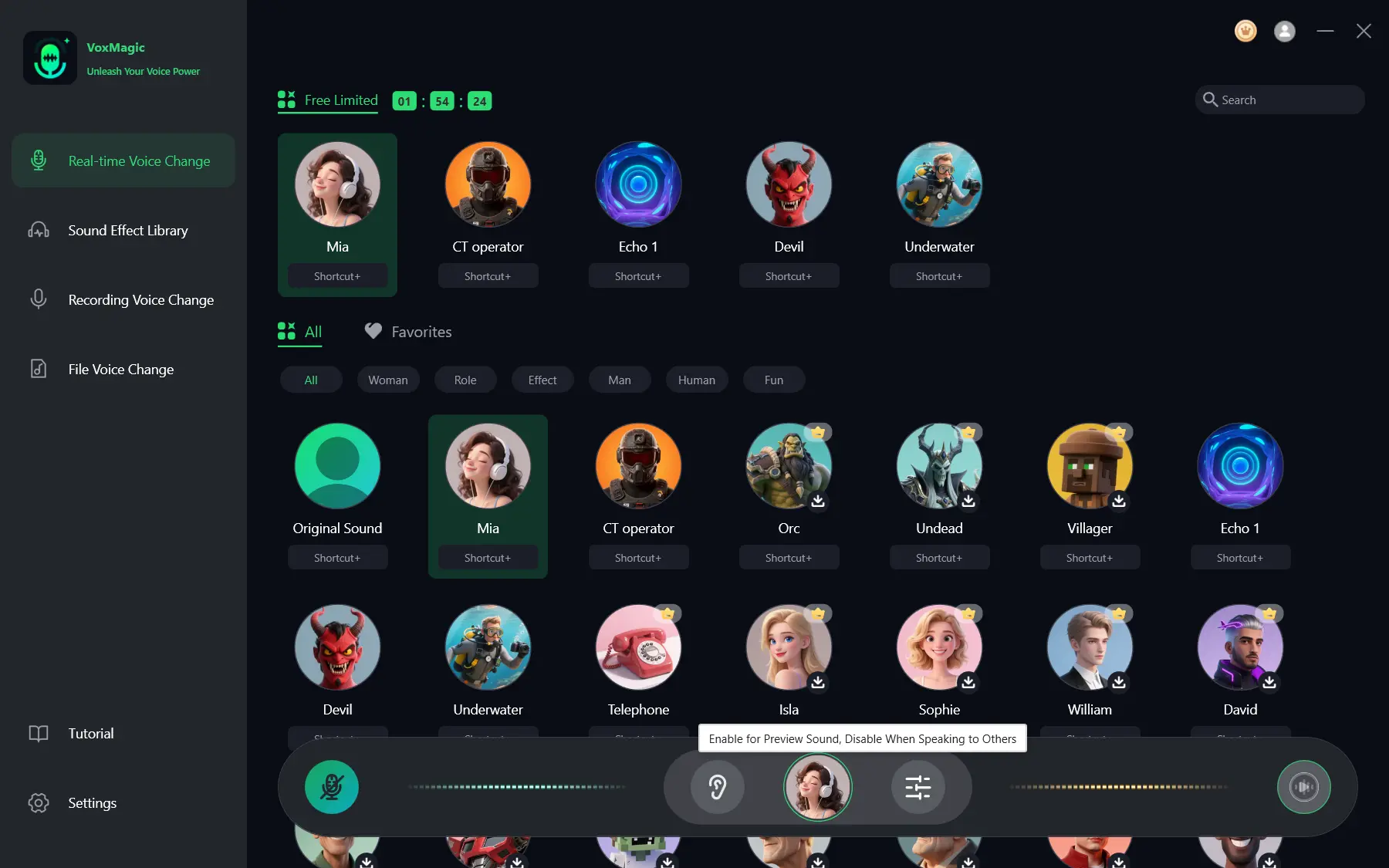
- Say a few words into the microphone and listen to the preview to check the selected effect. Make sure the audio level indicators respond to speech. Turn off preview before speaking with others.
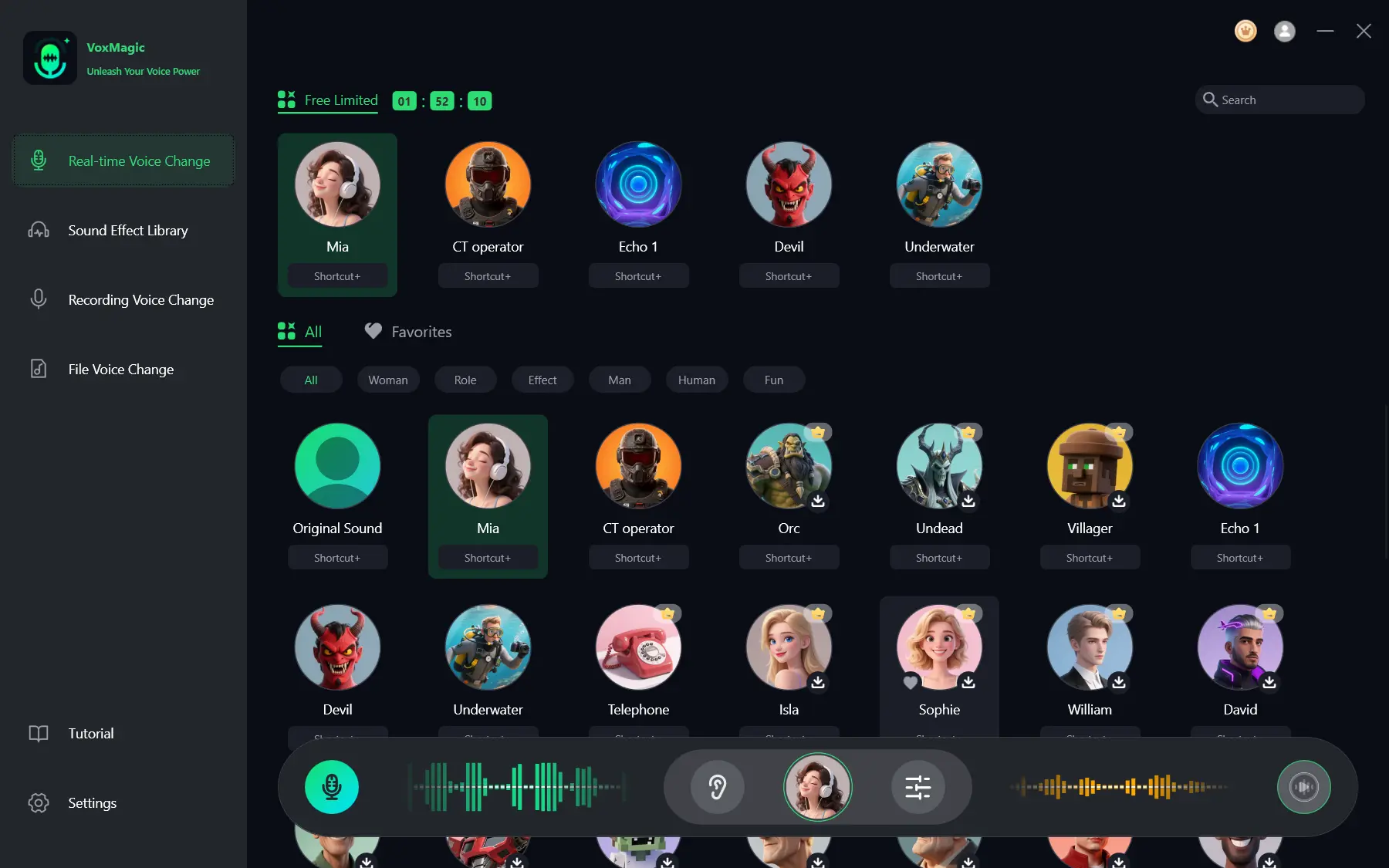
Check: the level indicators respond to speech and you can hear the selected effect through your headphones. Then select Fionnshare Virtual Audio as the input device in Discord using Method 1.
Tips for Clear Audio
- Use headphones while previewing so speaker audio does not feed back into the microphone.
- First achieve a stable signal in the Discord test, then change the effect or voice pitch.
- If you experience latency or noise, check the selected input and output devices in the voice-changing program.
- Before an important call, test the effect in a private voice channel or with a friend.
Conclusion
Start by selecting the virtual microphone in Discord, then confirm the audio with the built-in test. If Discord does not receive a signal, check microphone permission in Windows and restart the app. For choosing an effect and previewing locally, use Fionn VoxMagic ; after checking the indicators and headphone audio, return to Discord settings and select Fionnshare Virtual Audio. If the Discord test is still silent, check Discord's official instructions for the input device and input mode.
Frequently Asked Questions
Can I change my voice in Discord without selecting a different input device?
No. Discord transmits audio from the selected input device. If the processed signal is available through a virtual microphone, you need to select it in the Voice & Video section.
Why can people hear my normal voice in Discord?
Most often, Discord is using the physical microphone instead of the virtual device. First make sure voice changing is enabled in the program, then select its virtual microphone in Discord.
How can I check whether Discord hears my changed voice?
In the desktop app or browser version, open Voice & Video and start the microphone test. Listen to the result through the selected output device.
Do I need to use headphones?
They are especially useful while previewing because they reduce the chance that playback audio will enter the microphone again.
What should I do if the microphone indicator does not move?
Check the input device in Discord, Discord's microphone access in Windows, and the input mode. Then restart Discord and repeat the microphone test.


