 Emily CarterVoice Changer
To change your microphone voice, you first need a working physical audio source, then enabled processing and the correct input in the app where you communicate. On Windows, a practical order is to set up an effect in Fionn VoxMagic , make sure Windows receives voice from the physical microphone, and then check the input in your game, chat, or streaming app. Below are three methods for different symptoms: setting up the effect, checking Windows, and checking an individual app.
Quick Comparison of Methods
| Method | Best for | Effectiveness | User effort |
|---|---|---|---|
| Fionn VoxMagic | Selecting and testing an effect in real time | High | Low |
| Check Windows | Cases where the physical microphone does not respond | Medium | Low |
| Check the app | A problem that occurs in only one app | Medium | Medium |
How to Change Your Microphone Voice with Fionn VoxMagic
When to use it: when you need to choose a voice effect and hear the result before starting a conversation. This is the recommended option for configuring a real-time voice effect: Fionn VoxMagic lets you select input and output devices, choose a classic or AI voice, adjust pitch, and use noise reduction.
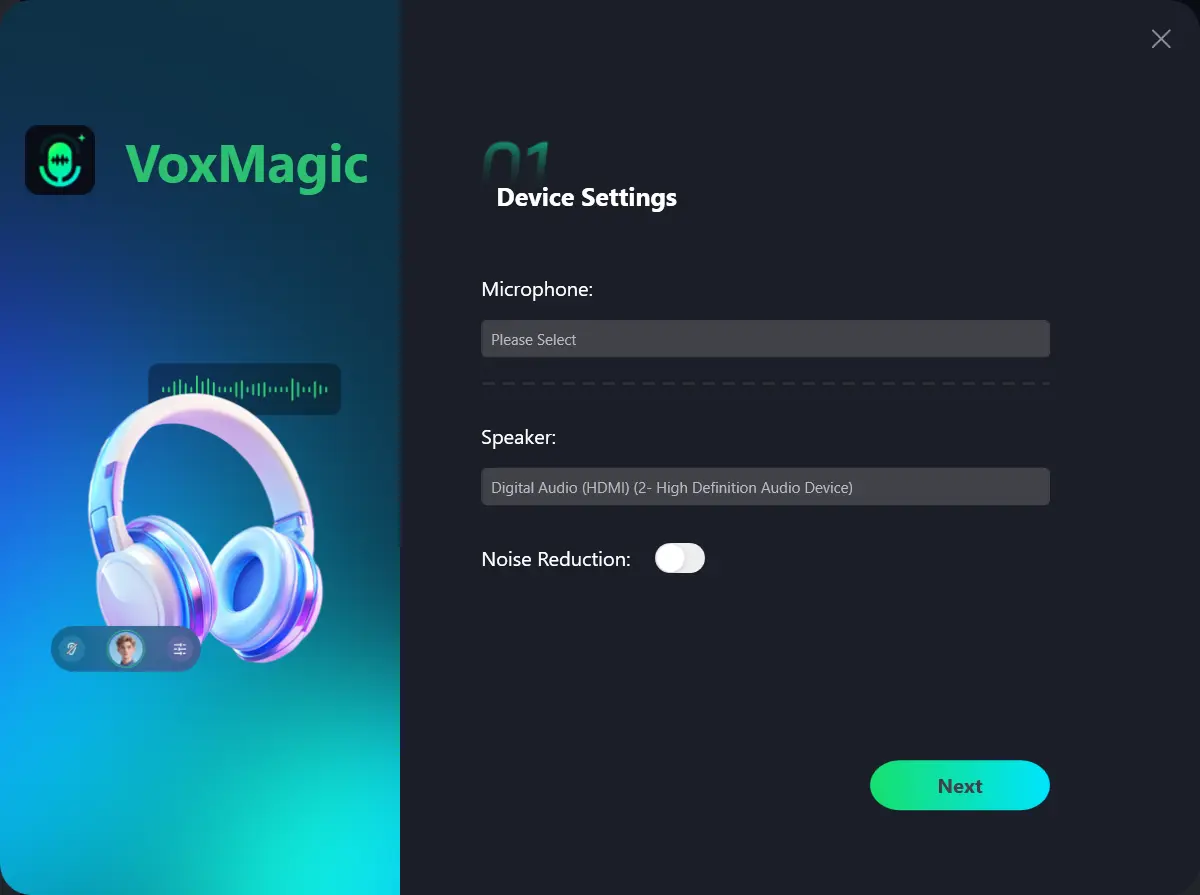
- Open Fionn VoxMagic, select your physical microphone and playback device. Enable noise reduction if needed, then click Next.
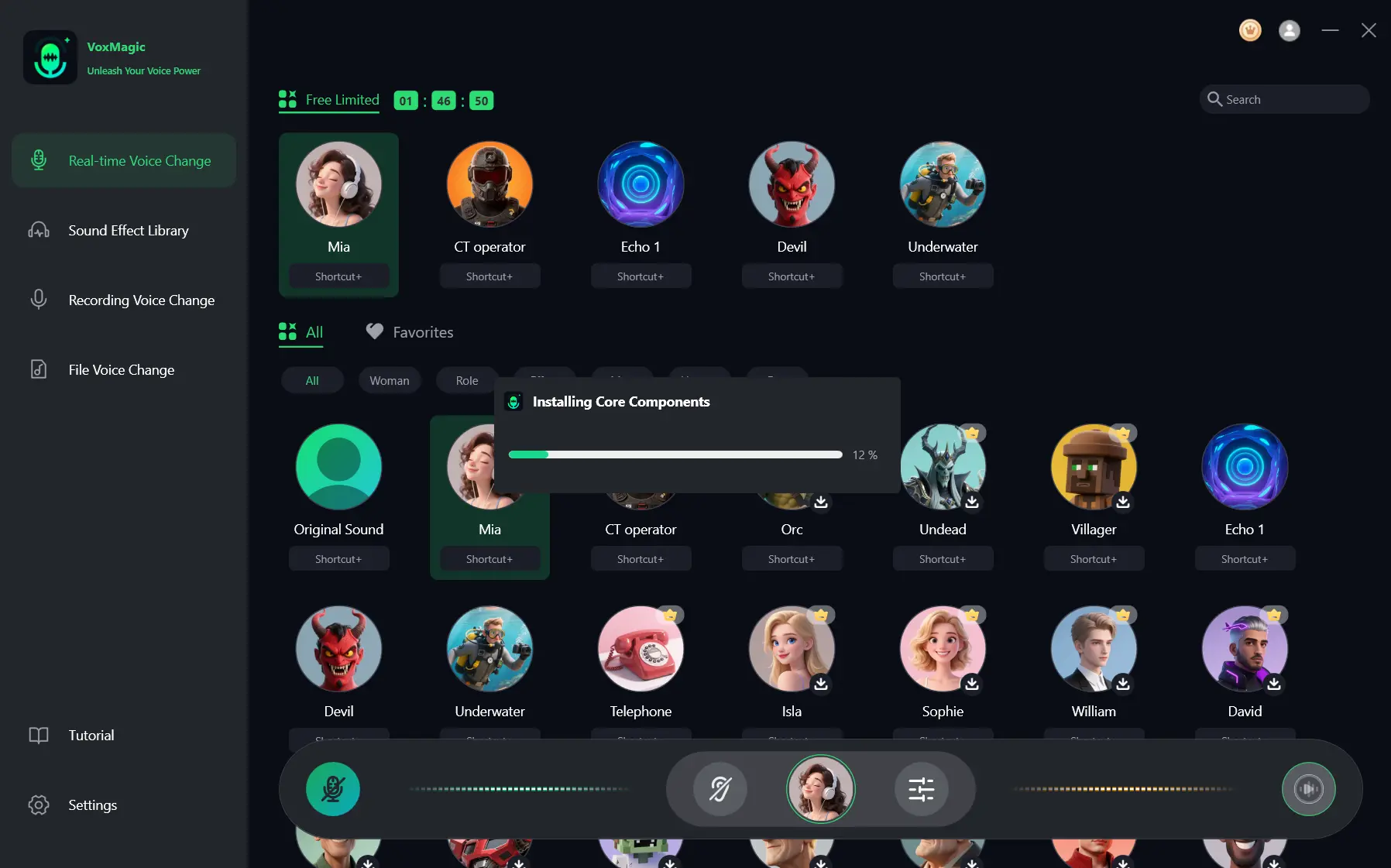
- If the Installing Core Components dialog appears, wait for the installation to finish.
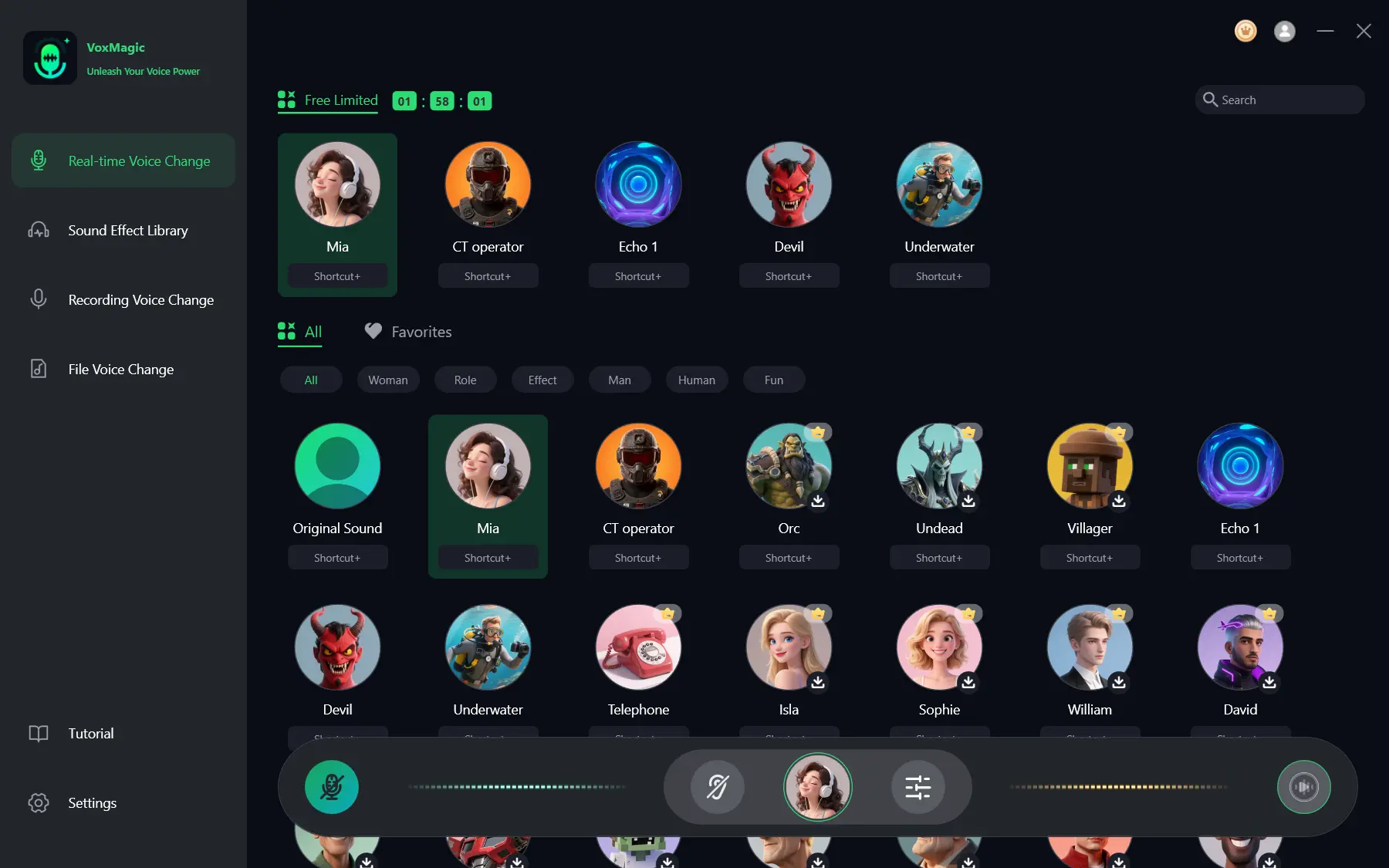
- Open the real-time voice changing section and select an effect, such as Mia.
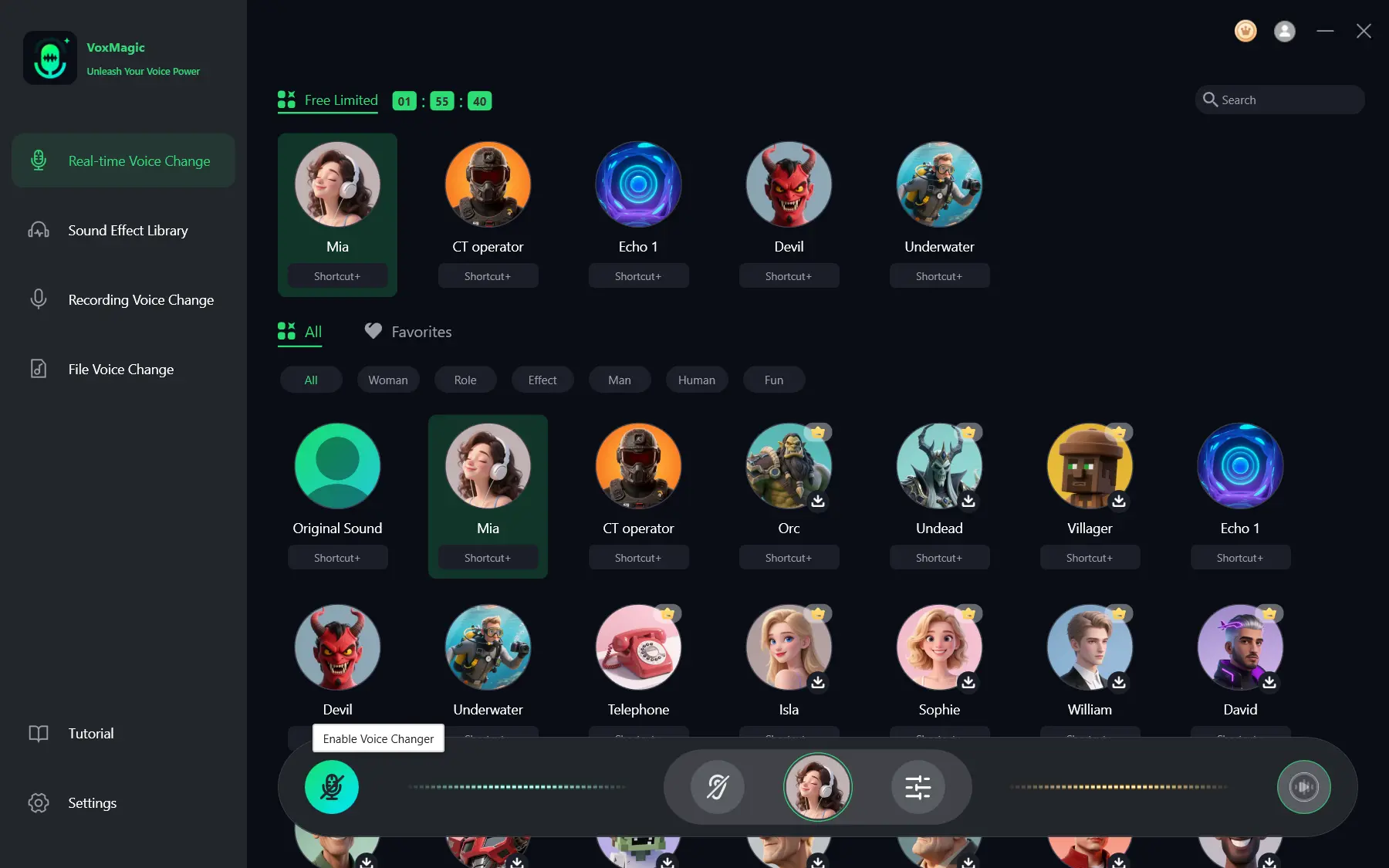
- Click the microphone button in the lower-left corner of the control bar to enable voice changing.
- Click the ear icon in the bottom bar to enable voice preview, and use headphones.
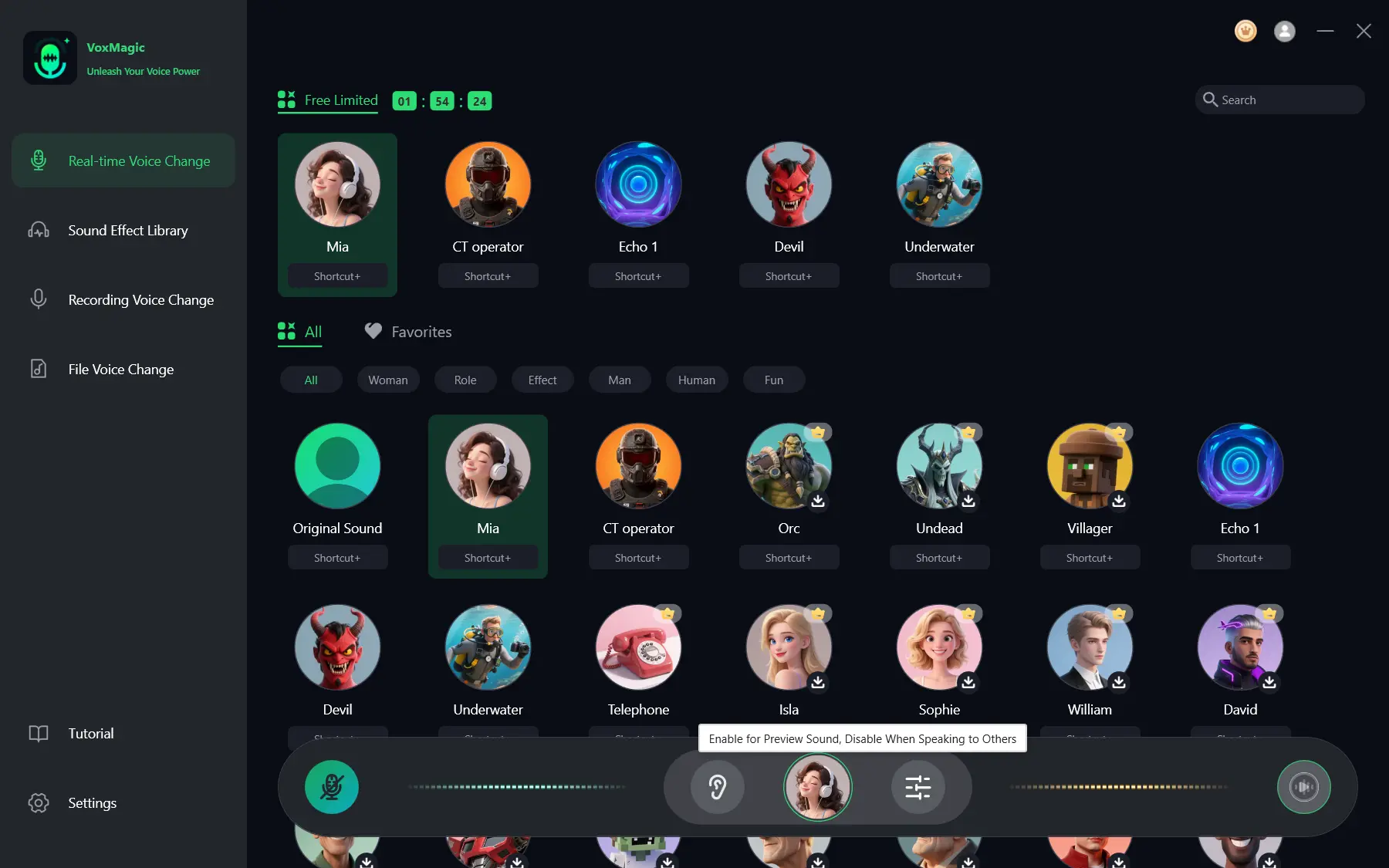
- Say a few words and check whether the level indicators respond and whether you can hear the selected effect. Turn off voice preview before a normal conversation.
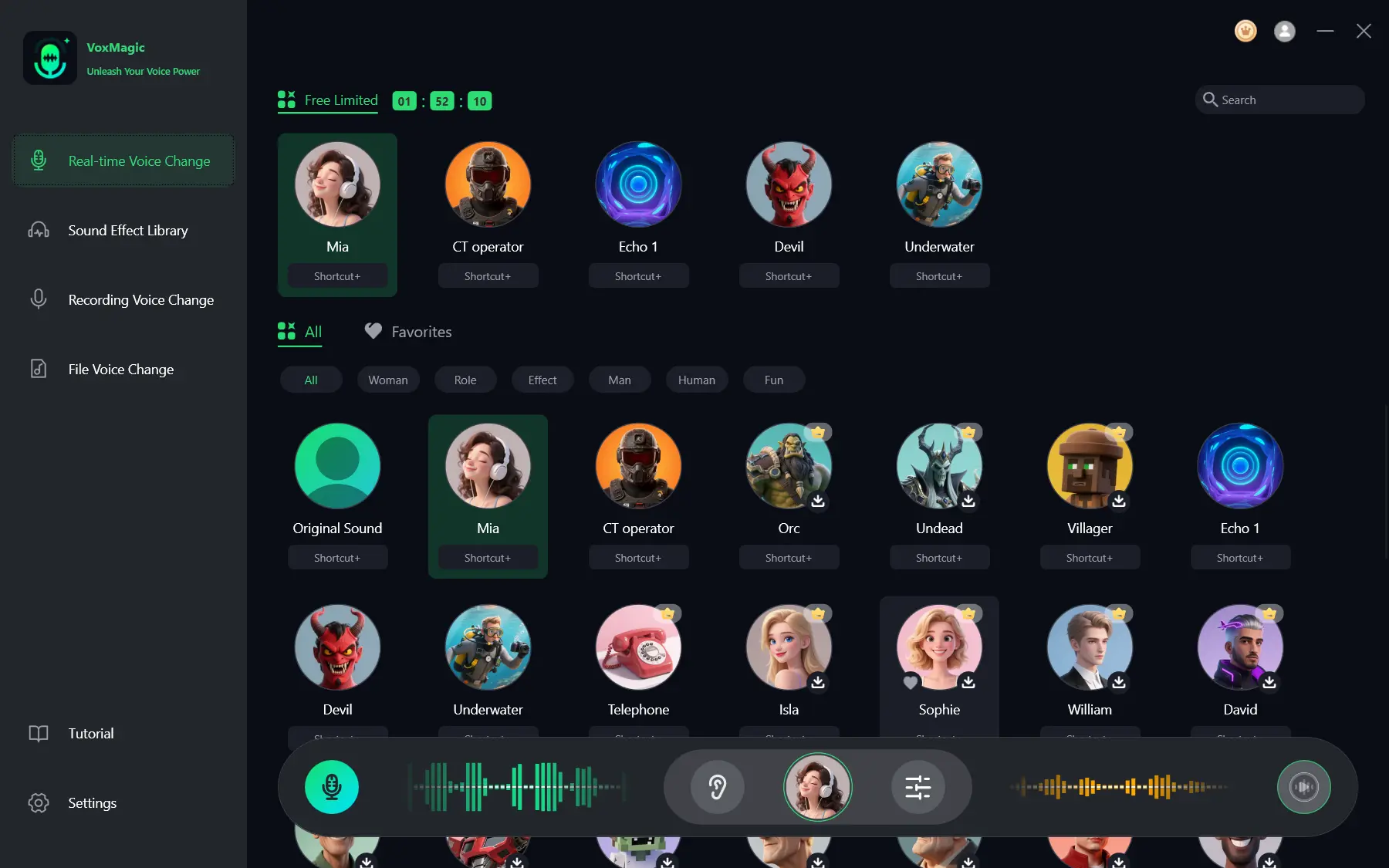
Check: the indicators move while you speak, and you can hear the processed voice in your headphones. Voice preview confirms processing inside the app, but it does not test the input in another app.
Method 2: Check Your Physical Microphone in Windows
When to use it: when the indicators in the program do not respond, your voice cannot be heard anywhere, or Windows selected a different input device after you connected a headset.
- Open
Параметры > Система > Звукin Windows 10 or Windows 11. - Under Input, select the physical microphone you speak into.
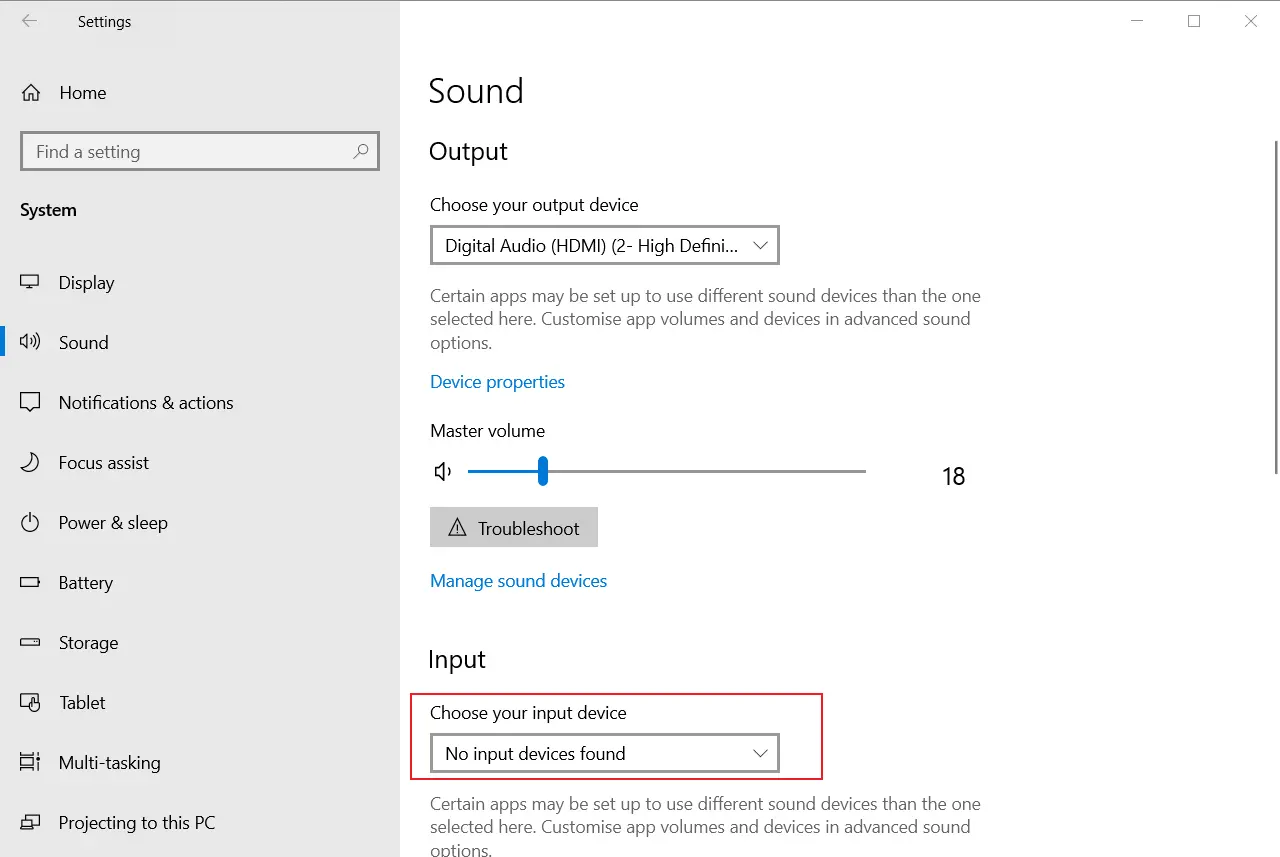
- Say a short phrase and watch the input level indicator.
- If the level does not change, check the microphone connection and select the input device again.
Check: the Windows indicator responds to your voice. This method does not add an effect, but it separates a physical microphone problem from a processing problem.
Method 3: Check the Input Source in Your App
When to use it: when Windows receives sound but the people you are speaking with, your game, or your streaming app does not receive the expected result.
- Open the audio or voice settings in the target app.
- Find the microphone, input device, or voice input setting.
- Select the source that should be used for the current scenario.
- Run the app's built-in microphone test, if available, and say a short phrase.
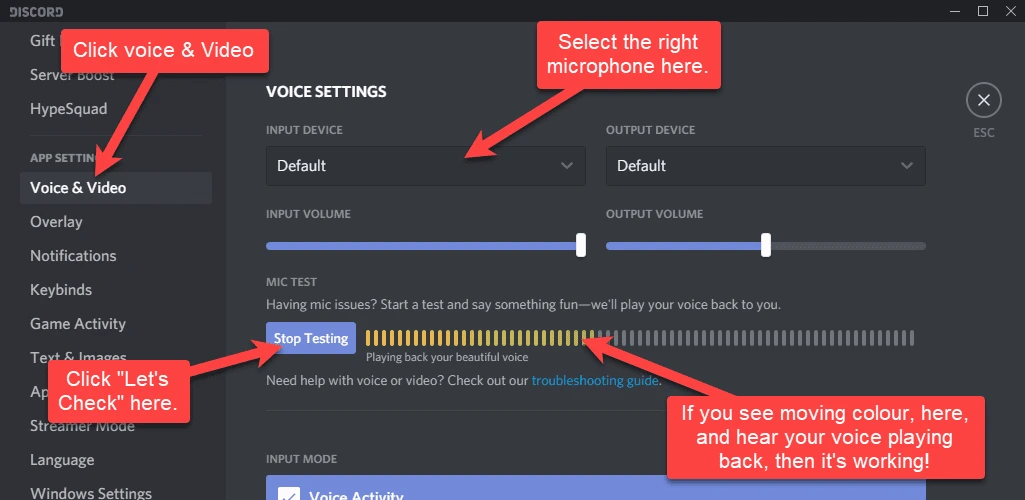
Check: the app displays an input level or plays a test signal. A setting in one app usually does not change the audio source in other apps, so check each app separately.
How to Avoid Common Mistakes
- Test the effect with headphones rather than speakers to help avoid feedback.
- Do not change the microphone, output device, and effect at the same time. First confirm that the physical microphone works in Windows.
- Do not leave voice preview enabled if it interferes with your conversation.
- If the problem occurs in only one app, check that app's own input source first instead of reinstalling everything immediately.
Conclusion
Start by configuring an effect in Fionn VoxMagic, then confirm that Windows receives a signal from the physical microphone, and finally check the input in the app you need. This order helps distinguish among three causes: no source audio, processing is not enabled, or the app uses a different source. A moving level indicator and an audible effect in headphones or an app test confirm a successful result. If the problem persists, check the selected devices and effect settings again in Fionn VoxMagic .
Frequently Asked Questions
Can I change my voice in real time?
Yes. Fionn VoxMagic supports real-time voice changing: you can select a classic or AI voice, enable processing, and check the result through voice preview.
Why do I need a Windows virtual microphone?
A virtual microphone lets a third-party app use processed audio as its input. Fionn VoxMagic creates the Fionnshare Virtual Audio virtual microphone for selection in compatible apps.
Why does my voice sound worse after noise reduction?
A higher noise reduction level can change voice quality. Compare the result in headphones and choose a level that keeps speech clear.
Why can only I hear the effect?
Voice preview checks the result inside the app. You must then separately select the correct source and run a microphone test in the target app.
Try Voice Changing
Open Fionn VoxMagic, select an effect, and test it in headphones first. Then configure the input source in the app where you plan to chat, play games, or stream.


