 Emily CarterVoice Changer
To change your voice in an online game, first set up your physical microphone and effect, then enable the virtual input and select it in the game's or chat app's voice settings. Fionn VoxMagic lets you prepare this real-time audio chain on Windows 10 and Windows 11. Local monitoring confirms that the app is working, but you should verify the final result in the game itself or with another participant.
First, set up your voice in the app below, then follow only the route that applies to the app you use. For an unnamed game, it is not possible to promise the location of its settings or compatibility in advance: find its voice chat section and select the virtual input under the name shown on your computer.
Getting Started
For real-time use, follow one main path: set up an effect in VoxMagic, use the indicators and preview to make sure the local chain works, then assign the virtual input in the target app. Windows settings are useful if the system cannot detect or hear the microphone; they do not replace selecting the input in the game.
- You need to change your voice while playing: set up VoxMagic, then configure the game's voice input.
- Windows cannot detect or hear the microphone: check the Windows input and permissions first.
- You use Steam Voice or Discord: follow the appropriate documented route after setting up VoxMagic.
How to Change Your Voice in Real Time with Fionn VoxMagic
The recommended option for this task. This method is suitable when you need a changed voice in a game or chat, rather than processing a finished recording. VoxMagic combines device selection, voice effects, noise reduction, voice-changing activation, and local verification.
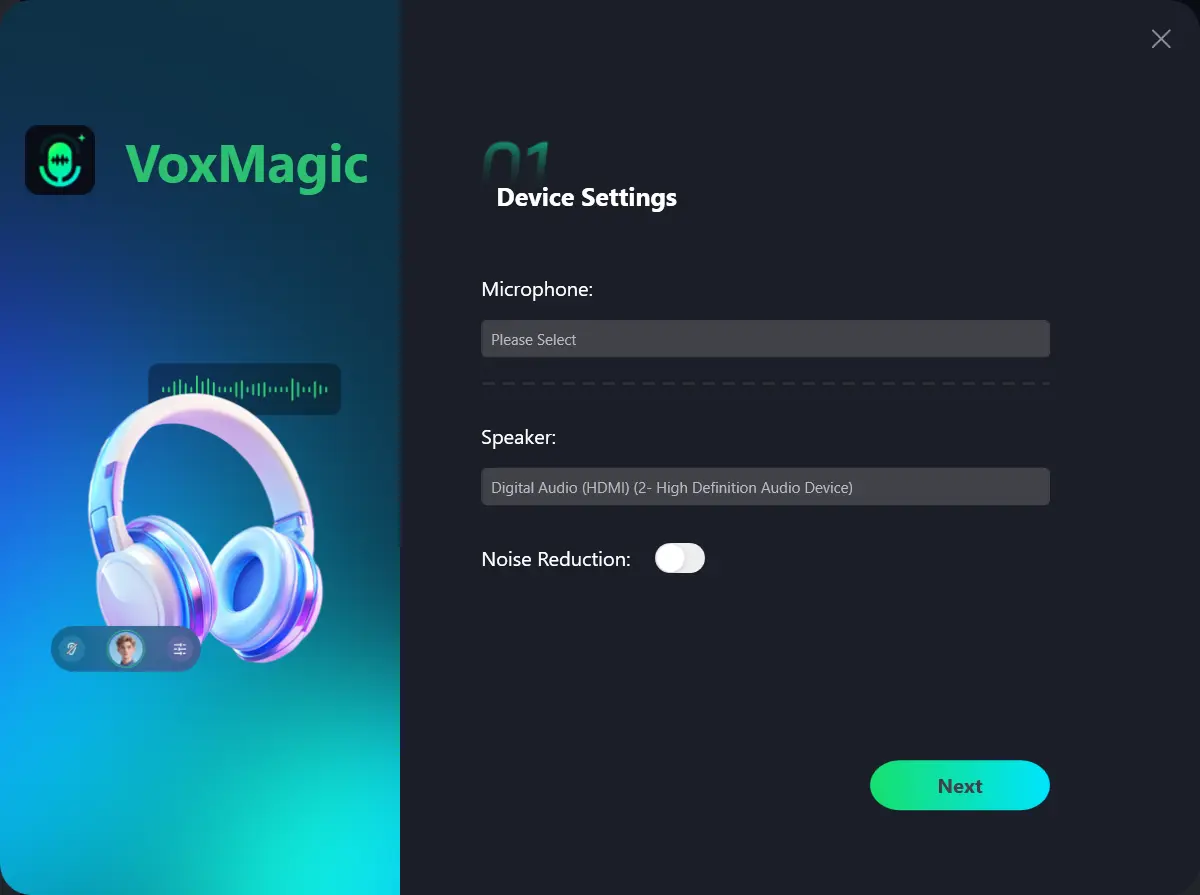
- Open Fionn VoxMagic. In the device settings section, select your microphone and playback device. Enable noise reduction if needed, then click Next.
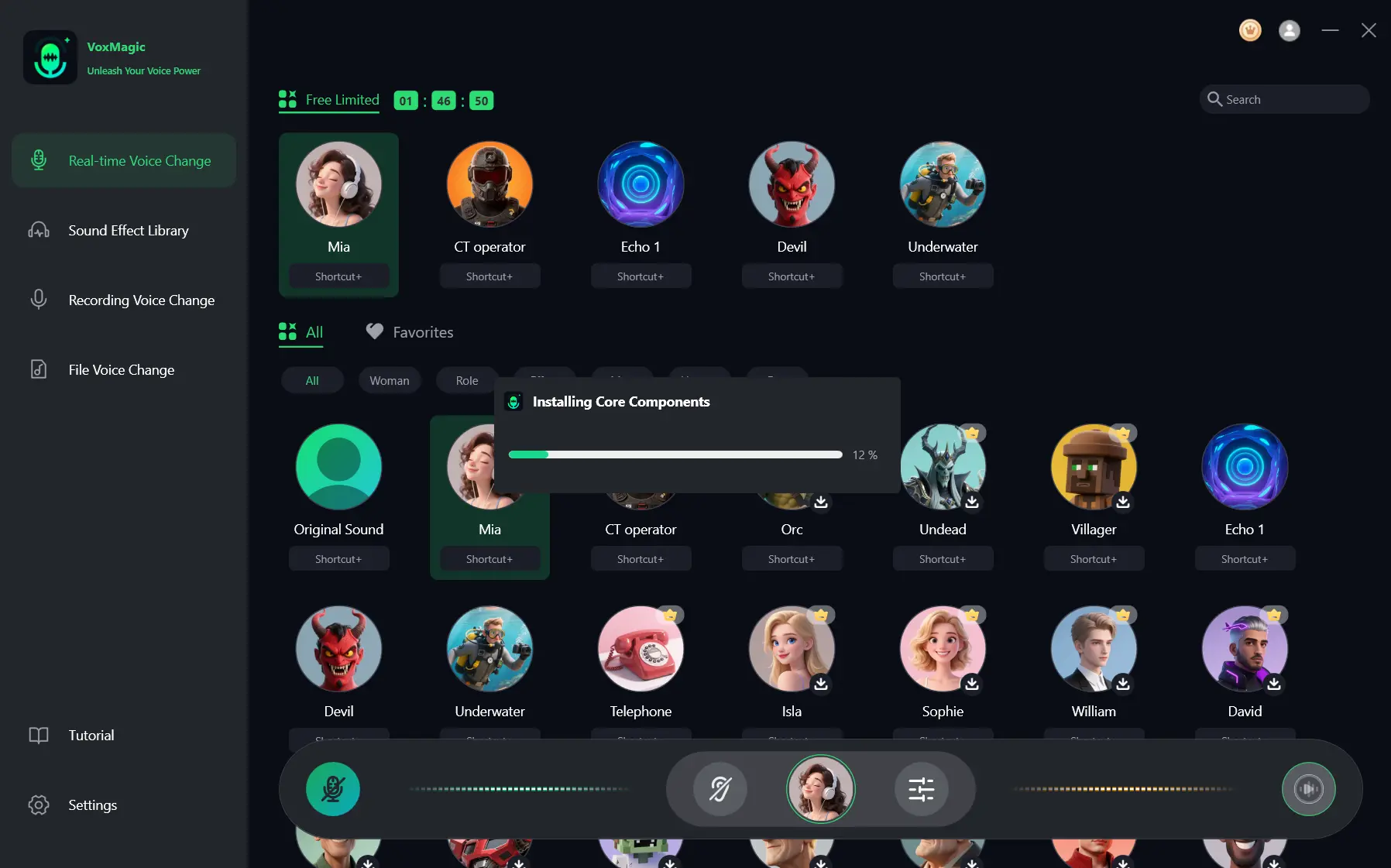
- If the core-components installation window appears, wait for installation to finish before continuing.
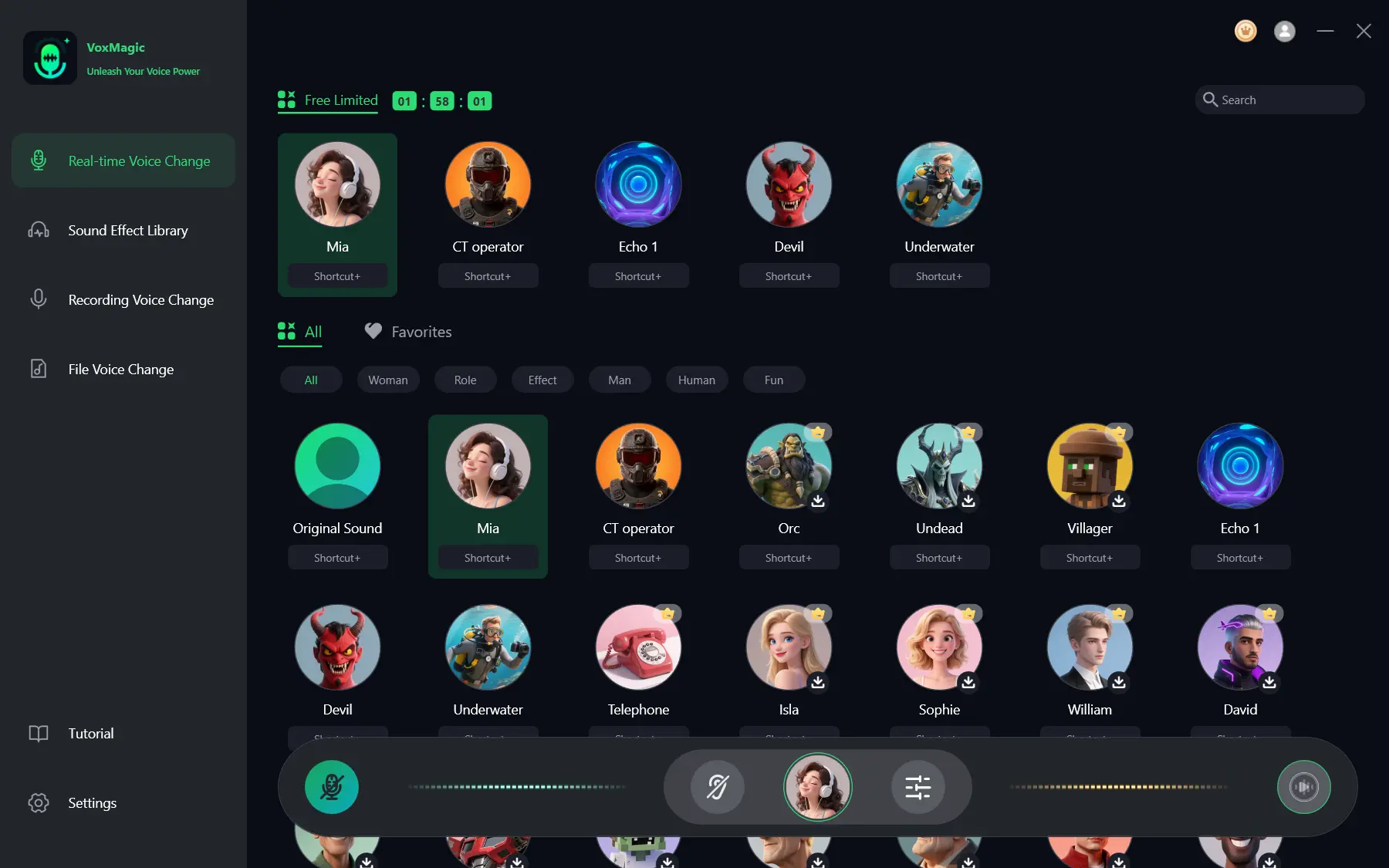
- Open the real-time voice-changing section and select a voice effect, such as Mia. The selected effect will be highlighted and appear on the bottom control panel.
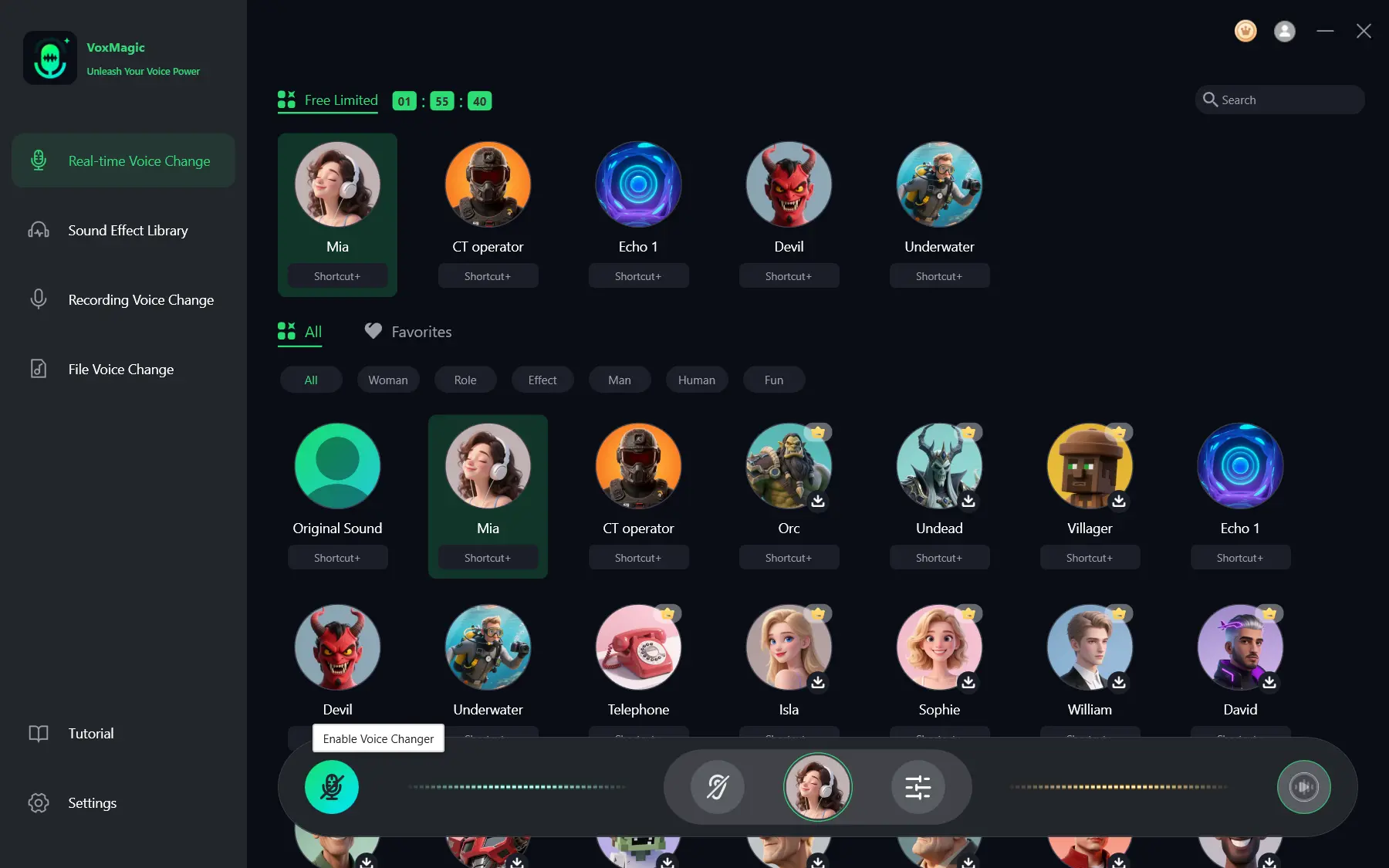
- Click the microphone button labeled Enable Voice Changing in the lower-left corner of the control panel.
- Click the ear icon on the bottom panel to enable voice preview. Use headphones during testing.
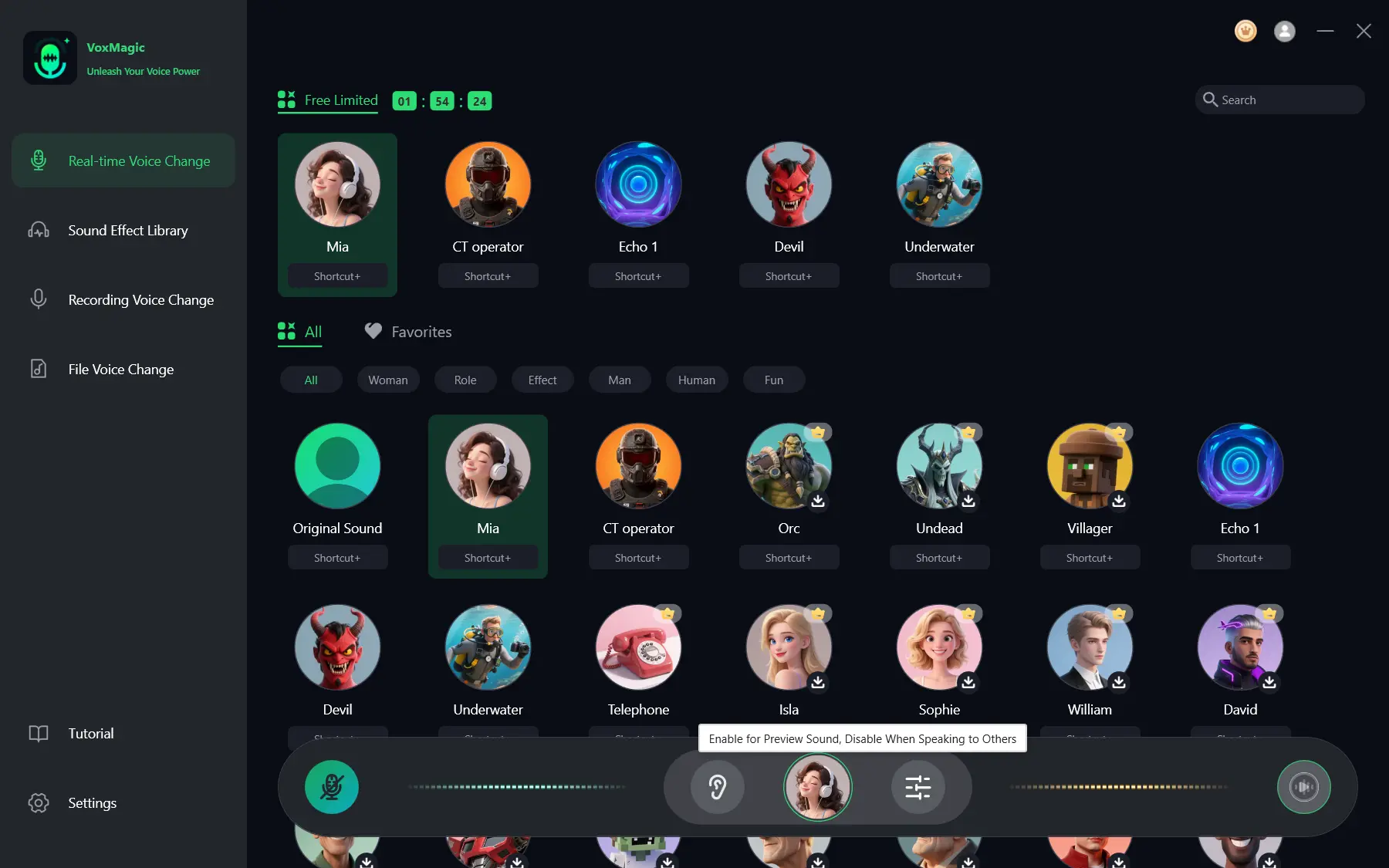
- Say something into the microphone and listen to the effect. Make sure the audio-level indicators respond to speech. Disable voice preview before talking to other people.
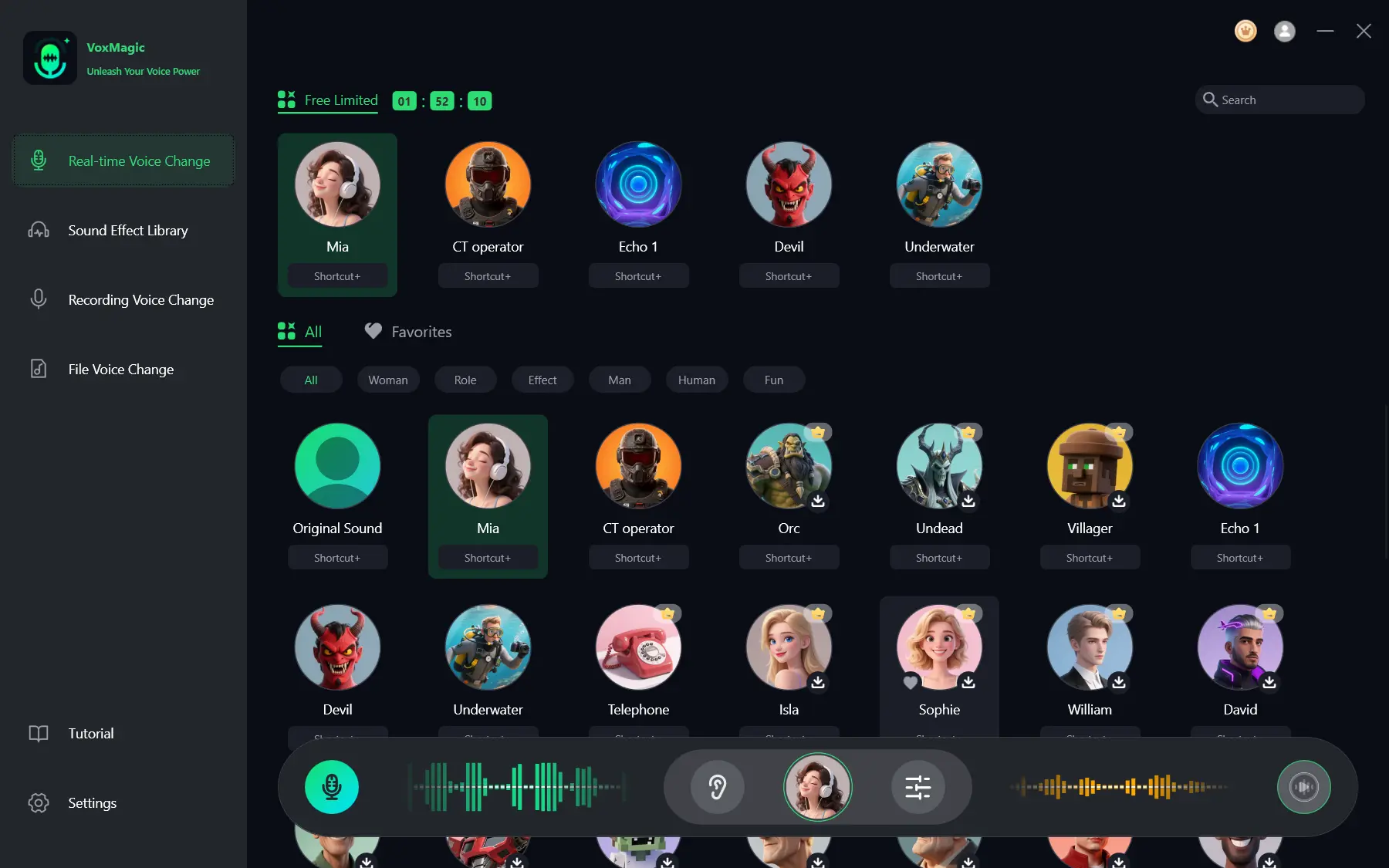
A successful result for this method is hearing the effect in your headphones while the level indicators respond to speech. This proves the local VoxMagic chain is working, but it does not yet prove that the changed voice is reaching the game.
How to Route Your Voice Through Steam Voice
This section applies to Steam Voice, not every game launched through Steam. Open the Steam Voice setup instructions if you use that particular voice service.
- Open the Steam menu in the upper-left corner and go to Settings.
- Open the Voice section and select the VoxMagic virtual audio input as your input device.
- Leave the output device set to default or select your real headphones, not the VoxMagic virtual speaker.
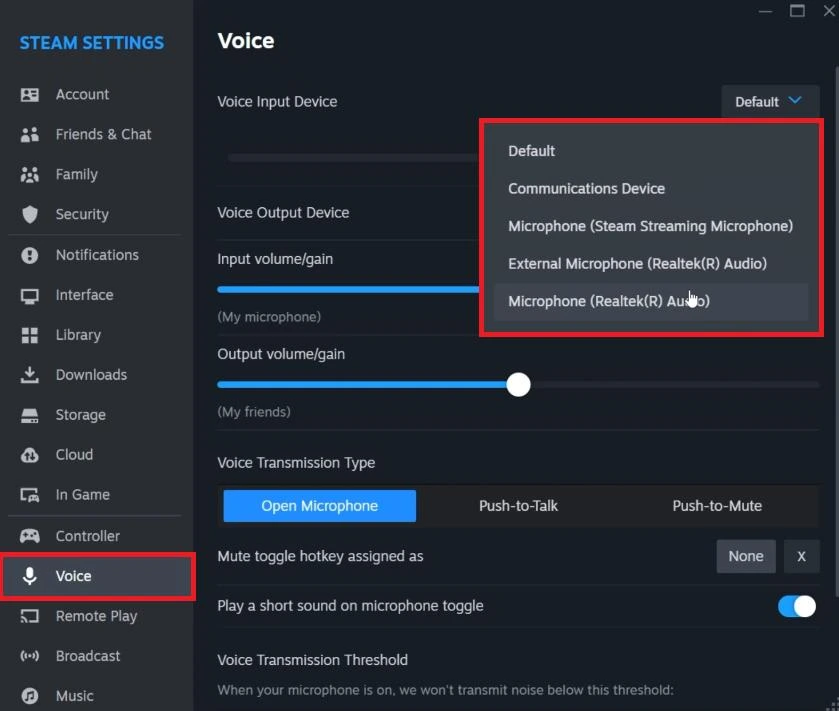
- Before testing the Steam microphone, turn off Hear Yourself in VoxMagic.
Then run Steam's microphone test. A positive result confirms the Steam Voice setup, but it does not test an individual game's voice chat.
How to Route Your Voice Through Discord
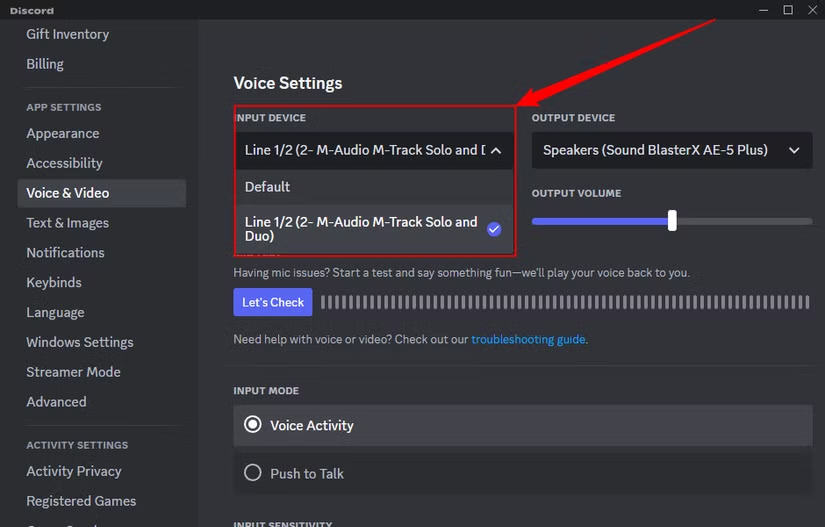
First, complete a local preview in VoxMagic. Then open Discord User Settings, go to Voice & Video, and select
Fionnshare Virtual Audio
from the input-device list. The publisher's instructions recommend disabling automatically determined input sensitivity, echo cancellation, noise suppression, and automatic gain control for the best effect.
If Your Voice Does Not Change or the Game Cannot Hear Your Microphone
Separate the issue by where the failure occurs. If the indicators do not respond in VoxMagic, check the selected physical microphone. If preview works but the game receives your normal voice or silence, open that game's voice-chat settings and assign the product's virtual input; then use its built-in level test or ask a participant to confirm the result.
Check the Input in Windows
In Windows 11, open Sound settings and choose the device for speaking or recording under Input. Open its properties, run the microphone test, say a phrase, stop the test, and listen to the sample. In Windows 10, select the microphone under Input and check whether the system can hear it. Detailed instructions are available in Microsoft's microphone troubleshooting guide .
This test shows whether Windows receives sound from the selected input. It does not confirm that the changed voice is delivered to the game.
If an App Is Denied Microphone Access
In Windows privacy settings, enable app access to the microphone and separately allow desktop apps to access it. Then return to VoxMagic and check the level indicators again.
Conclusion
To change your voice in online games, start by setting up an effect and performing a local check in Fionn VoxMagic . Then select its virtual input in the specific voice chat and test it there. If the local check passes but the game does not receive sound, the issue is usually the selected input device, Windows permissions, or the game's own settings. Check these items one at a time, and do not treat preview as the final in-game test.
Frequently Asked Questions
Can I change my voice in a game in real time?
Yes. VoxMagic is designed for real-time voice changing in Windows games and chats. For it to work in a specific game, that game's voice chat must receive the signal from the product's virtual input.
Do I need to select the virtual microphone in the game?
Yes. After setting up the effect in the app, select the product's virtual audio device in the game or chat app's microphone-input settings. Its name may display differently, so use the virtual input your system detects.
Why can I hear the effect in my headphones but other players cannot?
Preview checks local audio only. Check that the virtual input is selected in the game, microphone access is allowed in Windows, and the game's own microphone test passes.
Does VoxMagic support standard microphones and headsets?
The official product page states that it supports standard microphones and headsets without additional hardware. Select the devices you need in VoxMagic settings before enabling the effect.


