 Emily CarterData Recovery
If you deleted a presentation, first stop saving or downloading files to the drive where it was stored. The quickest recovery path depends on where the presentation was saved: use the Windows Recycle Bin for a local deletion, the OneDrive Recycle Bin for a cloud deletion, or a recovery tool when the file is no longer in either bin. This guide covers four methods, starting with the simplest. Try them in order and open the recovered file before editing it.
Quick Method Comparison
| Method | Best For | Efficiency | User Effort |
|---|---|---|---|
| Windows Recycle Bin | A recently deleted local presentation | Fast | Low |
| OneDrive Recycle Bin | A presentation deleted from OneDrive | Fast | Low |
| Windows File Recovery | A local file missing after the Recycle Bin is empty | Variable | High |
| Fionn Data Recovery | Locating a deleted or lost file on a disk or external device | Guided | Low |
Method 1: Restore the Presentation from the Windows Recycle Bin
When to use: Use this first when you deleted the presentation from a folder on your Windows computer and have not emptied the Recycle Bin.
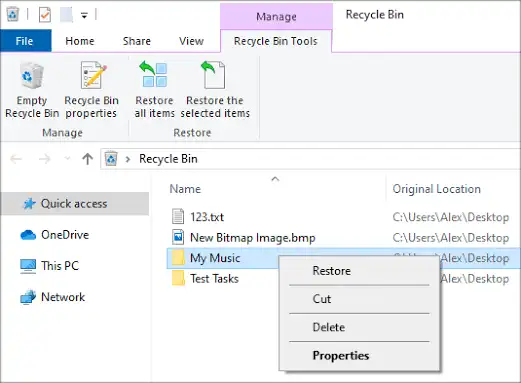
- Open Recycle Bin from the desktop or search for it from the Start menu.
- Find the presentation by sorting the list or using the search box.
- Right-click the presentation and select Restore .
Verify: Windows returns the file to its original folder. Open it there and confirm the slides display correctly.
Microsoft confirms that restoring an item from the Windows Recycle Bin returns it to its original folder. See Microsoft’s Recycle Bin restore instructions .
Method 2: Restore It from the OneDrive Recycle Bin
When to use: Choose this path when the presentation was stored in OneDrive, especially if it was online-only. Cloud-deleted files may not appear in the Windows Recycle Bin.
- Open the OneDrive website and sign in to the account that stored the presentation.
- Select
Recycle bin
in the navigation pane.
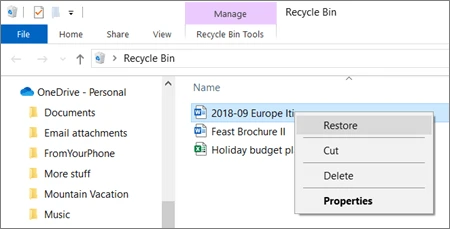
- Select the presentation and choose Restore .
Verify: Find the file in its original OneDrive location, allow sync to finish if needed, then open the presentation.
Method 3: Use Windows File Recovery
When to use: Use Microsoft’s command-line recovery app for a deleted local presentation that cannot be restored from a backup or Recycle Bin. It supports local storage devices, not cloud storage or network file shares.
- Install Windows File Recovery from the Microsoft Store.
- Open Windows File Recovery and allow it to make changes when prompted.
- Run a recovery command with different source and destination drives, replacing the placeholders with your drive letters and file extension.
winfr C: E: /regular /n *.pptx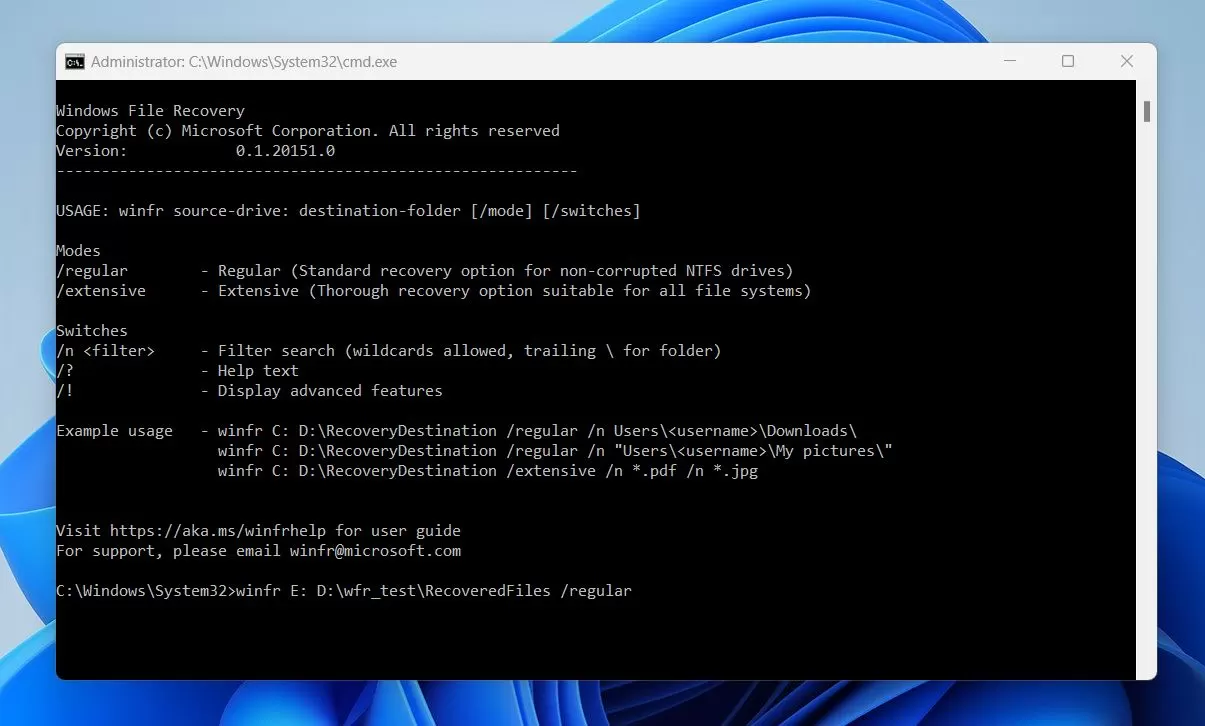
Verify:
Windows creates a
Recovery_<date and time>
folder on the destination drive. Look there for the presentation and test it in your presentation app.
Method 4: Fix a Deleted Presentation with Fionn Data Recovery
When to use: This is a practical option when a presentation was deleted or lost from a local disk, external drive, USB drive, SD card, or camera memory card. Fionn Data Recovery can scan supported storage, filter results, and let you preview files before recovery.
- Launch Fionn Data Recovery and select the recovery option for the type of data or storage location you want to recover.

- Start the automatic scan and wait while Fionn Data Recovery searches the selected location for deleted or lost files.

- After the scan finishes, browse the results and preview the files to select the data you want to restore.

- Select a destination folder to save the recovered files, then start the recovery process.

Verify: Open the recovered presentation from the destination folder and check that the expected slides and media are present.
Conclusion
Start with the Windows Recycle Bin when the deletion was local, then check the OneDrive Recycle Bin if the file was cloud-stored. If neither location contains the presentation, use Windows File Recovery when you are comfortable with a command-line tool, or use Fionn Data Recovery to scan and preview recoverable files. In every case, verify recovery by opening the file and reviewing its slides before replacing any existing copy. If no method finds it, stop writing to the original drive and consider whether a backup or a storage-recovery professional is appropriate.
FAQ
Can I recover a presentation after emptying the Recycle Bin?
Possibly. Windows File Recovery can attempt to recover deleted files from local storage after they are no longer in the Recycle Bin. Recovery results depend on whether the original data has been overwritten.
Why is my deleted presentation not in the Windows Recycle Bin?
If it was deleted as an online-only OneDrive file, it may be in the OneDrive Recycle Bin instead. Microsoft also notes that files deleted from the cloud do not appear in the computer’s Recycle Bin.
Can I recover a OneDrive presentation after 30 days?
For a personal OneDrive account, Microsoft states that Recycle Bin items are automatically deleted after 30 days. Work or school accounts may use different retention settings, so check with the organization’s administrator.
Should I save the recovered presentation to the same drive?
No. Save it to another disk or external device when possible. Writing new data to the original drive can overwrite deleted-file data and reduce the chance of recovery.


