 Emily CarterData Recovery
How to Recover a Deleted PDF on Windows 10 or 11
Introduction
You can often recover a deleted PDF by restoring it from the Recycle Bin, retrieving a File History backup, running Windows File Recovery, or scanning the original storage device. This guide covers four methods. Start with the Recycle Bin, then check File History. If neither has a copy, stop using the affected drive and try a recovery scan. Recovery becomes less likely after deleted data is overwritten, so avoid downloading, installing, or saving files to that drive.
What to Do Before Recovering a Deleted PDF
First, confirm that the PDF was deleted rather than moved or renamed. Search File Explorer for
*.pdf
, then sort the results by date modified. Also check the application or website that originally supplied the document; downloading a replacement is safer than reconstructing deleted data.
A PDF removed from an internal drive may enter the Recycle Bin. A file deleted with Shift+Delete, removed from some external devices, or deleted after the bin was emptied needs another route. File History works only when an earlier backup exists. Microsoft’s recovery utility and Fionn scan storage for recoverable file data.
Choose the Right Method
| Method | Best For | Efficiency | User Effort |
|---|---|---|---|
| Recycle Bin | Recently deleted PDFs still in the bin | Immediate | Low |
| File History | PDFs included in an existing backup | Fast | Low |
| Windows File Recovery | Deleted PDFs absent from backups | Variable | High |
| Fionn Data Recovery | Deleted PDFs requiring a visual scan and preview | Variable | Moderate |
The table reflects workflow complexity, not a recovery guarantee. Drive condition, elapsed activity, backup availability, and overwritten data can change the outcome.
Method 1: Restore the PDF from the Recycle Bin
When to use this method
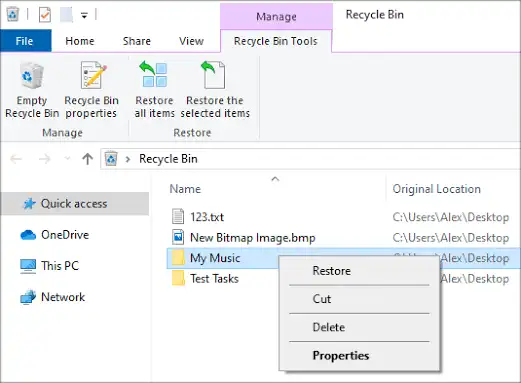
Use the Recycle Bin first when the PDF was recently deleted from an internal Windows drive and the bin has not been emptied. This method restores the existing file instead of scanning storage.
- Open Recycle Bin from the desktop or Windows search.
- Enter the PDF name in the search box, or sort the list by Date Deleted .
- Check the file name and Original Location to identify the correct document.
- Right-click the PDF and select
Restore
.
.webp)
Verification: Open the original folder, confirm the PDF has returned, and view several pages. If the file is missing from the bin, continue to Method 2.
Method 2: Recover the PDF with File History
When to use this method
Use File History when it was configured before deletion and the PDF was stored in a backed-up folder. Microsoft describes File History as a Windows feature that automatically backs up personal files.
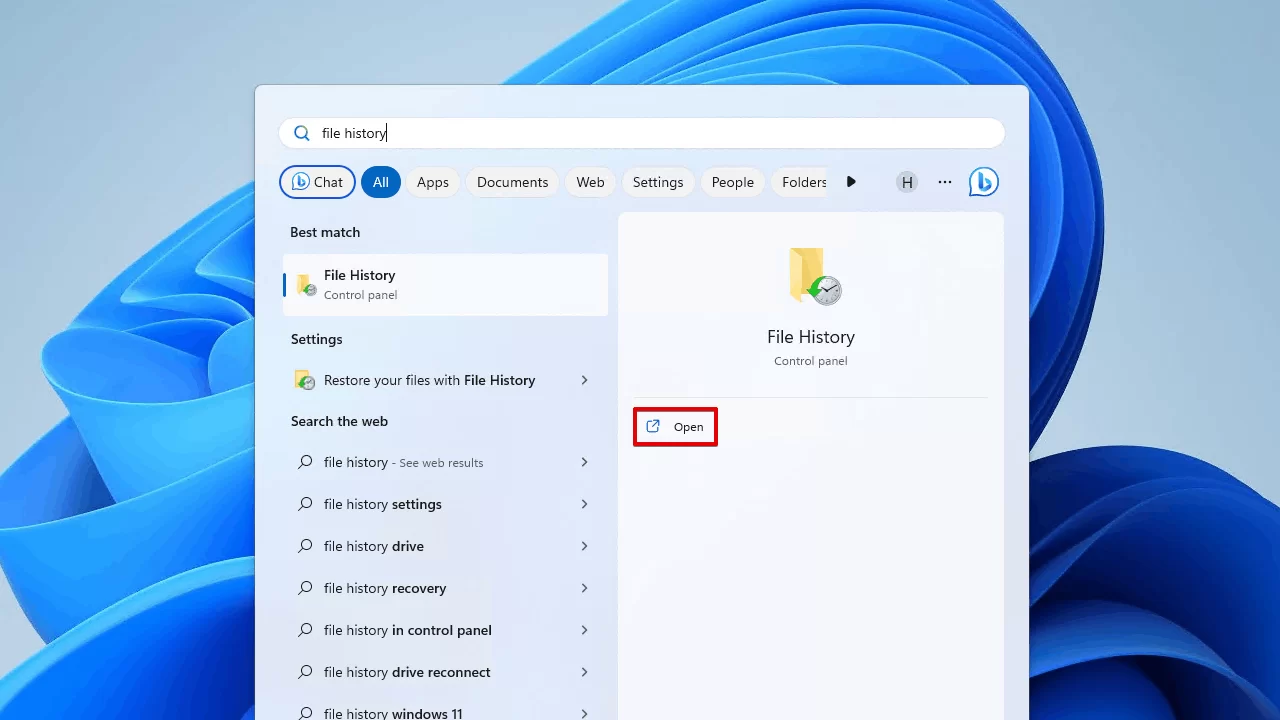
- Connect the drive or network location that contains the File History backup.
- Open Control Panel and select System and Security , File History , then Restore personal files .
- Browse to the folder that previously contained the PDF.
- Use the navigation controls to select a backup dated before deletion.
- Select the PDF and choose the green restore button.
Verification: Open the restored PDF and compare its modified date and contents with the version you expected.
See Microsoft’s official backup, restore, and recovery guidance for current Windows details.
Method 3: Recover a Deleted PDF with Windows File Recovery
When to use this method
Use Windows File Recovery when the PDF is absent from the Recycle Bin and backups. Microsoft provides this command-line application through the Microsoft Store. The source and destination must be different drives; an external drive can serve as the destination.
- Stop saving files to the source drive.
- Install and open Windows File Recovery with administrator permission.
- Connect a destination drive with enough free space.
- Run the following command after replacing the drive letters as needed:
winfr C: E: /regular /n *.pdf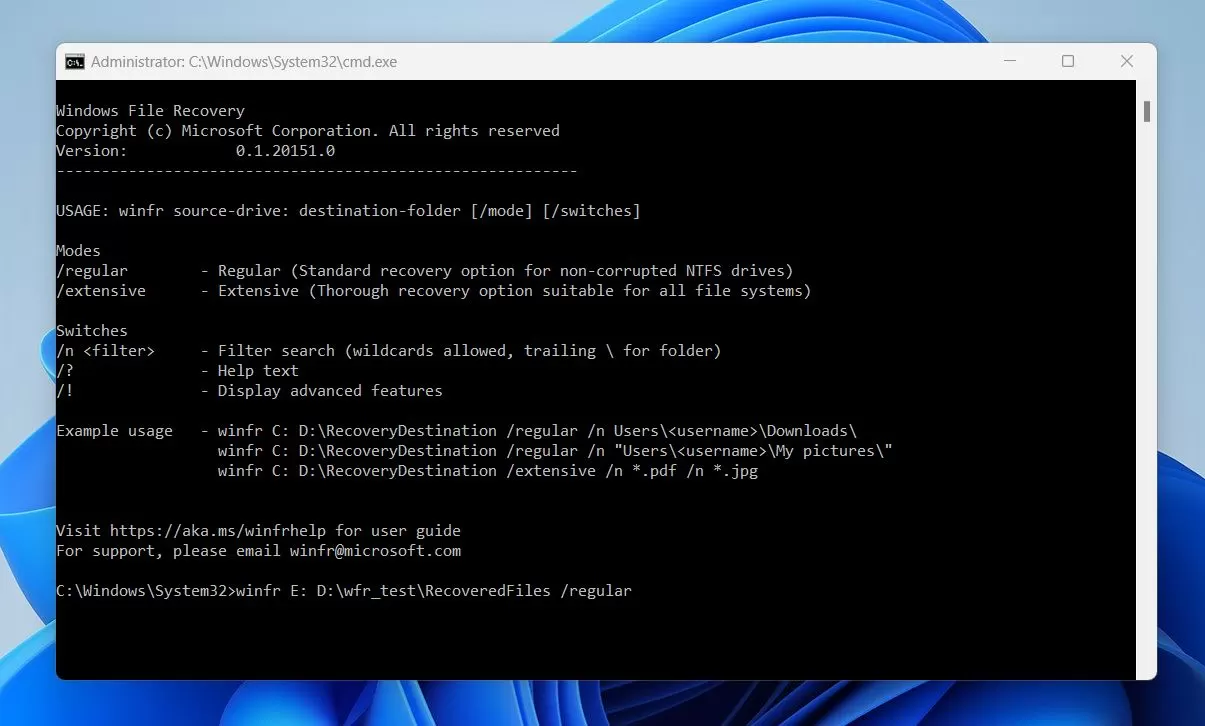
- Enter
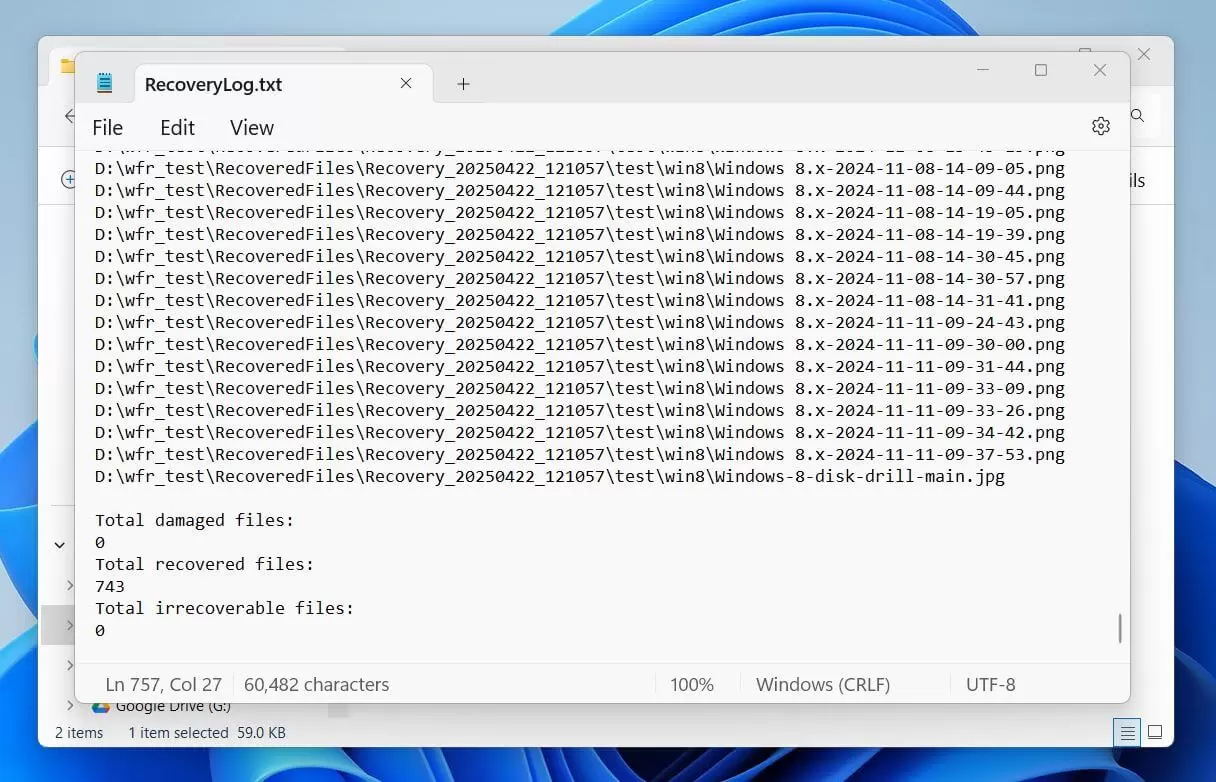
Yif prompted to begin recovery. - Inspect the recovery folder created on the destination drive.
If Regular mode finds nothing, Microsoft advises trying Extensive mode for supported file types:
winfr C: E: /extensive /n *.pdf
Verification: Search the destination recovery folder for PDFs, open promising files, and confirm that all required pages render. Recovered names or folder paths may not match the originals.
Method 4: Fix a Deleted PDF with Fionn Data Recovery
When to use this method
Use this method when the PDF is no longer available through ordinary restoration and you prefer a visual recovery workflow. Fionn Data Recovery can scan local disks and external storage. It offers quick, deep, and file-signature-based RAW scanning, plus filtering and file preview. The application scans locally in read-only mode and does not upload files.
Recommended for visual recovery: Previewing results can help distinguish a usable PDF from an incomplete candidate before recovery. Search filters can narrow results by file name, location, type, time, and size.
- Launch Fionn Data Recovery and select the recovery option for the type of data or storage location you want to recover.

- Start the automatic scan and wait while Fionn Data Recovery searches the selected location for deleted or lost files.

- After the scan finishes, browse the results and preview the files to select the data you want to restore.

- Select a destination folder to save the recovered files, then start the recovery process.

Verification: Open the recovered PDF from the destination folder, inspect several pages, and confirm that search, links, forms, or annotations work when those elements matter.
How to Verify the Recovered PDF
A recovered file is useful only if its contents are intact. Do not rely on the file name or extension alone. Open the PDF, check the first and last pages, search for known text, and inspect any critical tables, attachments, signatures, forms, links, or annotations.
Keep the recovered copy on the destination drive until verification is complete. If one candidate is damaged, inspect other recovered PDFs with similar sizes or dates. File-signature recovery may reconstruct content without preserving the original name or directory.
Conclusion
Recover a deleted PDF in the least invasive order: restore it from the Recycle Bin, retrieve an existing File History copy, then scan the original storage only when necessary. Verify the result by opening multiple pages and checking important interactive content. If Windows File Recovery feels too technical, Fionn Data Recovery provides a visual scan, filtering, preview, and recovery workflow. When no method finds a usable copy, stop using the device and consider a professional recovery service if the document is irreplaceable or the drive shows signs of hardware failure.
Frequently Asked Questions
Can I recover a PDF after emptying the Recycle Bin?
Possibly. Check File History or another existing backup first. If no copy exists, use Windows File Recovery or a storage-scanning application. Recovery depends on whether the deleted file’s data remains available and has not been overwritten.
Does Shift+Delete make a PDF unrecoverable?
Shift+Delete bypasses the normal Recycle Bin route, but it does not prove that recovery is impossible. Stop writing to the source drive and check backups. A recovery scan may find the PDF if usable file data remains.
Why should I save the recovered PDF to another drive?
Saving to the source drive creates new writes that may overwrite deleted data. Use another internal disk, external drive, or USB device as the destination. Keep the original device unchanged until you have verified the recovered document.
Why does a recovered PDF have a different name?
Some scans identify files by their internal signatures rather than intact file-system records. The recovered PDF may therefore lose its original name or folder. Sort candidates by size and date, then preview their contents to find the correct document.
Can System Restore recover a deleted PDF?
System Restore is not the appropriate first choice for a deleted personal document. Microsoft states that it rolls back system files and settings rather than personal files. Use the Recycle Bin, File History, or file-recovery methods instead.


