 Emily CarterData Recovery
Introduction
To recover a deleted file, first stop saving data to the affected drive. Check the Windows Recycle Bin, then restore an existing File History backup. If neither source contains the file, scan the drive with recovery software or use Microsoft’s command-line recovery utility. This guide covers four methods in that order, moving from the simplest option to methods that search storage directly. Start with Method 1 and stop as soon as you verify that the restored file opens correctly.
Before You Try to Recover the File
Deleted-file recovery is time-sensitive. Windows can mark the space occupied by a deleted file as available, allowing later activity to overwrite its contents. Microsoft therefore advises minimizing computer use while attempting recovery.
Confirm where the file was stored and whether the device behaves normally. If a drive clicks, disconnects repeatedly, disappears, or cannot be read, stop using it. Continued DIY scanning can stress failing hardware; irreplaceable data may require a professional recovery service.
Choose the Right Method
| Method | Best For | Efficiency | User Effort |
|---|---|---|---|
| Recycle Bin | Ordinary deletions still held by Windows | Very high | Moderate |
| File History | Files covered by a backup created before deletion | High | Moderate |
| Fionn Data Recovery — Recommended when no backup exists | Deleted files on supported local or external storage | High when the file is discoverable | Low |
| Windows File Recovery | Advanced recovery from local storage | Depends on the file and drive | High |
The key decision is whether an intact copy still exists. Recycle Bin and File History restore an existing copy. Storage-scanning methods instead search for deleted data that may already be partly or fully overwritten.
Method 1: Restore the File from the Recycle Bin
When to use: Start here after deleting a file normally from a local Windows folder. This method will not work if the Recycle Bin was emptied or the deletion bypassed it.
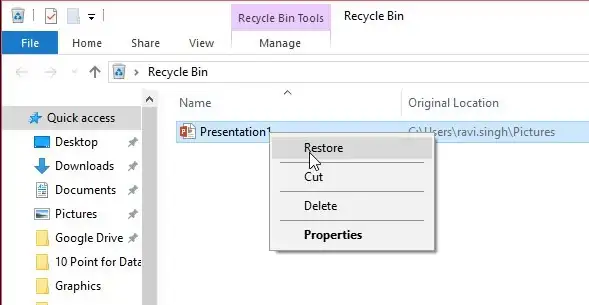
- Open Recycle Bin from the desktop or search for it from Start.
- Find the missing item by its name, original location, or deletion date.
- Right-click the file and select Restore .
- Open the file from its original folder and check its contents.
Verification: The file should reappear at the location shown in the Recycle Bin’s Original Location column and open in its usual application.
Method 2: Recover the File from File History
When to use: Use File History if it was configured before the deletion. Microsoft describes File History as a Windows feature that periodically saves copies of personal files to an external drive or network location.
- Reconnect the external drive or network location used for File History.
- Open Control Panel and select
System and Security
, then
File History
.
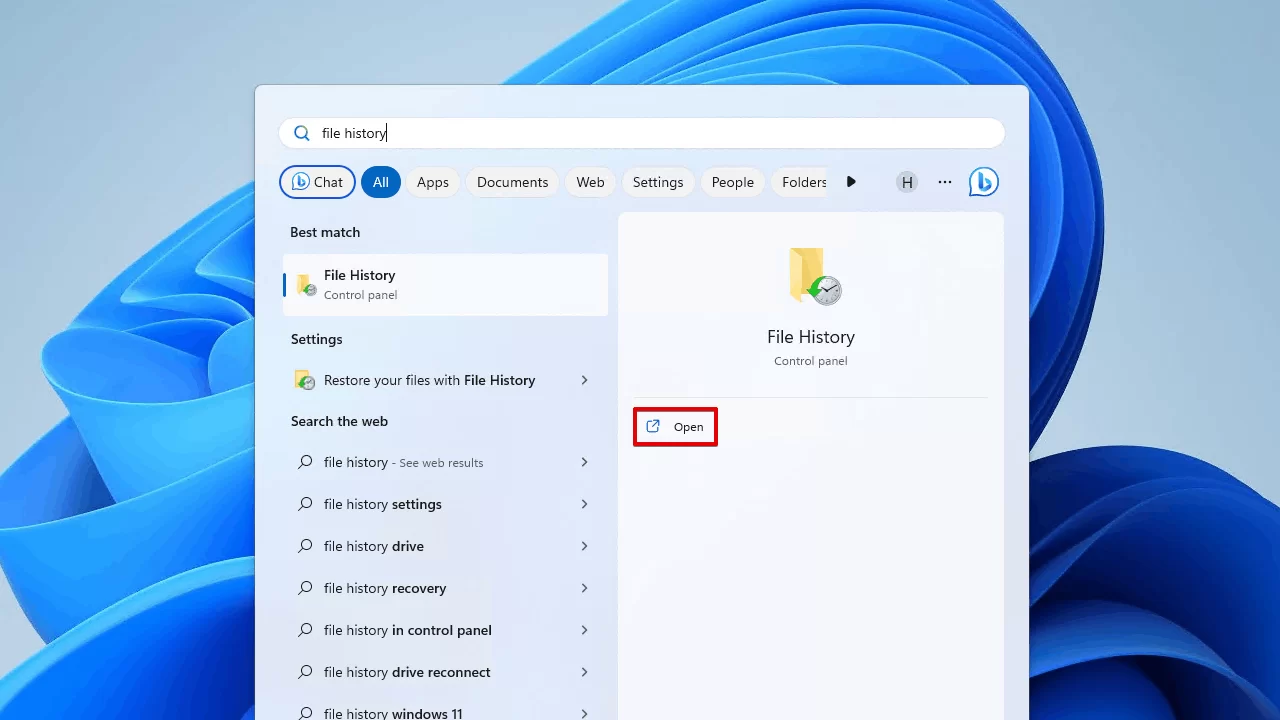
- Select Restore personal files .
- Browse to the folder and backup date that contain the deleted file.
- Select the file and choose the green
Restore
button.
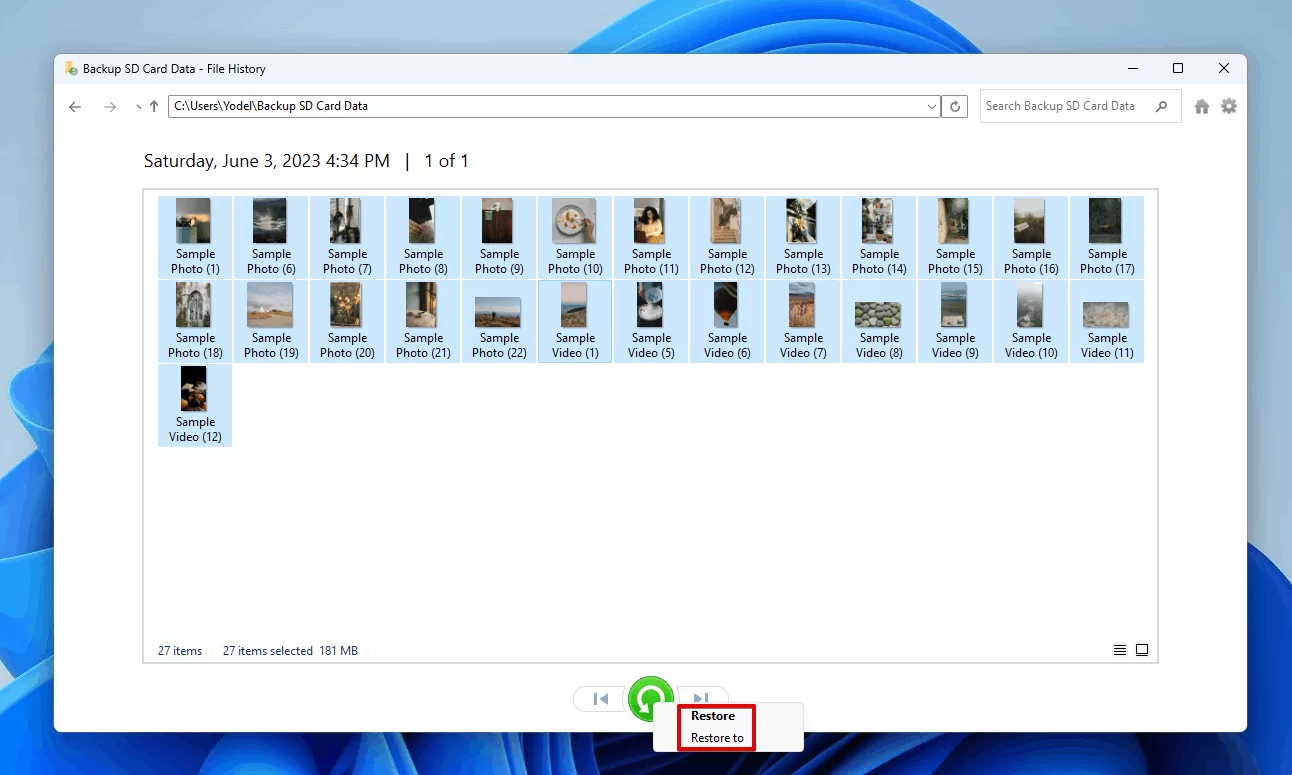
Verification: Open the restored file and confirm that it is the required version. If the original location already contains a file with the same name, review Windows’ replacement options before proceeding.
Method 3: Fix Deleted Files with Fionn Data Recovery
When to use: This is the recommended graphical option when the file is absent from the Recycle Bin and no usable backup exists. It supports local disks, external hard drives, USB drives, SD cards, and camera memory cards. The application scans locally in read-only mode and does not upload files.
- Launch Fionn Data Recovery and select the recovery option for the type of data or storage location you want to recover.

- Start the automatic scan and wait while Fionn Data Recovery searches the selected location for deleted or lost files.

- After the scan finishes, browse the results and preview the files to select the data you want to restore.

- Select a destination folder to save the recovered files, then start the recovery process.

Verification: Open the recovered copy from the destination drive. Check its contents rather than relying only on its filename or size.
The product can filter results by name, location, type, time, and size. Available scan modes include quick, deep, and RAW signature scanning. Preview and deep-scan access are included among the stated VIP benefits, so review the applicable plan before depending on those features.
Method 4: Recover the File with Windows File Recovery
When to use: Choose this advanced method when a local file is absent from both the Recycle Bin and backups. Microsoft provides Windows File Recovery through the Microsoft Store for internal drives, external drives, and USB devices. It does not support cloud storage or network shares.
- Install Windows File Recovery from Microsoft’s official instructions .
- Connect a destination drive that differs from the source drive.
- Search for Windows File Recovery , open it, and approve the permission prompt.
- Enter a command using Microsoft’s documented structure:
winfr source-drive: destination-drive: [/mode] [/switches] - Review the recovery folder created on the destination drive after the command finishes.
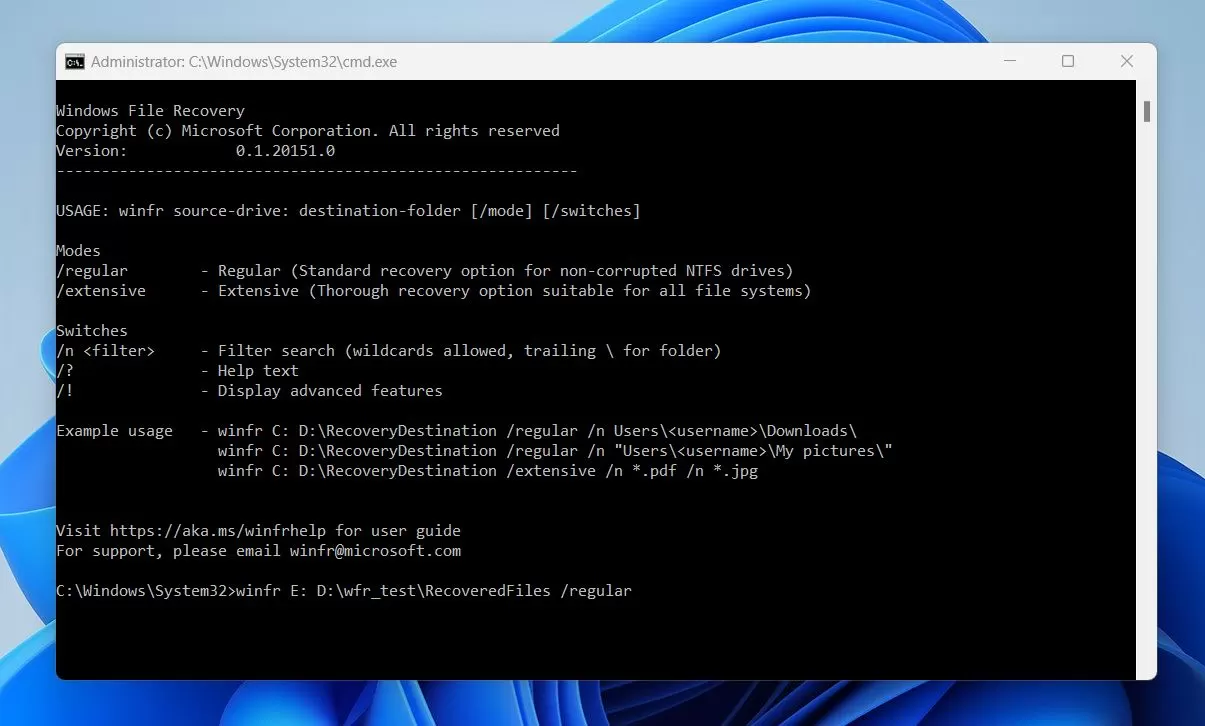
Verification: Locate the expected filename or file type in the destination folder, then open the recovered file and inspect its contents.
Tips That Improve Your Recovery Chances
- Restore existing copies first. Recycle Bin and backups avoid scanning unallocated storage.
- Save elsewhere. Writing recovered data to the source drive can overwrite other deleted files.
- Verify file contents. A familiar filename does not prove that the file is complete.
- Escalate hardware symptoms. Power down a drive that clicks, disappears, or repeatedly reports read errors.
These distinctions matter because logical deletion and hardware failure require different responses. Recovery software can search readable storage; it cannot make unstable hardware safe to scan.
Conclusion
Begin with the Recycle Bin, then check File History if a prior backup exists. When neither contains the file, use Fionn Data Recovery for a graphical scan or Windows File Recovery for a command-line approach. Always restore to a different drive and verify the result by opening the recovered copy. If no method finds a usable file, stop writing to the source. A physically unstable drive or irreplaceable data should be evaluated by a professional recovery service rather than subjected to repeated scans.
Frequently Asked Questions
Can I recover a file after emptying the Recycle Bin?
Possibly. First check File History or another backup made before deletion. If no copy exists, a storage-scanning tool may find remaining data. Recovery is not assured because Windows can reuse and overwrite the file’s former storage space.
Does Shift+Delete make a file impossible to recover?
No, but Shift+Delete bypasses the Recycle Bin. Check backups next, then consider a recovery scan. Stop using the affected drive promptly because normal activity can overwrite data associated with the deleted file.
Why should recovered files be saved to another drive?
Saving to the source drive writes new data onto the same storage being searched. That activity could overwrite another deleted file before it is recovered. Use a separate internal drive, external drive, or USB device as the destination.
Can System Restore recover my personal deleted files?
System Restore is intended to revert system files, installed applications, registry data, and settings. Microsoft states that it does not affect personal files, so it is not an appropriate primary method for restoring an accidentally deleted document or photo.
When should I avoid DIY file recovery?
Avoid repeated scans when a drive clicks, disconnects, vanishes, or produces persistent read errors. Power it down, especially when the missing data is irreplaceable. Those symptoms may indicate hardware failure that needs professional equipment and controlled handling.


