 Emily CarterData Recovery
If the file is still in the Recycle Bin, recovery is usually straightforward: restore it to its original location. If the bin was emptied, check an existing File History backup first, then use a recovery tool. This guide covers four methods, starting with the quickest Windows option. Stop saving new files to the affected drive until you have checked the available recovery paths, because new data can overwrite space previously used by deleted files.
For an emptied Recycle Bin or files that no longer appear in Windows, Fionn Data Recovery is a practical recovery option with scanning and file preview.
Quick Method Comparison
| Method | Best For | Efficiency | User Effort |
|---|---|---|---|
| Recycle Bin Restore | Files still listed in Recycle Bin | High | Low |
| File History | Files deleted after File History was enabled | High when a version exists | Medium |
| Fionn Data Recovery | Emptied bin or files missing from their original path | Depends on remaining recoverable data | Medium |
| Windows File Recovery | Users comfortable with Command Prompt | Depends on the drive and overwrite activity | High |
Method 1: Restore Files Directly from Recycle Bin
When to use: Use this method when you can find the deleted item in Recycle Bin. It is the first choice because Windows can return the item to its prior location without a scan.
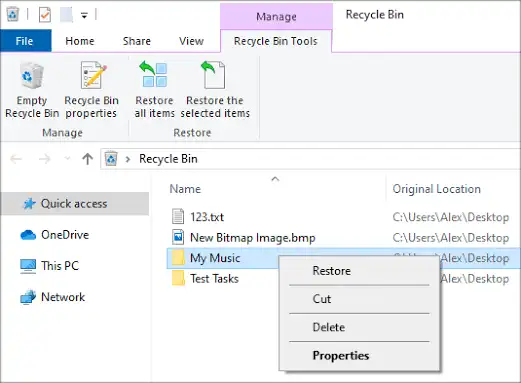
- Open Recycle Bin from the desktop; if its icon is hidden, search for “Recycle Bin” from Start.
- Find the file or folder, using the Name, Original Location, or Date Deleted columns to confirm it is the correct item.
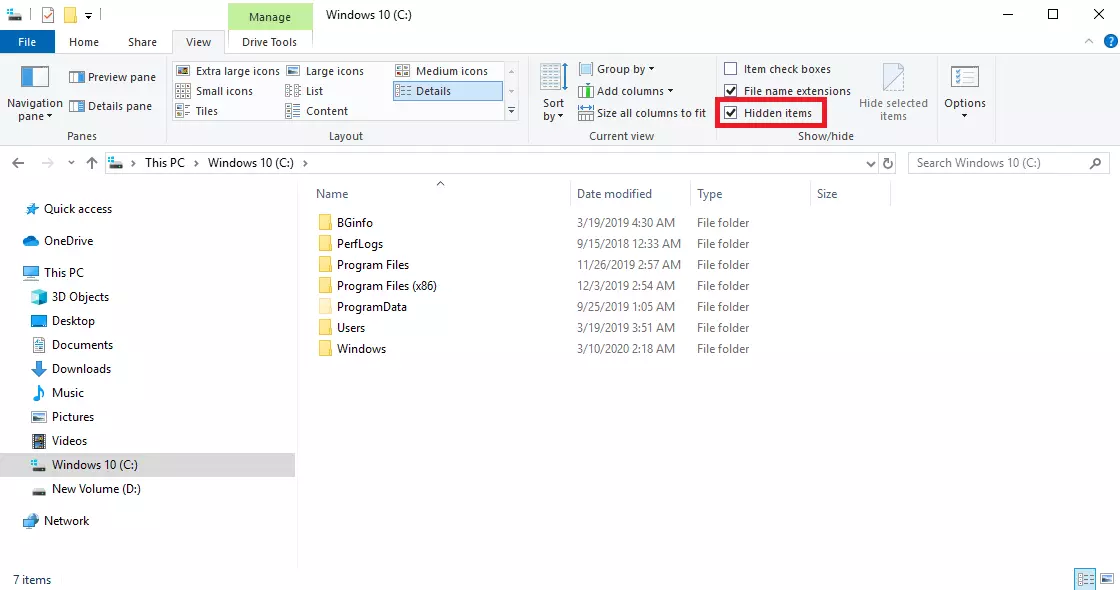
- Right-click the item and select Restore.
Verification: Open the file’s original folder and open the restored file. If you chose Restore all items, check each intended original location.
Method 2: Restore a Previous Folder Version with File History
When to use: Choose this route only if File History was configured before deletion and the folder containing the file has an earlier saved version. It restores a backup version, not an item currently held in Recycle Bin.
- Open File Explorer and go to the folder that contained the deleted file.
- Right-click the folder and select Restore previous versions.
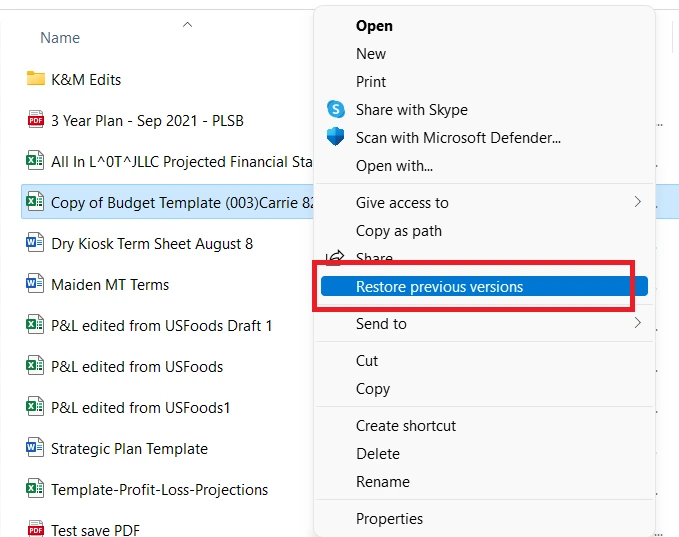
- Select a version dated before the deletion and use Open in File History to inspect its contents.
- Select Restore, or choose Restore to... to save the version elsewhere.
Verification: Open the restored copy and check its name, size, and contents. Microsoft notes that restoring normally can replace the current version, so restoring to a different location is useful when you need to preserve the current folder.
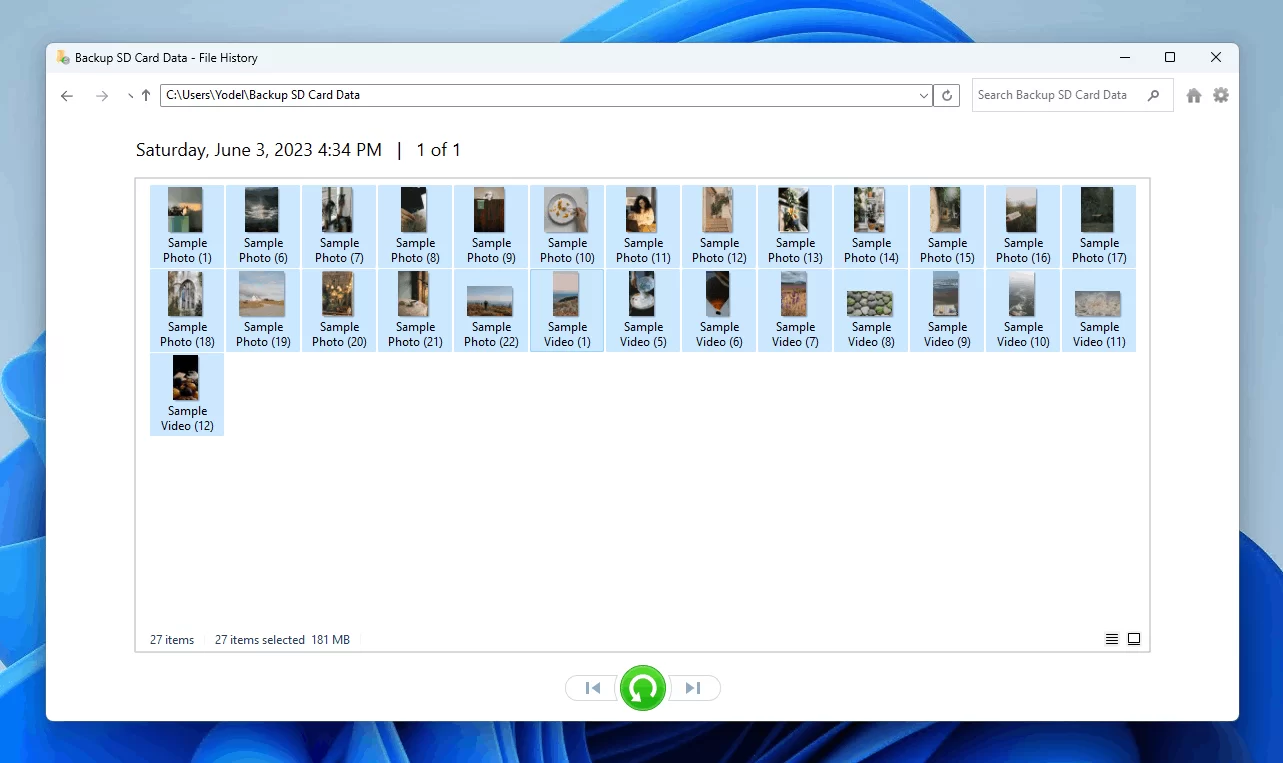
See Microsoft’s File History restore instructions for the current Windows 10 and Windows 11 interface.
Method 3: Recover Deleted Files with Fionn Data Recovery
When to use: Use this method when the Recycle Bin was emptied, the item is not listed there, or you need to search a local disk, external drive, USB drive, SD card, or camera card. It is a recommended option for users who want to inspect results before recovery.
- Launch Fionn Data Recovery and select the recovery option for the type of data or storage location you want to recover.

- Start the automatic scan and wait while Fionn Data Recovery searches the selected location for deleted or lost files.

- After the scan finishes, browse the results and preview the files to select the data you want to restore.

- Select a destination folder to save the recovered files, then start the recovery process.

Verification: Open the recovered copy from the destination folder and preview its contents. Fionn Data Recovery can filter results by file name, location, type, time, and size, which can help narrow a large scan result.
Method 4: Use Windows File Recovery After the Recycle Bin Was Emptied
When to use: Use Microsoft’s command-line tool when the file cannot be restored from Recycle Bin or a backup and you have a separate destination drive. It supports recovery from local storage devices, not cloud storage or network shares.
- Install Windows File Recovery from the Microsoft Store.
- Open Windows File Recovery and approve the permission prompt.
- Run a recovery command using different source and destination drives, such as
winfr C: E: /regular /n \Users\<username>\Documents\.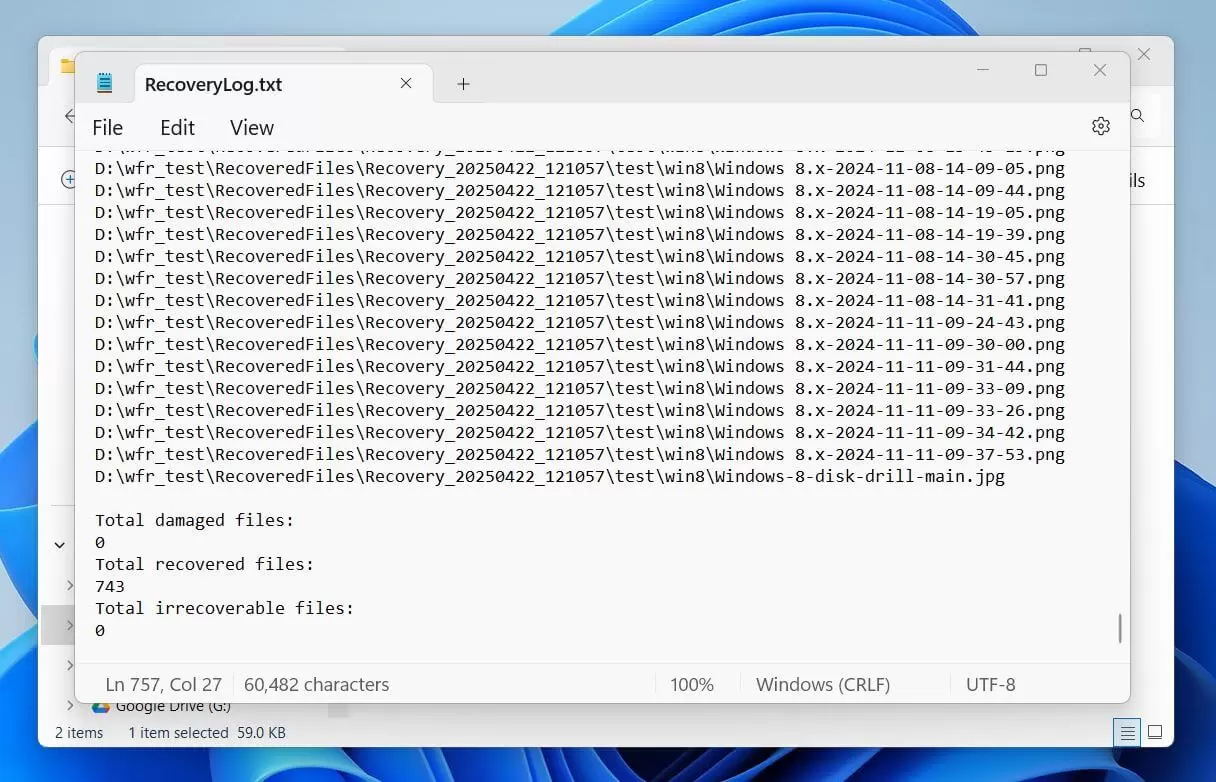
- Enter
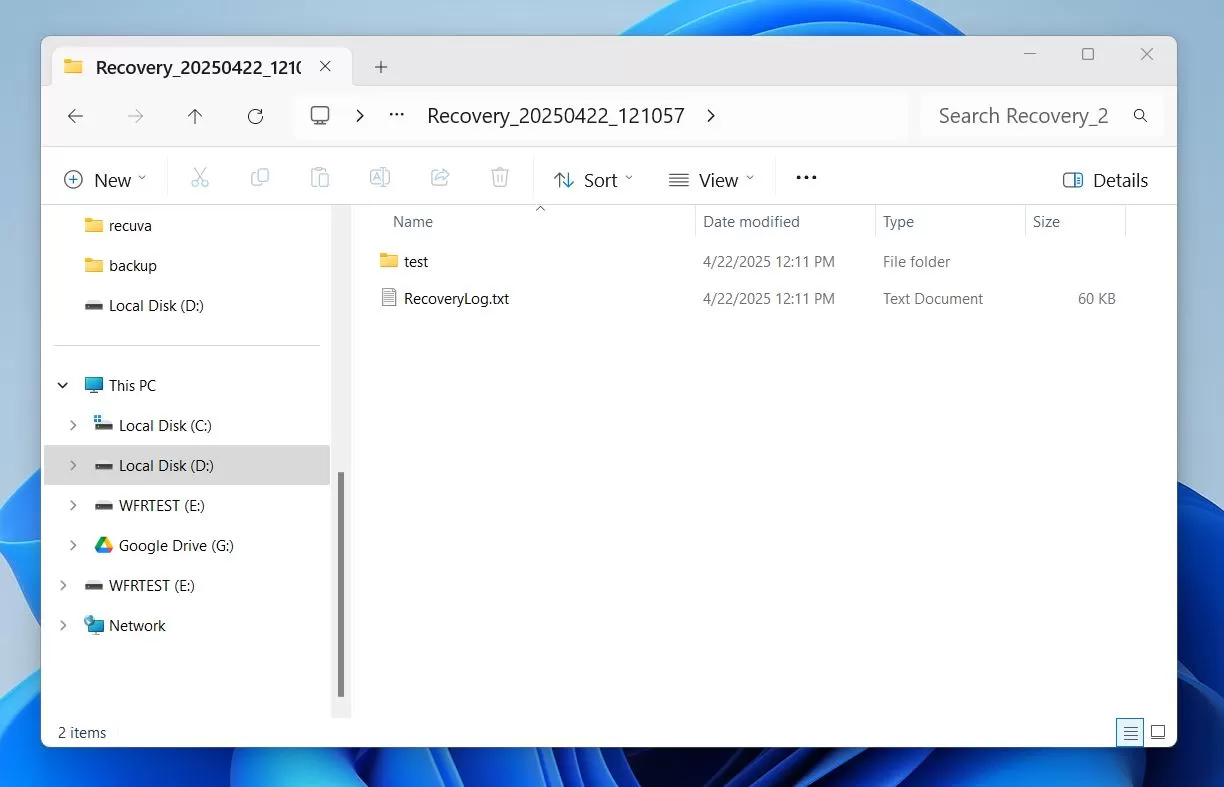
Ywhen prompted, then open the automatically created recovery folder on the destination drive.
Verification: Check the destination drive’s Recovery_<date and time> folder and open the recovered file. If Regular mode does not locate it, Microsoft advises trying Extensive mode when supported.
Tips to Avoid Overwriting Deleted Data
- Do not download, install, or copy files onto the drive that held the deleted data.
- Do not create a new partition on the affected drive after data loss.
- Use a separate internal, external, or USB drive as the recovery destination.
- Verify a recovered file by opening it before deleting any remaining copies or scan results.
Conclusion
Start with Recycle Bin Restore when the file is still listed. If it is missing, use File History only when an earlier backup version exists. For an emptied bin, minimize use of the affected drive and recover to a separate destination with Windows File Recovery or Fionn Data Recovery. In every case, verify success by opening the recovered copy and checking its contents. If the file remains unavailable, avoid further writes to the source drive while you decide whether another scan mode or professional recovery support is appropriate.
Frequently Asked Questions
Can I restore files after emptying Recycle Bin?
Possibly. An emptied Recycle Bin removes Windows’ easy restore entry, but deleted data may remain until the drive reuses that space. Stop writing to the drive and use a recovery path that saves results elsewhere.
Where do restored Recycle Bin files go?
The Restore command returns each item to its original location. Check the Original Location column before restoring if you are unsure where that is.
Can File History recover a file that was never backed up?
No. File History can restore only versions it saved before the deletion. If no earlier version appears, use another recovery method.
Why must the recovery destination be a different drive?
Saving recovered files to the affected drive can overwrite deleted data that has not yet been recovered. A different drive preserves the best chance of finding remaining files.
Does Windows File Recovery work with cloud storage?
No. Microsoft states that Windows File Recovery does not support cloud storage or network file shares. Check the relevant cloud service’s recycle bin or version history instead.


