
Compress Multiple Files Easily with Unizip – Fast & Secure Desktop Tool
2026-03-06 17:55:40

How to Open, View, and Convert RAR Files on Windows (Complete Guide)
2026-03-06 17:42:39

Can’t Open 7z Files on Windows? Simple Step-by-Step Guide
2026-03-06 17:25:13

How to Open ZIP Files Without Extracting on Windows (2026 Guide)
2026-03-06 17:22:18
Compress Multiple Files Easily with Unizip – Fast & Secure Desktop Tool
2026-03-06 17:55:40
Simple Ways to Compress Multiple Files Using Unizip
Have you ever been overwhelmed by too many files that you need to send or store? Creating a neat compressed archive not only saves space but also keeps your files organized. In this guide, we'll show you how to easily compress multiple files using Unizip, a fast and powerful compression tool.
1. Why Choose Unizip for Compressing Multiple Files?
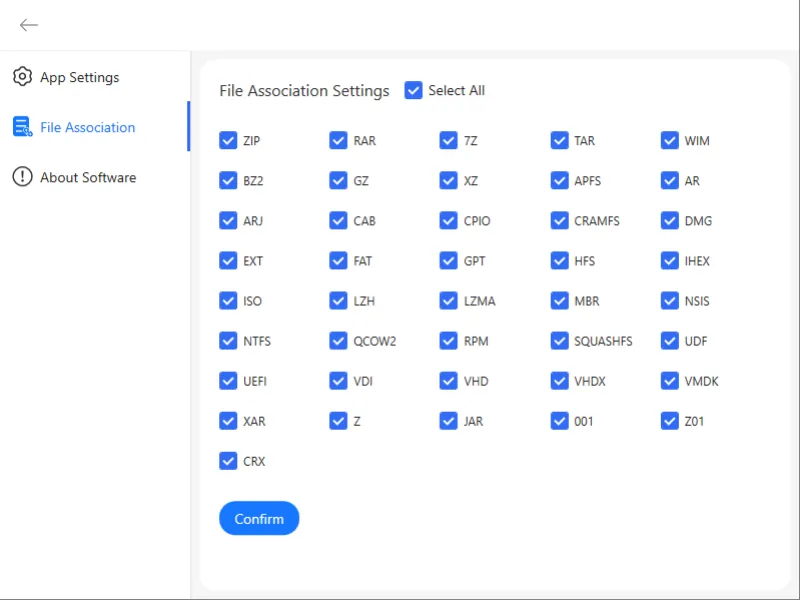
Unizip is a feature-rich, high-performance compression tool, an ideal alternative to WinRAR, WinZip, 7-Zip, and Bandizip. It supports dozens of popular formats including ZIP, RAR, 7z, ISO, TAR, and Gzip, and is optimized for 30% faster extraction than traditional software.
Unizip Key Features:
Smart Archive Management: Open, browse, preview, and extract archives
Multi-Format Support: ZIP, RAR, 7z, ISO, TAR, Gzip, and more
Intuitive GUI: Easy for beginners to start immediately
AES-256 Encryption: Secure sensitive files with passwords
RAR to ZIP Conversion: Quickly convert RAR files
Selective Extraction: Preview contents and extract only what you need
2. Method 1: Compress Multiple Files via Right-Click Menu
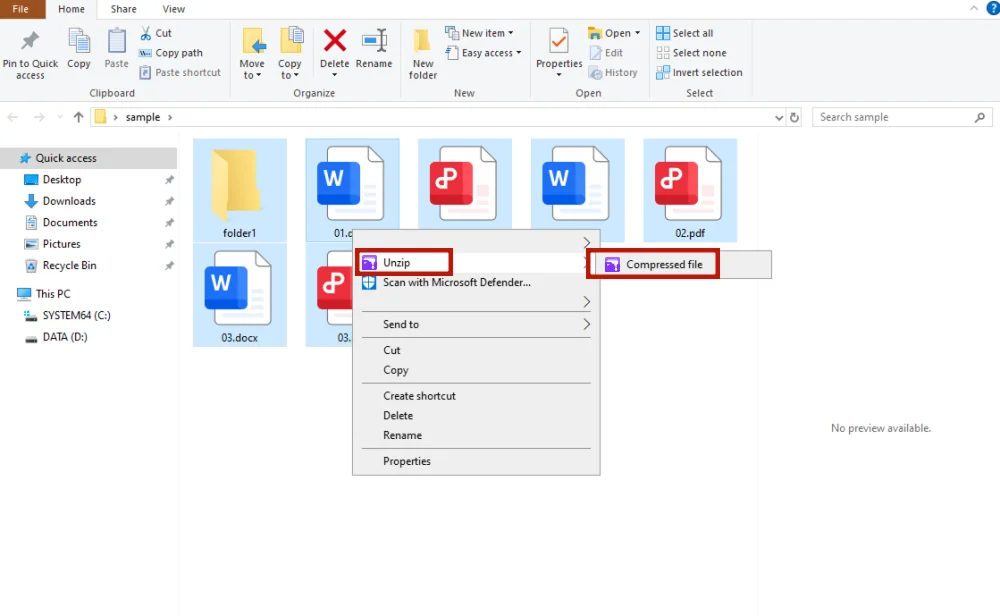
The fastest way to compress multiple files is using Unizip's Windows right-click integration.
Steps:
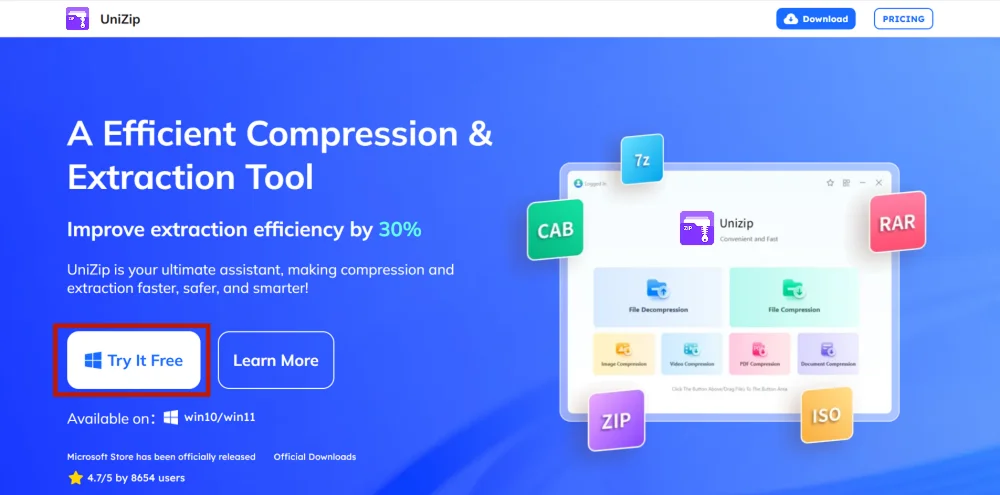
1. Download and Install Unizip
- Visit the official site and follow the installation steps.
2. Select Files and Right-Click
- Choose the files, right-click, and select “Compressed File”
3. Archive Created
- The ZIP file will appear in the same folder automatically
Tip: Ideal for quick compression without opening the software interface.
3. Method 2: Custom Compression Using Unizip Interface
For more control over compression (file format, filename, encryption), use the Unizip software interface.
Steps:
1. Launch Unizip
- After the software installation, launch Unizip on your desktop
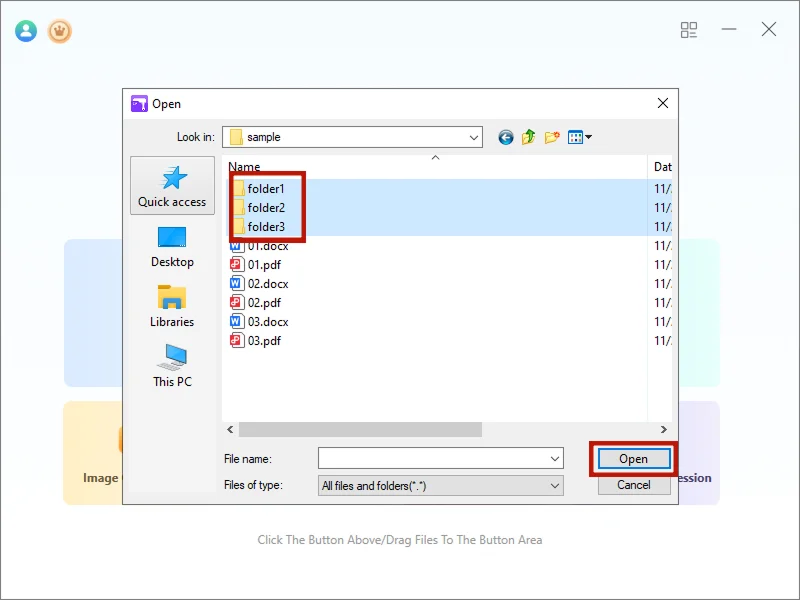
2. Upload Files
- Click “File Compression”, select multiple files, then “Open”
3. Choose Compression Options
- Compression Options: Fastest or Custom
- Password Protection: Enable AES-256 encryption
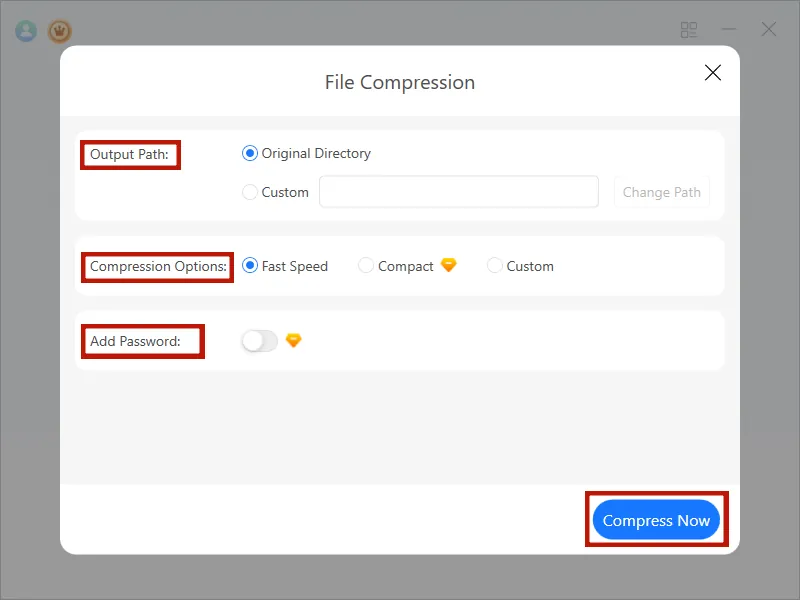
4. Create Archive
- Click “Compress Now”; ZIP file will appear in current folder
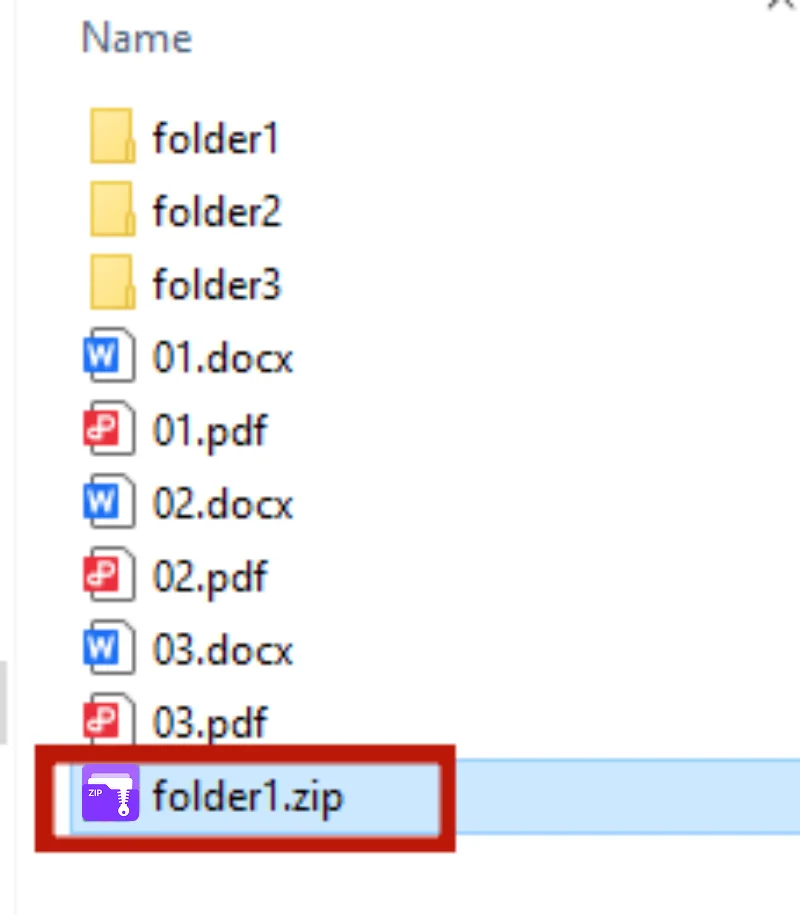
Tip: Custom compression is ideal for large files and ensures quality and security.
4. Method 3: Compress PDFs or Large File Collections
For multiple PDFs or large datasets, Unizip’s advanced compression lets you split archives for easier handling.
Steps:
- Open Unizip and select files
- Click “Custom Compression” → Set Split Size
- Enable password and choose compression level
- Click “Compress Now” to generate multiple archives

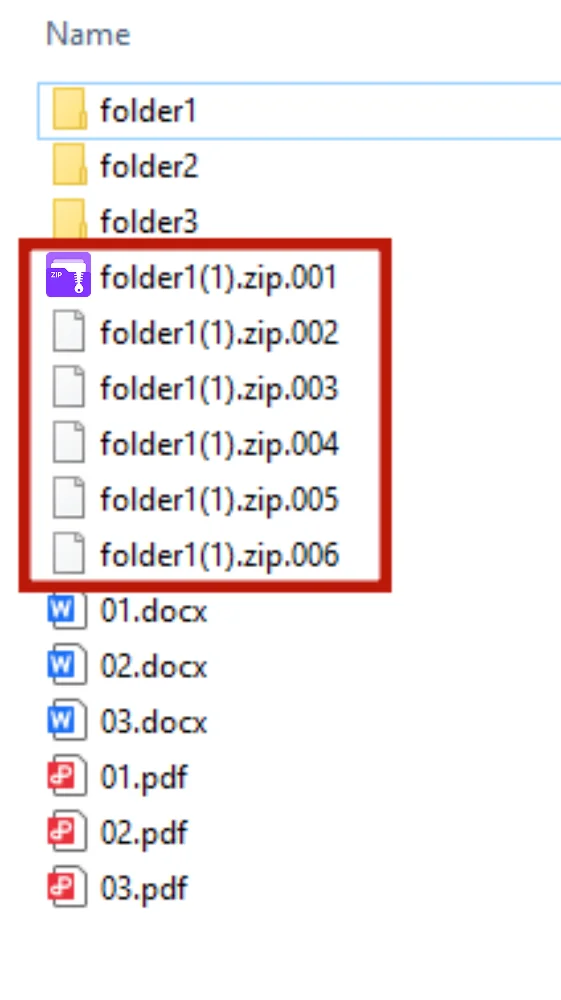
Tip: Splitting archives makes sending or backing up large files more convenient.
5. Tips for Compressing Multiple Files
- Organize Files: Place files in one folder before compressing
- Clear Naming: Use descriptive archive names
- Compression Level: Higher compression saves space but takes longer
- Split Archives: Break large files into smaller packages
- Encrypt Files: Protect sensitive data with a password
6. Conclusion
Using Unizip to compress multiple files makes file management efficient and organized. Whether handling daily documents, photos, PDFs, or large datasets, Unzip helps you compress files quickly, safely, and intelligently.
Download Unizip - now to experience fast, reliable desktop compression for your digital tasks!
7. FAQs
Q1: How to compress multiple files separately?
- Unizip: Open → File Compression → Custom → Compress Now
Q2: How to split one file into smaller archives?
- Right-click → “File Compression” → Custom → Set Volume Compression → Compress Now
Q3: How to compress multiple PDFs into one ZIP?
- Select PDFs → Right-click → Compress Now
Q4: Why compress files?
- Save storage spaceEasier sharingKeep related files together
Q5: Can I extract the ZIP file?
- Yes, use Unizip or compatible software to extract and access files.


 Fionn
FionnCopyright © 2026 Wonderful Apps Limited.
 English