 Emily CarterWindows Errors
How to Fix a Windows 10 Startup Repair Loop: 4 Methods
Introduction: Why Windows 10 Keeps Opening Startup Repair
A Windows 10 Startup Repair loop means Windows repeatedly detects a boot failure and returns to the Windows Recovery Environment, or WinRE. Start with the built-in Startup Repair tool. If the loop began after an update, remove that update next. Use System Restore for a problem tied to a driver, application, or settings change. Reset Windows only after the lower-risk options fail. The four methods below follow that order and include a result check after every attempt.
What to Prepare Before Recovery
- Connect the laptop to power and disconnect unnecessary USB devices.
- Have the password for your local or Microsoft account ready.
- Locate the BitLocker recovery key if the system drive is encrypted.
- Back up accessible files before resetting or reinstalling Windows.
Quick Comparison of the Four Recovery Methods
| What you observe | Try first | What it changes |
|---|---|---|
| The cause is unknown and Windows cannot reach the desktop | Startup Repair | Checks startup components automatically |
| The loop began immediately after an update | Uninstall Updates | Reverses the selected update |
| The failure followed a driver, app, or settings change | System Restore | Returns system settings to an earlier state |
| Other recovery tools did not work | Reset this PC | Reinstalls Windows and removes apps and settings |
Diagnostic boundary: If the PC freezes before the Windows logo or cannot boot from known-good installation media, the fault may be outside Windows. Check the UEFI boot order, whether the system drive is detected, and the hardware before attempting more software repairs.
Method 1: Stop the Windows 10 Startup Repair Loop in WinRE
When to use this method
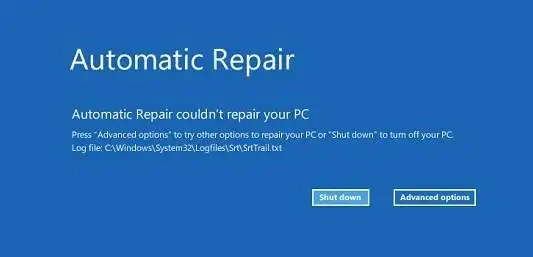
Start here when Windows displays “Preparing Automatic Repair,” “Diagnosing your PC,” or “Your PC did not start correctly.” Microsoft’s Startup Repair instructions describe the tool as a way to diagnose common system-file and boot-configuration problems.
Step-by-step guide
- Select Advanced options on the Automatic Repair screen.
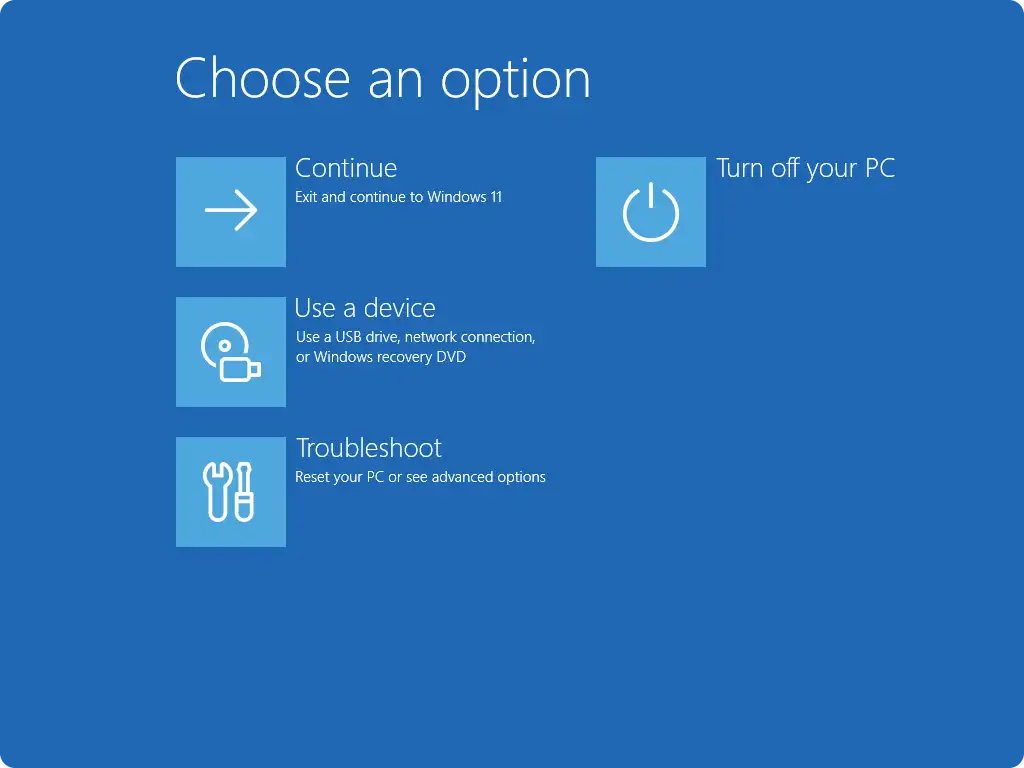
- If the button does not appear, interrupt startup twice by holding the power button after the logo appears. Windows should open the Windows Recovery Environment on the third start.
- Open
Troubleshoot > Advanced options > Startup Repair.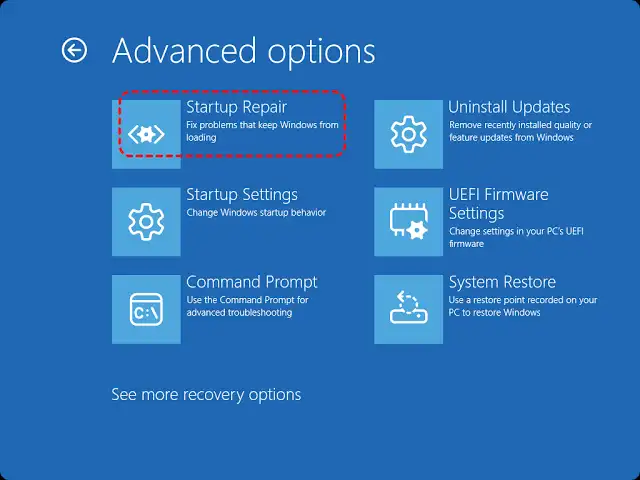
- Select the Windows 10 installation and an account if prompted.
- Allow the scan to finish, then start the PC normally.
How to verify the result
Windows should reach the sign-in screen without restarting diagnostics. Sign in and complete one normal restart. If the loop returns, do not repeat Startup Repair indefinitely. Choose the next method based on what changed before the failure.
Method 2: Uninstall the Latest Windows Update
When to use this method
Use this targeted rollback when the loop started immediately after Windows installed an update and the PC previously started normally.
Step-by-step guide
- Open
Troubleshoot > Advanced optionsin WinRE.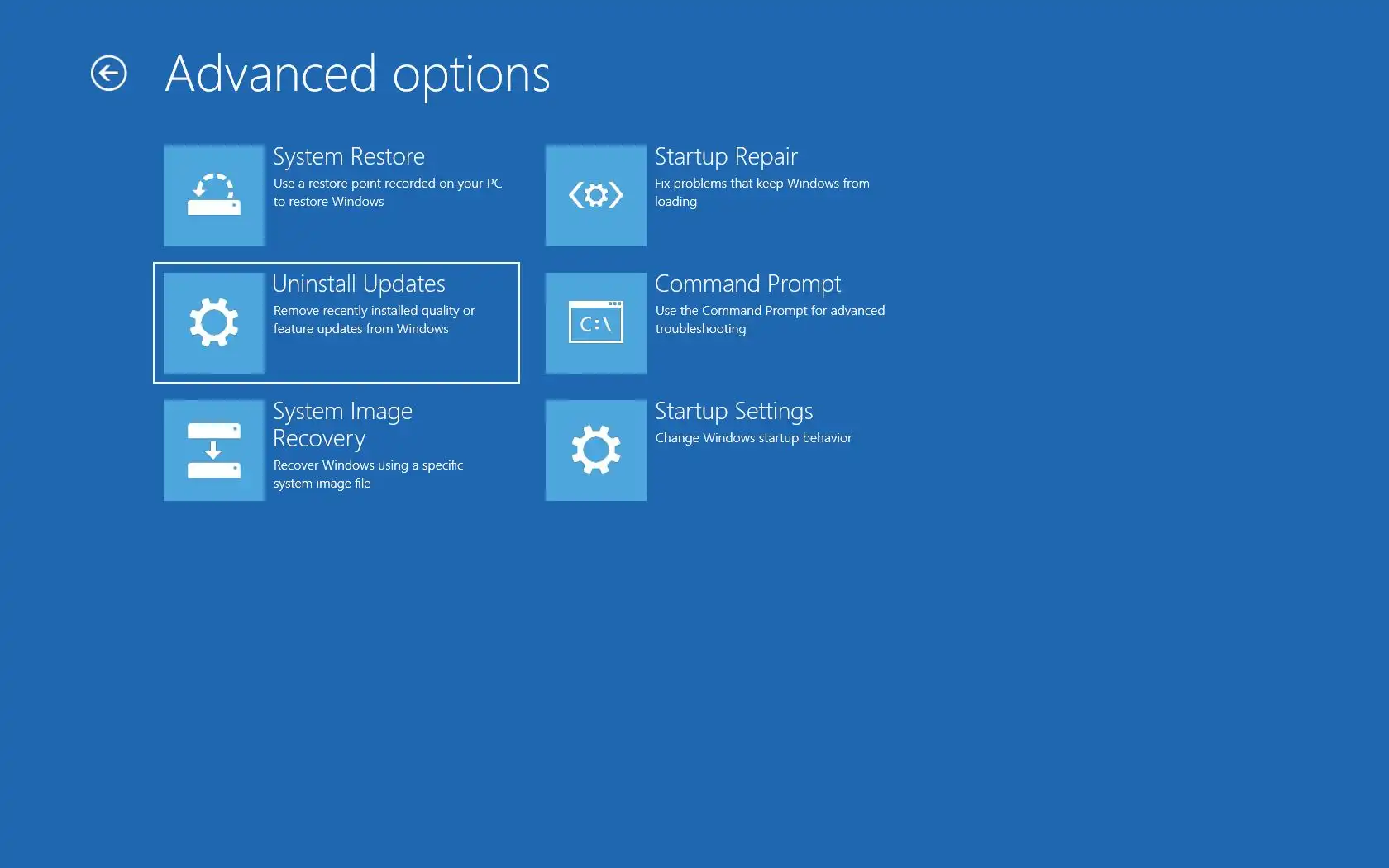
- Select Uninstall Updates.
- Select Uninstall latest quality update, or the applicable feature-update option if displayed.
- Confirm the rollback and wait for it to finish.
- Select the option to continue to Windows 10.
How to verify the result
Confirm that Windows reaches the desktop twice. Record the removed update identifier if it appears. If the update cannot be removed, or the problem followed a driver or app installation, continue with System Restore.
Method 3: Apply a Working System Restore Point
When to use this method
Choose System Restore after a driver, application, or system-setting change. A suitable restore point must already exist. Microsoft’s System Restore instructions state that personal files are not affected, although system files, registry settings, and installed programs return to the selected state.
Step-by-step guide
- Open
Troubleshoot > Advanced options > System Restore. - Select an account and enter its password if requested.
- Choose a restore point created before the loop began.
- Select Scan for affected programs and review the changes.
- Confirm the restore point and wait for the restart.
How to verify the result
After signing in, confirm that the loop is gone and review which drivers or applications were removed. Do not reinstall the suspected component until you have checked compatibility and backed up important data. If no usable restore point exists, proceed to Reset this PC.
Method 4: Reset Windows 10 While Keeping Personal Files
When to use this method
Use a reset when the first three methods fail but WinRE and the system drive still work. Windows will be reinstalled, while installed applications and settings will be removed.
Step-by-step guide
- Back up every important file you can still access.
- In WinRE, open
Troubleshoot > Reset this PC. - Select Keep my files.
- Choose Cloud download if local Windows files may be damaged, or Local reinstall to avoid a download.
- Review the removal summary and confirm the reset.
How to verify the result
Complete initial setup, check your personal folders, and restart once. Reinstall applications one at a time. If the reset fails, create official installation media on another PC. If that media also freezes, stop software repairs and have the storage drive, memory, and boot configuration checked.
Common Mistakes That Prolong the Repair Loop
- Disabling Automatic Repair with commands: This hides diagnostics without fixing the boot failure.
- Repeating one failed method: After one Startup Repair attempt, choose a recovery path that matches the trigger.
- Resetting without a backup: Keep my files is not a substitute for a separate backup.
- Running random commands: Unverified BCD, partition, or boot-record changes can make recovery harder.
Conclusion
Start with Startup Repair, then match the next step to the event that preceded the Windows 10 Startup Repair loop. Remove a recent update when the timing is clear, or use System Restore after a driver, application, or settings change. Keep Reset this PC as the last built-in option. Recovery is successful only when Windows reaches the desktop through two consecutive starts without launching diagnostics. If WinRE, reset, and official installation media all fail, preserve accessible data and arrange hardware testing for the system drive, memory, and boot configuration.
Frequently Asked Questions
How long should I wait on the Diagnosing your PC screen?
Microsoft gives no single completion time for Automatic Repair. If the screen returns after every restart, treat it as a loop and open Advanced options. During Reset this PC, however, a black screen can last more than 15 minutes.
Will resetting Windows 10 delete my documents?
Keep my files preserves personal files but removes applications and resets settings. Drive failure or an interrupted reset can still cause data loss, so make a separate backup whenever the files remain accessible.
Why does WinRE request a BitLocker recovery key?
The key unlocks the encrypted system drive for recovery tools. Check the associated Microsoft account, your organization’s records, a saved file, or a printed copy. Do not format a drive containing needed data if the key is unavailable.
Should I run bootrec, SFC, or CHKDSK immediately?
No. Each tool addresses a different problem and requires the correct volume and parameters. Begin with Startup Repair and reversible WinRE options. Use commands only for a specific boot, system-file, or disk diagnosis.
What if the Windows Recovery Environment will not open?
Create official Windows installation media on another computer and select Repair your computer. If the PC cannot detect it, check the UEFI boot order. If known-good media also freezes, investigate the storage drive, memory, or other hardware.


