 Emily CarterWindows Errors
Error 0xc0000142 corresponds to STATUS_DLL_INIT_FAILED. Windows could not complete initialization of a DLL needed while the application was starting. That does not necessarily mean a DLL is missing: the failure can involve the app, a runtime dependency, Windows system files, or software that loads into the app's process. Start by matching the symptom to one of four methods below: repair one affected app, isolate a software conflict, repair Windows files, or scan detected DLL and system issues.
What Causes 0xc0000142?
The code describes a failed initialization, not one confirmed root cause. The pattern of failure is the most useful clue.
| Possible cause | Typical clue |
|---|---|
| Damaged app files | Only one app fails |
| Visual C++ or other runtime issue | The affected app depends on those components |
| Third-party software conflict | The error began after security or system software was installed or updated |
| Windows system corruption | Multiple unrelated apps or Windows features fail |
| App-specific service or component issue | One software suite repeatedly fails |
A DLL initialization failure is therefore not the same as a missing-DLL message. Avoid downloading individual DLL files from unverified websites or changing registry values such as
LoadAppInit_DLLs
as a first response; neither action identifies the cause.
Quick Method Comparison
| Method | Best For | Efficiency | User Effort |
|---|---|---|---|
| Repair or reinstall the app | One app fails | High for damaged app files | Low to medium |
| Clean Boot diagnosis | Failure follows a software or service change | High for isolating conflicts | Medium |
| DISM and SFC | Several apps or Windows features fail | High for Windows file corruption | Medium |
| Fionn DLL Fixer | Detected DLL, runtime, or system issues need repair | Guided scan and repair | Low |
Use the least broad method that matches the symptom. A clean boot is a diagnostic test, not a permanent configuration: it helps determine whether a third-party background service is involved.
Method 1: Repair or Reinstall the Affected App
When to use: The 0xc0000142 error occurs in one application while other programs open normally. Windows provides Repair controls for supported apps; reinstalling is appropriate when Repair is unavailable or ineffective.
- Close the affected application.
- Open
Start > Settings > Apps > Installed apps. - Select the app, open
Advanced optionsif available, and chooseRepair. - Open the app and test whether it reaches its normal start screen.
- If the error remains or Repair is unavailable, uninstall the app and reinstall it from the publisher's official installer.
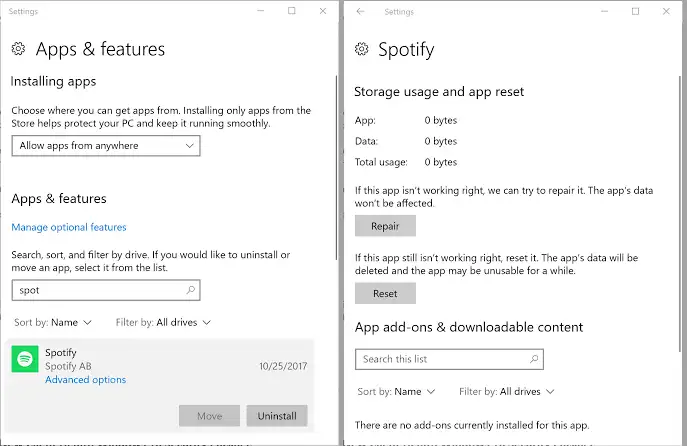
Verify: Launch the same app from its usual shortcut. If it opens without the code, the app-level repair addressed the failure.
Method 2: Check for a Software or Service Conflict
When to use: Reinstalling the app did not help, SFC reports no problem, or the error started after installing or updating antivirus, security, system-utility, remote-access, or similar software. A clean boot starts Windows with Microsoft services and essential startup items so you can test for a third-party conflict.
- Open Microsoft's clean boot instructions and follow the steps for your Windows version.
- Restart the PC in the clean-boot state.
- Launch the affected application and note whether the 0xc0000142 error returns.
- If the app opens, re-enable disabled services and startup items in small groups, restarting and retesting after each group until the conflict reappears.
- Update, remove, or contact the publisher of the identified conflicting software, then restore normal startup using Microsoft's instructions.
Verify: The test is positive when the app works in a clean boot but fails again after a specific third-party service or startup item is restored. If it fails in both states, continue with the app or Windows repair path.
Method 3: Repair Windows System Files with DISM and SFC
When to use: Several unrelated applications or Windows features fail. Microsoft recommends running DISM before System File Checker because DISM repairs the Windows component store used by SFC.
- Search for
Command Prompt, then selectRun as administrator.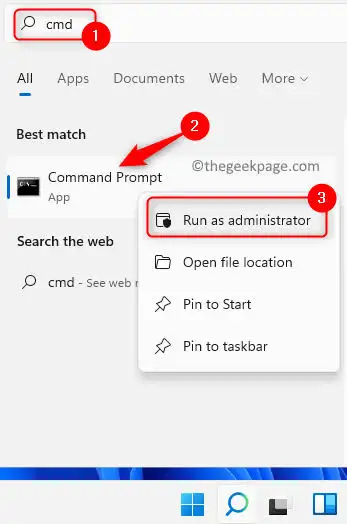
- Run this command and wait for it to finish:
DISM.exe /Online /Cleanup-image /Restorehealth
- Run the following command after DISM completes:
sfc /scannow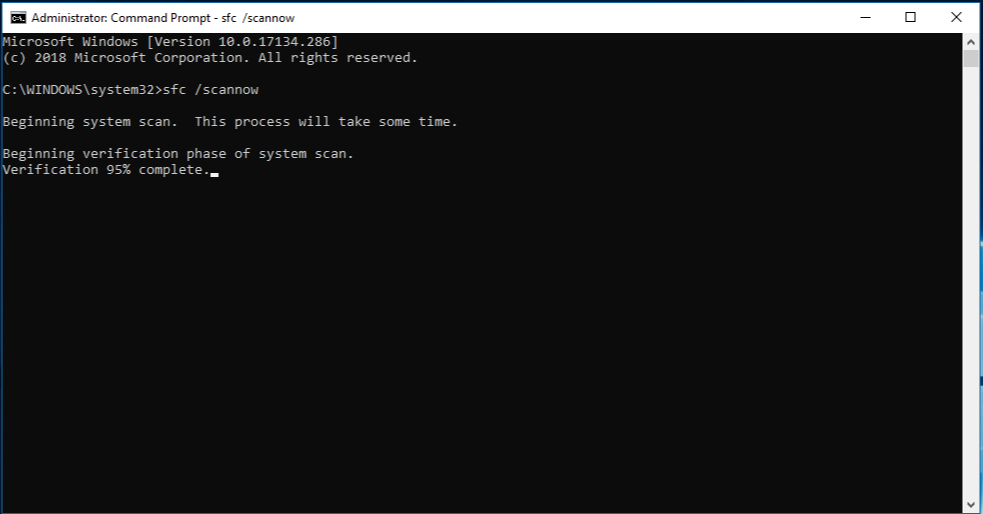
- Wait until SFC reaches 100%, then restart Windows.
- Test the original application again.
Verify: Review the SFC result after the restart and reopen the affected app. If Windows reports no integrity violations and only one app still fails, return to the app publisher's repair path. See Microsoft's System File Checker instructions for official command guidance.
Method 4: Diagnose and Fix the 0xc0000142 Error with Fionn DLL Fixer
When to use: You need to check for detected DLL, runtime, or Windows system issues related to a startup failure. Fionn DLL Fixer detects missing, damaged, version-mismatched, and System32-path-related DLL issues, and it scans application crashes and dependency-loading problems. It is a practical guided option when manually identifying a component is unclear.
Recommended for detected DLL or system issues: This workflow scans, repairs detected issues, and checks again. It does not prove that every 0xc0000142 error is caused by a DLL.
- Launch Fionn DLL Fixer. The software automatically scans your PC for DLL and system issues and displays the detected results when the scan is complete.

- After the scan finishes, click
Repairto start fixing all detected DLL and system issues automatically.
- Wait while the repair is in progress. During this process, the button changes to
Fixinguntil all issues have been repaired.
- When the repair is complete, click
Okin the confirmation dialog. If prompted, restart your computer before checking whether the problem has been resolved.
- If the issue still persists after restarting, click
Recheckto perform another scan. If new issues are found, clickRepairagain to fix them.
Verify: After repair and any requested restart, open the program that previously displayed the code. If it still fails and recheck finds no new issue, the cause may be specific to that application or a conflicting service.
If 0xc0000142 Appears in Microsoft Office
If Word, Excel, Outlook, or another Office app shows 0xc0000142, use Microsoft's Office-specific repair path before broad Windows repairs: update Office, repair Office, install Windows updates, check the Office service, and reinstall Office if needed. Follow Microsoft's Office error 0xC0000142 guidance for the exact sequence.
Conclusion
For the 0xc0000142 error, start with the affected app when the problem is limited to one program. If the failure began after a software change, use a clean boot to isolate a third-party service or startup conflict. Run DISM and SFC when multiple apps or Windows features fail. For detected DLL or system issues, Fionn DLL Fixer provides a scan, repair, and recheck workflow. Confirm success by reopening the original app after each method. If the code persists, provide the app publisher with the exact error, affected app version, and clean-boot result.
Frequently Asked Questions
What does the 0xc0000142 error mean?
It is STATUS_DLL_INIT_FAILED: Windows could not complete initialization of a DLL during application startup. It does not by itself mean that a DLL is missing.
Should I repair the app or run SFC first?
Repair the app first when only that app fails. Use DISM and SFC when several applications or Windows features have issues.
Can antivirus or another utility cause 0xc0000142?
It can. If the timing matches a new or updated background tool, a clean boot can show whether a third-party service or startup item is involved.
Can I close Command Prompt while SFC is running?
No. Wait for verification to reach 100% so you can read the final result.
What should I do if the error is only in Office?
Use Microsoft's Office-specific update and repair guidance first, because the issue may be limited to the Office installation or service.


