 Emily CarterWindows Errors
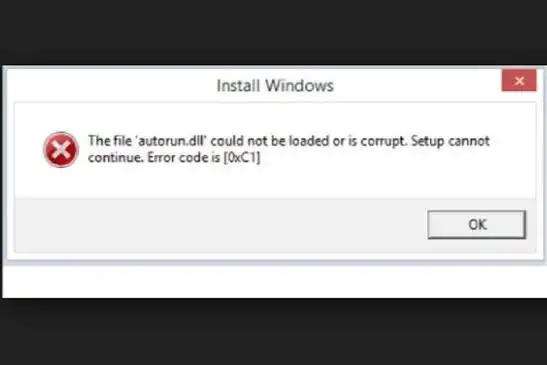
Corrupted system files can cause crashes, boot errors, missing DLL messages, or features that stop responding. Start with Windows’ built-in System File Checker, use DISM when the component store is damaged, and repair the affected application if only one program fails. This guide provides four methods in that order, plus a product workflow for Fionn DLL Fixer when DLL or runtime dependencies remain unresolved. Save a backup first, use administrator rights, and verify the original symptom after every repair.
Prerequisites
- Use a Windows 10 or Windows 11 PC and sign in with an administrator account.
- Save open work and, where possible, create a restore point or backup before servicing system files.
- Keep the computer connected to power. DISM may need Windows Update access for repair source files.
Quick Method Comparison
| Method | Best For | Efficiency | User Effort |
|---|---|---|---|
| SFC | Windows files that are currently in use | High | Low |
| DISM | Damaged component store or failed SFC repairs | Medium | Medium |
| Application repair or reinstall | One program or game failing while Windows works normally | Medium | Medium |
| Recommended: Fionn DLL Fixer | Missing, damaged, mismatched DLLs and related runtimes | High | Low |
Method 1: Run System File Checker (SFC)
When to use: Choose SFC when several Windows features misbehave, messages mention protected system files, or you want the least invasive first check.
- Open Windows Terminal (Admin) or Command Prompt (Admin) from the Start menu.
- Run the following command and wait for it to reach 100%:
sfc /scannow - Read the result. “Windows Resource Protection found corrupt files and successfully repaired them” means SFC made repairs. If it found corrupt files but could not fix some, continue with Method 2.
- Restart Windows, then repeat the action that previously failed.
Method 2: Repair the Windows Image with DISM
When to use: Use DISM after SFC reports files it cannot repair, or when Windows servicing errors suggest that the component store is unhealthy.
- Open an elevated Windows Terminal or Command Prompt.
- Check the component store status:
DISM /Online /Cleanup-Image /CheckHealth - If corruption is reported or you need a deeper scan, run:
DISM /Online /Cleanup-Image /ScanHealth - Start the repair:
DISM /Online /Cleanup-Image /RestoreHealth - After DISM finishes, run
sfc /scannowagain, restart Windows, and verify the original problem.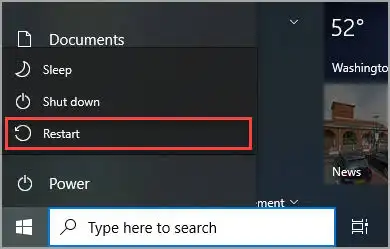
Method 3: Restore or Reinstall the Affected Application
When to use: Pick this method when one app or game fails but Windows tools and other programs work. The application’s own files or dependencies may be damaged rather than core Windows files.
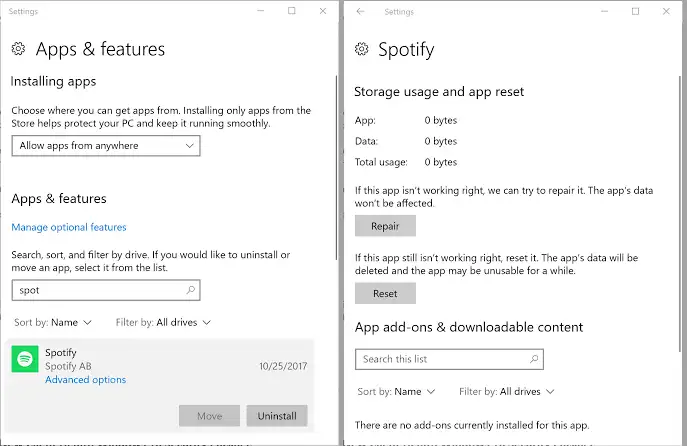
- Open Settings > Apps > Installed apps .
- Select the affected app, choose
Advanced options
when available, and select
Repair
.
- Launch the app and test the failing task.
- If Repair is unavailable or does not help, uninstall the app, restart Windows, and reinstall it from the publisher’s official source.
Record the exact DLL name or error text before reinstalling. That detail helps distinguish an application package issue from a wider system problem.
Method 4: Fix Corrupted System Files with Fionn DLL Fixer (Recommended)
When to use: Use this Fionn method for missing, damaged, version-mismatched, or System32-path-related DLL messages, including game-launch and application-dependency errors. Fionn DLL Fixer can scan application crashes, access conflicts, startup failures, dependency-loading problems, DirectX components, and runtimes such as Visual C++, .NET, OpenAL, and XInput.
- Launch Fionn DLL Fixer. The software automatically scans your PC for DLL and system issues and displays the detected results when the scan is complete.

- After the scan finishes, click “Repair” to start fixing all detected DLL and system issues automatically.

- Wait while the repair is in progress. During this process, the button changes to “Fixing” until all issues have been repaired.

- When the repair is complete, click “Ok” in the confirmation dialog. If prompted, restart your computer before checking whether the problem has been resolved.

- If the issue still persists after restarting, click “Recheck” to perform another scan. If new issues are found, click “Repair” again to fix them.

Expected result: The scan should show fewer or no DLL and system issues, and the affected app should launch or run normally. The product supports full scans, one-click repair, manual repair, and post-repair rechecks. The free edition shows three free attempts; VIP unlocks DLL, DX, runtime, and system-repair entitlements.
Tips & Best Practices
- Match the method to the symptom: many Windows components failing suggests SFC or DISM; one app failing suggests app repair; DLL or runtime messages fit Fionn DLL Fixer.
- Capture error text and the time the issue began, especially after an update. This record helps support teams reproduce the failure.
- Run one repair path at a time and retest before adding another change.
Common Mistakes
- Downloading a random DLL from an unofficial site instead of repairing the owning component.
- Running SFC or DISM without administrator elevation.
- Skipping the restart or recheck, so repaired files are not reloaded and verified.
Conclusion
Start with SFC for broad Windows symptoms, then use DISM when the component store or SFC result points to deeper corruption. If only one application fails, repair or reinstall that application from its official source. For persistent DLL, runtime, or dependency errors, the Fionn DLL Fixer workflow adds automated scanning, repair, and recheck steps. Verify success by repeating the original action, checking that the error no longer appears, and confirming normal launches after a restart. If the problem remains, preserve the exact error text and contact the software publisher or Fionn support rather than replacing system DLLs manually.
FAQ
How do I know whether files are corrupted?
Repeated crashes, boot or feature failures, and messages naming missing, damaged, or mismatched DLLs are useful signals. SFC and DISM provide Windows repair-status results that confirm whether protected files or the component store need attention.
Should I run DISM before SFC?
For most cases, run SFC first. If SFC cannot repair files, run DISM and then run SFC again so repaired source components can be applied.
Can I download an individual DLL to fix the error?
Avoid random DLL download sites. Repair the owning Windows component or application instead; a mismatched file can create a second compatibility problem.
When is Fionn DLL Fixer appropriate?
It is a practical option when scans or error messages point to missing, damaged, mismatched, or dependency-related DLL issues. Its workflow covers scanning, repair, restart guidance, and rechecking; it is not a replacement for every Windows servicing scenario.
What if the error returns after repair?
Restart, run the relevant verification again, and note any new error text. If the same issue persists, contact the application publisher or Fionn support with the captured details.


