 Emily CarterDLL Errors
To fix DLL errors, first determine the scope of the problem: if only one program will not start, begin by reinstalling it or checking its required runtime; if the error affects several programs or Windows itself, use DISM and SFC. When the cause is unclear, Fionn DLL Fixer can scan DLLs, system components, and dependencies. Below are five methods in a practical order: after each one, repeat the exact action that previously caused the error.
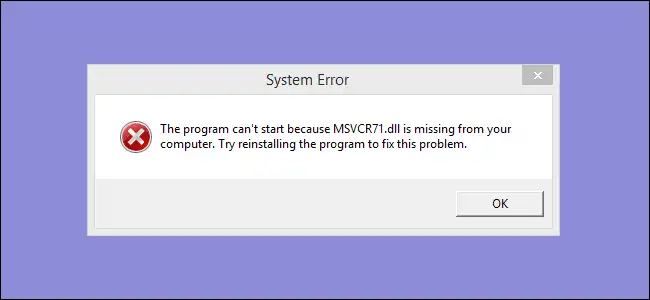
Common DLL Errors in Windows
- DLL not found or missing
- This is often related to an incomplete program installation, a deleted file, or a missing dependency.
- Entry point not found in a DLL
- This usually means that the library version does not match the program or its dependencies.
- Corrupted DLL
- The cause may be in the application files or in Windows system files.
- Failed to load DLL
- The presence of a file does not guarantee that it can load: dependencies, architecture, and the application environment matter.
- DLL error when launching a game
- First check the game files, then check DirectX and Visual C++ components.
Quick Comparison of Methods
| Method | Best for | Effectiveness | User effort |
|---|---|---|---|
| Reinstalling the program | An error in only one application | High for a corrupted installation | Low |
| Visual C++ or DirectX | Runtime and game errors | High for a missing dependency | Moderate |
| DISM and SFC | System DLLs or multiple failures | High for protected Windows files | Moderate |
| Fionn DLL Fixer | An unclear cause and multiple component types | Convenient for diagnosis and repair | Low |
| System Restore | An error after a recent change | Depends on the restore point | Moderate |
Method 1: Reinstall the Affected Program
When to use it: The message appears only when starting one application or game. Reinstalling restores the files included with its distribution.
- Close the program and its related processes.
- Uninstall the affected application from the Windows installed programs section.
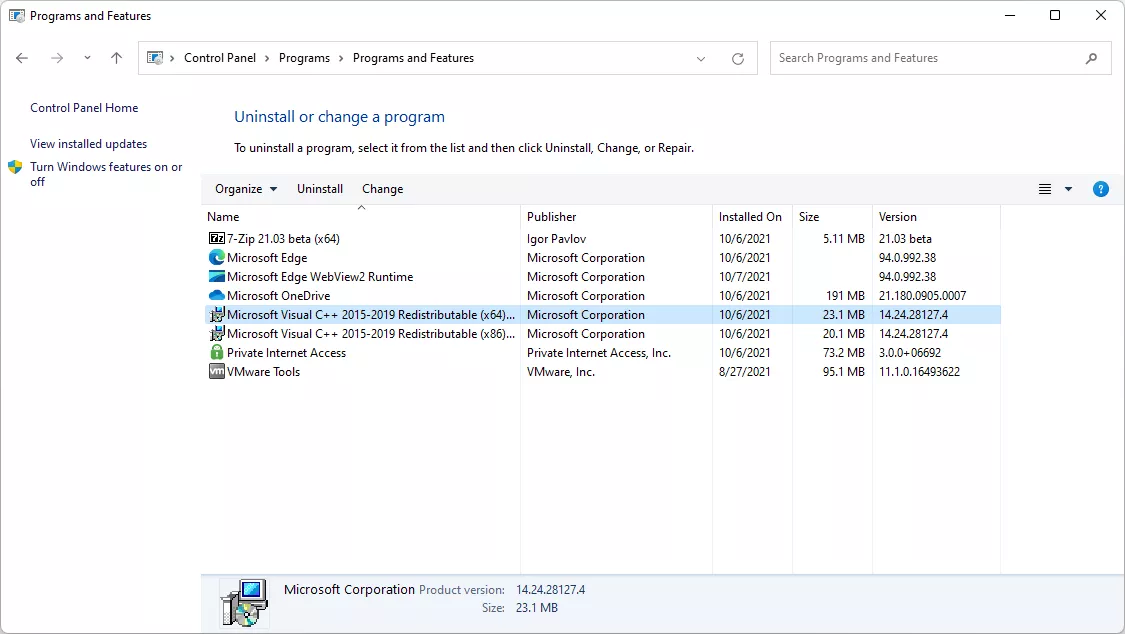
- Restart your computer.
- Get the installer from the developer's official source or official store.
- Install the program and repeat the action that caused the error.
Check: If the previous message containing the DLL name disappears, local application files were likely the cause.
Method 2: Repair Visual C++ or DirectX
When to use it: The error names a runtime library or occurs when launching a game. Redistributable packages are intended for centralized deployment of Visual C++ libraries; similarly, official components matter for DirectX rather than an individual DLL file.
| DLL type | What to check first |
|---|---|
msvcp*.dll
,
msvcr*.dll
,
vcruntime*.dll
| Visual C++ Redistributable |
d3dx9_*.dll
,
d3dcompiler_*.dll
,
xinput*.dll
| DirectX components |
| Windows system DLL | DISM and SFC |
| Application-specific DLL | Repair or reinstall the application |
- Write down the exact DLL name from the error message.
- Match the name to the table and identify the required runtime.
- Install or repair the applicable official runtime package.
- Restart Windows if the installer asks you to do so.
- Launch the affected program again.
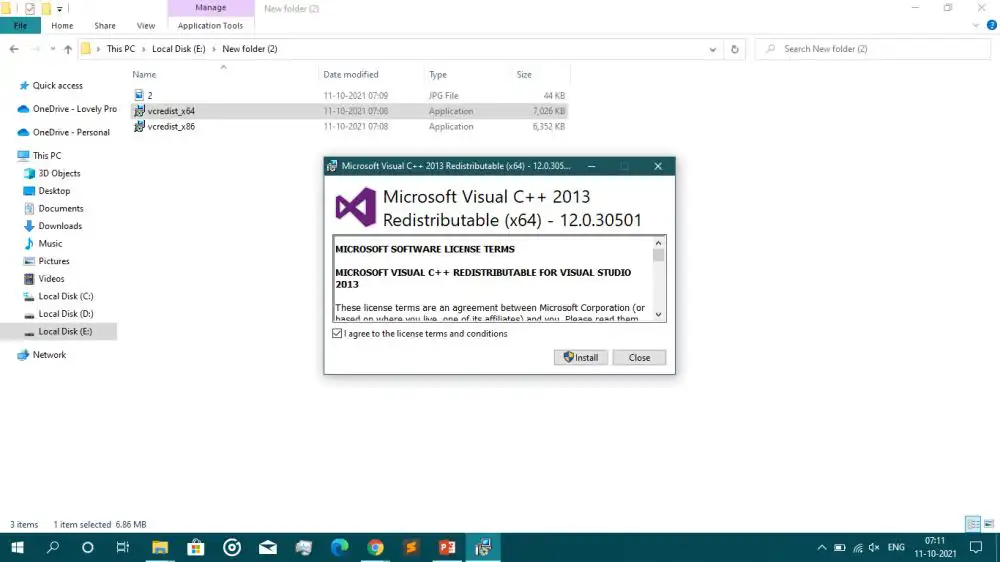
Check: The application should start without a library message; if the error concerns a system file or persists across several programs, continue to the next method.
Method 3: Run DISM and SFC
When to use it: A DLL error appears in several applications, after a Windows failure, or identifies a system library. Microsoft recommends running DISM followed by SFC to repair the Windows image and check protected system files.
- Open Command Prompt as an administrator.
- Run
DISM.exe /Online /Cleanup-image /Restorehealthand wait for it to finish.
- In the same window, run
sfc /scannow. - Wait until the scan reaches 100 percent.
- Restart your computer and test the application again.
Check: An SFC message stating that repairs were made means protected system files were fixed. See the official Microsoft instructions for DISM and SFC for details.
Method 4: Diagnose and Fix DLL Errors with Fionn DLL Fixer
When to use it: The cause is unclear, or there is a startup failure, black screen, version conflict, or dependency load error. This is the recommended option for users who need to check DLLs, DirectX, Visual C++, .NET, OpenAL, XInput, and system components in one process.
- Launch Fionn DLL Fixer. The program will automatically scan the computer for DLL and system problems and show the results when the scan finishes.

- After the scan finishes, click “Repair” to automatically start fixing all detected DLL and system issues.

- Wait for the repair to finish. During the process, the button changes to “Fixing” and remains that way until all issues are fixed.

- When the repair is complete, click “Ok” in the confirmation dialog. If prompted, restart your computer before checking the result.

- If the issue persists after restarting, click “Recheck” to scan again. If new problems are found, click “Repair” again to fix them.

Check: After restarting, launch the affected application again and confirm that a recheck no longer shows the diagnosed issues.
Method 5: Use System Restore
When to use it: The error began immediately after installing a program, driver, or update, and a suitable restore point was created earlier.
- Use the Start menu to search for “Create a restore point.”
- On the System Protection tab, select “System Restore.”
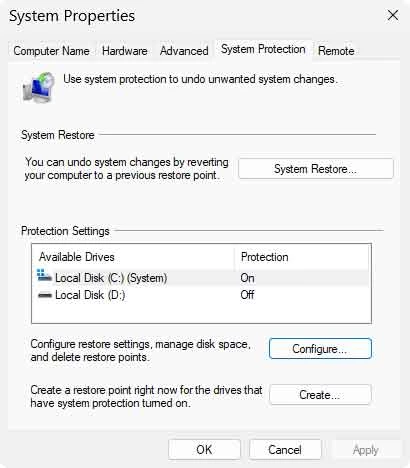
- Select a point created before the DLL error appeared.
- Review the affected programs and confirm the restoration.
- After restarting, test whether the affected application launches.
Check: If the error disappears, identify the recent change before installing it again.
Why DLL Architecture Matters: x86 and x64
A library's architecture must match the process that loads it. In 64-bit Windows, the
System32
folder primarily contains 64-bit system components, while 32-bit components use
SysWOW64
and the WOW64 redirection mechanism. The folder names may therefore seem counterintuitive, but you should not manually move DLLs between them. If a program is 32-bit, it may require a 32-bit runtime even on 64-bit Windows. Use the application installer or the official package for the required runtime instead of copying files between folders.
How to Avoid Making a DLL Error Worse
- Save the complete error message and DLL name before making changes.
- Do not manually replace files in
System32orSysWOW64. - Check the result using the same action that reproduced the failure.
- Install programs and components only from official sources.
Conclusion
Start with the narrowest cause: reinstall one affected program, then check Visual C++ or DirectX if the DLL name indicates a runtime. For system-wide symptoms, run DISM and SFC. If you need to diagnose DLLs, game dependencies, and system components at the same time, use Fionn DLL Fixer and run a recheck. When the error appeared after a specific change, use a restore point. If the problem remains, provide the developer's support team with the full error text, the program name, and the results of your checks.
Frequently Asked Questions
Can I download a missing DLL file separately?
It is best not to use unofficial DLL websites. It is safer to repair the program, install the required official runtime, or check system files.
Why is the DLL on my disk but the program cannot load it?
The cause may be an incompatible version, a missing dependency, or an x86/x64 mismatch.
Do I need to run both DISM and SFC?
When system file corruption is suspected, Microsoft recommends running DISM followed by SFC. For a single program, this method does not replace reinstalling it.
What should I check for a DLL error in a game?
Check the game files in its official client, then check DirectX, Visual C++, and XInput dependencies.
When should I contact the developer's support team?
Contact support if the error recurs after the appropriate checks. Include the exact message, the program name and version, when the failure began, and the actions you have already taken.


