 Emily CarterDLL Errors
Introduction
The api-ms-win-core-path-l1-1-0.dll missing message usually appears when Windows cannot satisfy a component request made while an application starts. The visible message alone does not prove that downloading one DLL will solve the underlying problem. Use the three methods below in order: repair or reinstall the affected application, check Windows components with DISM and SFC, and then consider an optional DLL diagnostic scan. Stop as soon as the application opens normally.
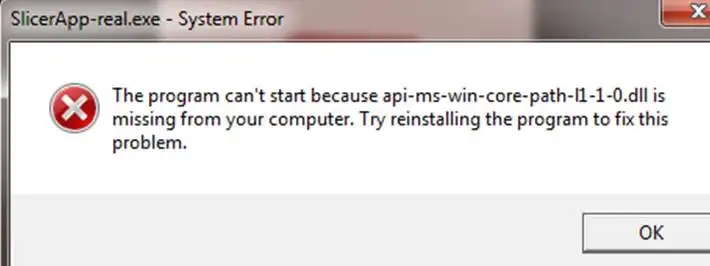
Quick diagnosis before making changes
First determine whether the failure affects one application or several. This distinction reduces unnecessary system changes and helps select the lowest-risk method.
| What you observe | Best starting method | Reason |
|---|---|---|
| Only one application fails | Repair or reinstall that application | Its installation may be incomplete or damaged. |
| Several unrelated applications fail | Run DISM, followed by SFC | The broader pattern may involve Windows components. |
| The error remains after both checks | Use an optional diagnostic scan or contact support | More targeted evidence is needed before changing files. |
Useful diagnostic detail: record the complete error message and the application name before starting. After each method, launch the same executable in the same way. Changing several variables at once makes it difficult to identify what worked.
Method 1
Repair or reinstall the affected application
When to use: Start here when only one program displays the error, especially after its installation, upgrade, or interrupted setup. Repair preserves app data where supported. Reinstallation is the alternative when no repair option exists.
- Close the affected application and save any related work.
- Open Start > Settings > Apps > Installed apps in Windows 11.
- Select the application’s menu, then choose Advanced options > Repair if those controls are available.
- If Windows does not offer that option, open
Control Panel > Programs > Programs and Features
, right-click the program, and select
Repair
or
Change
.
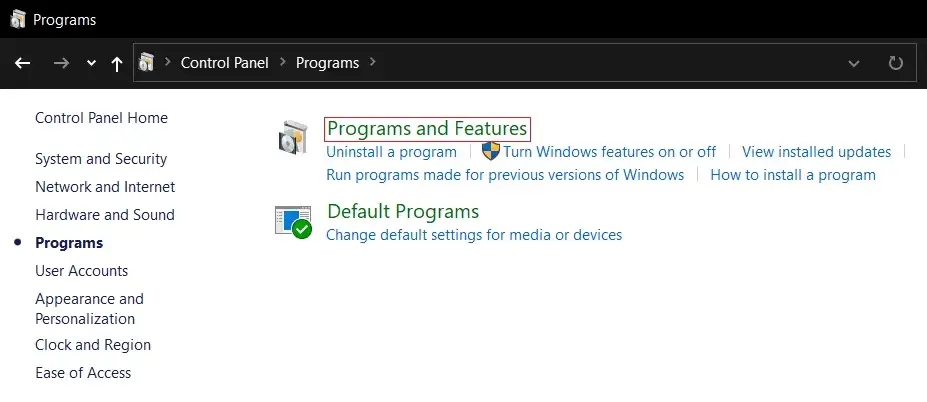
- If repair is unavailable or unsuccessful, uninstall the program and reinstall it using its original, trusted installer.
- Restart Windows if the installer requests it.
Microsoft notes that repair, change, and advanced options are not available for every application. Follow the relevant instructions on the official Microsoft application repair page .
How to Verify
Open the repaired application from its normal shortcut. Use the same action that previously triggered the message. The method succeeded if the application reaches its usual interface without reporting that api-ms-win-core-path-l1-1-0.dll is missing.
If several programs show the same error, or reinstalling the affected program changes nothing, check the protected Windows components next.
Method 2: Fix api-ms-win-core-path-l1-1-0.dll missing with DISM and SFC
Repair the Windows component store and protected system files
When to use: Choose this Windows built-in method when multiple applications fail, Windows features behave abnormally, or Method 1 does not resolve the error. Microsoft recommends running Deployment Image Servicing and Management before System File Checker because DISM supplies files used during the repair.
- Save your work and close open applications.
- Type Command Prompt in Windows Search.
- Right-click Command Prompt and select Run as administrator .
- Enter the following command and wait for it to finish:
DISM.exe /Online /Cleanup-image /Restorehealth

sfc /scannow
- Keep the window open until verification reaches 100%.
- Restart Windows after SFC completes, then test the affected application.
The command order and result messages are documented in Microsoft’s official DISM and System File Checker instructions .
How to Verify
Review the final SFC message, restart Windows, and launch the affected application again. “Windows Resource Protection did not find any integrity violations” means SFC found no protected-file corruption. A successful repair message means SFC corrected at least one issue, but the application test determines whether the original startup error is resolved.
If SFC cannot repair files or the same message persists, preserve the exact result instead of repeatedly running commands. That result is useful when requesting technical support.
For an additional structured scan after the official and manual options, Fionn DLL Fixer can check missing, damaged, version-mismatched, and System32-path-related DLL issues. It remains an optional diagnostic and repair path.
Method 3: Scan with Fionn DLL Fixer
Run the supplied DLL repair workflow
When to use: Consider this method when the application still fails after repair or reinstallation and the Windows checks did not provide a complete resolution. Review detected items before allowing changes. The free version displays three free attempts, while additional repair capabilities require VIP access.
- Launch Fionn DLL Fixer. The software automatically scans your PC for DLL and system issues and displays the detected results when the scan is complete.

- After the scan finishes, click
Repair
to start fixing all detected DLL and system issues automatically.

- Wait while the repair is in progress. During this process, the button changes to
Fixing
until all issues have been repaired.

- When the repair is complete, click
Ok
in the confirmation dialog. If prompted, restart your computer before checking whether the problem has been resolved.

- If the issue still persists after restarting, click
Recheck
to perform another scan. If new issues are found, click
Repair
again to fix them.

How to Verify
Confirm that the recheck no longer reports the relevant issue, then launch the affected application. A clean scan alone is not enough: successful verification requires the program to start without the original missing-DLL message.
Common mistakes to avoid
- Do not download the named DLL from an unverified file site. The filename alone cannot confirm the file’s source, integrity, version, or suitability for the system.
- Do not copy DLL files blindly into application or Windows folders. An incorrect file may replace one startup error with a different loading or compatibility failure.
- Do not assume every missing-DLL message has the same cause. One failing app favors an app-level repair; several failing apps justify a system check.
- Do not skip verification between methods. Testing after each change identifies the effective repair and prevents unnecessary modifications.
Conclusion
Start by repairing or reinstalling the one application that reports the error. If several programs fail, or the first method changes nothing, run DISM and then SFC with administrator permission. Restart Windows and reproduce the original launch test after every method. Avoid unverified DLL downloads and manual file replacement based only on a filename. If the message remains, retain the complete error and scan results for the software publisher or Microsoft support. An optional final check with Fionn DLL Fixer can scan and recheck relevant Windows DLL problems.
FAQ
Is it safe to download api-ms-win-core-path-l1-1-0.dll from a DLL website?
An unknown DLL download is not the recommended first fix. Its publisher, integrity, version, and compatibility may be unclear. Repair the affected application first, then use Microsoft’s DISM and SFC tools. These paths preserve a verifiable source for repaired application or Windows components.
Why does only one application show the missing-DLL error?
A single-app pattern points first to that application’s installation or requirements, although the message alone cannot establish the exact cause. Repair or reinstall the affected program and retest it before making system-wide changes. If unrelated applications begin failing, move to the Windows component checks.
Should DISM or SFC run first?
Run DISM first and SFC second. Microsoft states that DISM provides the files required to repair corrupted Windows files. Wait for DISM to finish successfully before entering
sfc /scannow
, and do not close Command Prompt before SFC reaches 100% verification.
What if SFC finds no integrity violations?
That result means SFC did not detect corruption among the protected system files it checked. It does not prove the affected application is correctly installed. Return to the application’s official installer or support channel, preserve the complete error text, and verify that the program supports your Windows environment.
How do I know the error is fully fixed?
Restart Windows when requested and launch the same application using the same executable or shortcut. Repeat the action that originally produced the message. The repair is verified only when the application starts and remains usable without the api-ms-win-core-path-l1-1-0.dll missing error.


