 Emily CarterDLL Errors
A DLL error after a Windows update does not always mean the update damaged a library. It can coincide with a Windows system-file problem, expose an app compatibility issue or dependency problem, or occasionally be a known issue with a specific update. Start by checking the scope of the failure, then repair Windows or the individual app. Only decide whether to roll back after checking the KB number. Below are four methods, from targeted actions to broader changes.
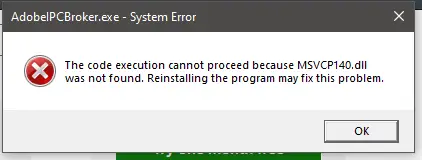
Symptoms of a DLL Error After a Windows Update
- An app or game does not start and says that a DLL is missing, cannot be found, is damaged, or has an incompatible version.
- A program closes immediately after launch even though it worked normally before.
- A similar error appears in several programs, or Windows begins freezing and behaving unstably.
- The failure is limited to one program while other apps start without problems.
Why Did the DLL Error Appear After a Windows Update?
A timing connection is useful for diagnosis, but it does not prove the cause by itself. An update may reveal pre-existing corruption in Windows system files. It can also change operating conditions in a way that makes an older app version or one of its dependencies incompatible. If the error affects only one program, the problem is more likely in that app's installation or components. If several programs fail at once or Windows itself is unstable, check the system components first.
Quick Diagnosis
| Situation | Priority action |
|---|---|
| The error affects only one app | Repair or reinstall the app — Method 2. |
| DLL errors occur in multiple apps | Run DISM and SFC — Method 1. |
| The failure started immediately after a specific KB was installed | Record the KB number and check known issues — Method 3. |
| Windows is also unstable | Start with system repair — Method 1. |
| Microsoft has confirmed an update problem | Use the Microsoft-provided fix or workaround first — Method 3. |
Comparison of Fix Methods
| Method | Best for | Effectiveness | User effort |
|---|---|---|---|
| DISM and SFC | Multiple errors and Windows instability | Checks and repairs system components | Medium |
| App repair | One affected program | Restores files for the specific app | Low |
| Check the KB before rollback | A failure clearly linked to an update | Helps you choose a confirmed solution | Medium |
| Fionn DLL Fixer | Checking detectable DLL and Windows system-component problems | Scan, repair, and recheck | Low |
Method 1: Repair Windows System Files with DISM and SFC
When to use it
Choose this method if the error affects multiple programs, Windows is unstable, or you cannot separate an app problem from a system problem.
Steps
- Open Command Prompt as an administrator.
- Enter
DISM.exe /Online /Cleanup-image /Restorehealthand wait for it to finish.
- Enter
sfc /scannowand wait for the scan to reach 100%.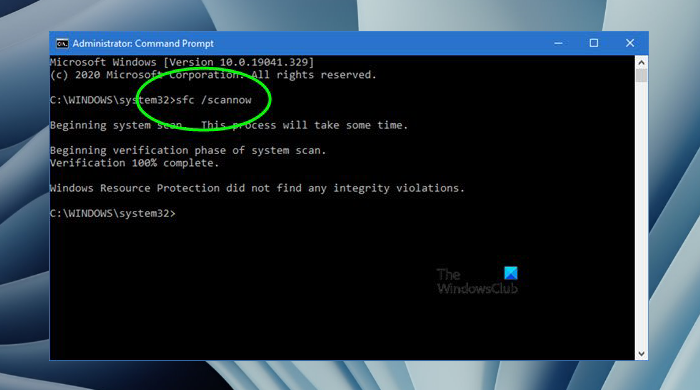
- Restart your computer.
How to verify
After restarting, open the apps that displayed the message. If they start without the error, the system repair helped. If the error remains in only one program, continue to Method 2.
Method 2: Repair or Reinstall the Affected App
When to use it
This approach is suitable when a DLL cannot be found after an update in only one app or game while Windows and other apps work normally.
Steps
- Close the affected app and its related processes.
- Open
Settings → Apps → Installed apps
and find the program.
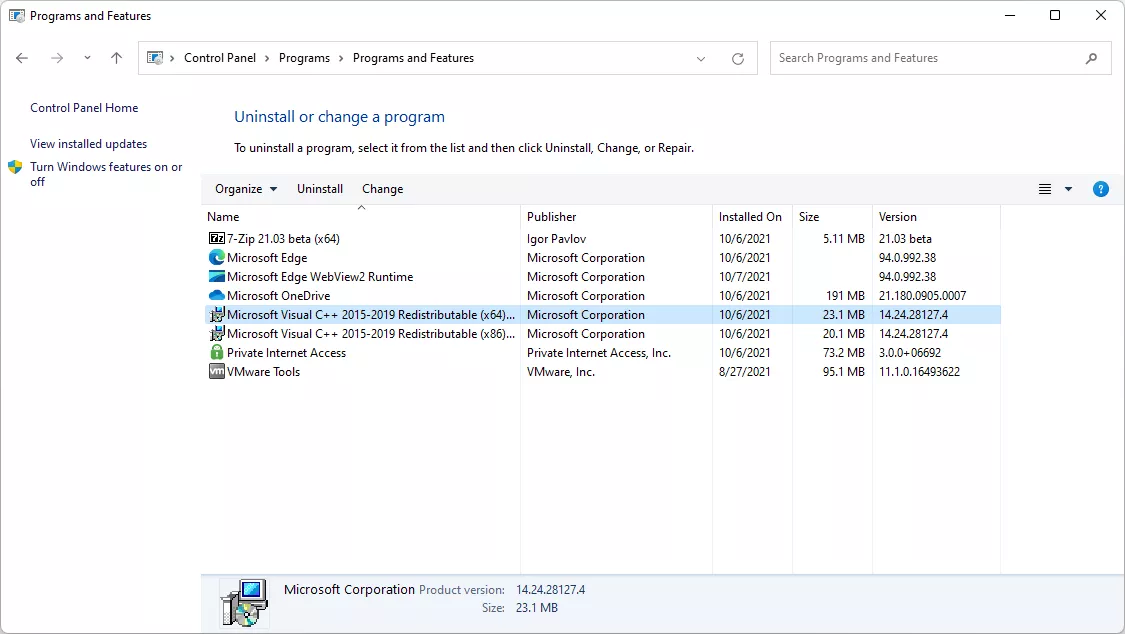
- Select repair if it is available, then wait for the operation to finish.
- If repair is unavailable or does not help, reinstall the program from the developer's official source.
How to verify
Start the app the same way that produced the error. A successful launch without a DLL message indicates that its files or dependencies caused the problem.
Method 3: Check the Update Before Rolling It Back
When to use it
Use this method if the failure began immediately after a specific update was installed and targeted repair did not help. Removing an update is not a routine first step.
Steps
- Open
Settings → Windows Update → Update history
.
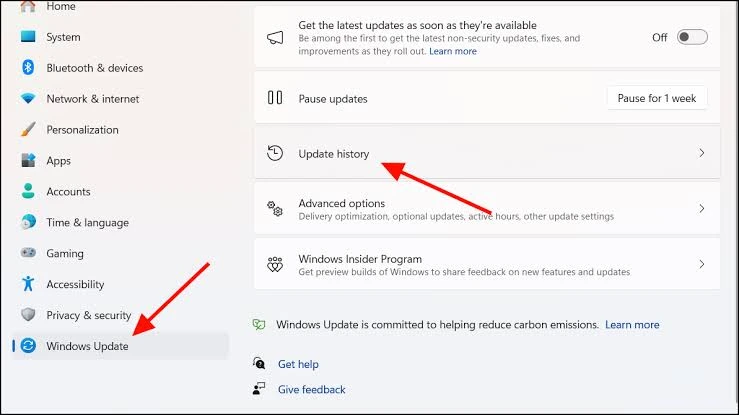
- Record the KB number and installation date of the update that matches when the error began.
- Check the KB number in Windows Release Health and in Microsoft's article for that update.
- If Microsoft lists a fix, Known Issue Rollback, or workaround, apply that option first.
- Consider removing an available update or using System Restore only when the connection is confirmed and no recommended fix is available.
How to verify
After the recommended fix or rollback, restart your computer and try opening the affected app again. Keep the KB number and the exact error text if the problem remains.
Method 4: Fix the DLL Error with Fionn DLL Fixer
When to use it
This is a recommended Windows option when you want to check detectable DLL and Windows system-component problems in one interface. It does not replace checking for a known issue with a specific KB, but it can reduce manual diagnosis when the cause is unclear.
Steps
- Launch Fionn DLL Fixer and wait for the automatic scan and detected results to appear.

- When the scan finishes, click
Repairto begin fixing the detected issues.
- Wait for the process to finish while the button displays
Fixing.
- When it is complete, click
Okin the confirmation dialog and restart your computer if prompted.
- If the error persists, click
Recheckto run another scan.
How to verify
After restarting, if prompted, open the problematic app again. If the error remains, run another check and provide the exact message to the app developer or official support.
Verification Checklist
- The affected app opens without a message about a missing, damaged, or incompatible DLL.
- The error does not return after restarting Windows.
- If the failure affected multiple programs, each one starts separately.
- No DLL files from an unverified source were manually added to system folders.
- If the problem remains, you know the app name, full error text, date it appeared, and most recent KB number.
Conclusion
First match the scope of the error to the method: one program needs its installation repaired, while multiple failures call for checking Windows with DISM and SFC. If the problem began after a specific KB, first check known issues and Microsoft's solution instead of automatically removing the update. To check detectable DLL and Windows system-component problems, you can use Fionn DLL Fixer . Confirm the result by launching the app again after restarting. If the error does not disappear, contact the app developer or official support with the message and KB number.
Frequently Asked Questions
Why did the DLL error appear specifically after a Windows update?
The update may have coincided with damaged system files or revealed an incompatibility in the app or its dependencies. In some cases, the problem is with the update itself, so the failure scope and KB number matter.
How can I find out which update caused the DLL error?
Open Windows Update history, match the installation date to when the error first appeared, and record the KB number. Then check that KB in Windows Release Health and Microsoft's article for the update.
Do I need to remove the latest Windows update?
Not necessarily. First confirm the timing connection, check the KB's known issues, and see whether Microsoft has already provided a fix. Consider rollback only when the connection is supported, the update can be removed, and other recommendations have not helped.
Do I need to download the missing DLL separately?
No. Without a confirmed version, source, and architecture, the file may not match the app. It is safer to repair Windows or reinstall the program from an official source.
When should I contact support?
Contact the app developer or official support if the error remains after repairing the app and checking Windows. Include the exact message, program name, date it appeared, and KB number.


