 Emily CarterDLL Errors
Introduction
How To Fix DLL Files Missing safely depends on where the error occurs. Start with Windows Update and a restart. If only one program fails, repair that application and reinstall its official dependencies. When several unrelated programs fail, run DISM followed by System File Checker. An optional assisted scan is the fourth method. Test the same failed action after every method and stop when the original error no longer appears.
Why DLL Files Go Missing or Stop Working
A DLL not found error does not always mean someone deleted a file. An interrupted update, damaged application installation, incompatible runtime, or corrupted Windows component can produce a similar message. Record the complete error, including the DLL filename and the action that triggers it.
Diagnostic shortcut: A problem limited to one application usually points to that application or one of its dependencies. Similar errors across unrelated programs make a shared runtime or protected Windows component more likely. This distinction helps you choose a focused repair instead of replacing files blindly.
Quick Comparison of the Four Methods
| Method | Best for | Start here when |
|---|---|---|
| Windows Update and restart | Recent Windows changes | The error followed an update or interrupted restart |
| Application and runtime repair | One affected program or game | Other applications work normally |
| DISM and System File Checker | Protected Windows components | Several unrelated applications fail |
| Optional assisted scan | Mixed dependency errors | Official and built-in methods did not work |
Method 1: How To Fix DLL Files Missing with Windows Update
When to Use
Start here after an interrupted update, unexpected shutdown, or recent Windows change. Updating first also gives DISM a current repair source if you need Method 3.
Step-by-Step Guide
- Save your work and close the affected application.
- Open Settings > Windows Update .
- Select Check for updates , then install the updates offered for your computer.
- Restart Windows after installation completes.
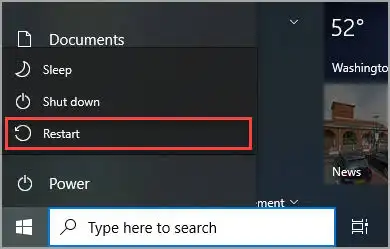
- Open the affected application and repeat the action that caused the error.
Note: Microsoft ended free Windows 10 support on October 14, 2025. Windows 10 still operates, but Microsoft recommends moving to Windows 11. Install any updates still offered before troubleshooting.
How to Verify
The method worked if the application opens and the original message does not return. If one program still fails while others work, repair that program next.
Method 2: Repair the Affected App and Its Runtime
When to Use
Use this method when only one application or game reports a missing DLL. Its installer can restore private files and supported dependencies without manual file replacement.
Step-by-Step Guide
- Copy the complete error message, including the DLL filename.
- Open Settings > Apps > Installed apps and locate the affected program.
- Open Advanced options and select Repair when available.
- If repair is unavailable or unsuccessful, uninstall the program and restart Windows.
- Reinstall the program from its official publisher or Microsoft Store listing.
- Install any Visual C++, .NET, DirectX, OpenAL, or XInput dependency specified by the publisher, using its official installer.
Note: A 64-bit Windows computer can run a 32-bit application that needs an x86 runtime. Match the runtime architecture to the application's documented requirements, not only to Windows.
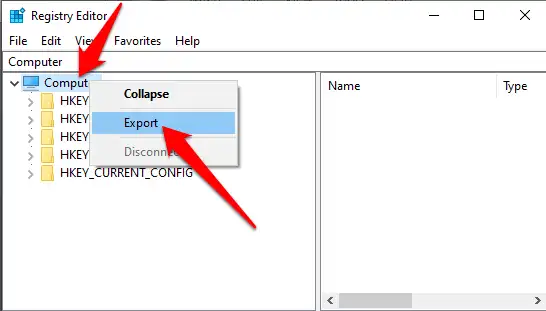
How to Verify
Launch the same program and repeat the failed action. If the message identifies another dependency, check the publisher's complete requirements before installing anything else. Continue to Method 3 when failures affect several programs.
Method 3: Repair Corrupted DLL Files with DISM and SFC
When to Use
Use these built-in tools when multiple applications fail, Windows behaves abnormally, or the error names a Windows component. Administrator permission is required. Microsoft's current guidance runs DISM before System File Checker.
Step-by-Step Guide
- Install pending Windows updates and restart the computer.
- Type
Command Prompt
in Windows Search and select
Run as administrator
.
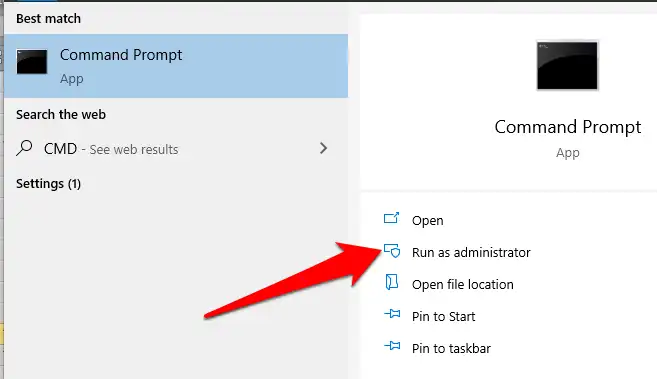
- Enter the following DISM RestoreHealth command and wait for it to finish.
DISM.exe /Online /Cleanup-Image /RestoreHealth
- After DISM reports that the operation completed successfully, run System File Checker.
sfc /scannow - Wait for verification to reach 100 percent, close Command Prompt, and restart Windows.
How to Verify
Open the affected programs and repeat the failed actions. You can also rerun
sfc /scannow
. The message “Windows Resource Protection did not find any integrity violations” confirms that protected system files pass the scan. Review the official Microsoft System File Checker instructions if DISM or SFC reports an error.
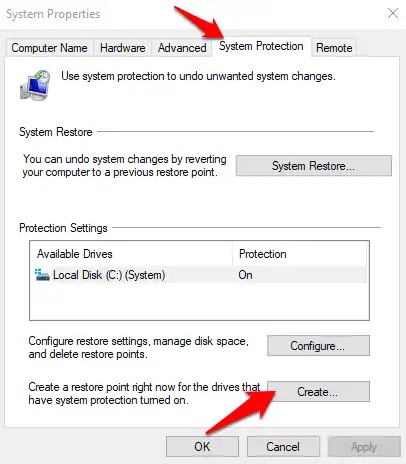
If broad dependency errors continue, an assisted scan is an optional final method.
Method 4: Use Fionn DLL Fixer as an Optional Assisted Method
When to Use
Consider this Windows application after built-in and official installer methods have not resolved repeated crashes, startup failures, or dependency-loading errors. It can scan for missing, damaged, version-mismatched, and System32-path DLL issues. It also checks DirectX, Visual C++, .NET, OpenAL, and XInput dependencies.
Step-by-Step Guide
- Launch Fionn DLL Fixer. The software automatically scans your PC for DLL and system issues and displays the detected results when the scan is complete.

- After the scan finishes, click "Repair" to start fixing all detected DLL and system issues automatically.

- Wait while the repair is in progress. During this process, the button changes to "Fixing" until all issues have been repaired.

- When the repair is complete, click "Ok" in the confirmation dialog. If prompted, restart your computer before checking whether the problem has been resolved.

- If the issue still persists after restarting, click "Recheck" to perform another scan. If new issues are found, click "Repair" again to fix them.

How to Verify
Run the recheck, then launch the affected application or game. Confirm that the original crash, black screen, startup failure, or missing DLL message no longer occurs. Restart the computer or contact product support if the same error remains.
The free version displays three free attempts. VIP unlocks DLL, DirectX, runtime, and system repair benefits.
Common Mistakes to Avoid
- Downloading a DLL by filename alone: A matching name does not confirm its source, version, or architecture.
- Copying files into System32: Manually replacing protected components can create new compatibility problems.
- Registering every DLL:
Many DLL files are not self-registering, so
regsvr32is not a universal fix. - Skipping restarts: Windows may need to release files in use before repaired components can load.
Conclusion
Begin with Windows Update and a restart, then repair the affected application and reinstall only its official dependencies. Run DISM before System File Checker when several programs fail or Windows components appear damaged. Verify the final result by reopening the same program and repeating the exact action that produced the error. If the message remains, save its complete wording and review the publisher's requirements or Microsoft support guidance. For recurring errors across DLL files, graphics components, and game runtimes, Fionn DLL Fixer provides an optional scan, repair, recheck, and support path.
Frequently Asked Questions
Can I safely download a missing DLL from a DLL website?
Downloading an individual file from an unverified site is not recommended. The file may be unsafe, outdated, or built for another architecture. Restore it through Windows Update, the application's official installer, or its documented runtime.
Should I place a missing DLL in System32?
Do not copy a file into System32 unless official documentation explicitly requires it. System32 contains protected Windows components, and an incorrect version can affect several applications.
Why does a DLL fix sometimes require a restart?
Windows cannot replace every component while an active process is using it. Restarting closes those processes and allows repaired files to load during startup.
What should I do if SFC cannot repair every file?
Confirm that DISM completed successfully, restart Windows, and run
sfc /scannow
again. If the result does not change, save the command output and contact Microsoft support or a qualified technician.


