 Emily CarterDLL Errors
A DLL error when launching games usually means that Windows or the game cannot load a required library: the file is missing, damaged, or the wrong version. Start by checking whether the failure occurs in only one game or in several; this will help you choose the right recovery path. Below are four methods, from automated diagnostics to built-in Windows tools and reinstalling a specific game. After each method, launch the exact game in which the message appears.
Quick Comparison of Methods
| Method | Best for | Effectiveness | User effort |
|---|---|---|---|
| Fionn DLL Fixer | An unclear cause, multiple DLL errors, or game dependency issues | High for initial diagnostics | Low |
| SFC | Errors in several programs or suspected system file corruption | Medium | Medium |
| DISM | SFC did not resolve the issue or reports that it cannot repair some files | Medium | Medium |
| Reinstalling the game | A failure in only one game after an update or unsuccessful installation | High for one game | High |
Method 1: Fix a DLL Error with Fionn DLL Fixer
When to use it: if the error text does not explain the cause, the game shows a black screen, does not start, or reports a missing, damaged, or incompatible DLL. This is the recommended option for an initial check because Fionn DLL Fixer scans for DLL and system issues, including game launch dependencies, then lets you repair and recheck them.
- Launch Fionn DLL Fixer. The program will automatically scan your computer for DLL and system problems and show the results after the scan is complete.

- After the scan is complete, click “Repair” to automatically begin fixing all detected DLL and system issues.

- Wait for the repair to finish. During the process, the button will change to “Fixing” and remain that way until all issues are repaired.

- When the repair is complete, click “Ok” in the confirmation dialog. If prompted, restart your computer before checking the result.

- If the issue remains after restarting, click “Recheck” to perform another scan. If new issues are found, click “Repair” again to fix them.

Method 2: Check Windows System Files with SFC
When to use it: when the DLL error appears in several games or programs, especially after a Windows crash. System File Checker searches protected Windows system files and attempts to replace damaged versions.
- Open the Start menu, search for “Command Prompt,” and choose Run as administrator.
- Enter the following command and press Enter:
sfc /scannow
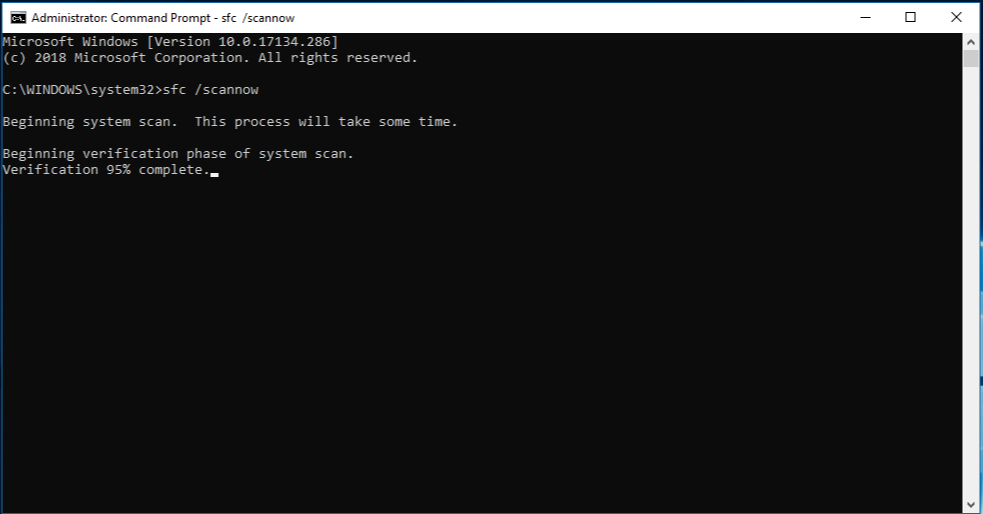
A detailed description of the command’s results and limitations is available in the Microsoft System File Checker guide .
Method 3: Repair the Windows Image with DISM
When to use it: if SFC did not complete successfully or the same error remains in different games afterward. DISM services the Windows image from which SFC obtains files for repairs.
- Open Command Prompt as an administrator.
- Run the command:
DISM /Online /Cleanup-Image /RestoreHealth - Wait for the operation to complete without turning off the computer.
- Run
sfc /scannowagain.
- Restart Windows and check whether the game launches.
The command’s purpose and repair requirements are described in the Microsoft documentation for repairing a Windows image .
Method 4: Reinstall the Affected Game from Its Original Installer
When to use it: if the DLL error occurs in only one game while other applications work normally. In this situation, the cause may be an incomplete installation or damaged files in that particular game.
- Close the game and its launcher.
- Uninstall the game through the same official store, client, or installer from which it was installed.
- Install the game again from its original source.
- Restart the computer if the installer requires it.
- Open the game and check whether the original error message is gone.
Tips Before Launching Again
- Save the exact DLL name and the complete message text if they are displayed.
- After a system repair, always restart Windows before checking the result.
- Check the result using the same action each time: launch the game normally and wait for its main window.
- If the error occurred after a game update, use its original client or the publisher’s support rather than third-party file archives.
Conclusion
When you get a DLL error when launching games, first determine the scope: one game usually requires reinstallation from its original source, while failures in several programs justify using SFC and DISM. If the cause is unclear or you need to check DLL files and related system components in one process, use Fionn DLL Fixer , then restart your computer if prompted and try launching the game again. A successful outcome means the game opens without the original message. If it remains, save the exact error text and contact the game’s official support.
Frequently Asked Questions
Why does the game say a DLL is missing?
The message may appear when a required library is missing, damaged, or its version does not match what is expected. The exact error text helps distinguish a problem with one game from a system issue.
Do I need to run SFC if the failure occurs in only one game?
Not necessarily. It is more sensible to reinstall that game first from its original installer. SFC is more useful when similar errors also appear in other programs.
Can I run DISM before SFC?
Yes, but for routine diagnostics it is more convenient to start with SFC. DISM is especially appropriate when SFC could not repair the system files it found.
Why is a restart needed after the repair?
Some replaced system components and processes are fully applied only after Windows restarts. Check the game afterward if the program or system asks you to do so.
How do I know the problem is resolved?
Launch the same game in the same way. The solution is confirmed if it gets past the startup stage without the previous DLL message and opens its main window.


