 Emily CarterDLL Errors
A DLL launch error usually means that a program cannot load a required library: the file may be missing, corrupted, or different from the expected version. Start by determining the scope: if only one program will not open, reinstall that program first; if failures occur in multiple applications, check system files and Windows updates. Below are four separate methods, including diagnostics through Fionn DLL Fixer , and the order in which they make sense to use.
How to Choose a Method for Fixing a DLL Launch Error
| Method | Best for | Effectiveness | User effort |
|---|---|---|---|
| Reinstalling the application | The error occurs in only one program or game | High for that application's files | Low |
| SFC and DISM | Multiple programs will not start or there are signs of Windows corruption | High for system components | Moderate |
| Updating Windows | The error appeared after system changes or while updates are pending | Depends on the cause | Low |
| Fionn DLL Fixer | The cause is unclear, or DLL and system issues need checking and repair | High based on diagnostic results | Low |
Method 1: Reinstall the Application That Will Not Start
When to use it. You see a DLL launch error in only one application or game, while other Windows programs work normally. This can restore files included with that particular program.
- Close the program and all related processes.
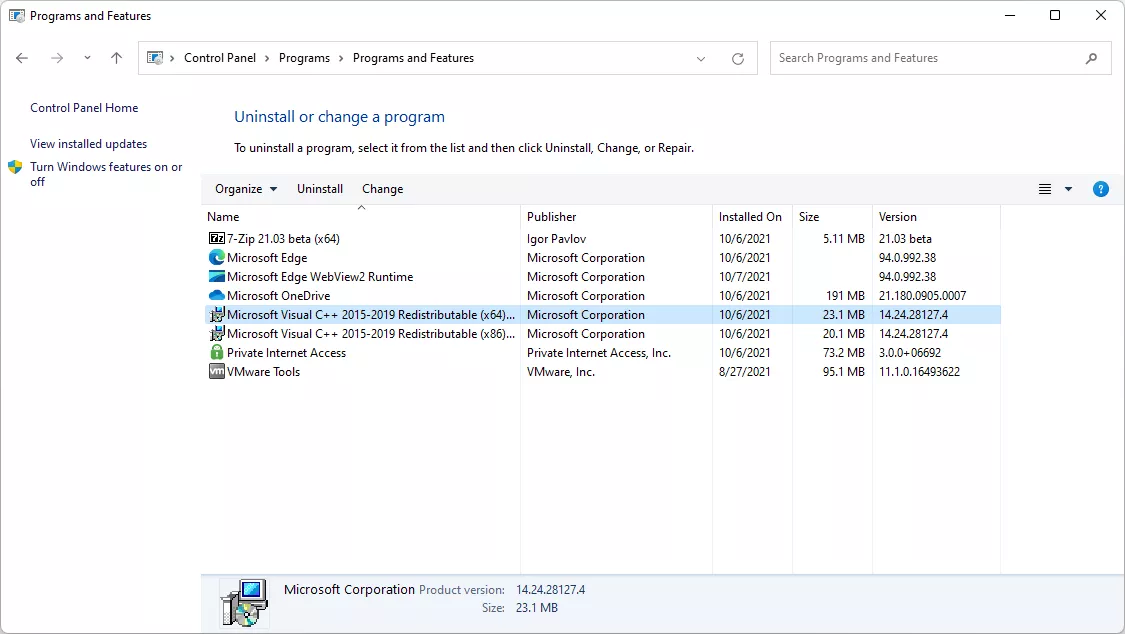
- Remove the program through the Installed apps section in Windows Settings.
- Restart the computer.
- Download the installer from the developer's official website or the official store through which the program was installed.
- Install the application again and launch it.
Check. Open the exact program that previously would not start. If the message is gone and it launches to its main window, this method worked. If the error appears in several programs, move on to checking Windows.
Method 2: Check and Repair Windows System Files
When to use it. Use this method if a DLL launch error affects several programs, appeared after a system failure, or the message mentions a system path. SFC checks protected system files; DISM can repair the component store used by SFC.
- Open Terminal (Administrator) from the Start menu.
- Enter the following command and wait for the scan to finish:
sfc /scannow - If SFC reports that it could not repair some files, run this command:
DISM /Online /Cleanup-Image /RestoreHealth - After DISM finishes, run
sfc /scannowagain.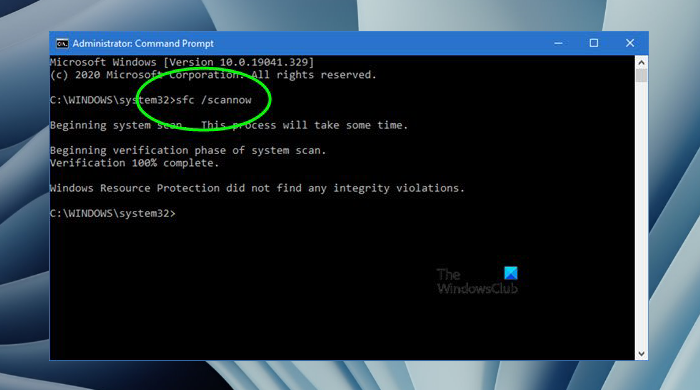
- Restart Windows.
Check. After restarting, try launching the affected program again. If SFC still reports unrepaired files or the error is unchanged, record the exact message text for further diagnosis.
Method 3: Install Pending Windows Updates
When to use it. You have not installed updates for a long time, the error appeared after a Windows configuration change, or the system check found no problem. Updates may include fixes for Windows components, but they do not replace reinstalling one specific program.
- Open Windows Settings.
- Go to Windows Update.
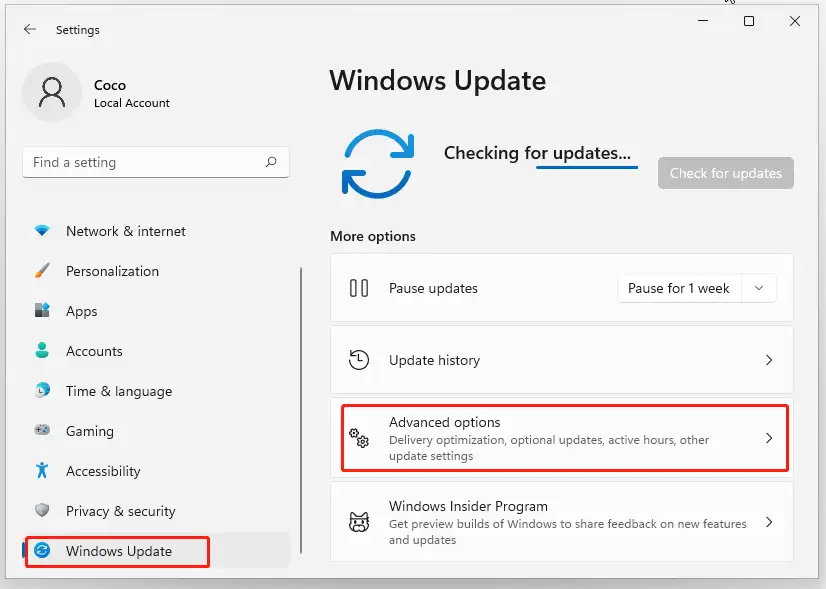
- Select Check for updates.
- Install the offered updates.
- Restart the computer if Windows requests a restart.
Check. After restarting, open the affected application. If it still reports the same DLL, do not replace the file manually: reinstall the application or diagnose the cause.
Method 4: Fix a DLL Launch Error with Fionn DLL Fixer (recommended option)
When to use it. This option is useful when it is unclear which DLL or system component is preventing startup, or when several dependencies need to be checked. Fionn DLL Fixer scans for DLL and system issues, including missing, corrupted, and incompatible versions, then supports automatic repair and rescanning.
- Launch Fionn DLL Fixer. The program will automatically scan the computer for DLL and system issues and display the results when the scan is complete.

- After the scan finishes, click “Repair” to automatically begin fixing all detected DLL and system issues.

- Wait for the repair to finish. During the process, the button changes to “Fixing” and remains that way until all issues are repaired.

- When it finishes, click “Ok” in the confirmation dialog. If prompted, restart the computer before checking the result.

- If the issue persists after restarting, click “Recheck” to run another scan. If new issues are found, click “Repair” again to fix them.

Check. The rescan should not show the previously detected issue, and the application should launch without the original message. The free version provides three free attempts; DLL, DirectX, runtime, and system repair privileges are available in VIP.
What Can Help Prevent the Error from Returning
- Keep the exact error text and the name of the mentioned DLL; this helps distinguish a single-application failure from a system issue.
- Install programs and updates from official sources.
- Do not copy DLLs between application folders or replace system files at random: the version and architecture must match the expected components.
Conclusion
When you encounter a DLL launch error, narrow down the cause first. For one program, a clean reinstall from an official source is usually enough. If the failure affects multiple applications, run SFC and DISM first, then install Windows updates. When the error text does not indicate a clear cause, Fionn DLL Fixer helps perform scanning, repair, and rescanning in one process. Always confirm the result by launching the affected program after restarting. If the error persists, provide support with the exact message text and details about the application.
Frequently Asked Questions
Why does a DLL launch error appear in only one program?
Most likely, a file related to that application's installation is missing or corrupted. Start by removing it and reinstalling it from an official source.
Can I download a missing DLL separately?
It is not recommended. An individual file may be the wrong version or architecture. It is safer to restore the program through its standard installation or check Windows system files.
When should I run SFC and DISM?
Run them if the error affects multiple programs, appeared after a system failure, or you suspect corruption in Windows components. Run SFC first, then use DISM if file repair problems occur.
Do I need to restart after repairing a DLL?
Yes, if Windows or the repair tool requires it. After restarting, open the application again: this is the main way to confirm that the error is fixed.
What does Fionn DLL Fixer do?
Fionn DLL Fixer scans for DLL errors and system issues, supports automatic and manual repair, and allows rescanning after repair.


