 Emily CarterDLL Errors
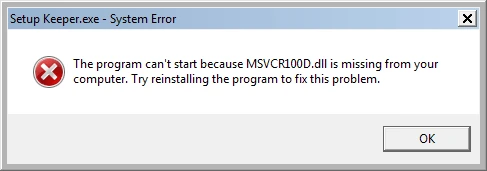
If Windows says The program can't start because DLL is missing from your computer , read the DLL name before reinstalling anything. “DLL is missing” does not always mean you should download that DLL file. The file may belong to a larger runtime or software package, such as Microsoft Visual C++ or DirectX; repairing the package that provides it is usually safer than replacing one file. This guide gives four fixes, starting with the DLL owner, then the app, Windows system files, and a guided scan.
Symptoms
The message appears when an app or game starts and may name a file such as
VCRUNTIME140.dll
,
d3dx9_43.dll
, or
XINPUT1_3.dll
. The program usually closes or never reaches its opening screen.
- One app fails: its installation or a shared dependency is the likely scope.
- Several unrelated apps fail: a Windows component or protected system file may need repair.
- The error began after an interrupted update or installation: identify the named DLL, then repair its owner before reinstalling the app.
Quick Diagnosis Checklist
- Copy the DLL name exactly from the dialog and use the table below. If it identifies a runtime, go to Method 1.
- If the name is app-specific, or only one app fails after its dependency is addressed, go to Method 2.
- If the dialog names a Windows system DLL, or several unrelated apps fail, go to Method 3.
- If the dependency source is unclear and you want a guided scan for detectable DLL and Windows system issues, go to Method 4.
Identify the Missing DLL First
| Missing DLL | Usually belongs to | First thing to check |
|---|---|---|
VCRUNTIME*.dll
,
MSVCP*.dll
,
MSVCR*.dll
| Visual C++ Runtime | Repair or install the corresponding Microsoft Visual C++ Redistributable. |
d3dx9_*.dll
| Legacy DirectX runtime | Install the supported DirectX runtime. |
XINPUT1_3.dll
| DirectX/XInput | Check the game’s DirectX and prerequisite installers. |
| App-specific DLL | Application | Repair or reinstall the application. |
| Windows system DLL | Windows | Run DISM, then SFC. |
Newer DirectX components in Windows do not necessarily include legacy side-by-side files that older games request. Microsoft notes that some games need the DirectX End-User Runtime to supply files such as
d3dx9_*.dll
.
Quick Method Comparison
| Method | Best For | Efficiency | User Effort |
|---|---|---|---|
| Repair the providing runtime | A named Visual C++ or DirectX DLL | High when the owner is clear | Low to medium |
| Repair or reinstall the app | An app-specific DLL or incomplete app files | High for one affected app | Low to medium |
| DISM and SFC | Windows DLLs or multiple affected apps | High for Windows component and system-file repair | Medium |
| Fionn DLL Fixer | An unclear dependency source needing a guided scan | Guided scan, repair, and recheck | Low |
Method 1: Repair the Runtime That Provides the Missing DLL
When to Use
Use this method when the dialog names a Visual C++ or DirectX-related DLL. For example,
VCRUNTIME140.dll
commonly points to a Visual C++ Redistributable dependency, while
d3dx9_*.dll
points to a legacy DirectX dependency.
Step-by-Step Guide
- Record the DLL name and affected program.
- Match the name to the owner in the identification table.
- Get the matching installer or repair option from the
Microsoft Visual C++ Redistributable documentation
or the
DirectX End-User Runtime installer
.
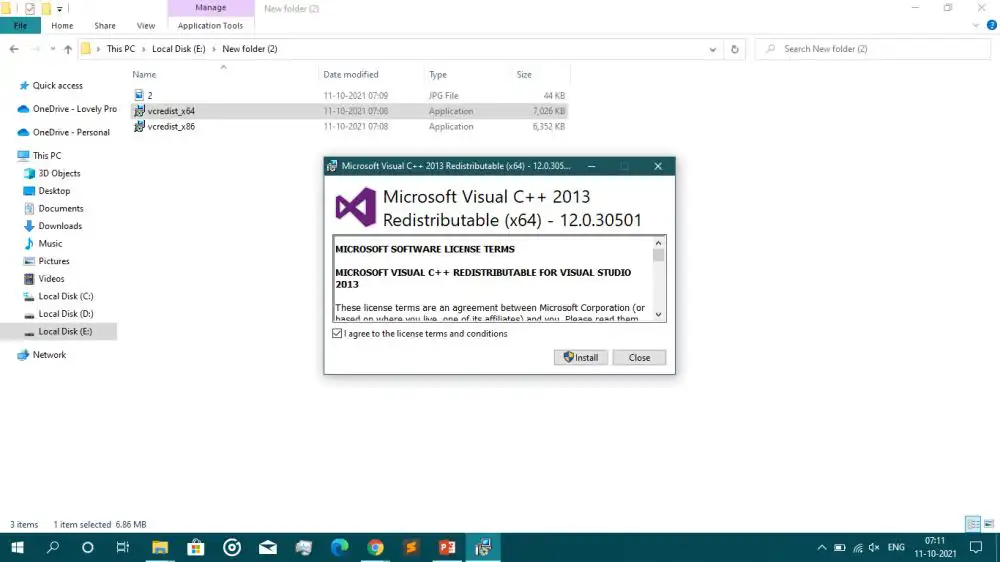
- Run the installer and complete its repair or installation prompts.
- Restart Windows if prompted.
How to Verify
Open the affected program. The same named-DLL dialog should no longer appear. If it remains, continue with Method 2 rather than sourcing the DLL individually.
Method 2: Repair or Reinstall the Affected App
When to Use
Use this method for an application-specific DLL, or when the relevant runtime is already repaired but one app still fails. It restores that app’s installed files without manually copying DLLs.
Step-by-Step Guide
- Close the affected program and its launcher.
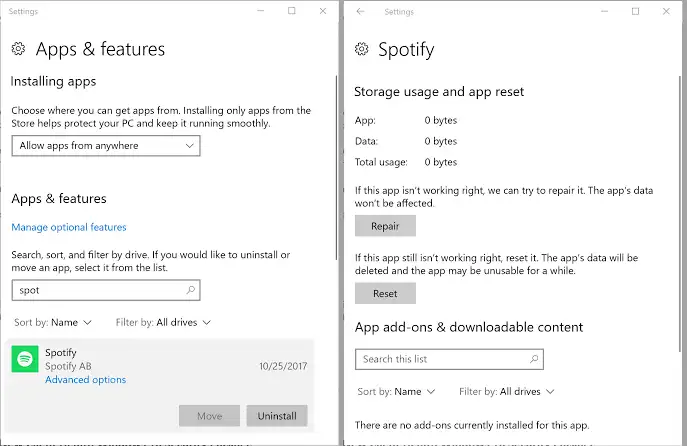
- Open Settings , select Apps , and locate the affected app.
- Select its available repair option.
- If repair does not help or is unavailable, uninstall the app.
- Install it again from the original publisher, store, or launcher.
How to Verify
Launch the app from its normal shortcut. It should reach its usual opening screen without a missing-DLL error.
Method 3: Repair Windows System Files with DISM and SFC
When to Use
Choose this method when multiple unrelated applications show DLL errors or the message names a Windows system DLL. DISM repairs the Windows component store; SFC then checks protected system files.
Step-by-Step Guide
- Save open work and close applications.
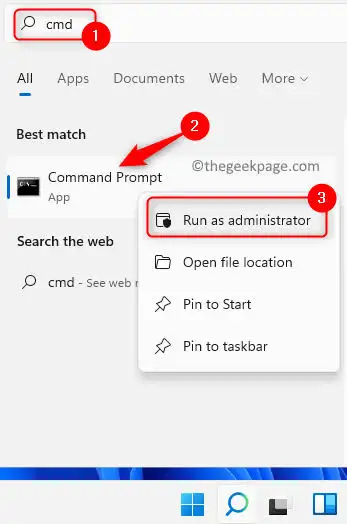
- Open
Command Prompt
as an administrator.
- Run the command below and wait for it to finish:
DISM /Online /Cleanup-Image /RestoreHealth
- Run the following command after DISM completes:
sfc /scannow - Restart Windows after SFC completes.
How to Verify
After restarting, open the program that produced the error. If only that app still fails, return to Method 2; it may not be a protected Windows system file.
Method 4: Diagnose and Fix the Problem with Fionn DLL Fixer
When to Use
Recommended for an unclear source: Use Fionn DLL Fixer when the DLL or dependency source is unclear and you want a guided scan for detectable DLL and Windows system issues. It can scan dependency-loading and startup issues, then provide repair and recheck steps.
Step-by-Step Guide
- Launch Fionn DLL Fixer and wait for its scan results.

- After the scan finishes, click
Repair
.

- Wait while the button shows
Fixing
.

- Click
Ok
in the completion dialog, then restart if prompted.

- If the error persists after restarting, click
Recheck
and repair any newly detected issues.

How to Verify
Open the affected application after the repair and any requested restart. If the error continues, use the recheck result and exact dialog text when contacting the application developer or Fionn support.
Verification Checklist
- The affected application opens from its normal shortcut without the missing-DLL message.
- The application reaches its normal start screen or main window.
- Other previously affected applications open after a Windows restart.
- No new DLL error appears while launching the repaired program.
Conclusion
Start with the DLL name, not a standalone download. Repair Microsoft Visual C++ or DirectX when the file belongs to that runtime, then repair or reinstall the affected app if it is app-specific. Use DISM followed by SFC for Windows DLLs or errors across several programs. When the source remains unclear, Fionn DLL Fixer offers a guided scan, repair, and recheck path. Confirm the result by opening the original program after any restart. If the issue remains, contact the program developer or official support with the full error text and DLL name.
FAQ
Can I download the missing DLL file separately?
Usually, no. Repair the app or the runtime package that provides the DLL. A standalone file may not match the required version or architecture.
What does VCRUNTIME140.dll missing mean?
It commonly indicates that an application needs a Microsoft Visual C++ Redistributable. Repair or install the matching supported Redistributable before reinstalling the application.
Why can a game need d3dx9_*.dll on a newer version of Windows?
Some older games use legacy DirectX side-by-side components. A newer DirectX version does not necessarily supply those legacy files, so the supported DirectX End-User Runtime may be needed.
Should I run DISM before SFC?
For the Windows system-file method, run DISM first and then SFC.
What should I send to official support if the problem remains?
Send the exact error wording, DLL filename, affected program name, and the fixes already tried.


