

How to Use a Voice Changer in Steam Games (Step-by-Step Guide)
2026-03-12 16:30:28

Create Unique Gaming Voices for Steam & Discord – Tips for Engaging Voice Changers
2026-03-06 15:13:55
Enhance Twitch & YouTube Streams with Multi-Character Voice Acting – VoxMagic
2026-02-26 15:53:54

AI Voice Changer vs Text-to-Speech: STS vs TTS Explained for Creators & Gamers
2026-01-30 10:34:54

Real-Time Voice Gender Change on PC | AI Voice Changer for Gaming & Streaming
2025-12-12 10:27:28
VoxMagic Voice Changer Complete Guide - Installation & Multi-Platform Setup
2025-11-13 12:18:18
Table of Contents
With VoxMagic's intuitive interface, you can easily transform your voice with just a few simple clicks.
1. General Settings: Real-time Voice Changer - Customize your voice instantly during calls or games
2. Click to download and install the virtual sound card driver. After decompression, run setup.exe, or download and install another virtual sound card driver.
3. Voice Changer on Windows - Easily apply voice effects globally
4. Voice Changer on Steam - Enjoy immersive gaming interactions
5. Voice Changer on Discord - Make chatting and streaming more fun
Step 1. Select Input and Output
Go to "Settings" and click the drop-down button to select the input and output devices you are using.
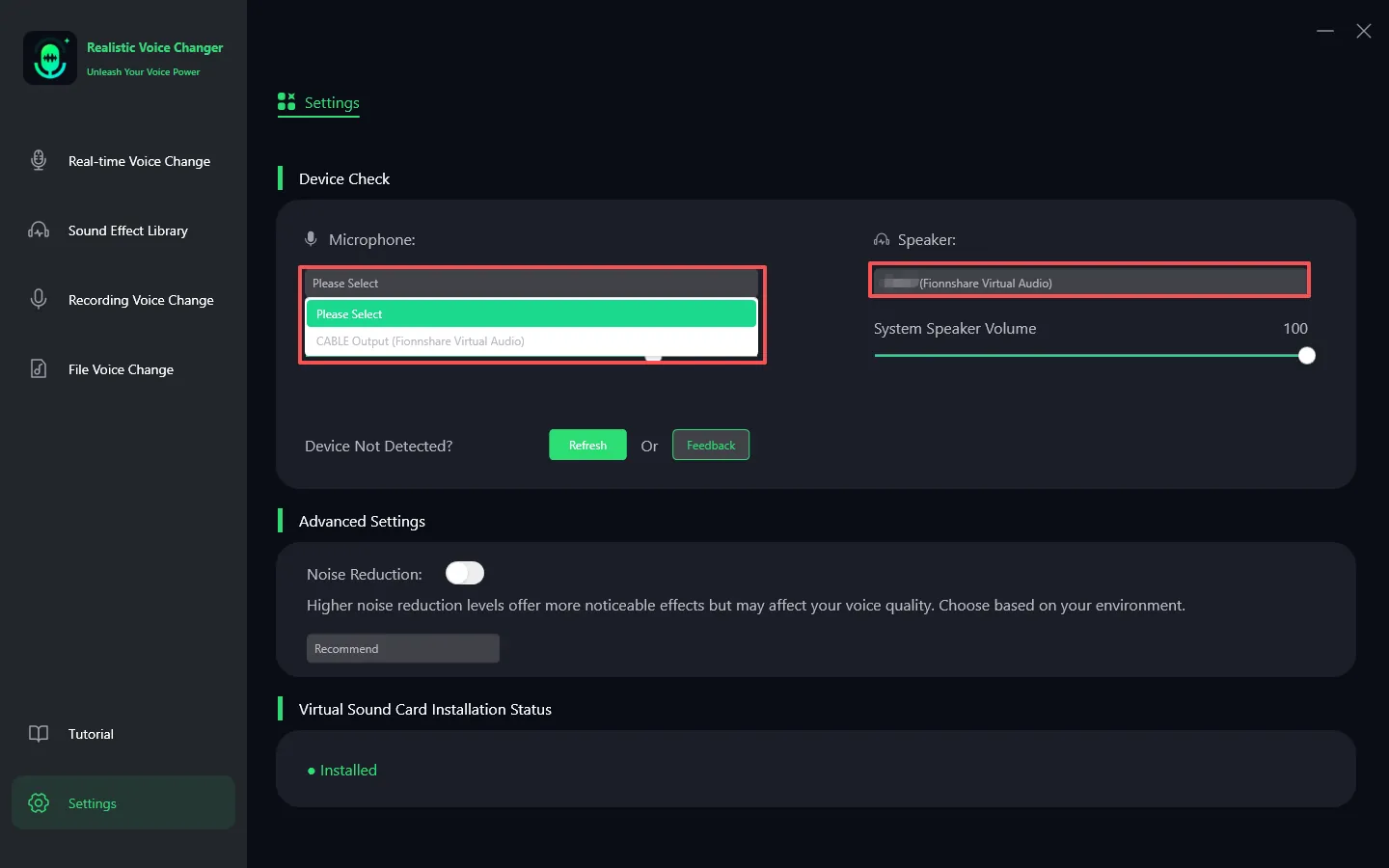
No sound? Try the following solutions:
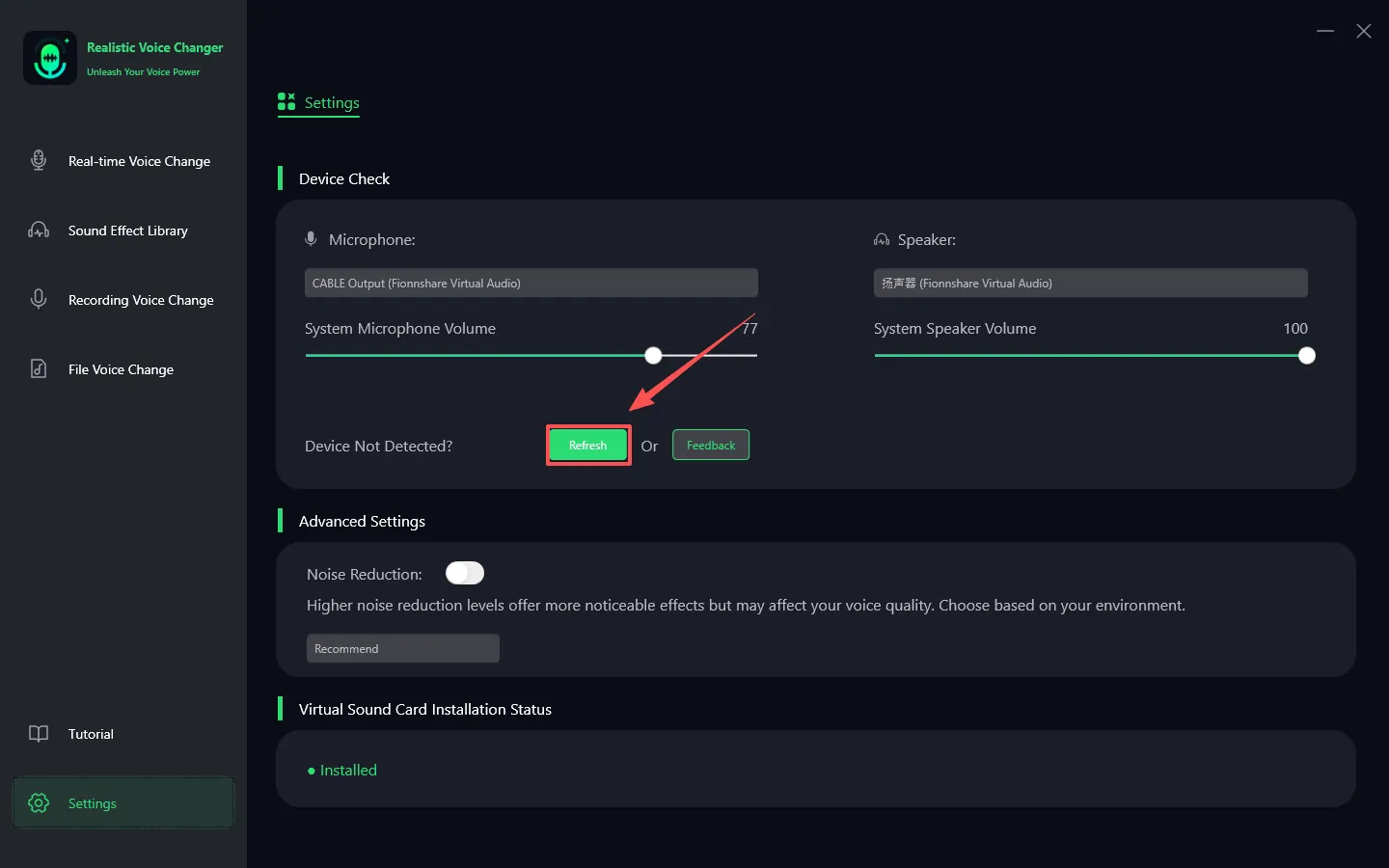
1. Manual Refresh: If you have added other devices before, click the "Refresh" button first.
2. Check List: After refreshing, check if the new device appears in the device list.
If the problem persists, you can visit www.fionnapps.com to contact our support team.
Step 2: Select Voice and Sound Effects
Select the sound effect you like and click it.
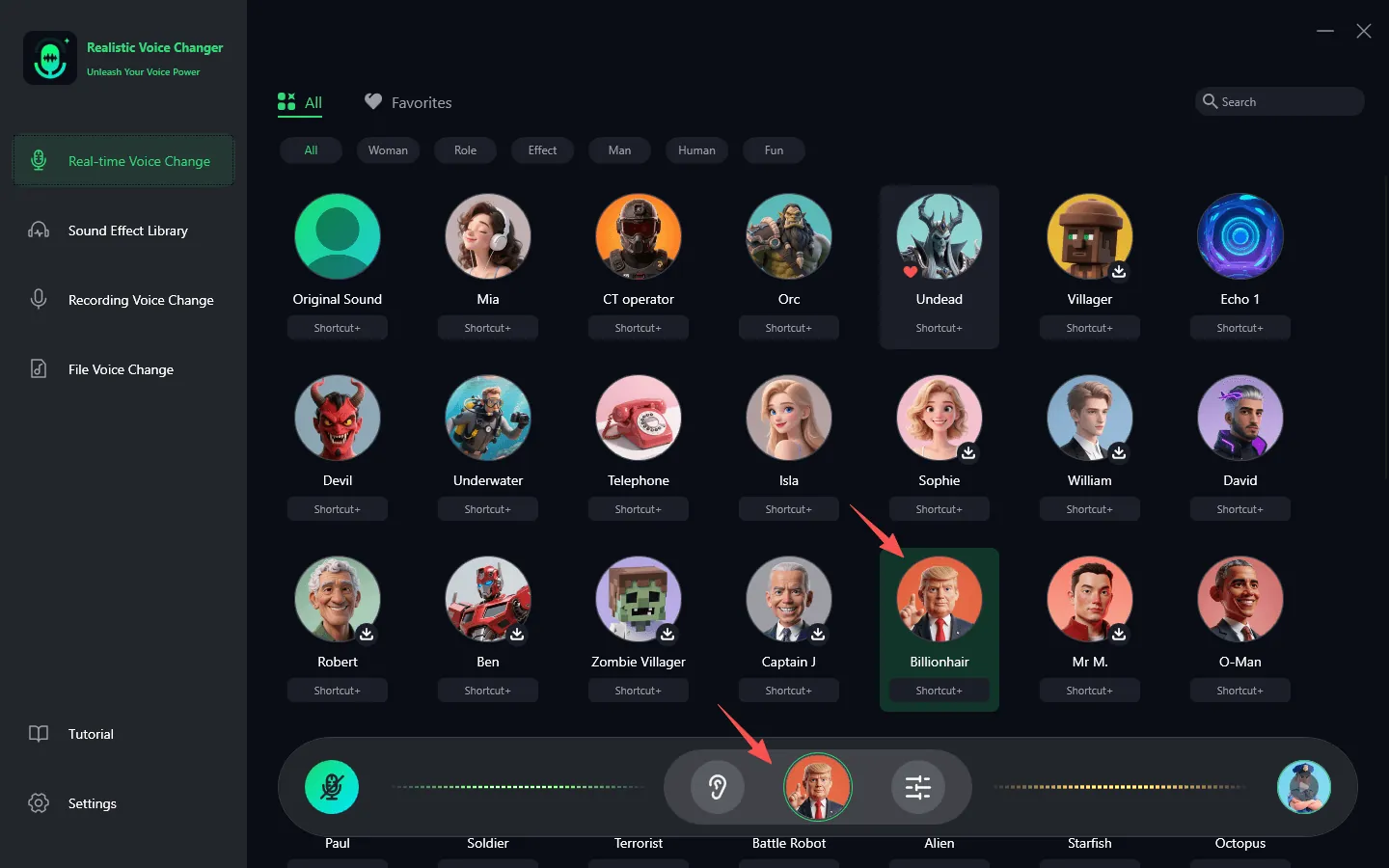
If you like a certain sound effect, you can click the small heart to favorite it.
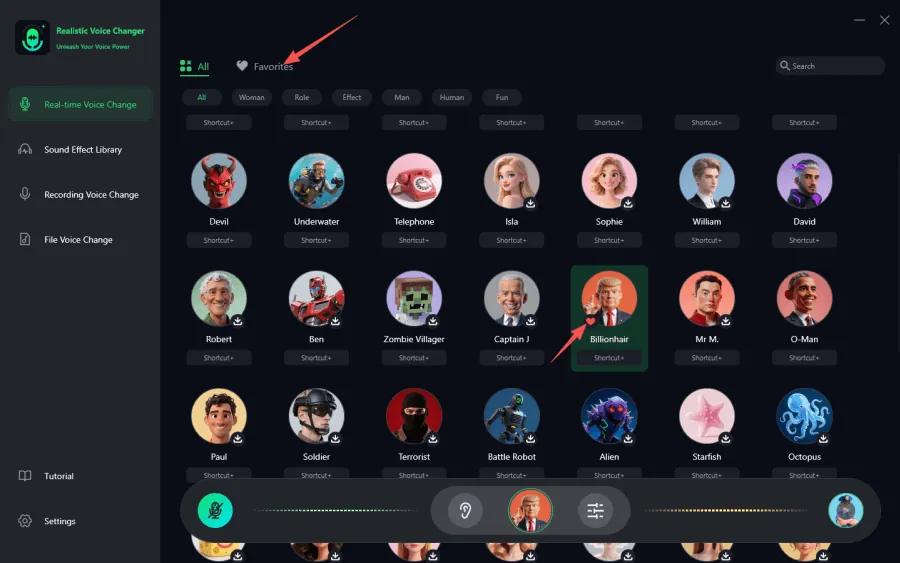
Step 3: Turn On the Voice Changer
Turn on the "Voice Changer" and enable "Hear Yourself," then speak into the microphone to preview the voice change effect. If you are in a noisy environment, go to "Settings" and turn on the noise reduction mode. Avoid setting the noise reduction level too high to prevent filtering out normal sounds.

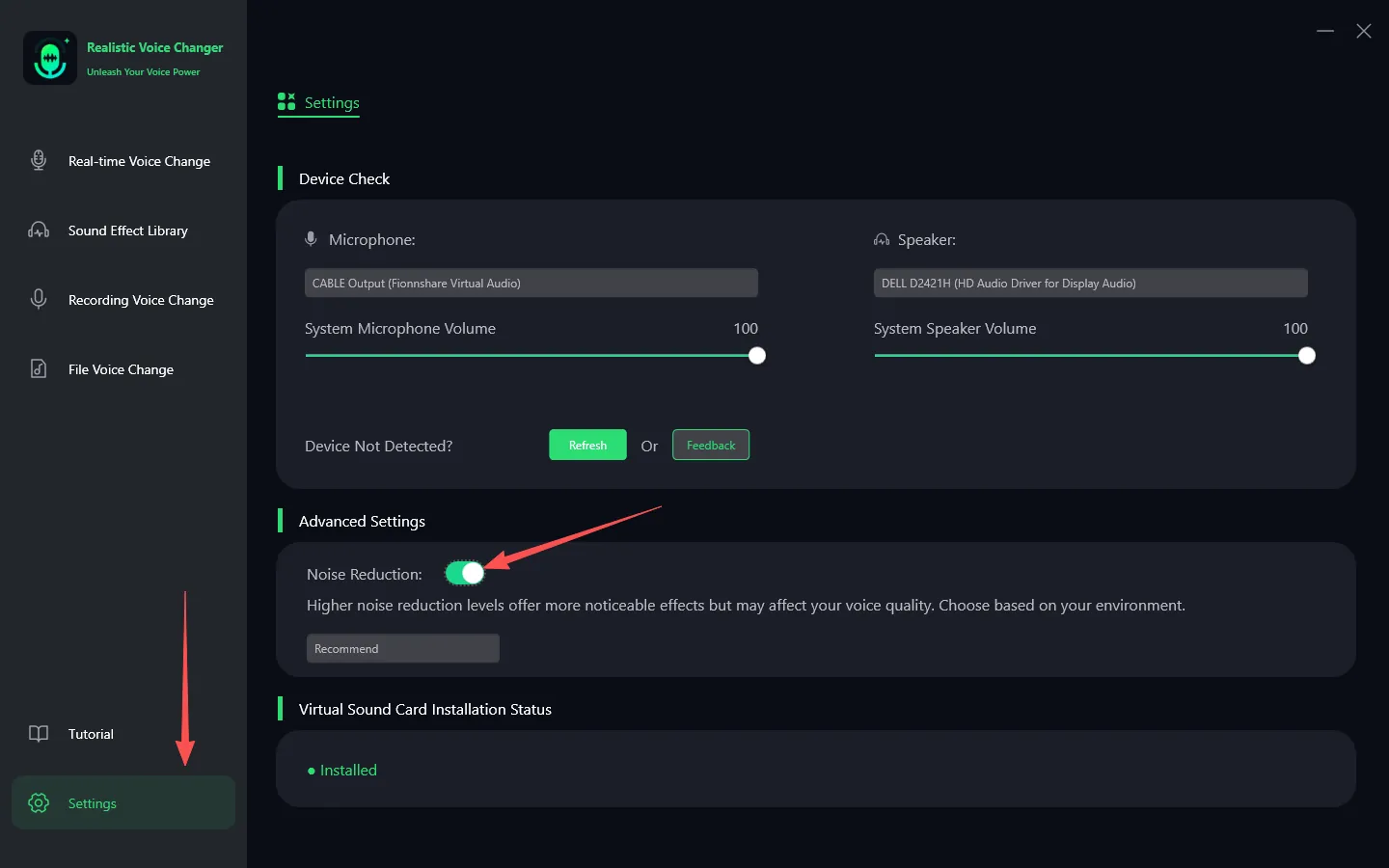
Step 4: Adjust Voice Settings
According to the voice effect you choose (male or female), adjust the pitch parameters appropriately to make the voice conversion effect more natural and realistic.
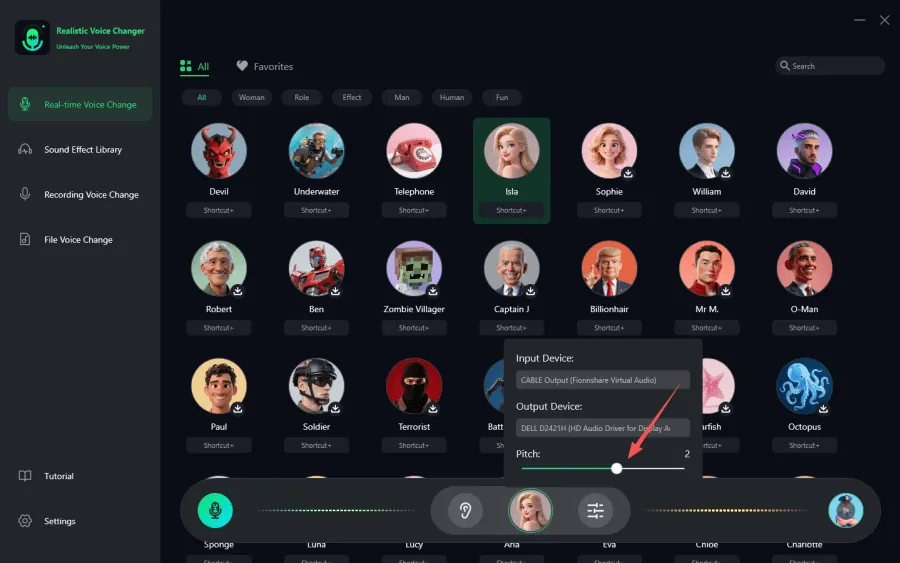
Note: To use VoxMagic correctly, you must wear headphones. Using external speakers may cause the microphone to pick up the speaker's sound, resulting in a feedback loop that severely affects the experience. Below, we will guide you through how to use VoxMagic on different platforms with images.
Example 1: How to Use VoxMagic on Windows PC
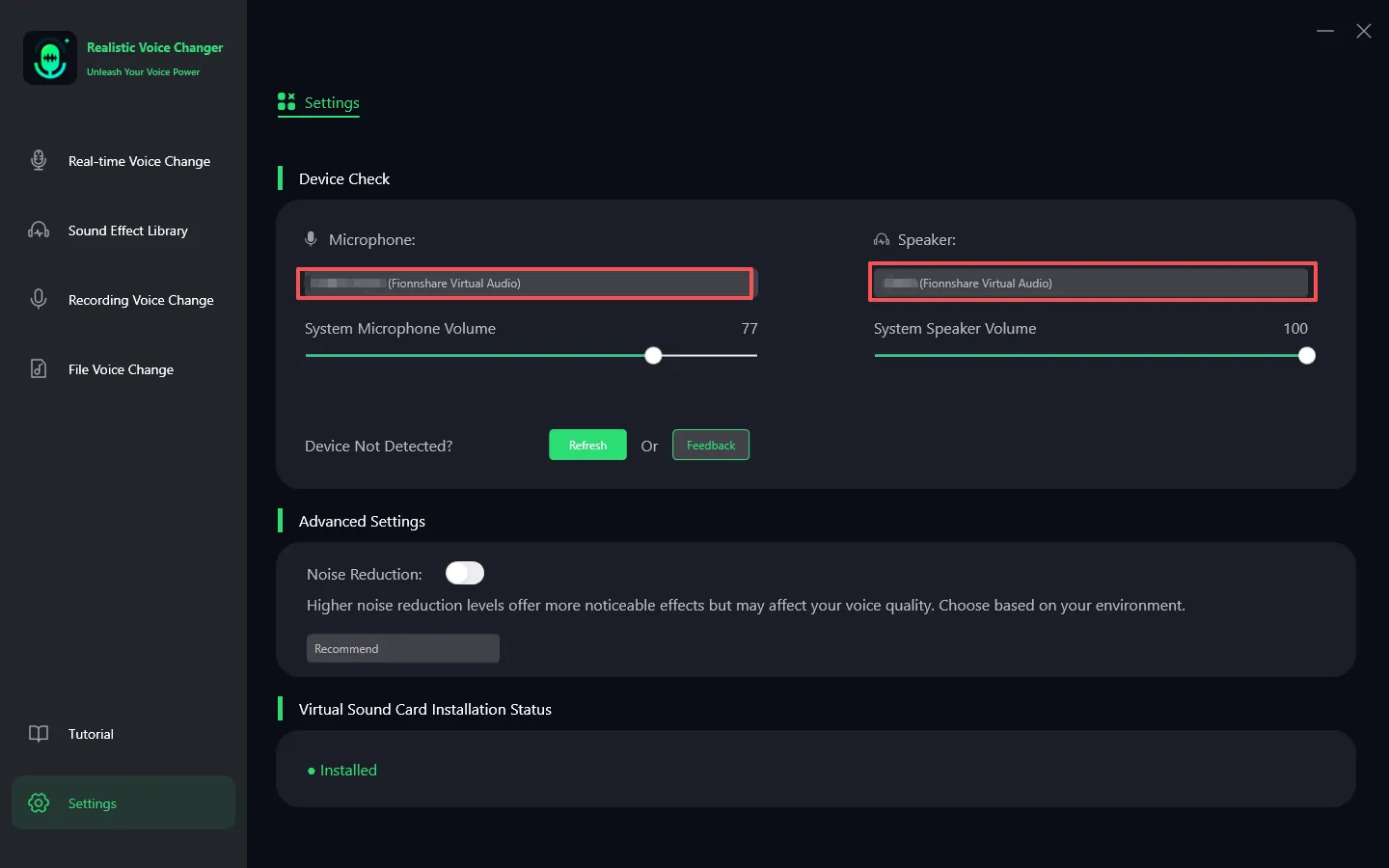
Step 1. Microphone and Headphones
Check the microphone and headphone options to ensure you are selecting the actual devices you are using.
Step 2. Adjust Volume
Adjust the volume slider to ensure the volume is at a comfortable level.
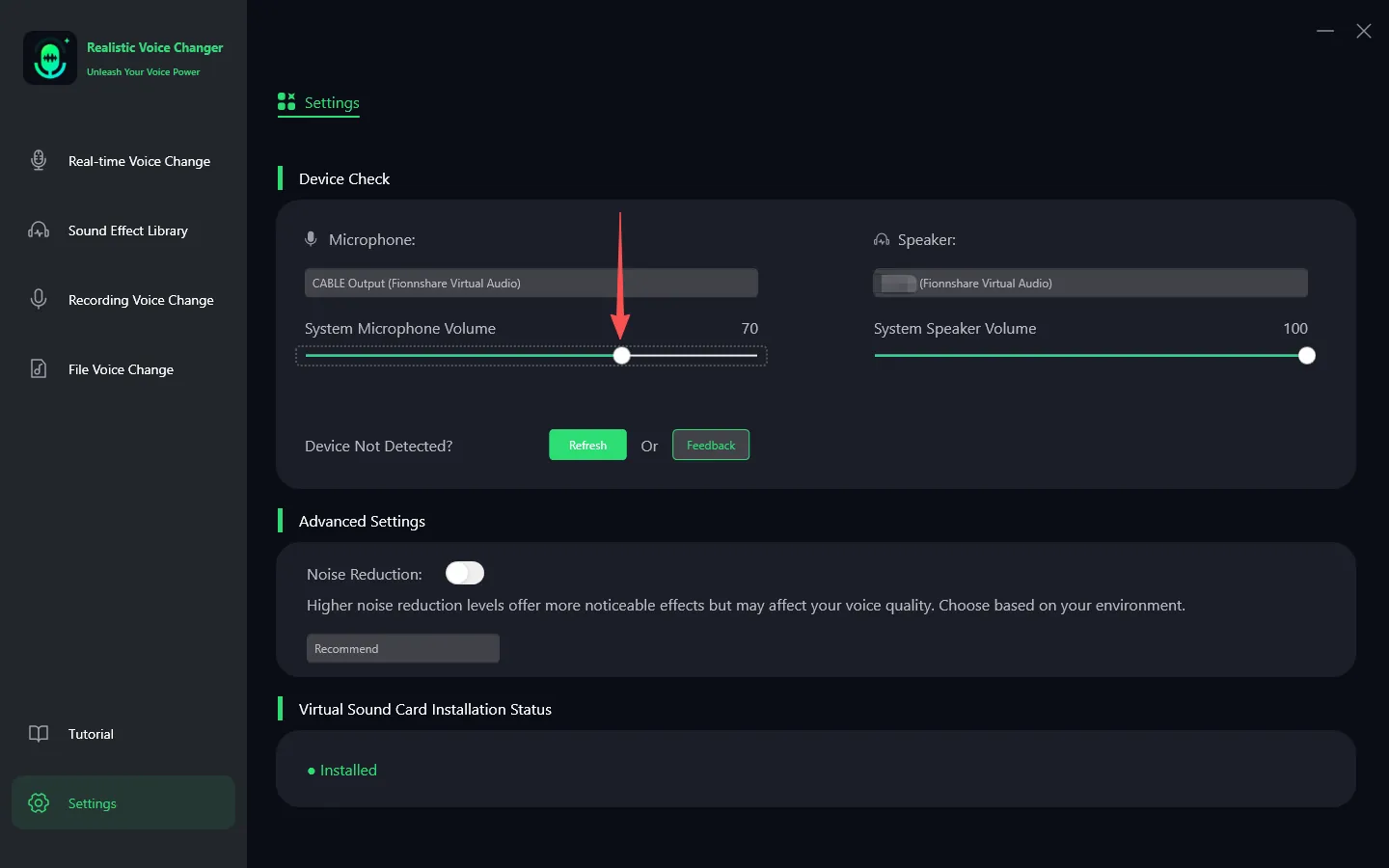
If you cannot find the headphone device, click the question mark icon to enter the Windows system device interface and ensure your device is correctly connected.
Tip: If you do not need the guided page and want to directly modify the device or related functions, follow these steps:
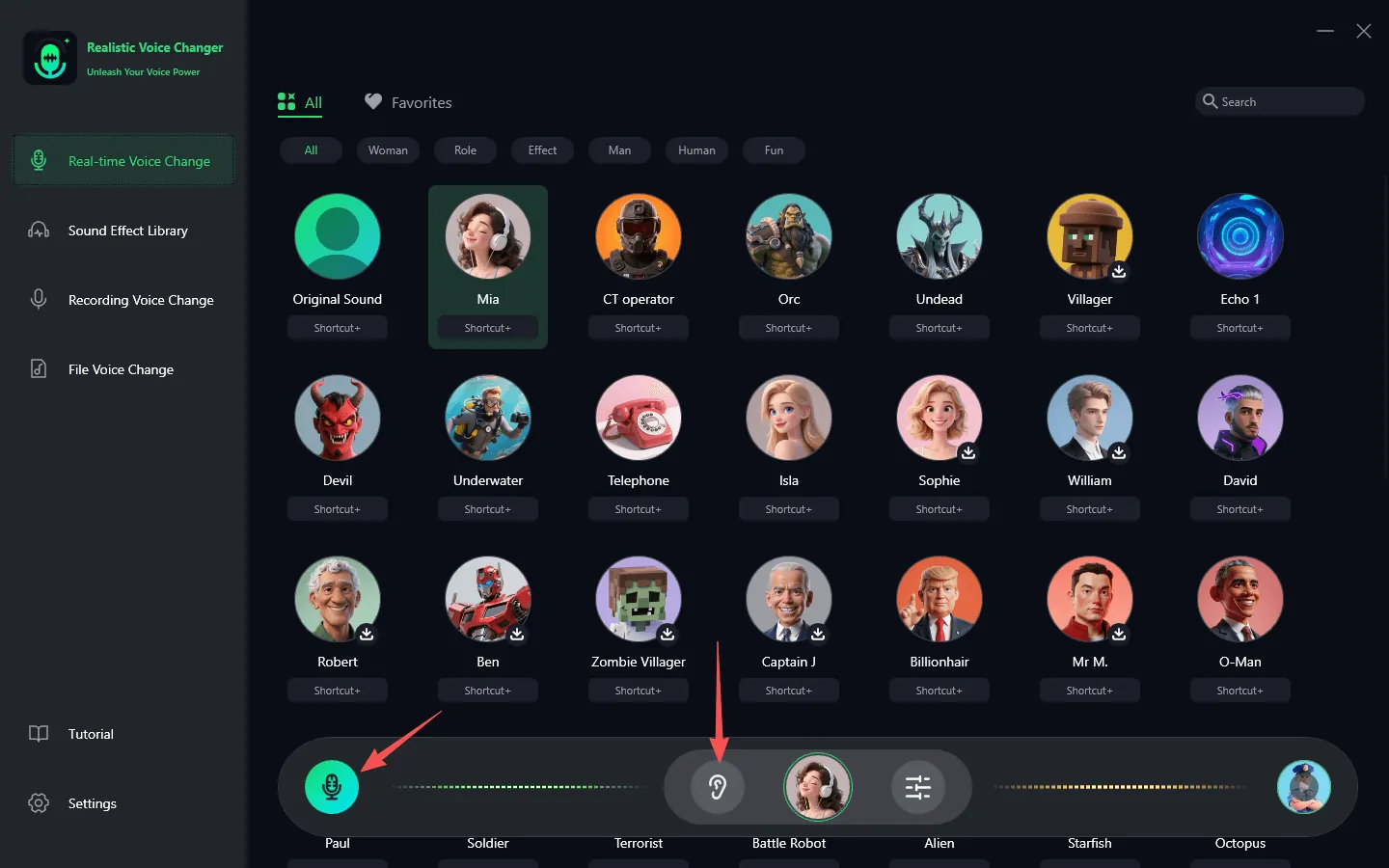
Step 3. Adjust Global Settings
Make sure to turn on both "Switch Voice Changer" and "Hear Yourself" in the real-time voice changer panel so that you can monitor the voice status in real time.
Example 2: How to Use VoxMagic on Steam
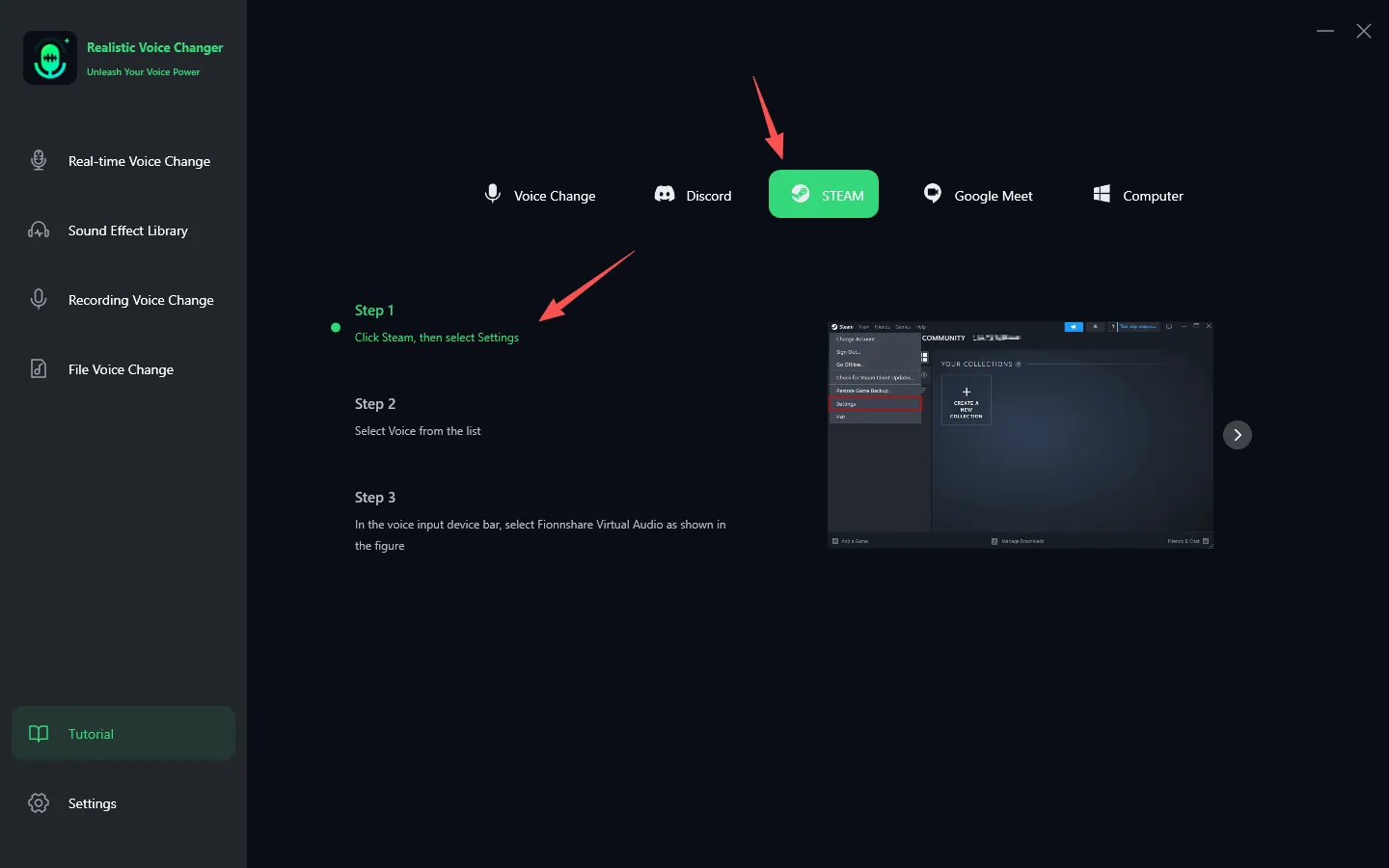
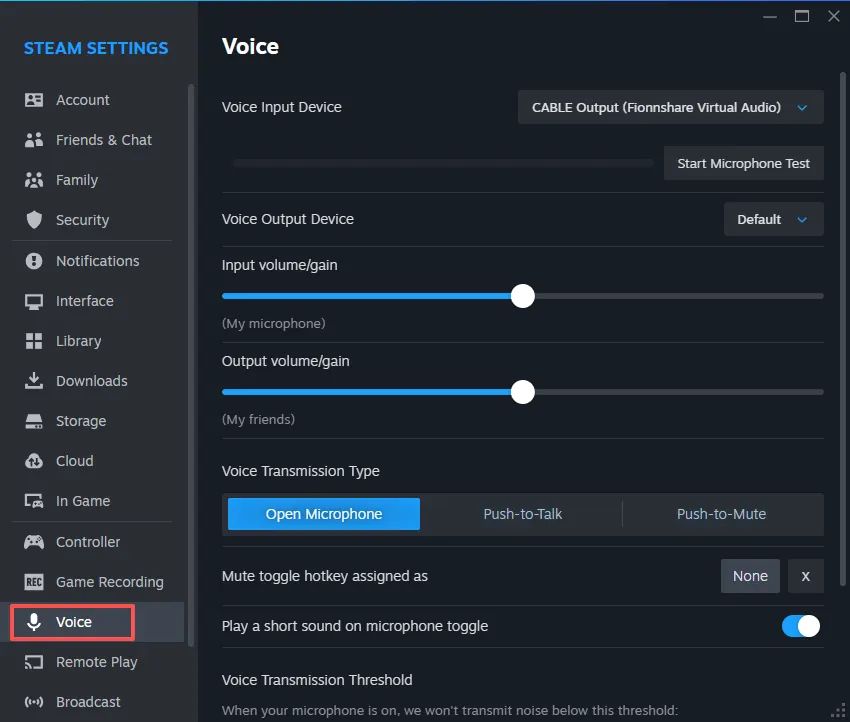
Step 1. Adjust Steam Settings

1. Open Steam, click the "Steam" menu in the upper left corner, and then select "Settings" to enter the configuration interface.
2. You can also find detailed settings instructions in the in-app user guide.
Step 2. Select Input Device
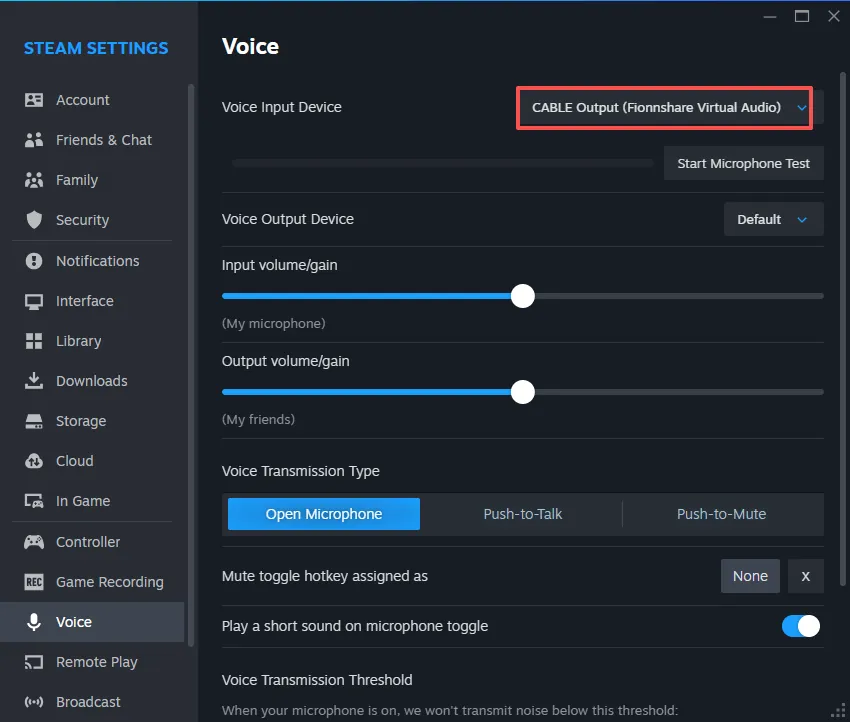
Click the "Voice" option and change the input device to "VoxMagic Virtual Audio." Keep the output device as default or select the real headphones, not the VoxMagic virtual speaker.
Step 3. Test Microphone
After completing the above settings, you can test the microphone to confirm that the voice-changing function is working properly. At this point, you need to turn off "Hear Yourself" in the VoxMagic program.

Example 3: How to Use VoxMagic on Discord
Step 1. Click Preview
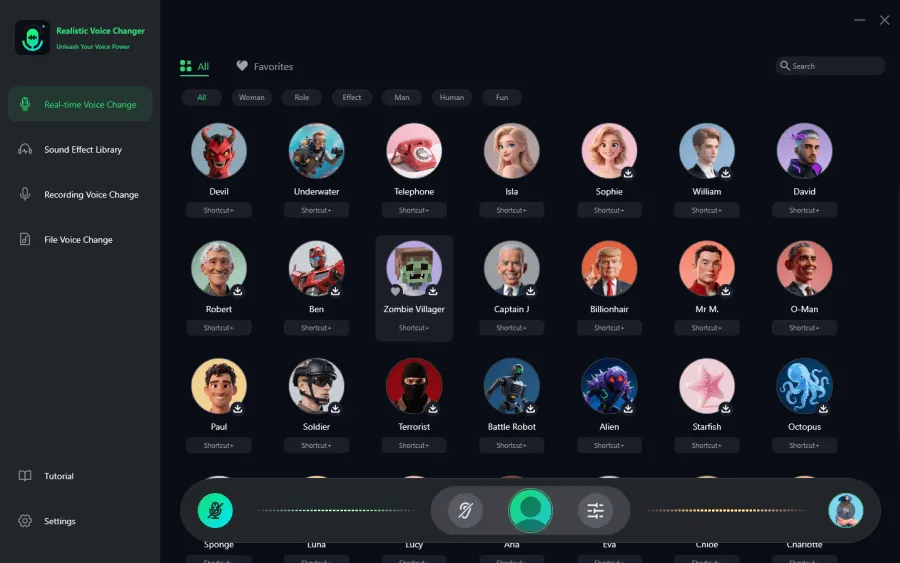
Ensure that VoxMagic is running normally when playing locally. This includes selecting the sound effect, turning on voice pitch change and self-monitoring, and confirming that the sound quality and volume are appropriate before configuring Discord.
Step 2. Adjust Discord Settings
Open Discord, find and click "User Settings."

Step 3. Select Input Device
Then click "Voice & Video" and select "Fionnshare Virtual Audio" from the input device drop-down list.
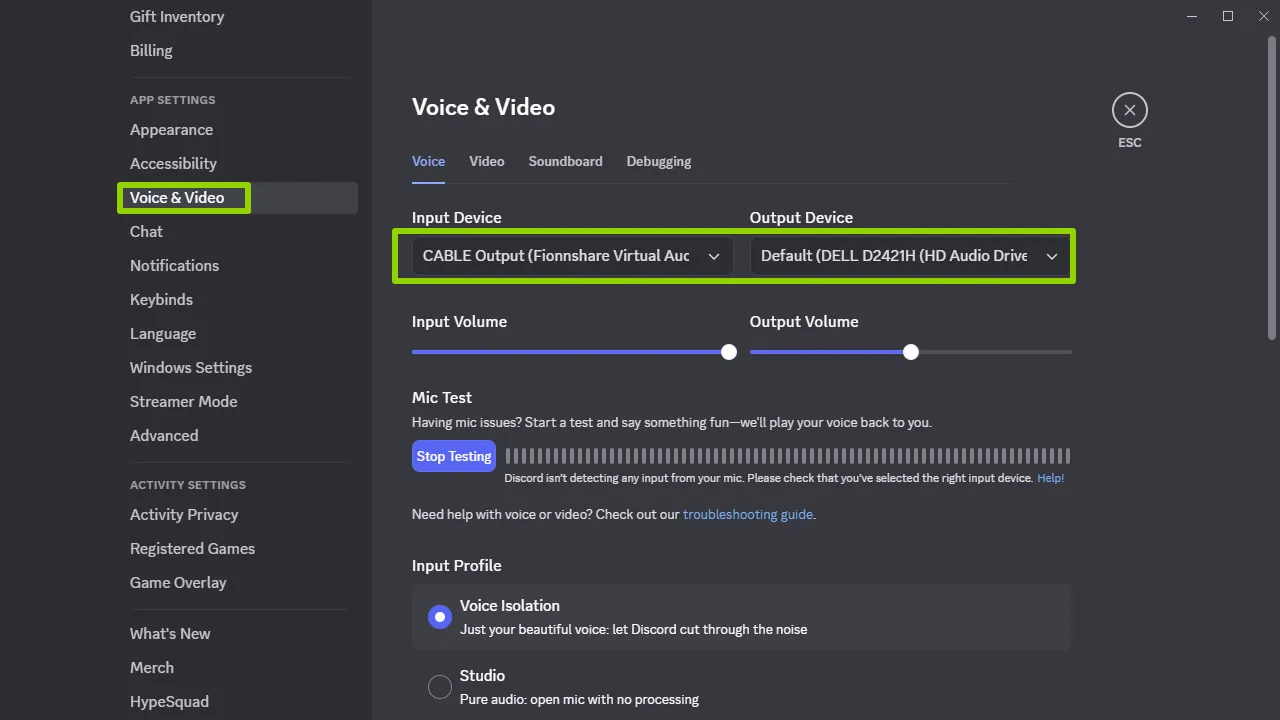
To get better voice-changing effects, please turn off the following options in Discord:
Automatic Input Sensitivity Detection
- Echo Cancellation
- Noise Suppression
- MP3 Download
- Automatic Gain Control


 Fionn
FionnCopyright © 2026 Wonderful Apps Limited.
 English