
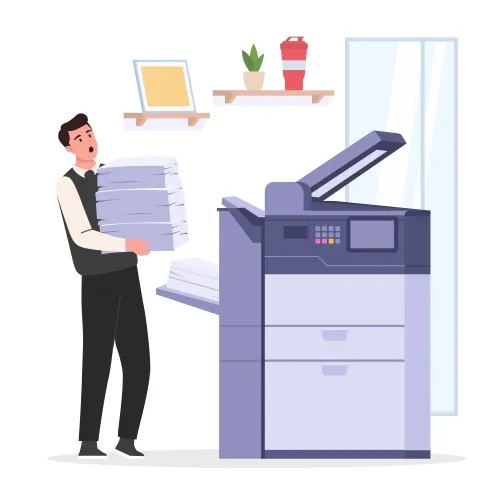
Printer Driver Troubleshooting Guide: Installation, Fixes & Optimization
2025-11-27 18:37:07

Printer Connection Issues? Auto-Install Drivers with FionnShare - No Manual Model Search
2025-11-06 09:51:14
Printer Connection Issues? Auto-Install Drivers with FionnShare - No Manual Model Search
2025-11-06 09:51:14
Have You Been Troubled by Frequent Printer Connection Issues?
Imagine this: You’re rushing to print an important work report for a morning meeting, or scrambling to get school project documents ready for your kid—only to be stopped by a "printer not connected" message on your screen. The cursor blinks, and your anxiety rises. Is it a USB port failure? A router signal glitch? Or… that stubborn driver problem you’ve always feared?
In daily life, printer connection failures are far from rare. You might encounter situations like "the computer can’t detect the printer at all," "the printer is connected but won’t print," or "printouts are garbled with messy characters." Among all the causes, outdated, mismatched, or missing printer drivers are the most common "culprits." Yet, solving this driver issue manually often feels like navigating a maze—frustrating and time-consuming.
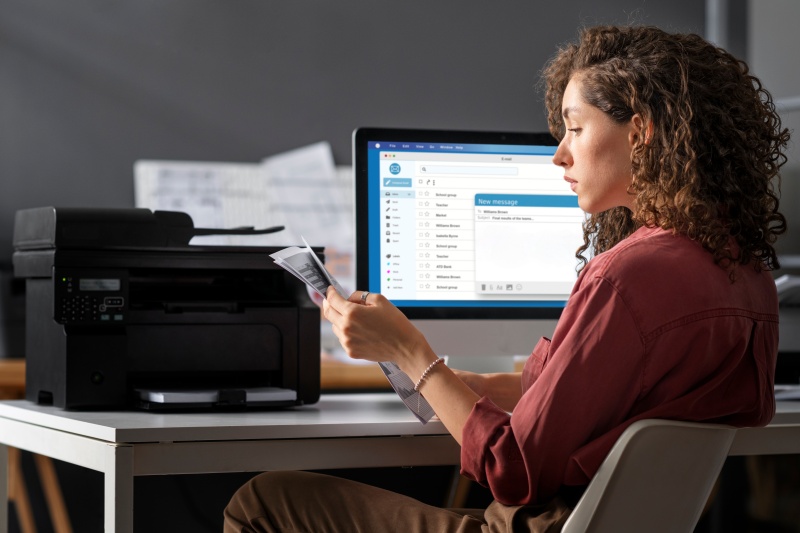
The Torturous Journey of Manual Printer Driver Installation
If you’ve ever tried to install a printer driver manually, you know exactly how painful it is. Let’s break down the typical process:
First, you need to find the printer’s exact model. You rummage through the dusty original box to look for the manual, or crawl under the desk to check the model number sticker on the printer—only to find the text is faded or unreadable. Then, you open your browser, visit the printer brand’s official website (HP, Canon, Epson… which one again?), navigate through layers of menus to the "Support & Drivers" section, and type in the model number. But wait—there are dozens of driver versions listed: Windows 10 or Windows 11? 32-bit or 64-bit system? "Full Feature Driver" or "Basic Driver"? Choosing the wrong one means starting over.
Even if you pick the right driver, the installation process isn’t smooth. You double-click the downloaded file, follow the prompts step by step, and suddenly a pop-up says "installation failed"—no specific reason given. You restart the computer, try again, and still get the same error. By the time you finally get it working, you’ve wasted an hour or more, and your original task (printing that report or document) is already delayed.Worst of all, if you’re not tech-savvy, this process can feel overwhelming. You might accidentally download malware from third-party websites, or install a driver that conflicts with other software on your computer—causing even more problems.
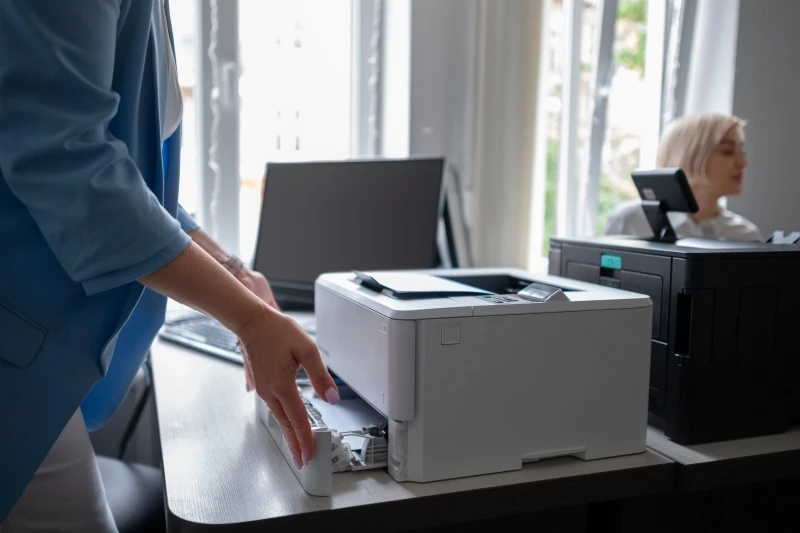
FionnShare Printer Driver: Your Savior for Auto-Driver Installation
Tired of the hassle of manual driver installation? Say hello to FionnShare Printer Driver—a powerful tool designed to solve your printer driver woes once and for all. It eliminates the need for you to hunt for printer models, search for official websites, or guess which driver version to choose. With just a few clicks, it automatically identifies, matches, downloads, and installs the correct driver for your printer.
Whether you’re using a USB-connected printer, a wireless (Wi-Fi) printer, or a network printer in an office, FionnShare Printer Driver works seamlessly. It supports over 10,000 printer models from major brands like HP, Canon, Epson, Brother, and Samsung—so you don’t have to worry about compatibility. Even if you’re a total tech novice, you can get your printer up and running in minutes.
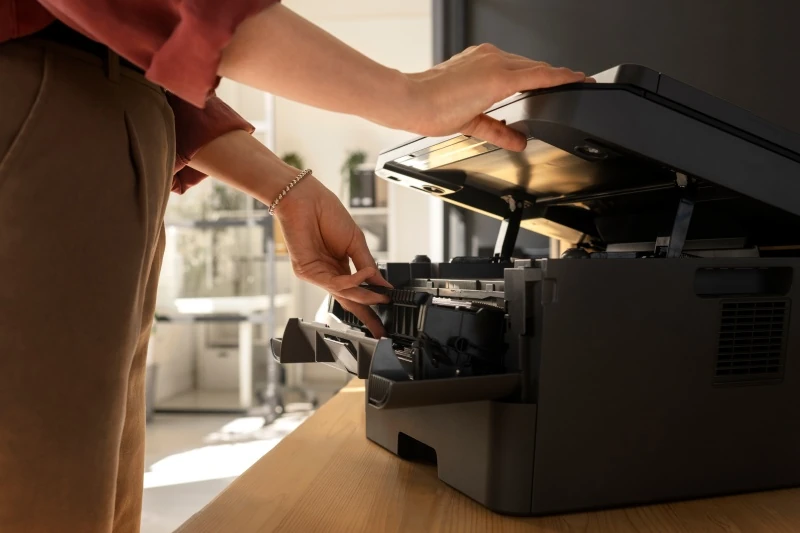
Deep Dive: How Does FionnShare Achieve Auto-Installation?
You might wonder: What makes FionnShare Printer Driver so smart? The secret lies in its three core technologies:
1. Intelligent Printer Detection
When you launch FionnShare Printer Driver, it automatically scans your computer and network (for wireless/network printers) to detect all connected printers. It uses advanced hardware recognition algorithms to extract key information like the printer’s brand, model, and hardware ID—no manual input required. Even if the printer was never connected to the computer before, FionnShare can still identify it accurately.
2. Cloud-Driven Driver Matching
FionnShare has a massive cloud-based driver library that’s updated daily. This library contains official, verified drivers for almost all mainstream printer models and operating systems. After detecting your printer, FionnShare instantly compares the printer’s information with its cloud library to find the most compatible, up-to-date driver—avoiding the risk of mismatched or outdated versions.
3. One-Click Auto-Installation
Once the correct driver is found, FionnShare takes over the entire installation process. It automatically downloads the driver (with a fast, secure connection), runs the installation wizard, and configures the driver settings for your system. You don’t need to click "Next" repeatedly or monitor the progress—just sit back and wait for the "installation successful" notification.
What’s more, FionnShare also checks for driver updates regularly. If a new version of your printer’s driver is released (to fix bugs or add features), it will notify you and let you update with one click—keeping your printer in top condition at all times.
Step-by-Step Guide: Get Started with FionnShare Printer Driver
Using FionnShare Printer Driver is as easy as 1-2-3. Here’s a detailed walkthrough:
Step 1: Download and Install FionnShare
Visit the official FionnShare website (https://www.fionnapps.com/printerdriver) and click the "Download" button for FionnShare Printer Driver. The installer is lightweight (only about 50MB) and won’t take up much space on your computer. Double-click the downloaded file, and follow the simple prompts to complete the installation (it takes less than 2 minutes).
Step 2: Scan for Printers
Launch FionnShare Printer Driver. The software will automatically start scanning for printers connected to your computer (via USB) or network (Wi-Fi/ethernet). You can also click the "Scan Again" button if you connect the printer after launching the software. Within 10 seconds, the software will list all detected printers on the interface.
Step 3: Auto-Install the Driver
Find your printer in the list (it will show the brand and model, e.g., "HP LaserJet Pro M428fdw"), and click the "Install Driver" button next to it. FionnShare will then start matching the driver from its cloud library, download it, and install it automatically. A progress bar will show you how things are going. Once done, a pop-up will say "Driver installed successfully—your printer is ready to use!"
That’s it! You can now open your document and start printing—no more connection errors or driver headaches.
Printer driver troubles don’t have to slow you down—FionnShare takes care of them, so you can focus on what matters.


 Fionn
FionnCopyright © 2026 Wonderful Apps Limited.
 English