 Emily CarterDLL Errors
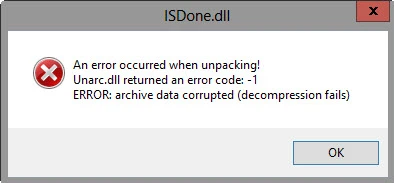
The “unarc.dll returned an error code” message means that a program launch or installation did not finish as expected, but the notification itself does not confirm one specific cause. Start by checking the installation files, then verify the integrity of Windows system components. If you need to diagnose DLL and related system issues, use Fionn DLL Fixer . Below are three different methods: two manual options and one option for diagnosis and repair.
Quick Comparison of Methods for a unarc.dll Error
| Method | Best for | Effectiveness | User effort |
|---|---|---|---|
| Download the installation files again | The error appeared while installing one program | High for an incomplete download | Low |
| Check Windows system files | There are signs of damaged system components | Depends on the scan result | Moderate |
| Fionn DLL Fixer | You need to check DLL and system issues in one interface | High for supported detected issues | Low |
If the failure occurs with only one installer, start with the first method. If the problem returns after a new download or affects several programs, proceed with a Windows check and DLL diagnosis.
Method 1: Download the Installation Files Again from a Trusted Source
When to use: the error occurs while installing or unpacking one specific program, while Windows otherwise works normally.
- Close the installer in which the error message appeared.
- Delete the incomplete installation file or folder created by the failed installation.
- Download the installation files again from the same trusted source you originally used.
- Run the new installation and check whether the message appears again.
Verification: if the installation finishes successfully without the message returning, the new set of files resolved the issue for that installer.
Method 2: Check Windows System Files
When to use: the error remains after downloading the files again, or other programs also experience launch failures. This method checks protected Windows system files; it does not replace reinstalling a specific program.
- Open the Start menu and search for “Command Prompt.”
- Run “Command Prompt” as an administrator.
- Enter the following command and press Enter:
sfc /scannow
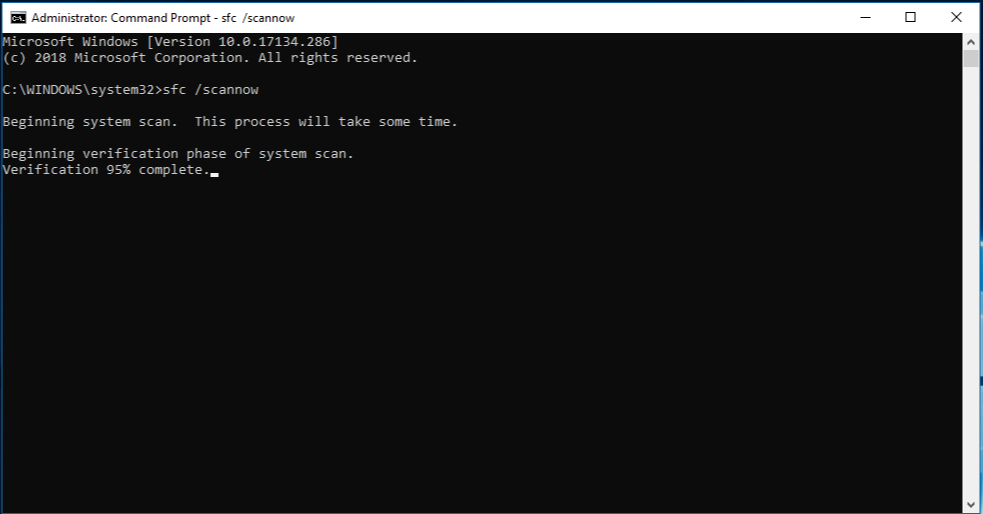
Verification: after restarting, launch the installer or program again. If the error is gone, the system scan fixed the detected corruption. If it remains, note the exact message text and use another diagnostic path.
Method 3: Fix the unarc.dll Error with Fionn DLL Fixer
When to use: you need to check for missing, damaged, or incompatible DLLs, System32 path issues, and Windows system components. This is the recommended option when a manual check has not produced a clear result or when you need to reduce the number of checks you perform yourself.
Fionn DLL Fixer scans for dependency loading issues, missing, damaged, and version-mismatched DLLs, and supports a follow-up scan after repair.
- Launch Fionn DLL Fixer. The program will automatically check your computer for DLL and system issues and show the detected results after the scan is complete.

- After the scan is complete, click “Repair” to automatically start fixing all detected DLL and system issues.

- Wait for the repair to complete. During the process, the button will change to “Fixing” and remain that way until all issues have been repaired.

- When the repair is complete, click “Ok” in the confirmation dialog. If prompted, restart your computer before checking the result.

- If the issue persists after restarting, click “Recheck” to scan again. If new issues are detected, click “Repair” again to fix them.

Verification: after repair and, if necessary, restarting, repeat the action that triggered the message. A follow-up scan in the program helps confirm that no new issues were found.
Practical Recommendations
- Check the result after each method instead of performing all actions at once.
- If the error relates to one installer, update its files first.
- If the problem returns after restarting, use a follow-up scan and save details about the failure.
- Do not manually replace system DLLs unless you know their source, version, and purpose.
Conclusion
When you see the “unarc.dll returned an error code” message, first download the installation files again if the failure is related to one program. Then check Windows system files when the error repeats or affects several applications. To diagnose DLL and system issues in one process, use Fionn DLL Fixer , perform the repair, and run a follow-up scan. Confirm the result by launching the affected installation or program again. If the notification remains, save its full text and contact support for the program where the failure occurs.
Frequently Asked Questions
What does the “unarc.dll returned an error code” message mean?
It indicates that an operation related to a program or installer did not complete successfully. This message alone cannot reliably identify a single cause.
Should I download unarc.dll separately?
No. You should not replace an individual DLL from an untrusted source: the message does not confirm that this specific file is missing or damaged.
When is downloading the installer again enough?
This approach is appropriate if the error appears only while installing one program. After downloading it again, run the installation once more and check the result.
Will checking Windows system files help?
It may help when damaged protected Windows system files are the cause. If the scan does not change the situation, the issue may be related to the specific program or its installation files.
What should I do if the error remains after repair?
Restart your computer, run another scan in Fionn DLL Fixer, and test the affected action again. If the message remains, provide the full error text to the support team for the relevant program.


