 Emily CarterDLL Errors
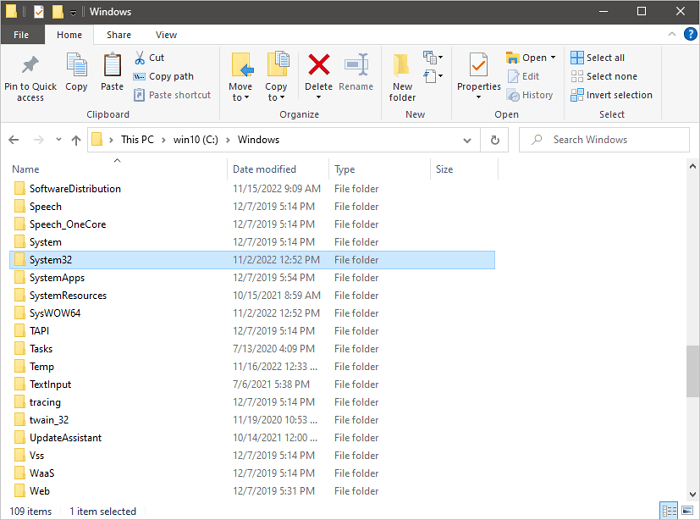
Windows DLL files are stored in several locations, but a 64-bit system library is usually located in
C:\Windows\System32
. If an application reports a missing
System32 DLL file
, do not download a file with the same name from an unrelated website: the error may be caused by damaged system files, the Windows component store, or the application itself. Below are four approaches, from built-in Windows checks to diagnostics in
Fionn DLL Fixer
.
Symptoms of System32 DLL Problems
- A program or game does not start and reports that a DLL is missing, damaged, or the wrong version.
- The error occurs in one application only—this more often points to its installation or dependency.
- Several programs stopped opening after an update or unexpected shutdown—check Windows system files.
- The path
C:\Windows\System32exists in File Explorer, but the specific file cannot be safely identified from the error text alone.
Quick Diagnosis of System32 DLL Files
- Did the error appear in one application? Start with method 3: repairing the installation addresses a local application failure.
- Does the error occur in several applications or after a Windows crash? Use method 1, then method 2 if SFC does not resolve the issue.
- Is it unclear which library or component is causing the launch error? Choose method 4 for scanning and follow-up verification.
Method Comparison at a Glance
| Method | Best for | Effectiveness | User effort |
|---|---|---|---|
| SFC | Damaged protected system files | High for system corruption | Low |
| DISM | Problems remaining after SFC | Targeted for the Windows image | Medium |
| Reinstalling the application | Errors in one program only | High for a damaged installation | Medium |
| Fionn DLL Fixer | Unclear DLL and system problems | In-app diagnosis and repair | Low |
Method 1: Check and Repair System Files with SFC
When to use it
Choose this approach if the failure affects several programs or Windows recently shut down improperly.
Step-by-step guide
- Open Command Prompt as an administrator.
- Enter the following command and press Enter:
sfc /scannow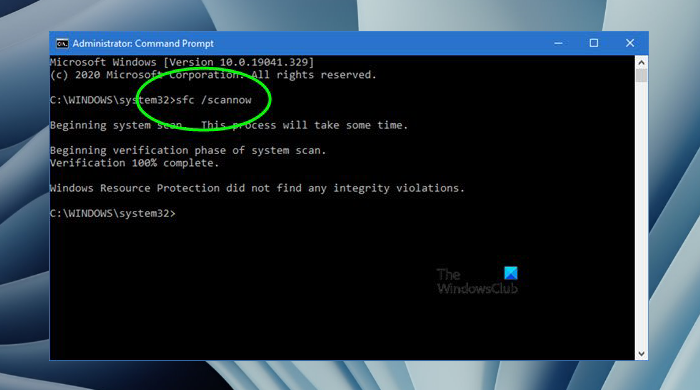
- Wait for the scan to finish and restart your computer if Windows reports repairs.
How to verify
Launch the application that displayed the error again. If the message is gone and the program opens, the check worked.
Method 2: Repair the Windows Image with DISM
When to use it
Use DISM when SFC reports that it could not repair some files, or when the error remains after an SFC scan.
Step-by-step guide
- Open Command Prompt as an administrator.
- Run the command:
DISM /Online /Cleanup-Image /RestoreHealth
- After it finishes, run
sfc /scannowagain.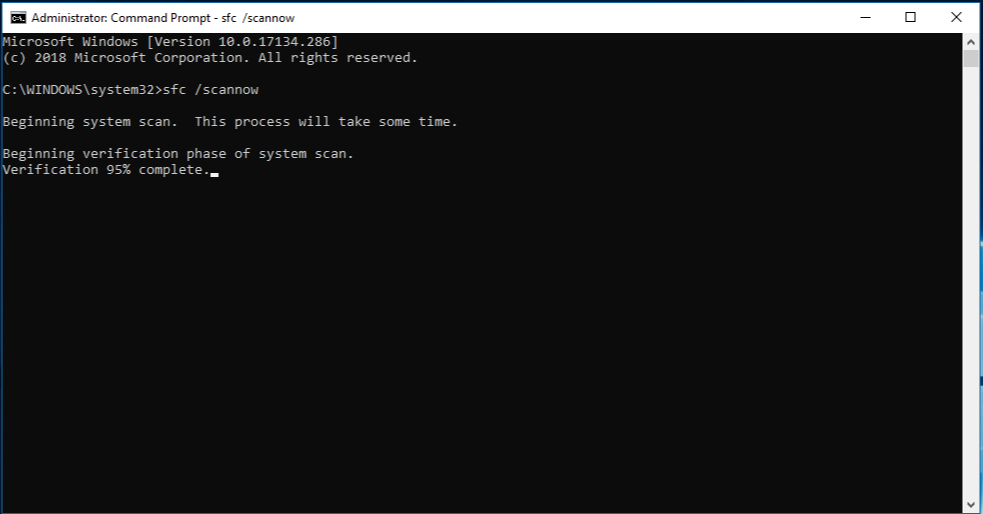
How to verify
Restart Windows and try launching the affected programs again. The absence of the previous message across several applications confirms that the system path was restored.
Method 3: Reinstall the Affected Application
When to use it
This method is suitable if the error appears only in one game or program while other applications work normally.
Step-by-step guide
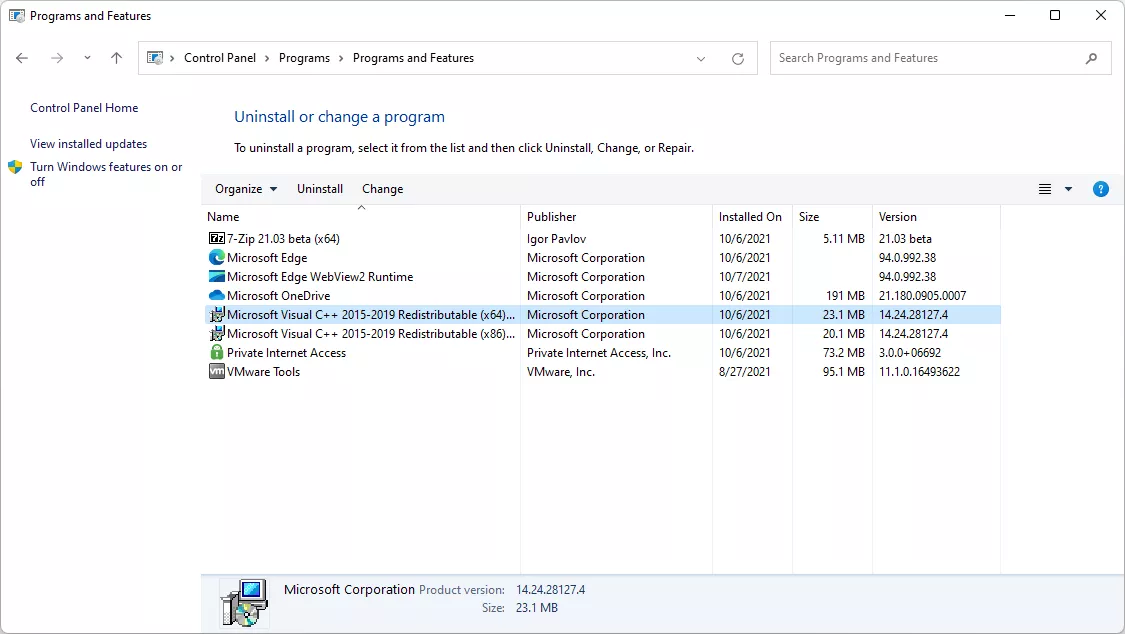
- Uninstall the affected application through Installed apps in Windows Settings.
- Restart your computer.
- Install the application again from its official source.
How to verify
Open the reinstalled program. If it starts without the DLL message, its local installation was the likely cause.
Method 4: Diagnose and Fix the Problem with Fionn DLL Fixer
When to use it
This method is suitable when the cause is unclear or you need to check for missing, damaged, version-incompatible DLLs and problems related to the System32 path. Fionn DLL Fixer scans for DLL and system problems, performs repairs, and lets you run another check.
Step-by-step guide
- Launch Fionn DLL Fixer. The program automatically scans your computer for DLL and system problems and displays the detected results when the scan finishes.

- After the scan finishes, click “Repair” to automatically start fixing all detected DLL and system problems.

- Wait for the repair to finish. During the process, the button changes to “Fixing” until all problems are repaired.

- When the repair is complete, click “Ok” in the confirmation dialog. If prompted, restart your computer before checking the result.

- If the problem remains after restarting, click “Recheck” for another scan. If new problems are found, click “Repair” again to fix them.

How to verify
After the recheck, open the program where the error occurred. If the scan result no longer shows the previous issue and the application starts, the repair can be considered confirmed.
Verification Checklist
- The path
C:\Windows\System32is accessible in File Explorer without manually changing its contents. - The affected application starts without the previous DLL message.
- If the problem affected several programs, check at least two of them after restarting.
- If the error remains in one program only, record the exact message for its developer.
Conclusion
Start by identifying the scope: one program usually requires repairing its installation, while several consecutive failures call for checking system files with SFC and, if needed, DISM. Do not manually substitute DLL files in System32 unless the file’s source and compatibility are confirmed. When the cause is not obvious, Fionn DLL Fixer offers scanning, repair, and rechecking in one process. Confirm the result by launching the affected program after restarting. If the message does not disappear, contact the application developer or official Windows support.
Frequently Asked Questions
Where are DLL files located in Windows?
System DLL files are usually located in
C:\Windows\System32
. Other DLL files may be in a specific program’s folder, so their location depends on the application.
Why is the folder called System32 on 64-bit Windows?
The name is part of Windows compatibility. On a 64-bit system, System32 usually contains 64-bit system files; do not choose a DLL based on the folder name without an accurate diagnosis.
Can I download a missing System32 DLL separately?
It is not recommended. Use SFC and DISM first, or reinstall the affected application. This helps obtain consistent system files or files supplied by the application developer.
When is a restart needed after fixing DLL files?
Restart Windows if the repair tool asks you to do so, or when the system file check finishes with repairs. Then open the affected application again.


