 Emily CarterPrinter Drivers
How to Install a Printer Driver in Windows 10/11
To install a printer driver, connect and turn on the printer, then let Windows search for a compatible driver. If automatic installation fails, download the official manufacturer package, select its .inf file manually, or use Fionn Printer Driver. The four methods below progress from the simplest, lowest-risk option to more advanced installation. Start with Windows, and print a test page after each method to verify the driver and the complete printing path.
Why a printer driver may not install automatically
Windows usually detects a connected printer, but installation can fail when the model is identified incorrectly, an update is missing, the driver architecture is incompatible, or the connection is unavailable. A network printer may also remain undiscovered when the computer and printer are connected to different networks.
Before installing anything, turn on the printer, check its USB or Wi-Fi connection, and clear stalled print jobs. Find the complete model number on the enclosure or the printer’s information page. A letter or number suffix can identify a different model that requires another driver package.
Quick comparison of the four installation methods
| Method | Best for | Difficulty |
|---|---|---|
| Windows Settings | A new USB or network printer | Low |
| Manufacturer’s website | Model-specific features or a newer package | Moderate |
| INF file | An extracted official driver whose installer will not run | Advanced |
| Fionn Printer Driver | An unknown model or combined driver and printing diagnostics | Low |
Method 1: How to install a printer driver with Windows
When to use
Start here for a new wired or network printer. Windows Update is the primary Windows channel for obtaining driver updates, and it may offer an optional printer driver after the device is detected.
Step-by-step guide
- Turn on the printer and connect it by USB or to the same network as the computer.
- In Windows 11, open
Start → Settings → Bluetooth & devices → Printers & scanners. - Select Add device beside the option for adding a printer or scanner.
- Choose the detected printer and wait for installation to finish.
- Open
Settings → Windows Update → Advanced options → Optional updates. - Install an available printer driver update, if one appears.
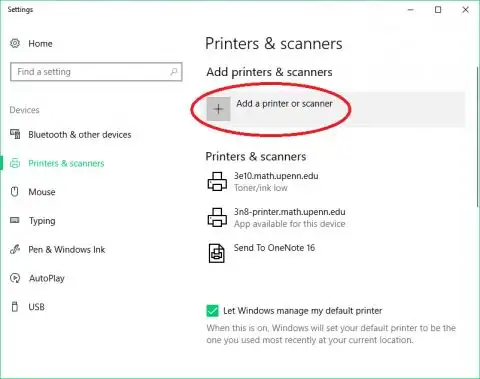
If Windows does not find the printer, choose the option to add a new device manually. Confirm the connection before switching to a different installation method.
How to verify the result
Open the printer’s properties and print a test page. Successful output confirms that the driver, connection, port, and print queue are working together. Seeing the printer in Settings confirms detection but does not prove that it can print.
If Windows cannot provide a compatible package, get one from the printer manufacturer.
Method 2: Install the driver from the manufacturer’s website
When to use
Use this method when Windows installs only a basic driver, does not recognize the printer, or omits model-specific printing or scanning settings.
Step-by-step guide
- Open
Settings → System → Aboutand record the Windows version and system type. - Find the printer’s exact model number on its label, display, or configuration page.
- Open the manufacturer’s official support website and locate that model.
- Select the package matching your Windows version and processor architecture.
- Download the installer after confirming that the domain belongs to the manufacturer.
- Run the installer and follow its connection prompts in the displayed order.
How to verify the result
Restart the computer if the installer requests it. Open Printers & scanners, select the printer, and print a test page. Also confirm that required settings, such as paper size or two-sided printing, are available.
If the installer is damaged or will not open but the official package contains an .inf file, continue with manual installation.
Method 3: Install a printer driver manually from an INF file
When to use
Use manual installation when you already have an extracted official driver package, but Windows does not select it automatically. This method requires an exact match for the printer, Windows version, and system architecture.
Step-by-step guide
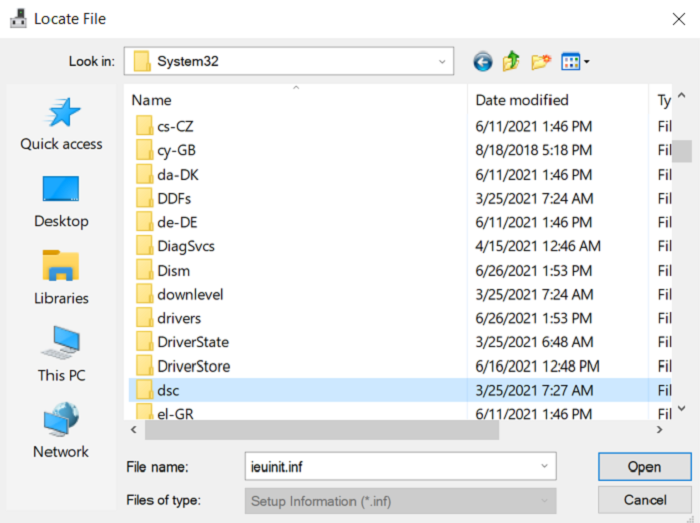
- Extract the official package into a separate folder and locate its
.inffile. - Right-click Start and open Device Manager.
- Expand Printers or Print queues.
- Right-click the printer and select Update driver.
- Select Browse my computer for drivers and choose the extracted package folder.
- Confirm the compatible driver and wait for installation to complete.
How to verify the result
Open the device properties in Device Manager. The driver tab should show its provider, date, and version without an error code. Then print a test page from Printers & scanners.
If the model is difficult to identify or the fault may involve more than the driver, an automated scan offers another option.
Method 4: Install with Fionn Printer Driver
When to use
This Windows method is useful when you do not know the exact printer model, want automatic driver matching, or need to check common printing issues at the same time. The software can scan printers and drivers, install or repair a required package, and check the Windows printer service, ports, and print queue.
Step-by-step guide
Download and install the program from its official product page, then complete the workflow in this order:
Launch Fionn Printer Driver and select Scan Now to check the computer for printer drivers and related issues.

Wait while Fionn Printer Driver scans installed printers, drivers, and common printing problems.

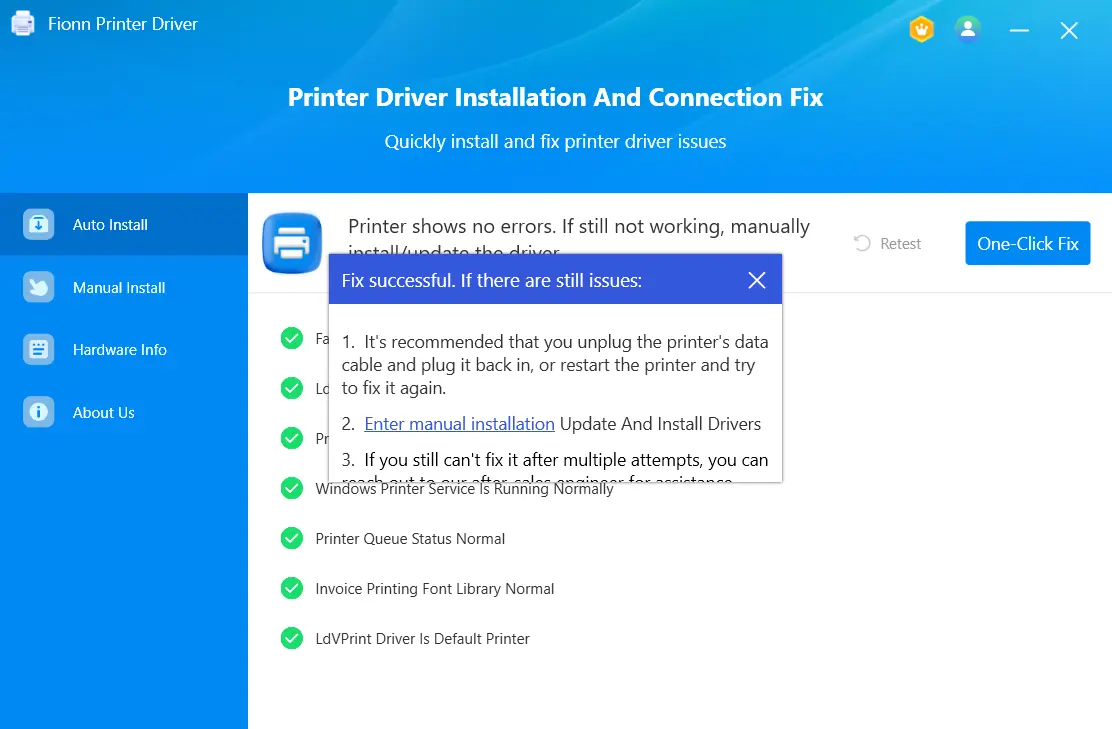
After the scan finishes, select One-Click Fix to install or repair the required printer driver automatically.

Wait for the repair to finish and confirm that the program reports a successful result.
How to verify the result
Run another scan and confirm that the driver is no longer marked unavailable. Open the printer in Windows Settings and print a test page. If printing still does not start, check the device status, queue, selected port, and Windows printer service separately.
Conclusion
Begin by adding the printer through Windows Settings and checking optional updates. Use the manufacturer’s official package if Windows cannot supply the correct driver. Reserve INF installation for a compatible, extracted package whose normal installer does not work. Always confirm the outcome with a test page, because detection alone does not validate the full printing path. If the driver is installed but the printer remains offline, inspect the connection, port, queue, and printer service. For automated driver matching and broader printing checks, consider Fionn Printer Driver.
Frequently Asked Questions
Should I install the driver before connecting the printer?
Usually not. For most modern USB and network printers, turn on and connect the device before allowing Windows to detect it. Follow the manufacturer’s instructions when they specify another sequence, because some installers request the USB connection at a particular stage.
What should I do when Windows says “Driver is unavailable”?
Check Windows Update and Optional updates first. Remove the printer from Windows, restart the computer, and add it again. If the message returns, install a compatible package from the manufacturer’s official website or use Method 4 to scan for driver and printing issues.
How can I find my printer’s exact model?
Check the label on the rear or underside, read the device display, or print a configuration page through the printer menu. Do not rely only on the series name. A letter or number suffix may represent a different model that uses another package.
Why does Windows show my printer when it cannot print?
Its presence in the device list confirms detection only. Check that the correct printer is selected, no job is paused, the configured port matches, and the printer service is running. Also resolve device states such as out of paper, paper jam, or offline.
Can I install a driver for a similar printer model?
Use it only when the manufacturer explicitly identifies it as compatible. A similar name does not guarantee support for the printer language, scanner, or two-sided printing. Choose the exact model or an officially published universal package instead.


