

How to Use a Voice Changer in Steam Games (Step-by-Step Guide)
2026-03-12 16:30:28

Create Unique Gaming Voices for Steam & Discord – Tips for Engaging Voice Changers
2026-03-06 15:13:55
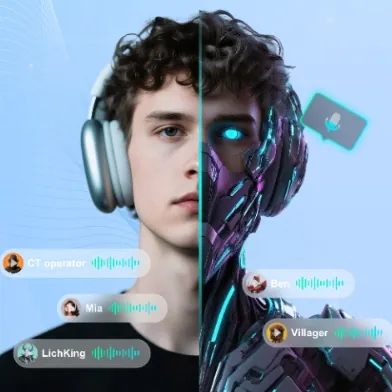
Enhance Twitch & YouTube Streams with Multi-Character Voice Acting – VoxMagic
2026-02-26 15:53:54
AI Voice Changer vs Text-to-Speech: STS vs TTS Explained for Creators & Gamers
2026-01-30 10:34:54

Real-Time Voice Gender Change on PC | AI Voice Changer for Gaming & Streaming
2025-12-12 10:27:28
How to Use VoxMagic Voice Changer to Enhance Discord and Gaming: A Detailed Guide
2025-09-11 09:40:23
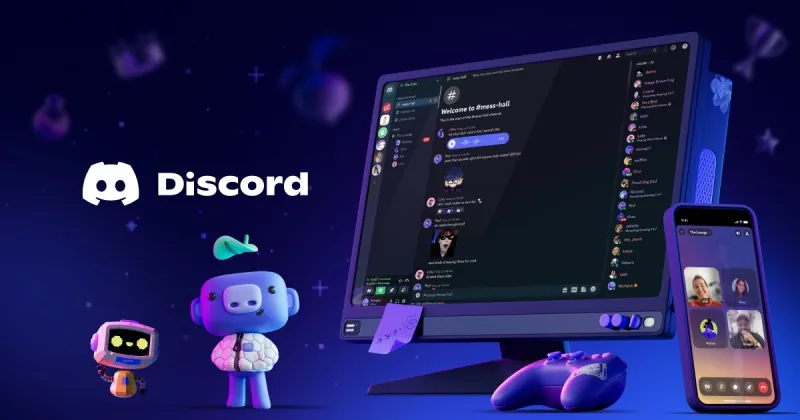
In today’s online gaming and Discord communities, voice is no longer just a tool for communication — it shapes your presence in a team and sets the tone of interaction. Many players use voice changers not only for fun but also to protect their privacy when needed.

1. Installing and Setting Up VoxMagic
Step 1: Download & Install
- Go to the official VoxMagic website and download the installer.
- The installation process is fast and takes less than two minutes.
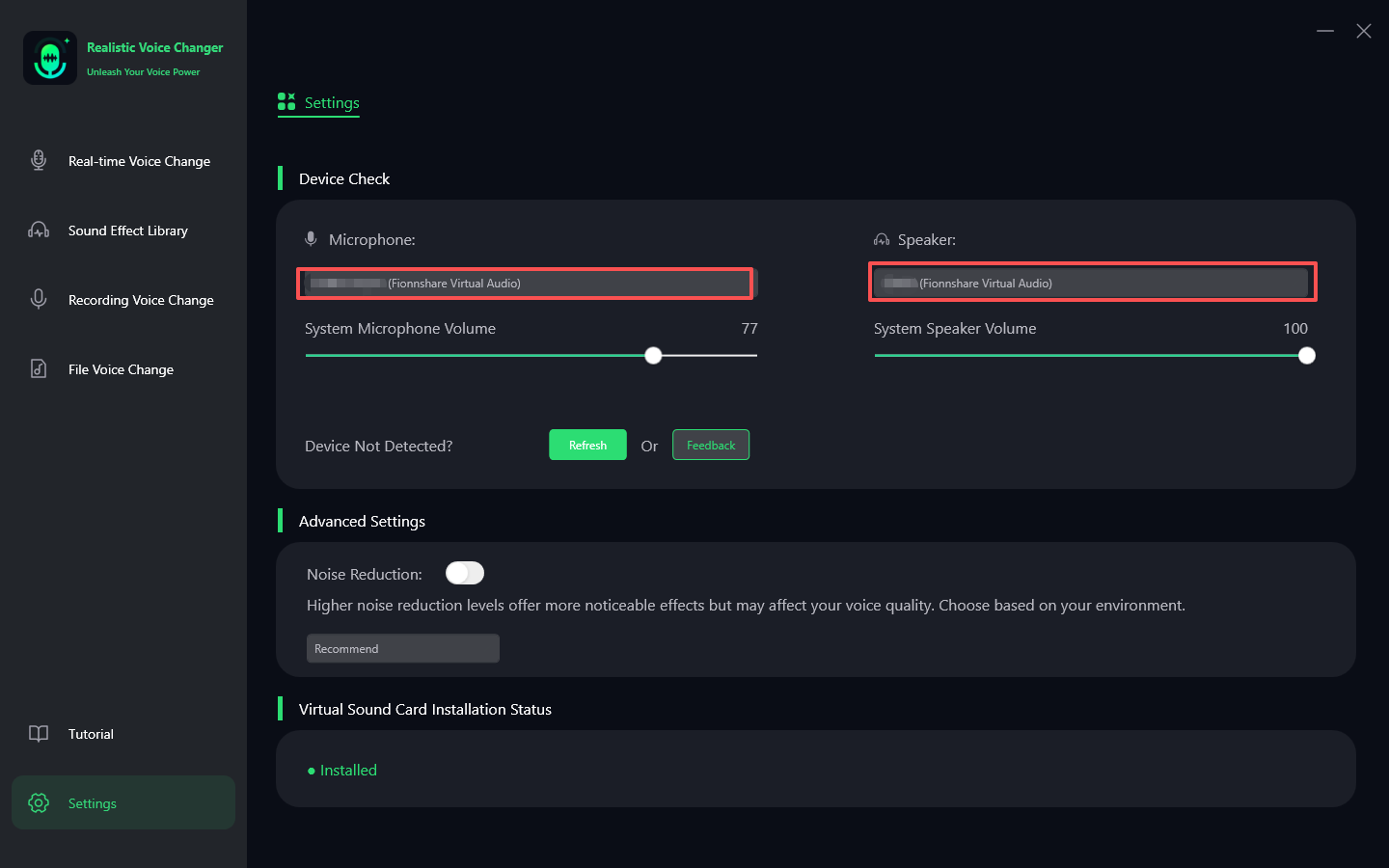
Step 2: Select Input & Output Devices
- Open VoxMagic and choose your microphone as the input device.
- The software automatically generates an output device called Fionnshare Virtual Audio.
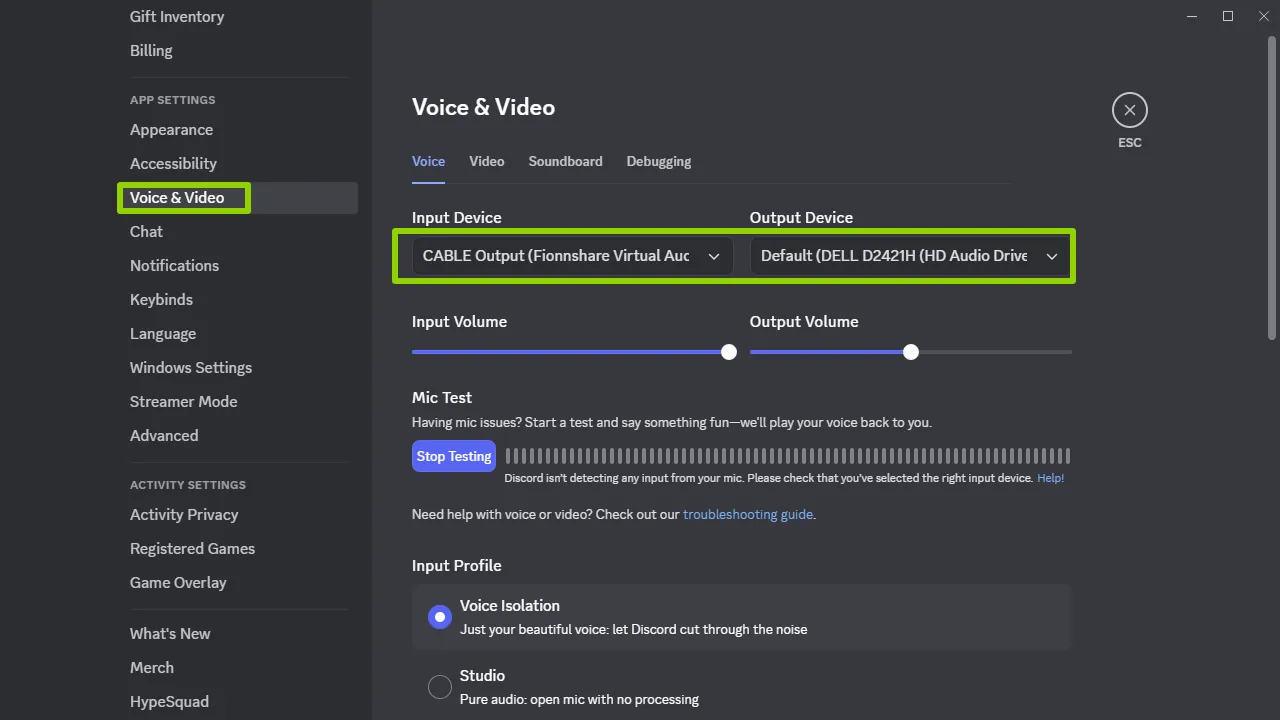
Step 3: Configure Discord
- Open Discord → Click User Settings (gear icon).
- Navigate to Voice & Video → Set input device to Fionnshare Virtual Audio.
- Say something to test and confirm your voice is now routed through VoxMagic.
Step 4: Apply in Games
- Most mic-supported games (e.g., Valorant, CS:GO, Fortnite) will detect Fionnshare Virtual Audio directly.
- In your game’s audio settings, set the input device to Fionnshare Virtual Audio.
2. Key Features & Practical Tips
① Real-Time Voice Changing
Ultra-low latency ensures no lag, perfect for in-game communication.
② Voice Enhancer
Reduces background noise (keyboard clicks, fan sounds) while balancing volume.
③ Rich Voice Effects Library
- Robot voice: Add fun during intense matches.
- Deep secure tone: Protect your privacy in guild chats.
- Cartoon/character voice: Make Twitch or YouTube streams more engaging.
④ Hotkey Switching
Assign hotkeys to different effects for instant switching without leaving your game.
3. Advanced Usage: Discord & OBS Integration
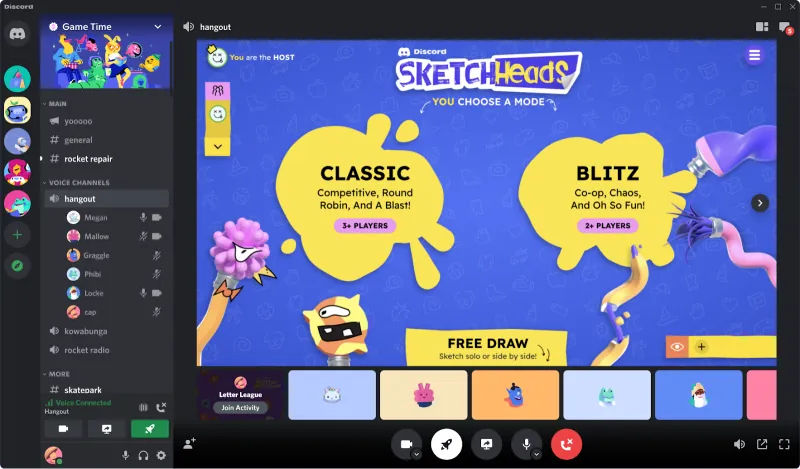
Discord Optimization
- Enable Echo Cancellation.
- Disable Automatic Input Sensitivity and adjust manually.
OBS Integration
- Open OBS → Settings → Audio → Add Input Source → Select Fionnshare Virtual Audio.
- Your audience will now hear your real-time voice effects during streams.
4. Common Issues & Fixes
Voice Delay?
Check and close other background audio processing software.
Low Volume?
Increase gain in VoxMagic, then adjust input volume in Discord.
Game Not Detecting Mic?
Restart the game and ensure VoxMagic is running beforehand.
5. Use Case Examples
- Competitive Matches: Use robot voice to entertain teammates.
- Voice Chats: Deep tone for privacy protection.
- Streaming: Cartoon voices boost audience interaction and engagement.
Conclusion
Using VoxMagic in Discord and gaming isn’t just about “changing your voice” — it’s about upgrading your overall experience, enhancing interactions, and protecting your privacy. Setup is simple, but the features are powerful enough for both casual and professional use.
If you want to add more fun and personality to your gaming and voice experience, VoxMagic is the tool worth trying.


 Fionn
FionnCopyright © 2026 Wonderful Apps Limited.
 English