 Emily CarterPrinter Drivers
Printer Connected but Not Printing? 4 Windows Fixes
Introduction
A Connected or Ready label does not prove that Windows can deliver a document to the printer. The failure may be limited to one app, trapped in the print queue, caused by the Print Spooler service, or related to an outdated driver. Start with a Windows test page and another app, then use the four methods below in order: run Get Help diagnostics, reset the queue and spooler, repair the driver, and use the recommended Printer Driver workflow for a broader check.
What Does “Printer Connected but Not Printing” Mean?
Windows can detect a printer while a different part of the printing path is failing. A single application may target the wrong device or produce a bad job. Multiple applications may indicate a queue, service, port, sharing, or driver problem. Hardware alerts such as paper jams, low supplies, or an offline state can also block output even when the device remains listed.
Before You Start: Identify Where Printing Stops
Save the document, note the printer's exact name, and make these checks:
- Confirm power, paper, ink, and the absence of cover, jam, or device alerts.
- For USB, reseat the cable. For Wi-Fi, confirm the PC and printer use the same network.
- In File > Print , select the intended physical printer and confirm it shows Ready.
- Make sure Print to PDF or Print to file is not selected.
- Try a different file from another app, such as Notepad or Paint.
Windows 11 test page:
Start > Settings > Bluetooth & devices > Printers & scanners > [printer] > Printer properties > Print Test Page
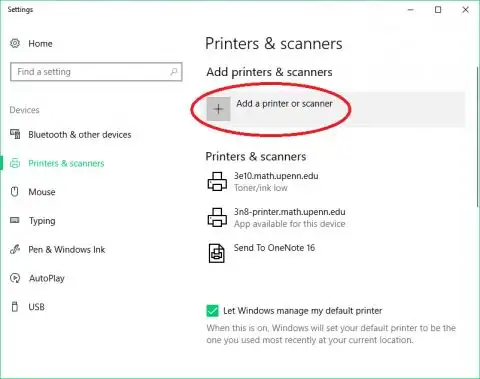
Windows 10 test page:
Start > Settings > Devices > Printers & scanners > [printer] > Manage > Printer properties > Print Test Page
Quick Method Comparison
| Method | Best For | Efficiency | User Effort |
|---|---|---|---|
| 1. Windows troubleshooter | No clear cause after the test-page check | Automated first pass | Low |
| 2. Queue and Print Spooler reset | Jobs stuck as Printing, Pending, or Spooling | Direct for queue or service faults | Low to moderate |
| 3. Driver update or reinstall | Failure after a Windows or driver update | Targeted driver repair | Moderate |
| 4. Printer Driver (Recommended for broad diagnosis) | The cause may span drivers, status, queue, service, ports, or settings | Broad, guided diagnosis | Low |
Method 1: Run the Windows Printer Troubleshooter
When to use: Choose this first when the test page fails and Windows does not show an obvious hardware or queue error.
- Open Get Help from the Start menu or taskbar search.
- In Get Help, search for
printer troubleshooter. - Select the printer troubleshooting result and follow the prompts to run the diagnostic.
- Review each finding and apply the repairs that Windows offers.
Verification: Repeat the Windows test-page check above. If it prints, reopen the source app and select the same printer. If it does not, inspect the queue next.
Method 2: Clear the Print Queue and Restart Print Spooler
When to use: Use this method when jobs remain in the queue or an app hangs after you select Print. Microsoft's stuck print-job guidance pairs queue cancellation with a Print Spooler restart.
- Open
Start > Settings > Bluetooth & devices > Printers & scannersin Windows 11, orStart > Settings > Devices > Printers & scannersin Windows 10. - Select the affected printer and open its print queue.
- Right-click each listed job and select Cancel .
- Press
Windows key + R
, enter
services.msc, and press Enter . - Right-click Print Spooler and select Restart .
- If jobs remain, stop Print Spooler .
- Delete only the files inside
C:\Windows\System32\spool\PRINTERS. - Return to Services and start Print Spooler .
Verification: Send one test page. It should leave the queue and produce paper output without another stuck job.
Method 3: Update or Reinstall the Printer Driver
When to use: Use this method when printing stopped after a Windows or driver update, Device Manager shows a warning icon, or Windows reports that the driver is unavailable.
- Open Device Manager by right-clicking Start and selecting it.
- Expand Printers or Print queues , locate the affected printer, right-click it, and choose Update driver .
- Select Search automatically for drivers . If you already downloaded a compatible package, choose Browse my computer for drivers , point to its folder, and complete the wizard.
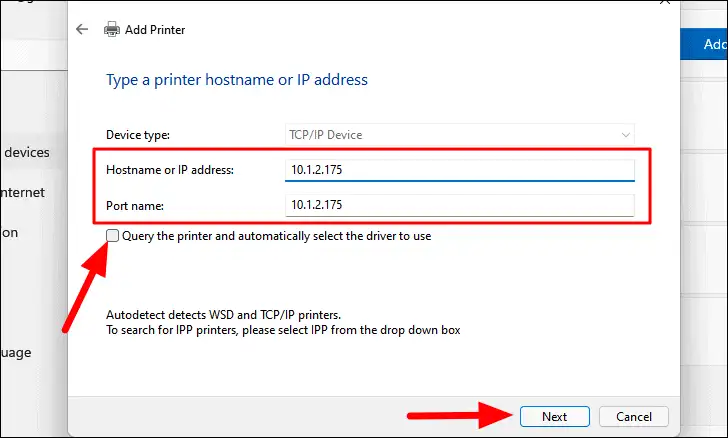
- If updating does not help, right-click the same printer, choose Uninstall device , confirm removal, and restart Windows. Then return to Device Manager and use Scan for hardware changes or Windows printer settings to add the printer again.
- After installation finishes, select the printer in Windows and send a new test page.
Verification: Device Manager should list the printer without a warning icon, and a Windows test page should leave the queue and produce paper.
Method 4: Diagnose and Fix Printer Connected but Not Printing with Printer Driver
When to use: This recommended broad diagnostic option fits an unclear, multi-component cause. Fionn Printer Driver is documented for Windows. It can identify many mainstream printer brands and models and check device, driver, service, queue, port, default, and sharing status.
- Launch Fionn Printer Driver and click “Scan Now” to scan your computer for printer drivers and related issues.

- Wait while Fionn Printer Driver scans your system for installed printers, drivers, and common printer issues.

- After the scan finishes, click “One-Click Fix” to automatically install or repair the required printer driver.

- Wait for the repair to finish and confirm that the printer issue has been fixed successfully.

Verification: The repair finishes, and the fourth workflow step confirms that the printer issue was fixed successfully.
Verification Checklist
After any method, verify output rather than relying on a Connected or Ready label. Send a fresh Windows test page, then resend the original document from its app.
- The test page produces physical output.
- The new job leaves the queue without an error.
- The original app targets the same printer and prints its document.
If only the original document fails, return to that app's destination, page range, file, and print settings.
Conclusion
Start with the test-page fork: if another app or the Windows test page prints, fix the original app, file, or selected destination. If the test page fails, run Get Help, clear the queue and restart Print Spooler, then repair the driver. Use the guided Printer Driver method when several Windows printing components remain possible causes. A repair is confirmed only when a fresh test page and the original document both print. If neither prints after all four methods, record the printer display message, queue behavior, connection type, and recent Windows changes, then contact the manufacturer or network administrator.
Frequently Asked Questions
Why does Windows say my printer is connected when it will not print?
Connected only means Windows can see the device or its network endpoint. A selected wrong destination, paused queue, stopped Print Spooler, port conflict, driver issue, or printer alert can still block output. A test page separates a Windows-wide failure from an app-specific one.
How can I tell whether the app or Windows is causing the problem?
Print a different file from another app, then send a Windows test page. If both print, troubleshoot the original app, document, or print settings. If the test page fails, the fault is more likely in the Windows-to-printer path or the printer itself.
Should I clear the queue or reinstall the driver first?
Clear the queue and restart Print Spooler first when a job is visibly stuck or marked Pending, Printing, or Spooling. Update or reinstall the driver first when the problem began after an update, the driver is unavailable, or Device Manager shows a warning. This order avoids reinstalling a driver for a temporary queue fault.
What if the queue empties but no page comes out?
Check the printer's paper, ink, cover, and jam indicators, then confirm the correct port and connection. Send a Windows test page from Printer properties. If the job disappears without output across multiple apps, continue with driver repair or the broad Fionn diagnostic and contact the manufacturer if hardware alerts persist.


