 Emily CarterPrinter Drivers
If Windows shows Driver is unavailable or the printer fails in several apps, update or reinstall the driver for the printer’s exact model first. If the printer is offline or only one job is stuck, check its connection or clear that queue before changing the driver. The four methods below move from focused driver repair to device setup, Microsoft’s guided help, and a Fionn workflow.
Symptoms
- Windows labels the printer Driver is unavailable .
- The printer fails from multiple applications or after a driver update.
- The printer is offline, missing from Windows, or cannot be selected.
- One job remains pending or paused while other printing previously worked.
- Only one application fails to print, which can point to that app’s printer selection or print settings rather than a Windows-wide driver issue.
Quick Diagnosis Checklist
- Printer offline: confirm power, cable or network connection, and its status before changing the driver.
- Only one job stuck: open the printer queue, cancel that job, then send a new test document.
- Driver is unavailable: use Method 1 to update or reinstall the exact-model driver.
- Printer disappeared or remains broken after driver repair: use Method 2 to remove and re-add the printer device.
- Cause unclear: use Method 3 or the scan and repair workflow in Fionn Printer Driver .
Quick Method Comparison
| Method | Best For | Efficiency | User Effort |
|---|---|---|---|
| Update or reinstall the driver | Driver unavailable or failures in multiple apps | High for driver issues | Medium |
| Remove and re-add the printer | A missing printer or a device that remains broken after driver repair | High for device setup issues | Medium |
| Get Help printer troubleshooter | An unclear Windows printing problem | Useful guided checks | Low |
| Fionn Printer Driver | Scanning, installation, or repair in one workflow | Practical guided option | Low |
Method 1: Update or Reinstall the Printer Driver
When to Use
Use this method for a driver-unavailable message, repeated failures across applications, or a printer that stopped working after a driver change.
Step-by-Step Guide
- Confirm the printer brand and exact model.
- Check the installed driver for that exact model and install any available update through Windows Update.
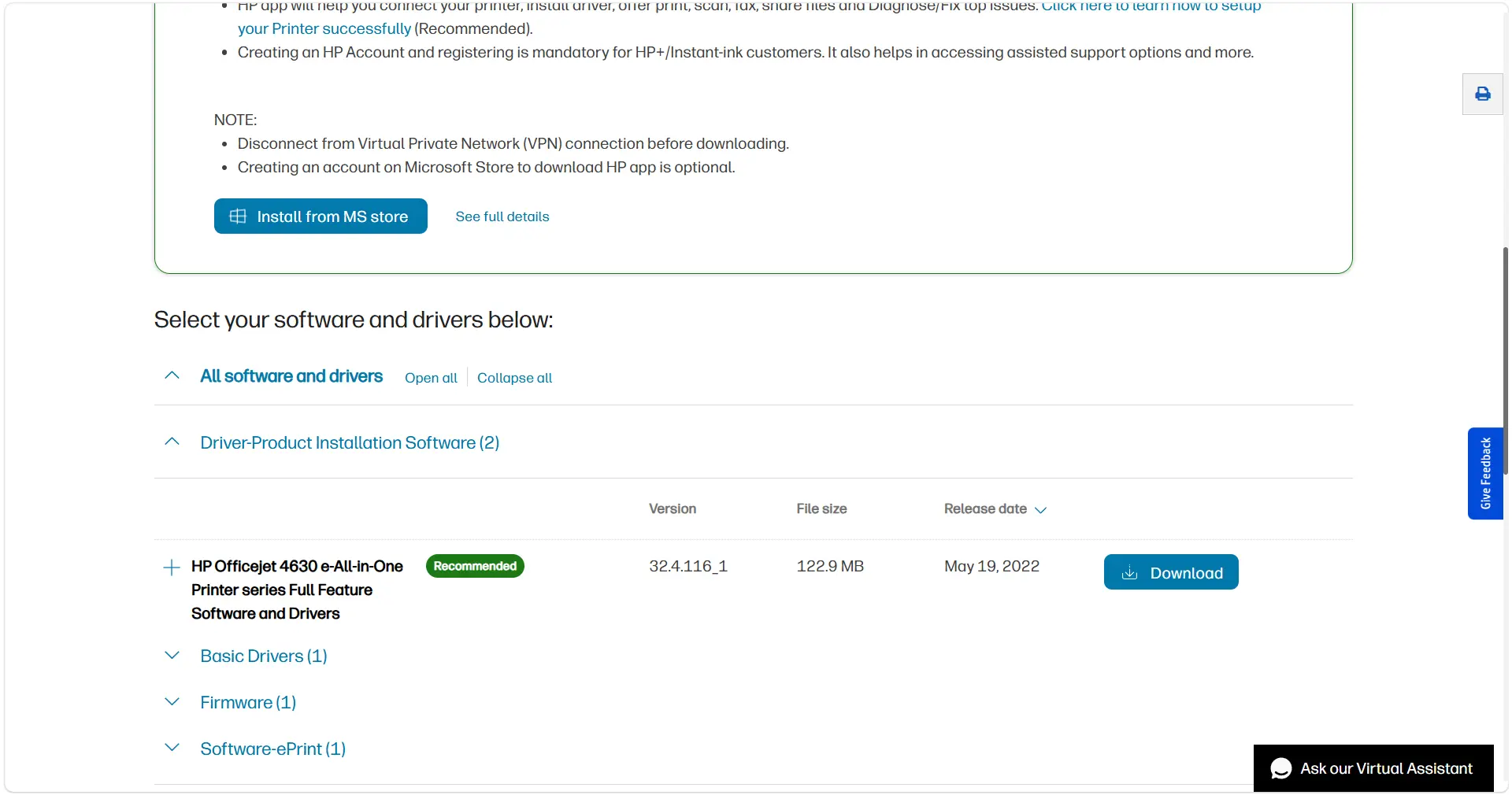
- If the update does not resolve the issue, download the correct driver from the printer manufacturer’s official support source and reinstall it.
- Avoid unknown third-party driver download websites.
- Restart Windows after installation.
- Print a new, small test document.
How to Verify
Windows no longer reports that the driver is unavailable, and a newly created test document prints from the affected application.
Method 2: Remove and Re-add the Printer
When to Use
Use this method when the printer disappeared, is still unusable after Method 1, or Windows has retained an incorrect device entry. This resets the printer device setup; it is not a substitute for reinstalling the driver itself.
Step-by-Step Guide
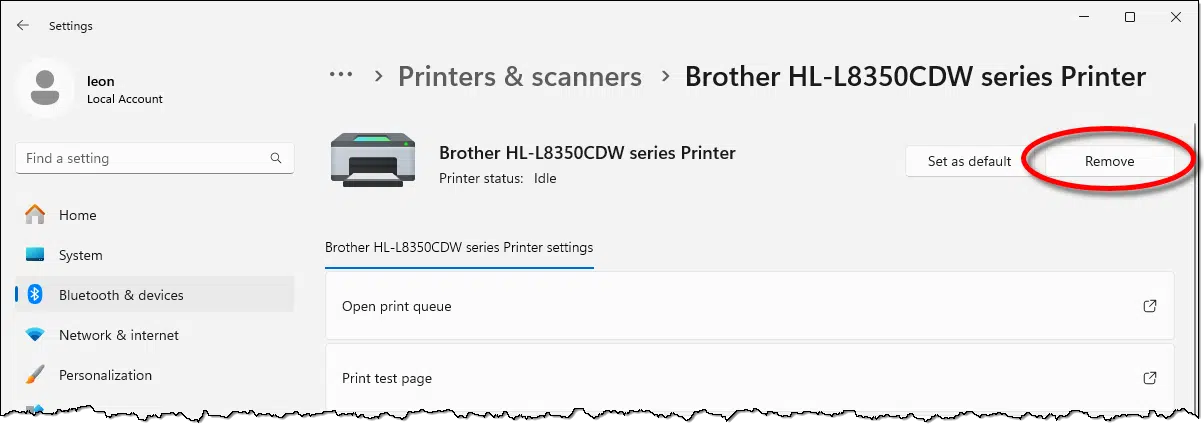
- Open Settings > Bluetooth & devices > Printers & scanners .
- Select the affected printer.
- Choose Remove to remove the printer from Windows.
- Restart Windows if Windows requests it or the device entry does not clear.
- Return to
Printers & scanners
and choose
Add device
.
- Select the intended printer and send a new test document.
How to Verify
The intended printer appears in Printers & scanners and the new test document leaves its queue and prints.
Method 3: Run the Windows Printer Troubleshooter
When to Use
Use this method when the printer is installed but the cause is unclear, especially after the connection and a single stuck job have been ruled out.
Step-by-Step Guide
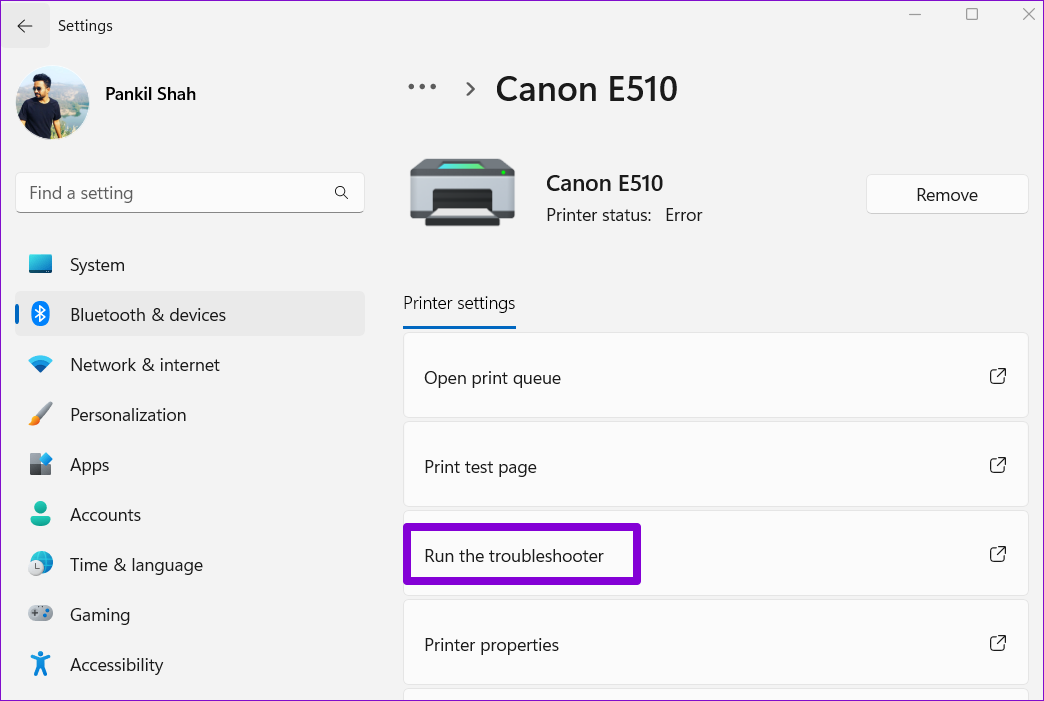
- Open the Get Help app in Windows.
- Search for printer troubleshooter .
- Start the recommended printer troubleshooting flow.
- Select the affected printer when prompted and complete the checks shown by Get Help.
How to Verify
Review the result shown by Get Help, apply any offered fix, and print the same new test document. If the driver remains unavailable, return to Method 1 with the exact model name.
Method 4: Diagnose and Fix the Printer Driver with Fionn Printer Driver
When to Use
Recommended when you want a guided printer-driver scan, installation, and repair workflow rather than manually locating a driver. Fionn Printer Driver supports scanning printer drivers and applying an available installation or repair workflow.
Step-by-Step Guide
- Launch Fionn Printer Driver and select Scan Now.

- Wait for the scan to check the printer driver and related printing environment.

- Select One-Click Fix to install or repair the required printer driver.

- Wait for the repair to complete.

How to Verify
After the workflow completes, print a new small document and confirm it leaves the queue and reaches the printer.
Verification Checklist
- The correct printer is selected in the application’s print dialog.
- Windows no longer shows Driver is unavailable .
- A new test document leaves the queue rather than staying pending or paused.
- The printer produces the document from the app that originally failed.
- The printer remains available after a Windows restart.
Conclusion
For a Windows 11 printer driver not working problem, match the repair to the symptom. Check an offline printer or a single stuck job first, but prioritize the exact-model driver when Windows says it is unavailable or several apps cannot print. Remove and re-add the device only when it disappeared or remains broken after driver repair. Get Help is useful when the cause is unclear, while Fionn Printer Driver provides a guided scan, installation, and repair path. Always verify the result with a new test document. If printing still fails, contact the printer manufacturer’s official support team with the exact model and Windows message.
FAQ
Should I reinstall the driver when one print job is stuck?
No. Cancel the stalled job and print a new document first. Reinstall the driver when Windows reports it is unavailable or the printer repeatedly fails across several applications.
What printer driver should I install?
Install the driver for the exact printer brand and model. Start with Windows Update, then use the manufacturer’s official support source if Windows does not provide a suitable update.
Does removing a printer reinstall its driver?
Not necessarily. Removing and re-adding a printer addresses the Windows device setup. Use Method 1 when the driver itself needs to be updated or reinstalled.
Why does my printer work in one app but not another?
Check the selected printer and print settings in the failing app. If another app prints to the same device, the immediate cause may be specific to the failing application rather than the installed driver.


