 Emily CarterDLL Errors
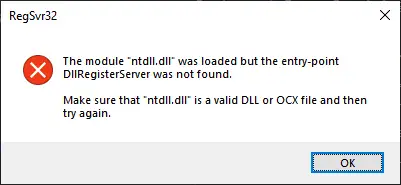
An ntdll.dll error can cause an app to crash, stop launching, or display a faulting-module message. It does not automatically prove that the ntdll.dll file itself is damaged: the app, an add-on, a Windows component, or a startup conflict may be involved. Start with the affected app if only one program fails, then repair Windows files if failures occur more broadly. This guide covers four paths, including a scan-and-repair workflow with Fionn DLL Fixer .
Quick Method Comparison
| Method | Best For | Efficiency | User Effort |
|---|---|---|---|
| Repair or reinstall the app | One app crashes while other apps work | High for app-specific damage | Low to medium |
| DISM and SFC | Several apps fail or Windows files may be corrupted | High for protected system files | Medium |
| Clean boot | The error began after a utility, overlay, or startup change | Good for isolating conflicts | Medium |
| Fionn DLL Fixer | DLL or system issues need a consolidated scan | Convenient diagnostic and repair path | Low |
Method 1: Repair or Reinstall the Affected App
When to use: Use this first when the ntdll.dll error occurs in one specific app or game and Windows otherwise behaves normally. An app repair or reinstall can replace that app's own files without changing system DLLs.
- Close the affected app and save any work in other programs.
- Open Settings and go to Apps , then locate the affected app.
- Open the app's advanced options if available and select Repair .
- Launch the app and repeat the action that previously caused the error.
- If Repair is unavailable or does not help, uninstall the app and reinstall it from its official source.
Verification: The same task completes without the app crashing or showing the ntdll.dll error. If multiple unrelated apps still fail, move to Windows system-file repair.
Method 2: Repair Windows System Files with DISM and SFC
When to use: Choose this method when more than one app crashes, a problem followed an interrupted update, or Windows features also behave unexpectedly. Microsoft documents DISM and System File Checker as tools for repairing missing or corrupted Windows system files.
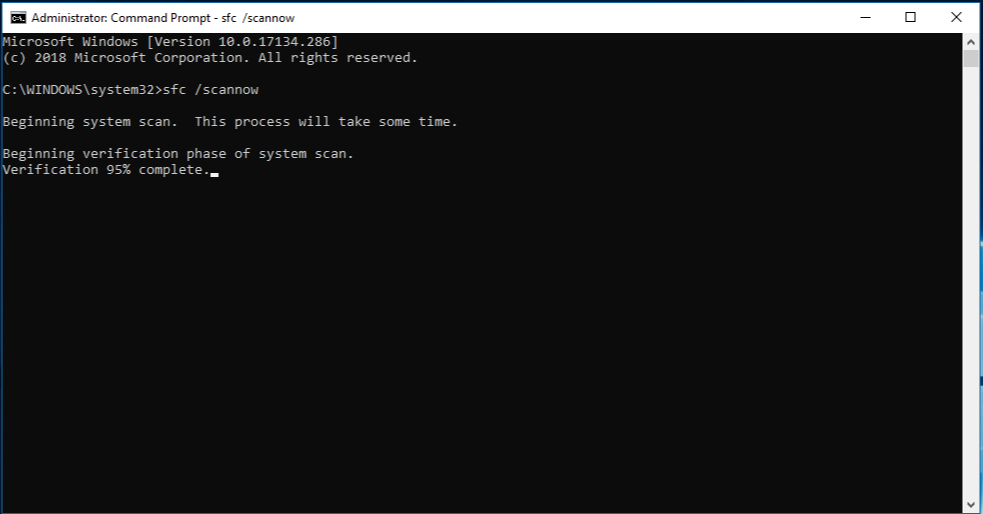
- Open Command Prompt as an administrator.
- Run the following command and wait for it to finish:

DISM.exe /Online /Cleanup-image /Restorehealth - Run the following command after DISM completes:
sfc /scannow
- Restart Windows when both commands finish.
- Open the affected app and test the original failure.
See Microsoft’s system file repair instructions for the supported command sequence.
Verification: SFC reports that it completed, Windows restarts normally, and the original app test no longer reproduces the error.
Method 3: Isolate a Startup Conflict with a Clean Boot
When to use: Use a clean boot when the error appeared after installing a background utility, overlay, security product, or other startup software. This method helps identify whether a non-Microsoft service or startup item is affecting the app.
- Follow Microsoft’s clean boot instructions for Windows to start with nonessential startup software disabled.
- Restart the computer in the clean-boot state.
- Run the affected app and repeat the action that caused the ntdll.dll error.
- If the error is gone, re-enable services and startup items in groups until the failure returns.
- Keep the conflicting item disabled, update it, or remove it if it is no longer needed.
Verification: The error occurs only when a particular startup item or service is enabled. Restore normal startup after testing so routine software can run again.
Method 4: Diagnose and Fix an ntdll.dll Error with Fionn DLL Fixer
When to use: This is a practical option when you want one scan for DLL and system issues rather than manually checking each possible component. Fionn DLL Fixer can detect DLL issues such as missing, damaged, or version-mismatched files and supports scanning, repair, and a post-repair check. It can help with an ntdll.dll error, but the final test remains reopening the affected app.
- Launch Fionn DLL Fixer. The software automatically scans your PC for DLL and system issues and displays the detected results when the scan is complete.

- After the scan finishes, click “Repair” to start fixing all detected DLL and system issues automatically.

- Wait while the repair is in progress. During this process, the button changes to “Fixing” until all issues have been repaired.

- When the repair is complete, click “Ok” in the confirmation dialog. If prompted, restart your computer before checking whether the problem has been resolved.

- If the issue still persists after restarting, click “Recheck” to perform another scan. If new issues are found, click “Repair” again to fix them.

Verification: After the restart or recheck, open the original app and repeat the failing task. If the error remains, the result points toward an app-specific fault or a startup conflict rather than a resolved DLL issue.
Tips to Avoid Misdiagnosing ntdll.dll
- Test the same action after every change. A successful app launch alone may not verify a crash that occurs later in a workflow.
- Record whether one app or several unrelated apps fail. This observation determines whether app repair or Windows repair is the better next step.
- Undo only the startup change that reproduces the failure; do not leave the PC in a clean-boot state permanently.
Conclusion
Handle an ntdll.dll error according to its scope. Repair or reinstall the affected app when the crash is isolated to that app. Use DISM and SFC when multiple applications or Windows features show symptoms, then use a clean boot when a background conflict is plausible. Fionn DLL Fixer provides a separate scan, repair, and recheck route for detected DLL and system issues. Verify every method by repeating the exact action that failed before. If the error persists after these checks, collect the app’s error details and contact the app publisher or qualified Windows support.
Frequently Asked Questions
What does an ntdll.dll error mean?
It means Windows or an app reported ntdll.dll during a failure. The report can involve the DLL, the app that called it, a damaged Windows component, or conflicting software, so further testing is needed.
Should I replace ntdll.dll manually?
No. Use supported Windows repair tools instead of copying a DLL from an unverified source. Version and architecture mismatches can introduce additional problems.
Why does only one program show the error?
When only one program fails, its installation, configuration, or extension is more likely to be involved. Repairing or reinstalling that program is the appropriate first path.
Should I run DISM before SFC?
Microsoft’s system-file repair guidance uses DISM to repair the Windows image before running SFC to check protected system files.
What if the error returns after a clean boot?
If it occurs with nonessential startup software disabled, focus on the affected app and Windows file repair. If it disappears, re-enable items gradually to identify the conflicting software.


