 Emily CarterDLL Errors
Introduction
The
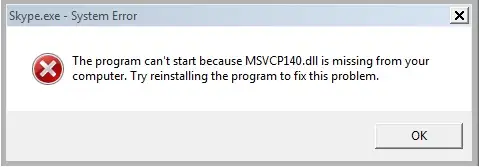
msvcp140_1.dll missing
message means Windows cannot load that dynamic-link library when an application starts. The file may be absent, damaged, or incompatible with the application’s installed components. You can work through four methods in order: repair Windows files, repair the official Microsoft Visual C++ Redistributable, reinstall the affected application, and then use
Fionn DLL Fixer
for guided detection and repair. Start with the method that matches your symptoms: one program failing usually points to an application or runtime issue, while several programs failing suggests a wider Windows component problem.
Quick Method Comparison
| Method | Best For | Efficiency | User Effort |
|---|---|---|---|
| 1. System File Checker and DISM | Several applications report missing or damaged DLLs | Medium | Medium; command-line steps |
| 2. Microsoft Visual C++ Redistributable repair | One application depends on the Microsoft C++ runtime | High when the runtime is the cause | Low to medium |
| 3. Reinstall the affected application | Error began after an interrupted install or update | Medium | Medium; backup settings first |
| 4. Fionn DLL Fixer (Recommended) | Unclear cause, multiple dependency errors, or guided scanning | High for diagnosis and repair workflow | Low; scan and review results |
Method 1: Repair Windows System Files with SFC and DISM
When to use: Choose this method when more than one application fails, Windows has recently experienced a crash, or other system DLL warnings appear. It checks protected Windows files rather than downloading a single DLL from an unknown site.
- Open the Start menu, type
Command Prompt, right-click it, and select Run as administrator . - Enter
DISM /Online /Cleanup-Image /RestoreHealthand press Enter.
- Wait for DISM to finish, then enter
sfc /scannowand press Enter. - Restart Windows after SFC reaches 100 percent.
- Launch the application that displayed the message and check whether it opens without the error.
Verification: The application should start, and repeated DLL warnings should stop. If SFC reports that it could not repair some files, continue with Method 2 or Method 4 instead of copying a DLL from a download mirror.
Method 2: Repair the Official Microsoft Visual C++ Redistributable
When to use: Use this option when only one game or desktop application fails and its requirements mention Microsoft Visual C++ components. The msvcp140_1.dll filename is associated with that runtime family, but the error alone does not confirm which package version or architecture your program needs.
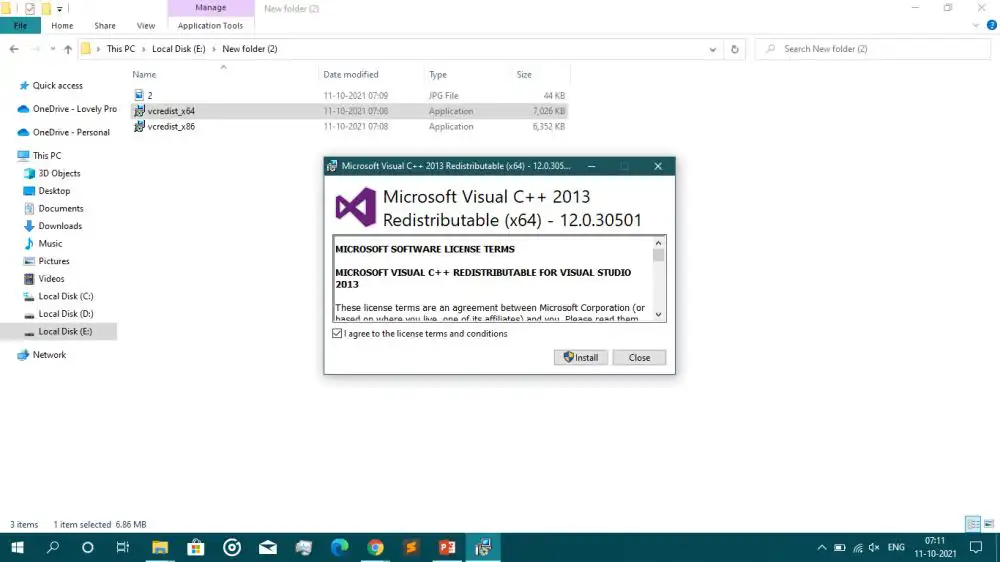
- Open Settings , select Apps , and open Installed apps .
- Search for entries named
Microsoft Visual C++ Redistributable. - Open the entry’s menu, choose Modify , and select Repair when that option is available.
- Restart the computer after the repair completes.
- Start the affected application and test the action that previously triggered the message.
If no suitable Redistributable entry is installed, use the application publisher’s documented requirements and Microsoft’s official download resource for the matching package. Select the architecture required by the application; 32-bit applications commonly need the x86 package even on 64-bit Windows.
Verification: Confirm the application opens and that no companion runtime errors appear. If the repair changes nothing, the application installation or another dependency may be damaged.
Method 3: Reinstall the Affected Application
When to use: Select this method when the error started immediately after an interrupted installation, an update, or manual deletion of application files. Reinstallation restores the application’s own files and can recreate its dependency configuration.
- Save documents, game saves, or custom settings stored by the affected application.
- Uninstall the application from
Settings > Apps > Installed apps
.
.webp)
- Restart Windows to release files still held by the program.
- Download the installer from the application publisher or your organization’s approved software source.
- Install the program, apply its current updates, and launch it again.
Keep the original error text and any installer codes if the problem returns. Those details help distinguish a missing runtime from an application-specific packaging issue.
Method 4: Diagnose and Fix msvcp140_1.dll Missing with Fionn DLL Fixer (Recommended)
When to use: Fionn DLL Fixer is a practical option when the cause is unclear, several dependency categories may be involved, or you prefer a scan-and-recheck workflow. Its documented capabilities include scanning for missing, damaged, version-mismatched, and System32-path DLL issues, plus Visual C++, DirectX, .NET, OpenAL, and XInput dependency checks. The Windows desktop app supports full or category scans, automatic or manual repair, and a post-repair recheck.
- Launch Fionn DLL Fixer. The software automatically scans your PC for DLL and system issues and displays the detected results when the scan is complete.

- After the scan finishes, click
Repairto start fixing all detected DLL and system issues automatically.
- Wait while the repair is in progress. During this process, the button changes to
Fixinguntil all issues have been repaired.
- When the repair is complete, click
Okin the confirmation dialog. If prompted, restart your computer before checking whether the problem has been resolved.
- If the issue still persists after restarting, click
Recheckto perform another scan. If new issues are found, clickRepairagain to fix them.
Verification:
Reopen the affected application after the restart, then use
Recheck
if the message remains. Fionn DLL Fixer displays scan results and supports repair followed by verification; unresolved cases can be sent to its support channels.
Tips and Common Mistakes
- Record the exact filename and the application name before making changes.
- Match runtime architecture to the application instead of assuming that 64-bit Windows needs only x64 files.
- Avoid DLL download websites and never overwrite files in
C:\Windows\System32without a trusted repair path. - Restart after a runtime or system repair so newly replaced components can be loaded cleanly.
- Fionn DLL Fixer offers three free attempts; VIP access unlocks DLL, DX, runtime, and system repair areas according to the product information.
Conclusion
For a single application, repair its Microsoft Visual C++ Redistributable first, then reinstall the application if the installation is damaged. For system-wide symptoms, run DISM and SFC. When the dependency chain is unclear or several component types may be involved,
Fionn DLL Fixer
can simplify scanning, repair, and rechecking in one workflow. Verify the result by restarting Windows and launching the original program. If
msvcp140_1.dll missing
still appears, keep the scan or installer details and contact the software publisher or Fionn support for the next diagnostic step.
FAQ
Can I download msvcp140_1.dll as a standalone file?
It is better to repair the complete, trusted runtime or application installation. A loose DLL may have the wrong version or architecture and can leave related dependency files missing.
Why does the error affect only one application?
The program may use a runtime version, architecture, or private application component that other programs do not use. Start with Method 2 and Method 3 before changing wider Windows settings.
Should I run SFC before reinstalling the application?
If multiple programs fail or Windows shows other file errors, yes. If one recently updated program fails while everything else works, reinstalling that program may be the shorter path.
Will restarting really help after a DLL repair?
Yes, when the repaired component was still held by a running process or Windows needs to reload system files. Restart, then launch the application again before repeating repairs.
What if Fionn DLL Fixer finds additional dependency errors?
Review the scan results, allow the repair to finish, restart when prompted, and select
Recheck
. If the issue remains, save the results and use the available support contact options.


