 Emily CarterPrinter Drivers
To change the default printer, open Windows Settings, turn off automatic default-printer management, and select the printer you want. You can also make the change through Control Panel. If Windows later selects another device, check the automatic management setting before troubleshooting the driver. The four methods below cover Windows Settings, Control Panel, automatic selection, and an optional printer-driver check. Follow them in that order and stop when your preferred printer remains selected and completes a test print.
Quick Overview
| Observed situation | Recommended method | What the method addresses |
|---|---|---|
| The printer appears in Settings | Windows Settings | Changes the system default |
| You prefer the classic device list | Control Panel | Changes the same system default |
| The default changes after using another printer | Disable automatic management | Stops Windows from selecting the last-used printer |
| The printer is missing or unavailable | Check the device and driver | Addresses an underlying configuration problem |
Method 1: How to Change Default Printer in Windows Settings
When to Use
Use Settings when the printer is installed and visible under Printers & scanners . This is the most direct method and follows Microsoft’s current Windows interface.
Step-by-Step Guide for Windows 10
- Open Start and select Settings .
- Select Devices .
- Select Printers & scanners .
- Clear Let Windows manage my default printer .
- Select the required printer and choose Manage .
- Select Set as default under the printer status.
Note: Microsoft ended support for Windows 10 on October 14, 2025. These controls may still work, but Windows 10 no longer receives standard security fixes or technical support.
How to Verify
Open the printer page again and confirm its status reads Default . Next, open a document’s Print dialog and verify that the same printer is preselected. Complete a small test print if the printer is available.
If the expected button is unavailable, Control Panel offers another route to the system setting.
Method 2: Change the Default Printer Through Control Panel
When to Use
Use Control Panel when you prefer its classic printer list or cannot easily locate the device in Settings. This route changes the same Windows default rather than creating a separate preference.
Step-by-Step Guide
- Press Windows + R to open Run.
- Enter
control printersand press Enter .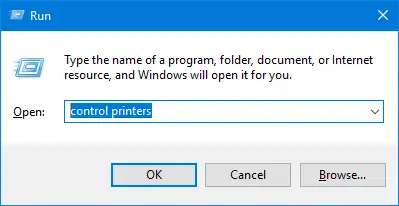
- Find the required printer in the device list.
- Right-click the printer.
- Select Set as default printer .
- Confirm the prompt if Windows says it will stop managing the default printer.
How to Verify
Confirm that the default indicator appears beside the selected printer. Open an application’s Print dialog and check its initial selection. If the application shows another printer, select the correct device and review whether that application remembers its own previous choice.
If the Windows default changes again after you use another device, adjust automatic printer management next.
Method 3: Stop Windows from Changing the Default Printer
When to Use
Use this method when a manually selected default works at first but changes after you print elsewhere. Microsoft states that automatic management can select the last printer used. This behavior does not, by itself, indicate a damaged driver.
Step-by-Step Guide
- Open Settings from the Start menu.
- Open Printers & scanners under Bluetooth & devices in Windows 11 or Devices in Windows 10.
- Locate Let Windows manage my default printer .
- Turn the setting off.
- Open your preferred printer and select
Set as default
again.
How to Verify
Use another printer once, then return to Printers & scanners . The manually selected device should still show Default . If the designation remains but an application chooses another device, the application may be retaining its own printer selection.
If the target printer disappears or becomes unavailable, investigate the device and driver rather than repeatedly changing the default.
Method 4: Diagnose a Missing or Unavailable Printer with Fionn Printer Driver
When to Use
Use this optional method when the target printer is not recognized, its driver is unavailable, or a printer problem prevents normal selection. Fionn Printer Driver supports Windows printer detection, driver installation or repair, printer-status checks, and default-printer management. It does not replace the built-in methods above.
Step-by-Step Guide
- Launch Fionn Printer Driver and click “Scan Now” to scan your computer for printer drivers and related issues.

- Wait while Fionn Printer Driver scans your system for installed printers, drivers, and common printer issues.

- After the scan finishes, click “One-Click Fix” to automatically install or repair the required printer driver.

- Wait for the repair to finish and confirm that the printer issue has been fixed successfully.

How to Verify
Return to Windows Printers & scanners and confirm that the printer appears without an unavailable status. Set it as the default through Settings, reopen the page, and check that its status remains Default . Finish with a test print.
Tips for Checking the Result
- Separate selection from availability: A default designation does not prove that the printer is online, loaded with paper, or able to process its queue.
- Check the exact device entry: One physical printer can appear through different connections or installed drivers. Choose the entry that reaches the intended device.
- Review the application: Some applications retain a previously selected printer instead of immediately following the Windows default.
- Diagnose the correct symptom: Automatic management explains a default that changes. A missing or unavailable device points to installation, connection, status, or driver issues.
Conclusion
Start with Windows Settings and turn off automatic management when you need one fixed default printer. Use Control Panel if you prefer the classic device interface. Verify the choice on the printer page, inside an application’s Print dialog, and with a test print. If the selection changes after another printer is used, recheck automatic management. If the printer is missing or unavailable, investigate its connection, status, and driver first. Fionn Printer Driver provides an optional diagnostic path when built-in selection cannot proceed normally.
Frequently Asked Questions
Why is the Set as default button missing in Windows 11?
The button may be hidden while Let Windows manage my default printer is enabled. Turn that setting off under Settings > Bluetooth & devices > Printers & scanners . Reopen the printer and look for Set as default . If the device is absent, install or reconnect it first.
Why does Windows keep changing my default printer?
Windows automatic printer management can select the last printer used. Disable Let Windows manage my default printer , then set your preferred printer again. If Windows still shows the correct default but one application does not, check that application’s remembered printer choice.
Does changing the Windows default affect every application?
The Windows default normally provides the initial selection, but an application may remember another printer. Check the application’s Print dialog if it continues opening with a different device. Changing an application-level selection does not necessarily mean the Windows default has changed.
Can an offline printer be the default printer?
An installed printer may still hold the default designation while it is unavailable. Setting it as default does not restore network access, load paper, resume a paused queue, or repair its driver. Confirm both the Default status and a successful test print.
Are the Settings and Control Panel methods different?
No. Both interfaces change the Windows system default. Settings is the current primary interface, while Control Panel provides the classic device list. Use whichever route displays the correct installed printer, then verify the result in an application.


