 Emily CarterPrinter Drivers
To install the HP LaserJet 1018 driver, first try adding the connected printer using Windows and printing a test page. If the device cannot be found, the driver is unavailable, or the cause of the issue is unclear, use Fionn Printer Driver to diagnose the printing environment. If you need to search manually, check the model on the official HP page and download a package only if the site offers it for your system. This article covers three approaches and how to verify the result.
Before You Start: Check the Model, Connection, and Windows Version
- Verify the exact name
HP LaserJet 1018on the device casing. - Turn on the printer and make sure its connection to the computer is stable; for a USB connection, do not change the port during installation.
- Check your installed Windows version so you can compare it with the search results in Windows or on the official HP page.
Which Method Should You Choose?
| Method | Best for | When to Use It | User Effort |
|---|---|---|---|
| Add through Windows | The printer is connected and may be detected by the system | Start here if the device is physically connected | Low |
| Fionn Printer Driver | The cause of the issue is unclear, or you need to check the driver and printing environment | Use it if the driver is unavailable, a document is stuck, or the service, port, or queue needs checking | Low |
| Official HP support | You need to manually search for a package for your system | Use it when you need to compare an available package with your selected Windows version | Medium |
Method 1: Add HP LaserJet 1018 Through Windows Settings
When to use it: the printer is physically connected but missing from the device list or marked as not installed. Item names and locations may vary by Windows version, so look for the printer management section rather than relying on one exact menu path.
- Open Windows Settings .
- Go to the printer management section: in some versions, this is Bluetooth & devices → Printers & scanners .
- Click
Add device
next to the option for adding a printer or scanner.a
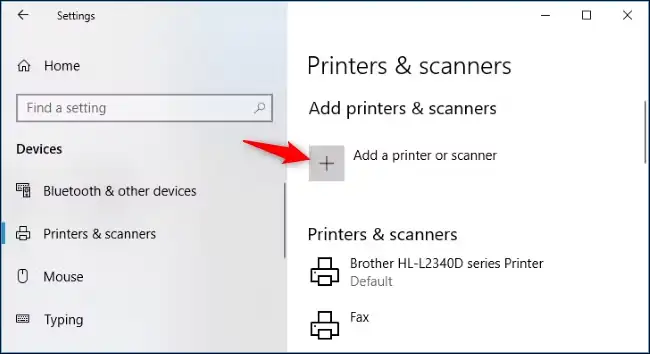
- Select HP LaserJet 1018 if it appears in the discovery results.
- Wait for the device to finish being added.
- Open the added printer and print a test page.
Check: the test page prints, and the job disappears from the queue after processing. If the device does not appear, do not randomly select a similar model: move on to diagnostics or an official search.
Method 2: Diagnose and Fix the Issue With Fionn Printer Driver
When to use it: Windows reports that the driver is unavailable, the model cannot be identified confidently, or a document remains in the queue. Fionn Printer Driver can check installed printers and drivers, as well as common printing issues, including the print service, port, and queue.
- Launch Fionn Printer Driver and click Scan Now to scan your computer for printer drivers and related issues.

- Wait while Fionn Printer Driver scans installed printers, drivers, and common printing issues.

- After the scan finishes, click One-Click Fix to automatically install or repair the required driver.

- Wait for the repair to finish and confirm the result in the app.

Check: open the Windows printer list, make sure HP LaserJet 1018 is available, and send a new test page. If the document still does not print, check the queue and connection, as they may be separate causes of the issue.
Method 3: Find the HP LaserJet 1018 Driver on the Official HP Page
When to use it: the printer is not detected by Windows, you need to manually compare an available package with your system, or you want to check model compatibility. Use only the official HP support and drivers page .
- Open the HP support page in your browser.
- Enter
HP LaserJet 1018in the product search field.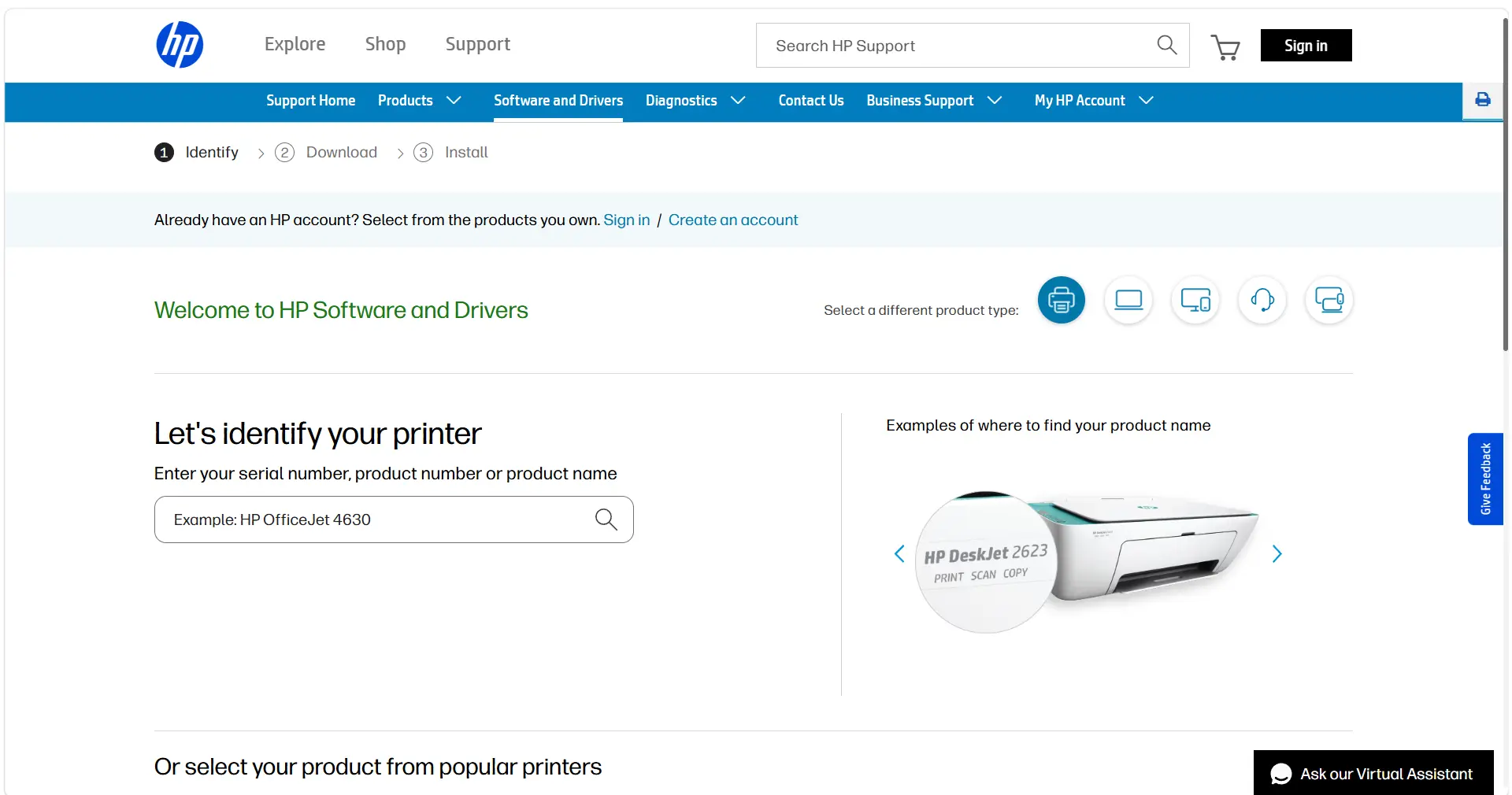
- Select your installed Windows version if the site asks for it.
- Check whether the page offers a package for your selected system.
- Download the package only if it is offered for your system.
- Run the downloaded installer and follow its instructions.
- When finished, open the Windows printer list and print a test page.
Check: the printer properties do not show a driver unavailable message, and the test job completes. If the page does not offer a package for your selected system, do not substitute a driver for another model.
If No Compatible Package Is Found
Do not choose a driver for a similar model or download unverified driver collections. Record that the official site did not offer a package for your system, then manually check model and Windows version compatibility through an official source. Without a confirmed package, you should not assume installation or printing will work in this configuration.
Check the Installation and Troubleshoot Printing Issues
First, print a new test page and see whether the job disappears from the queue. If HP LaserJet 1018 is already visible in Windows, downloading the driver again is not always the first step you should take.
- Connection and device status: make sure the printer is on, paper is loaded, and the device is not shown as offline.
- Queue: open the print queue and cancel any clearly paused or stuck jobs, then create a new job.
- Selected printer: verify that HP LaserJet 1018 is selected in the application's print dialog.
- Port and print service: if the connection and queue are working properly, check the printer port and Windows print service status; Fionn Printer Driver can help with this diagnosis.
- Check again: after making changes, send another test page and make sure it is processed without getting stuck in the queue.
Conclusion: How to Confirm the Issue Is Resolved
Start by adding HP LaserJet 1018 through Windows. If the cause of the issue is unclear, use Fionn Printer Driver to diagnose the driver and printing environment. If you need a manual package, check only the official HP page and install it only when it is offered for your system. The issue is resolved when the printer is available in Windows, selected in the application, and a new test page prints and disappears from the queue.
Frequently Asked Questions
Can I install the HP LaserJet 1018 driver without a disc?
Yes. You can start by adding the printer in Windows Settings or check for a package on the official HP page. A disc is not required if a suitable option is available through either method.
Why is HP LaserJet 1018 visible in Windows but not printing?
The cause may not be the driver alone. Check the print queue, connection, device readiness, selected printer in the application, port, and print service.
Do I need to remove the old driver before installing a new one?
Do not remove a working driver without a reason. First try standard addition, check for an update, or run diagnostics. Removal is justified when the method you are using specifically reports a conflict or the old driver is clearly unavailable.
How do I know whether the driver is installed correctly?
HP LaserJet 1018 appears in the printer list without an error message, is available in the print dialog, and successfully prints a new test page.
What should I do if the HP page has no package for my Windows version?
Do not install a driver for a similar model or use unverified collections. Check model and system compatibility through an official source; if there is no confirmed package, do not expect installation to work in this configuration.
Why might One-Click Fix be unavailable?
Automatic repair availability depends on the plan conditions. Before starting, check the information displayed in the application.


