 Emily CarterPrinter Drivers
Introduction
To set up a Xerox printer, connect it by USB or place it on the same network as your Windows PC. Then add it through Windows Settings and print a test page. This process covers three methods: automatic Windows setup, installation with an official Xerox driver, and an optional driver-diagnostic workflow. Start with Windows because it is the simplest and lowest-risk option. Use Xerox software if Windows cannot find the printer or you need model-specific functions. Try the optional diagnostic method only after checking the official routes.
Prerequisites
- Turn on the printer and clear any visible paper, cover, or supply warnings.
- For USB setup, connect the cable directly to the PC when possible.
- For network setup, connect the PC and printer to the same local network.
- Find the exact model name on the printer label, control panel, or purchase record.
- Use an account allowed to install a printer or driver on the PC.
Quick Overview: Choose the Right Setup Method
| Observed situation | Best starting method | Why |
|---|---|---|
| New USB or network printer | Windows Settings | Windows can automatically install many connected printers. |
| Printer is missing or model-specific options are unavailable | Official Xerox driver | The model page provides the driver intended for that device and Windows version. |
| The driver, port, service, or queue may be causing the failure | Fionn Printer Driver | The optional Windows tool can inspect several parts of the printing path. |
The key distinction is discovery versus capability. A printer that appears in Windows but lacks finishing or scanning options may need model-specific Xerox software. A printer that never appears usually needs its USB or network connection corrected first.
Method 1: Add a Xerox Printer Through Windows Settings
When to Use
Use this method for a first installation or when Windows does not yet list the printer. Microsoft recommends adding printers through Windows before turning to more specialized installation methods.
- Connect the Xerox printer by USB, or confirm that the printer and PC use the same network.
- Open Start > Settings > Bluetooth & devices > Printers & scanners in Windows 11. In Windows 10, open Start > Settings > Devices > Printers & scanners .
- Select
Add device
or
Add a printer or scanner
.
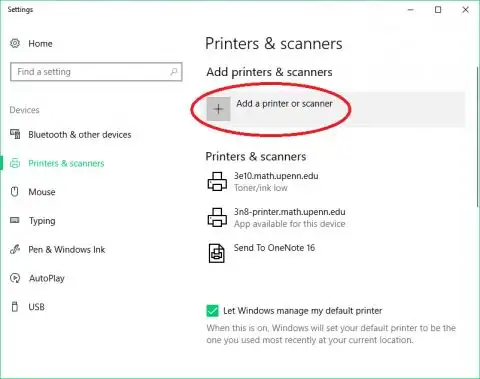
- Wait for discovery to finish, then select the correct Xerox printer and choose Add device .
- If the printer does not appear, select Add manually or The printer that I want isn't listed , then choose the option matching its connection.
Note: On a network with multiple access points or network names, the PC and printer must be able to reach each other. Being connected to Wi-Fi does not necessarily mean both devices are on the same network.
How to Verify
Open the installed printer in Printers & scanners , access its printer properties, and print a test page. Confirm that the job leaves the queue and a page is produced. Microsoft provides current details in its official printer installation instructions .
If Windows finds the device but provides incomplete features, install the model-specific package next.
Method 2: Install the Official Xerox Driver
When to Use
Choose this route when automatic setup fails, Windows reports that the driver is unavailable, or the installed printer lacks required device features. The exact model matters because similarly named Xerox devices can use different packages.
- Read the complete model name from the printer or its configuration information.
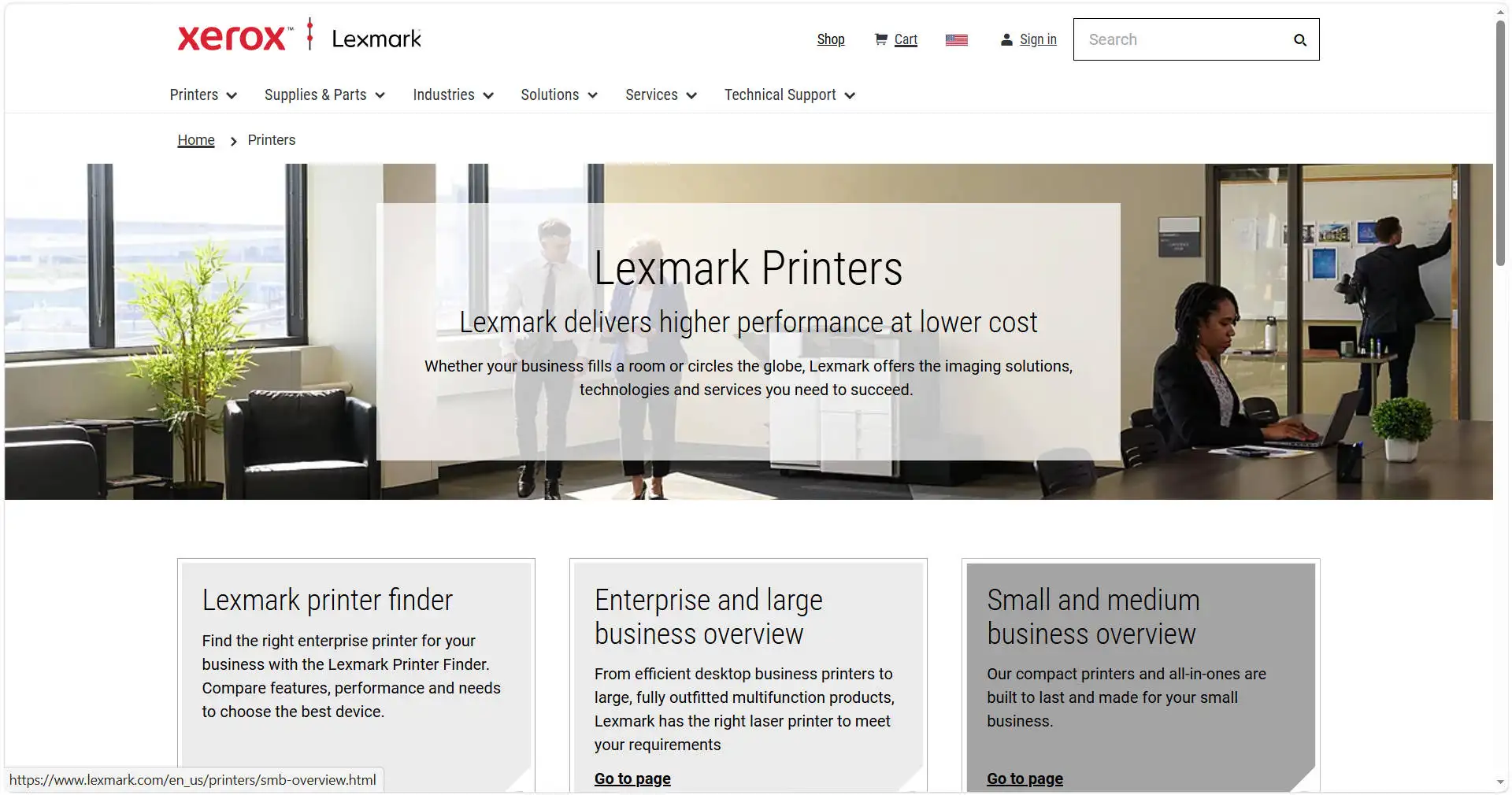
- Visit the
official Xerox Smart Start Printer Installer page
, or locate the model through Xerox Support.
- Confirm that the selected download supports your Windows version and system type.
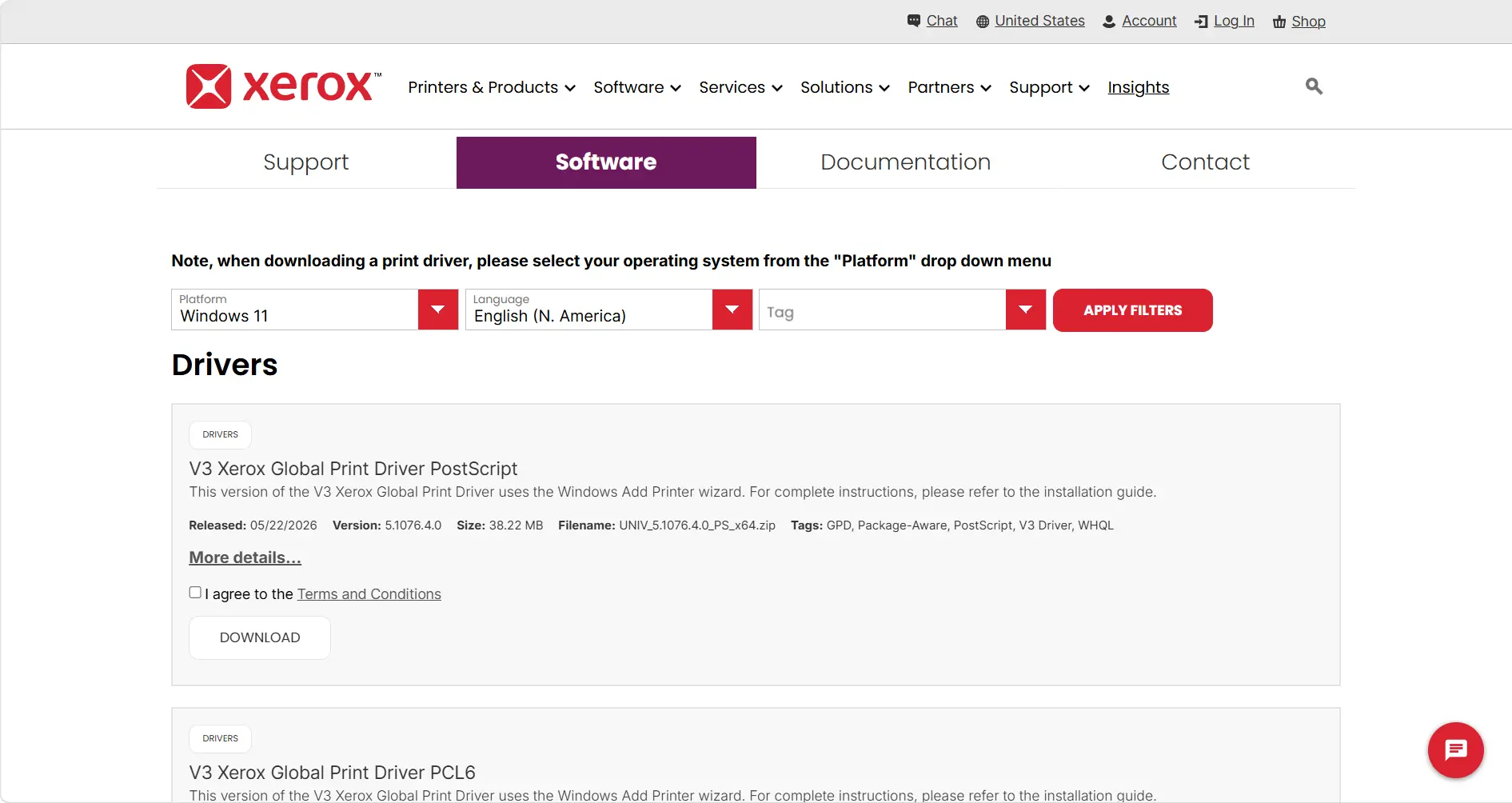
- Download the installer from the official Xerox domain and open the downloaded file.
- Select the detected Xerox printer, choose the installation option appropriate to your needs, and complete the on-screen prompts.
Note: On an ARM-based PC, Microsoft advises trying Windows' built-in printer installation path if a manufacturer's installer cannot add the printer. Check Settings > System > About > System type before assuming the installer is defective.
How to Verify
Return to Printers & scanners and confirm that the model appears without a driver warning. Print a Windows test page, then check any model-specific option you needed. Avoid using an old installation disc when a current official package is available.
If installation succeeds but printing still fails, the fault may be elsewhere in the printing path rather than in the downloaded driver.
Method 3: Check the Driver and Printing Path with Fionn Printer Driver
When to Use
This optional Windows method fits a printer that remains offline or cannot print after the connection and official installation paths have been checked. The tool can identify many mainstream printer models, install or repair drivers, and inspect the printer service, port, queue, default-device setting, sharing permissions, and reported device status.
- Launch Fionn Printer Driver and click “Scan Now” to scan your computer for printer drivers and related issues.

- Wait while Fionn Printer Driver scans your system for installed printers, drivers, and common printer issues.

- After the scan finishes, click “One-Click Fix” to automatically install or repair the required printer driver.

- Wait for the repair to finish and confirm that the printer issue has been fixed successfully.

How to Verify
Run the scan again, confirm that the driver is no longer reported as unavailable, and print a test page. Also confirm that the job does not remain paused or unfinished in the queue. A successful driver repair does not resolve physical faults such as a paper jam, empty tray, or disconnected cable.
Tips for a Reliable Xerox Printer Setup
- Match symptoms to the right layer: no discovery points to connectivity; missing features point to the driver; stuck jobs point to the queue or service.
- Verify before changing another component: print one test page after each method so you know which action worked.
- Avoid random driver sites: use Windows or an official Xerox page to reduce the risk of mismatched or modified packages.
- Record the working connection: note whether the printer uses USB, a network name, or an IP-based connection for future troubleshooting.
Conclusion
Begin by adding the Xerox printer through Windows Settings and verifying it with a test page. Install the official Xerox package only when automatic setup fails or model-specific functions are missing. If the printer is installed but remains offline or jobs stay queued, inspect the wider printing path instead of repeatedly reinstalling the same driver. Recheck the cable or network, printer status, queue, and test-page result after every change. If those checks do not isolate the fault, use Fionn Printer Driver as an optional diagnostic aid or contact Xerox support with the exact model and observed error.
Frequently Asked Questions
Can Windows install a Xerox printer automatically?
Yes. Windows can automatically install many wired and network printers after they are connected and powered on. Start in Printers & scanners . A model-specific Xerox package may still be needed when basic printing works but specialized features are missing.
Why can't Windows find my network Xerox printer?
The printer may be off, disconnected, or unreachable from the PC's current network. Confirm that both devices use the same accessible local network, then refresh printer discovery. On managed office networks, device isolation or installation permissions may require help from an administrator.
Where can I find the exact Xerox printer model?
Check the front or rear label, the printer control panel, its configuration information, or the purchase record. Use the complete model name when selecting a driver. A partial family name can lead to an incompatible package or missing device features.
Should I remove the existing printer before reinstalling it?
Not for an initial setup. Consider removal and reinstallation when the existing entry is damaged, duplicated, or still unresponsive after a driver update. Record its connection details first, especially for a network printer, and verify the replacement by printing a test page.
Does an installed driver prove the printer is ready?
No. Printing also depends on the device connection, Windows printing service, selected port, queue state, and the printer's physical status. A valid driver can coexist with an offline printer, paused queue, paper jam, or other device warning.


