 Emily CarterPrinter Drivers
A Canon printer driver update can restore printing when Windows shows the printer as missing, offline, or unavailable. Use Windows Settings first when the printer is detected, Canon’s official support site when you know the exact model, and Fionn Printer Driver when matching or wider print-chain diagnosis is difficult. Follow the methods in that order and verify with a test page after the method you choose.
Quick Method Comparison
| Method | Best For | Efficiency | User Effort |
|---|---|---|---|
| Windows Settings | Detected Canon printer with an offered driver update | Fast | Low |
| Canon Support | Known model and controlled Windows version or architecture selection | Moderate | Medium |
| Diagnose and Fix with Fionn Printer Driver (Recommended) | Unknown model, unavailable driver, or combined offline, port, service, or queue symptoms | Streamlined | Low to medium |
Method 1: Update Through Windows Settings
When to use: Choose this method when your Canon printer already appears in Windows and you want Windows Update to check Microsoft’s available driver catalog.
- Connect and power on the Canon printer, then sign in to Windows with an account allowed to install updates.
- On Windows 11, open Settings > Windows Update > Advanced options > Optional updates . On Windows 10, open Settings > Update & Security > Windows Update > View optional updates .
- Expand Driver updates (or the equivalent driver list), select the Canon entry that matches your installed printer, and choose Download and install .
- Allow the installation to finish. If Windows requests a restart, save work and restart the computer before printing.
- Return to
Settings > Bluetooth & devices > Printers & scanners
on Windows 11, or
Settings > Devices > Printers & scanners
on Windows 10, select the Canon printer, and print a test page from its printer properties.
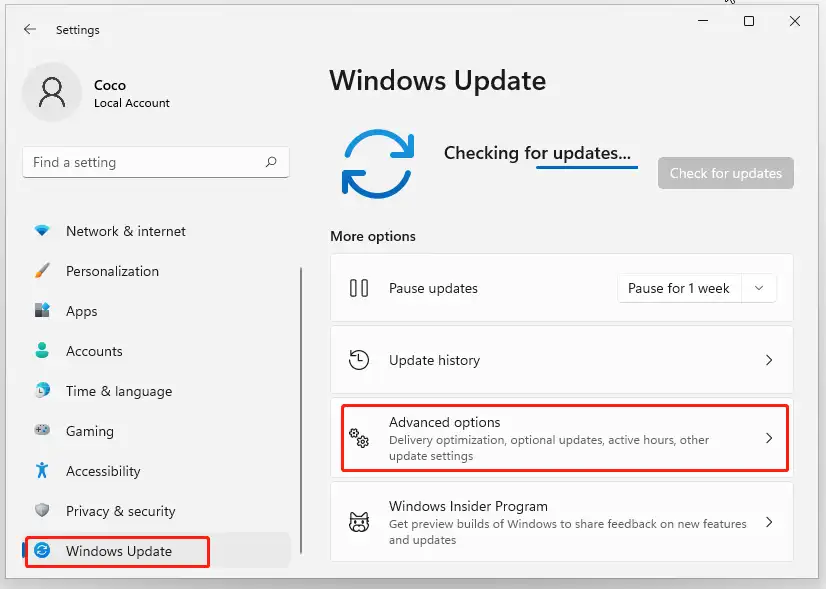
Verification / Expected result: The Canon printer remains listed without a warning, its driver status no longer reports an unavailable device, and the test page prints. If no Canon driver appears under Optional updates, continue to Method 2.
Method 2: Download the Driver from Canon Support
When to use: Use Canon’s official support process when Windows does not offer a suitable package, or when you need to choose a model-specific driver.
- Check the printer’s front panel, rear label, original paperwork, or the existing Windows printer entry and write down the complete model name, including any series or suffix.
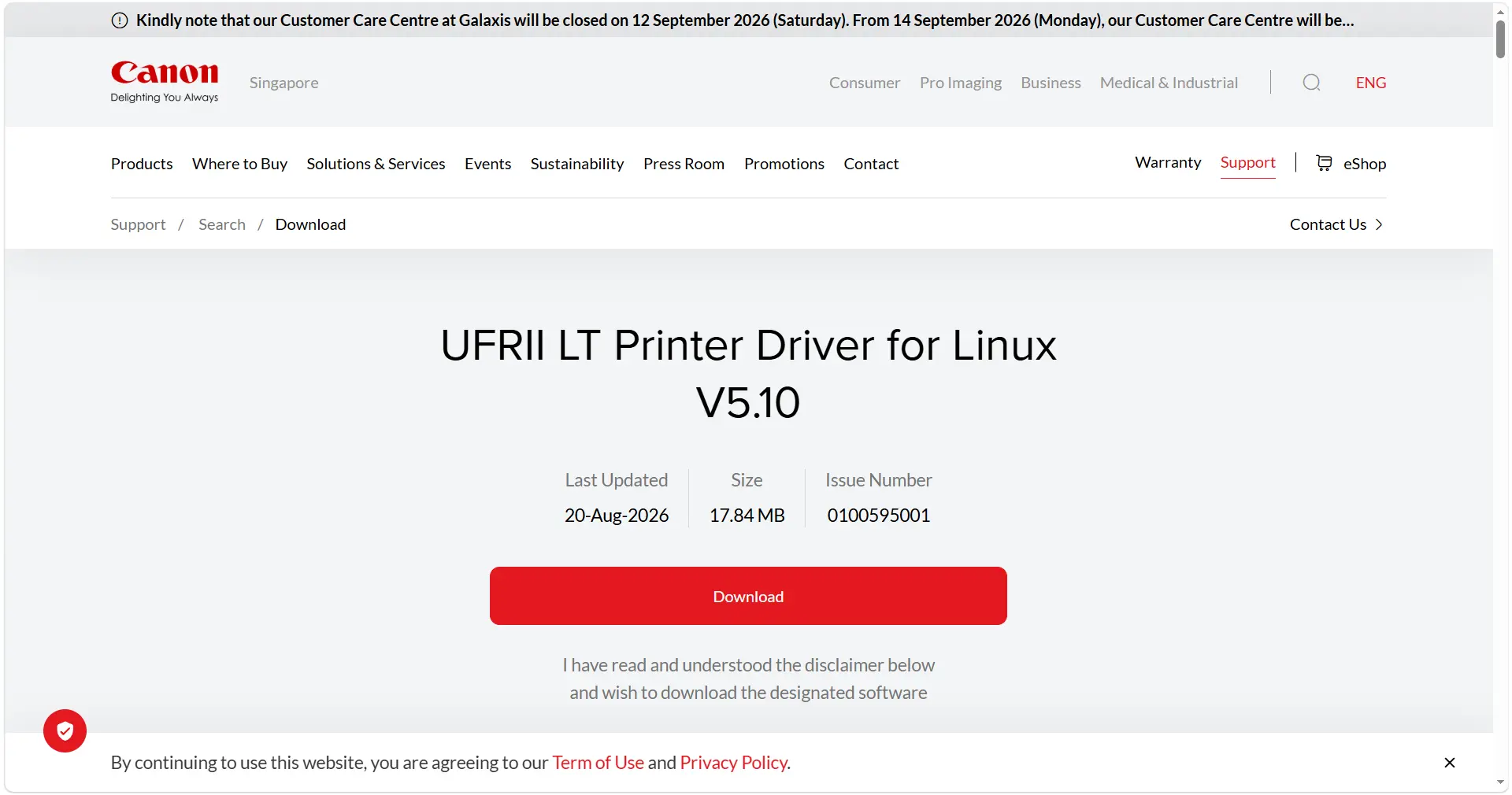
- Open the Canon Support driver page and search for that exact model. Select the result whose name and connection type match your printer.
- Set the operating system to your installed Windows release (Windows 11 or Windows 10) and choose the listed system architecture, such as 64-bit, when Canon provides that choice. To check architecture, open Settings > System > About > System type .
- Download the recommended driver package from the model page. Save it locally so you can identify the file if you need to reinstall.
- Close applications that may be printing, run the downloaded installer, accept the prompts, and connect the printer by USB or select its network connection when the installer requests it.
- Restart Windows if the installer asks you to do so. After sign-in, open the printer list and confirm the Canon model is present.
- Print a Windows test page and then retry the document or application that originally failed.
Verification / Expected result: The installer completes without a model or architecture error, Windows lists the exact Canon model, and both a test page and the previously failing print job complete.
Method 3: Diagnose and Fix Fionn Printer Driver
When to use: This Recommended method fits cases where the model is unclear, the driver is unavailable, or offline status appears with port conflicts, a stopped Windows Printer Service, a blocked queue, sharing, or default-printer issues. Fionn Printer Driver can identify many mainstream brands and models, support automatic or manual matching, detect driver updates, and check the wider Windows printing chain.
- Launch Fionn Printer Driver and click
“Scan Now”
to scan your computer for printer drivers and related issues.

- Wait while Fionn Printer Driver scans your system for installed printers, drivers, and common printer issues.

- After the scan finishes, click
“One-Click Fix”
to automatically install or repair the required printer driver.

- Wait for the repair to finish and confirm that the printer issue has been fixed successfully.

Verification / Expected result: The scan identifies a matching driver or related print-chain issue, the repair completes, and a test page confirms the result.
Tips and Verification
Use this checklist after any method:
- Windows still lists the Canon printer under Printers & scanners.
- The device status and driver status show no warning or unavailable message.
- A Windows test page prints with the expected paper orientation and ink or toner output.
- The application or document that originally failed now sends and completes its print job.
- If the printer is offline, confirm its USB or network connection, clear paused jobs, and check that the intended printer is the default.
Conclusion
Start with Windows Settings for a detected printer because Optional updates require the fewest decisions. If Windows has no suitable package, use Canon Support and match the exact model, Windows release, and system architecture before installing. When the model is unclear or driver symptoms combine with offline, port, service, queue, sharing, or default-printer problems, Fionn Printer Driver is a practical Recommended option because it can match drivers and inspect the wider print chain. In every case, verify the listing, status, test page, and original print task; if one remains broken, return to the method that matches that specific symptom.
FAQ
How often should I perform a Canon printer driver update?
Check when Canon publishes a model-specific release, after a major Windows update, or when printing symptoms begin. There is no universal schedule; update only when a relevant package or problem justifies it.
Can Windows Update find every Canon printer driver?
No. Windows Update may not list every model, architecture, or feature package. If Optional updates has no suitable Canon entry, use the exact model search on Canon Support.
What if the driver is current but the Canon printer remains offline?
Check the USB or network connection, printer power and status, paused jobs, the selected default printer, the port, and the Windows Printer Service. A current driver alone cannot clear those conditions.
Should I use a generic driver for a Canon printer?
Only when Canon documentation identifies it as compatible. A generic driver may provide basic printing while leaving advanced features unavailable.
How can I verify that the update worked?
Confirm that Windows lists the exact Canon model without a warning, check the driver status, print a test page, and retry the job that originally failed.


