 Emily CarterPrinter Drivers
Introduction
The printer driver unavailable message means Windows does not currently have a usable driver for the printer. This guide gives you four fixes. Use them in this order: install an available driver through Windows Update; run a guided check with Fionn Printer Driver ; install the exact manufacturer driver; then remove and reinstall the printer. Start with Windows Update because Microsoft recommends it for printer drivers. Choose the guided or manual path when Windows finds nothing. Reset the printer entry only after updated-driver attempts fail.
What Causes Printer Driver Unavailable in Windows?
Before making changes, turn on the printer and connect it by USB or to the same network as the PC. Record the exact model from its label or purchase record. Check
Settings > System > About > System type
so a manual package matches the Windows architecture.
Quick Method Comparison
| Method | Best For | Efficiency | User Effort |
|---|---|---|---|
| 1. Windows Update | First attempt when the printer appears in Settings | High when a compatible driver is listed | Low |
| 2. Fionn Printer Driver | Guided diagnosis when the model or cause is unclear | High for a supported match | Low |
| 3. Manufacturer driver | Windows Update offers no suitable package | High with an exact match | Medium |
| 4. Remove and reinstall | An updated driver did not clear the printer entry | Medium | Medium |
Method 1: Install the Printer Driver Through Windows Update
When to Use
Steps
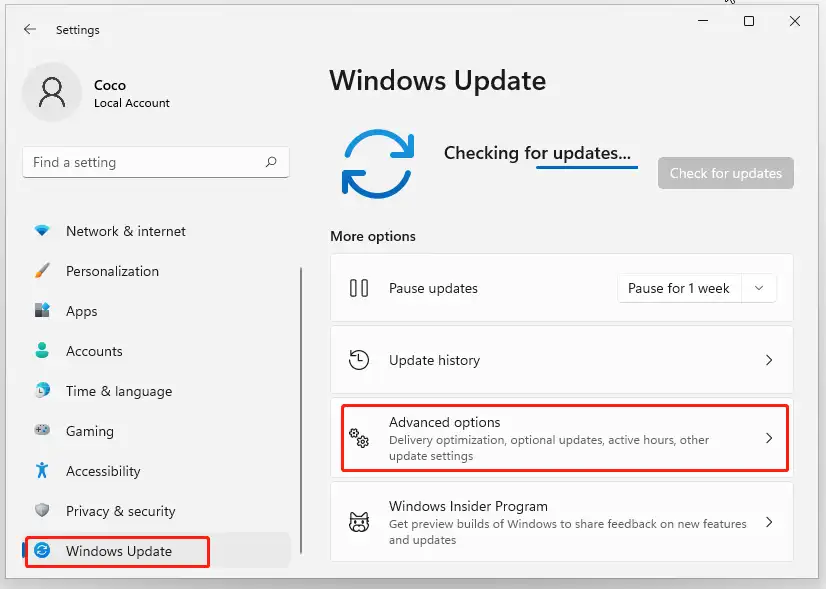
Verification
Method 2: Diagnose and Fix Printer Driver Unavailable with Fionn Printer Driver
When to Use
Use this recommended guided option when the exact model or failing part of the printing chain is unclear. Product knowledge confirms automatic model identification for most mainstream printers, automatic or manual driver installation, unavailable-driver detection, and checks for Windows printer services, ports, and queues.
Steps
- Launch Fionn Printer Driver and click “Scan Now” to scan your computer for printer drivers and related issues.

- Wait while Fionn Printer Driver scans your system for installed printers, drivers, and common printer issues.

- After the scan finishes, click “One-Click Fix” to automatically install or repair the required printer driver.

- Wait for the repair to finish and confirm that the printer issue has been fixed successfully.

Verification
Confirm that the product reports a successful repair. Then reopen Printers & scanners and print a one-page document. Treat the method as successful only when the unavailable status is gone and Windows sends the job to the printer.
Method 3: Install the Manufacturer's Official Driver
When to Use
Steps
Verification
Method 4: Remove and Reinstall the Printer
When to Use
Steps
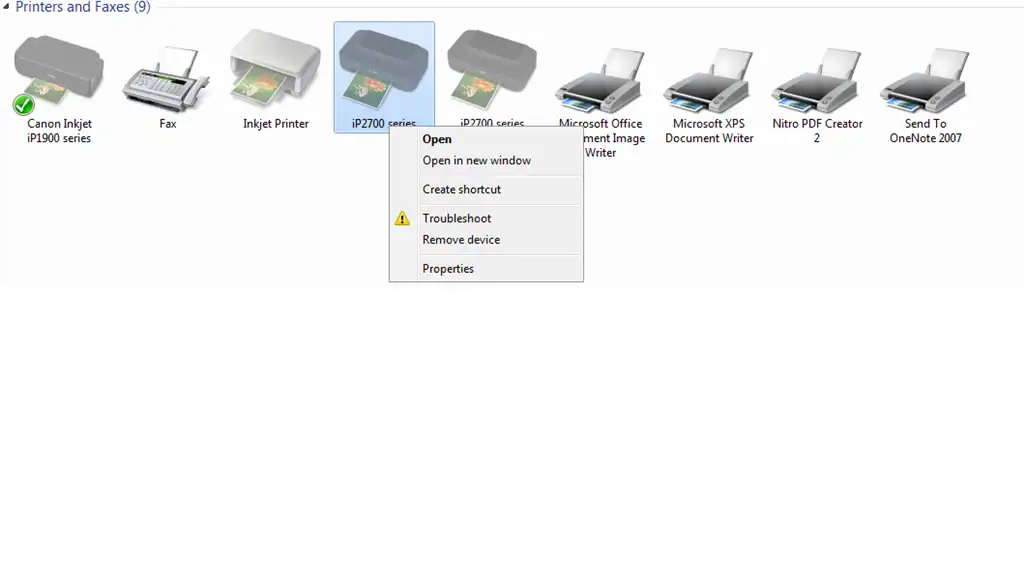
Verification
Conclusion
Use the same escalation order to resolve the printer driver unavailable message: check Windows Update first, choose the guided Fionn Printer Driver option when model matching is unclear, install the exact manufacturer package when Windows offers none, and rebuild the printer entry last. A successful repair removes the status message and lets an actual document print. If the error remains, record the exact model, Windows version, system type, and any Device Manager code before contacting the manufacturer or Microsoft Support. Never install a package for a similar model or from an unverified download site.
Frequently Asked Questions
Why does Windows say the printer driver is unavailable?
What if Optional updates contains no printer driver?
Move to the exact manufacturer package in Method 3 or the guided option in Method 2. Microsoft specifically says to check the hardware manufacturer's website when Windows Update cannot find a driver. Avoid third-party download sites and do not substitute a nearby model number.
Should I restart the Print Spooler for this error?
Not as the first response to an unavailable-driver label. The Print Spooler is the better target when jobs freeze, remain in the queue, or apps hang while printing. If the driver status clears but those symptoms remain, use Microsoft's Print Spooler guidance .
Can I install a driver for a similar printer model?
No. A similar model may use different hardware or features and its driver may not work correctly. Always identify the exact printer model and use a compatible driver provided through Windows Update or the manufacturer's official support site.
What should I do if the printer is still unavailable after installing a driver?
Confirm that the installed driver matches the exact printer model and Windows version. If the driver is compatible bu


