 Emily CarterPrinter Drivers
Introduction: Start with the Right Fix
A printer driver unavailable message means Windows has a printer entry but cannot use a working driver for it. The printer may be turned on and visible in Settings while every document still fails to print. That does not, by itself, mean you need a new printer.
Quick answer: Check the connection, restart the printer and PC, and look for a matching driver in Windows Update. If that does not help, use a guided repair or install the exact manufacturer's driver. If the error began immediately after a driver update, jump to driver rollback . On Windows 11, also check Windows protected print mode before repeatedly reinstalling a vendor package.
You do not need to try all eight fixes. Choose the branch that matches your symptoms, make one change, and test printing before continuing.
What Does Printer Driver Unavailable Mean?
A driver translates Windows print requests into instructions the printer understands. The unavailable status can appear after an incomplete installation, an incompatible driver update, or a mismatch between the package and your printer or Windows system. Reinstalling the same unsuitable package will not solve that mismatch.
First, read the exact status under your printer. Driver is unavailable , Offline , and a document stuck in the queue can require different fixes.
Quick Method Comparison: Choose the Right Starting Point
| What you see | What to check first | Start here |
|---|---|---|
| Driver is unavailable after a new setup | A missing or incompatible driver | 1. Windows Update , then 3. Exact-model driver |
| The printer is installed, but printing still fails | Detected printer configuration or repair issues | 2. Fionn guided repair |
| The correct driver was installed, but the old error remains | The existing printer entry | 4. Remove and add again |
| It worked until a driver update | Whether a previous driver is available | 5. Roll back the driver |
| A vendor driver disappears or will not install on Windows 11 | Protected printing and system compatibility | 6. Protected print mode |
| The driver error is gone, but jobs stay queued | The print queue and Print Spooler | 7. Queue and spooler |
| Several Windows features also malfunction | Possible Windows system file damage | 8. Windows repair tools |
| Offline, printer not found, or no printer entry | Power, USB connection, Wi-Fi, or network reachability | Complete the connection checks below before reinstalling drivers |
Before You Change Anything
- Record the full model. Include suffixes such as dw , dn , or MFP . A product-family name alone may lead to the wrong download.
- Check your PC. Open Settings > System > About and note the Windows version and system type, especially whether the processor is x64 or ARM based.
- Check the connection. For USB, reconnect directly to the PC and try another working port. For Wi-Fi or Ethernet, check that the printer is connected to the network your PC can reach.
- Restart once. Save your work and restart Windows. Turn the printer off, wait briefly, and turn it back on.
- Use the built-in diagnosis. Search Start for Get Help , open it, and describe your printer problem. Follow its printer troubleshooting prompts.
If another computer or phone can print, focus first on this Windows PC's setup. If no device can print, check the printer's own display and network connection too. That comparison is a clue, not proof that every part of the printer is working.
For an office printer shared through a server, record the queue name and ask IT before removing it. An administrator may need to install the approved driver or repair the server queue.
Method 1: Install a Matching Driver Through Windows Update
Best for: A new printer setup or a missing driver when Windows can see the printer.
Windows Update is a useful first check because it can supply a driver without a separate download. Optional driver updates need to be selected manually when they are offered.
- Open Settings > Windows Update in Windows 11. In Windows 10, open Settings > Update & Security > Windows Update .
- Select Check for updates and complete the available Windows updates.
- In Windows 11, open Advanced options > Optional updates > Driver updates . In Windows 10, select View optional updates if it appears.
- If a matching printer driver is listed, select it and choose Download and install . Restart Windows after installation.
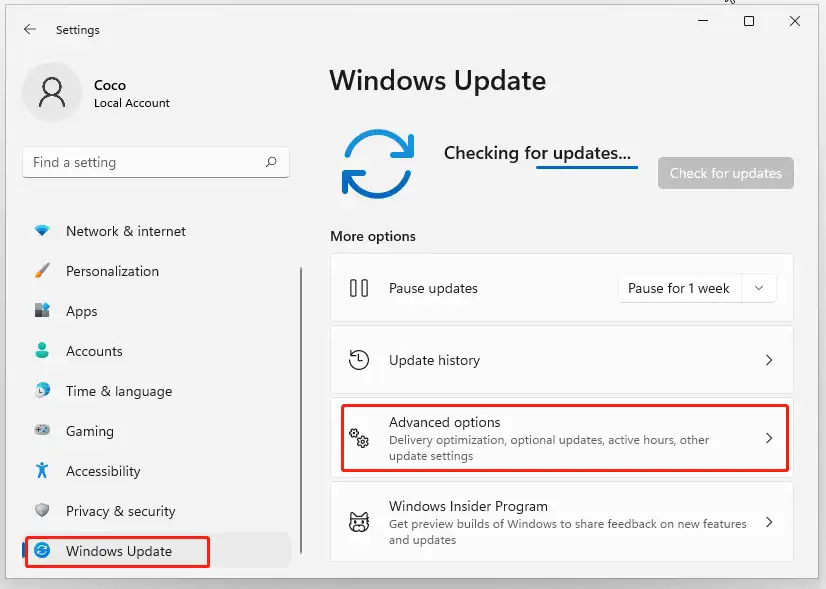
Check the result: Return to Printers & scanners and print a test page. An empty optional-updates list is not an error; it means you should try another installation route. Do not choose an unrelated driver just because one is available.
Reference: Microsoft's optional driver update instructions .
Method 2: Run a Guided Check with Fionn Printer Driver
Best for: An already installed printer that still cannot print, especially when you want to review detected problems before deciding what to repair.
Fionn Printer Driver provides a Smart repair workflow for checking printer-related issues. This gives you a guided alternative to working through Windows settings alone. A detected issue or a completed repair is not a guarantee that the unavailable-driver status has cleared; the final check is an actual print.
- Open Fionn Printer Driver, select
Smart repair
in the sidebar, and wait for the scan to finish.
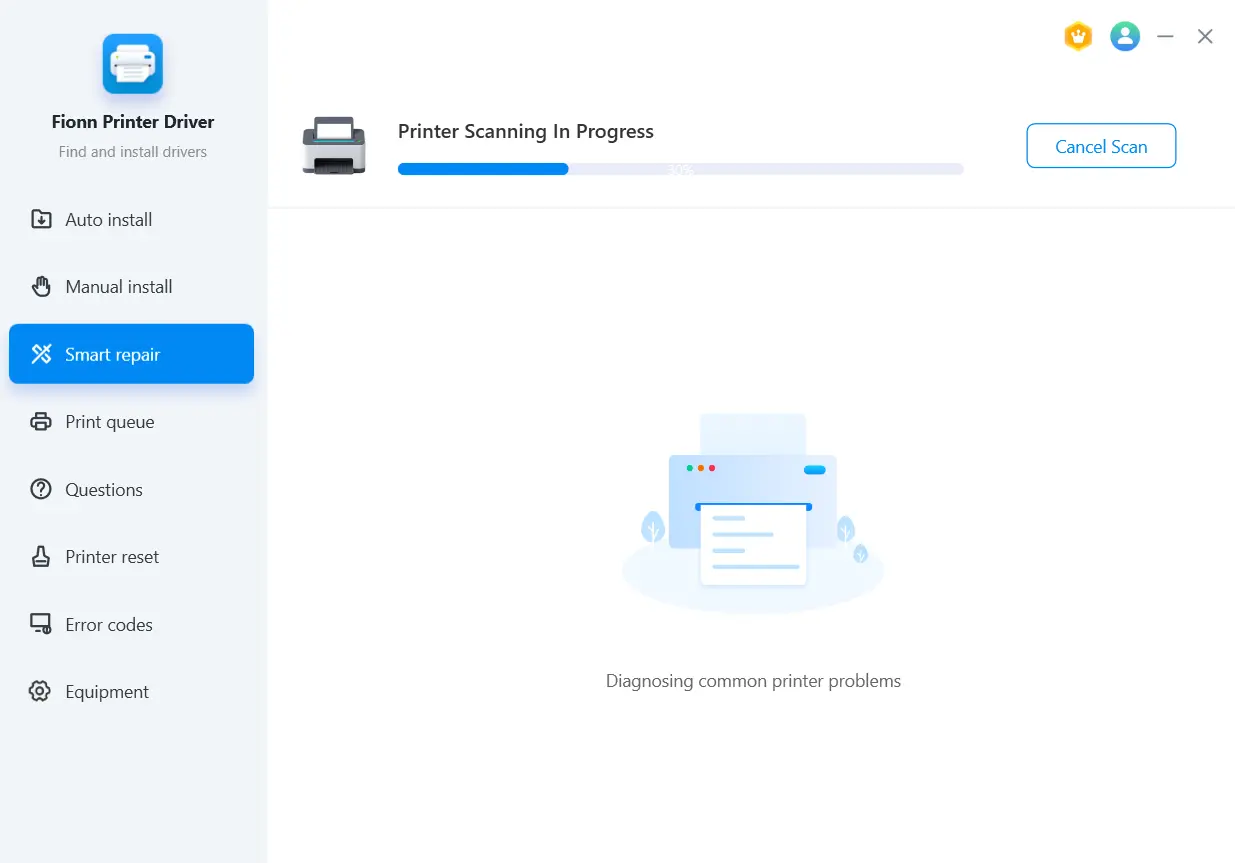
- Review the scan results. If the app detects issues and shows a repair prompt, click
Repair now
and wait for the repair to finish.
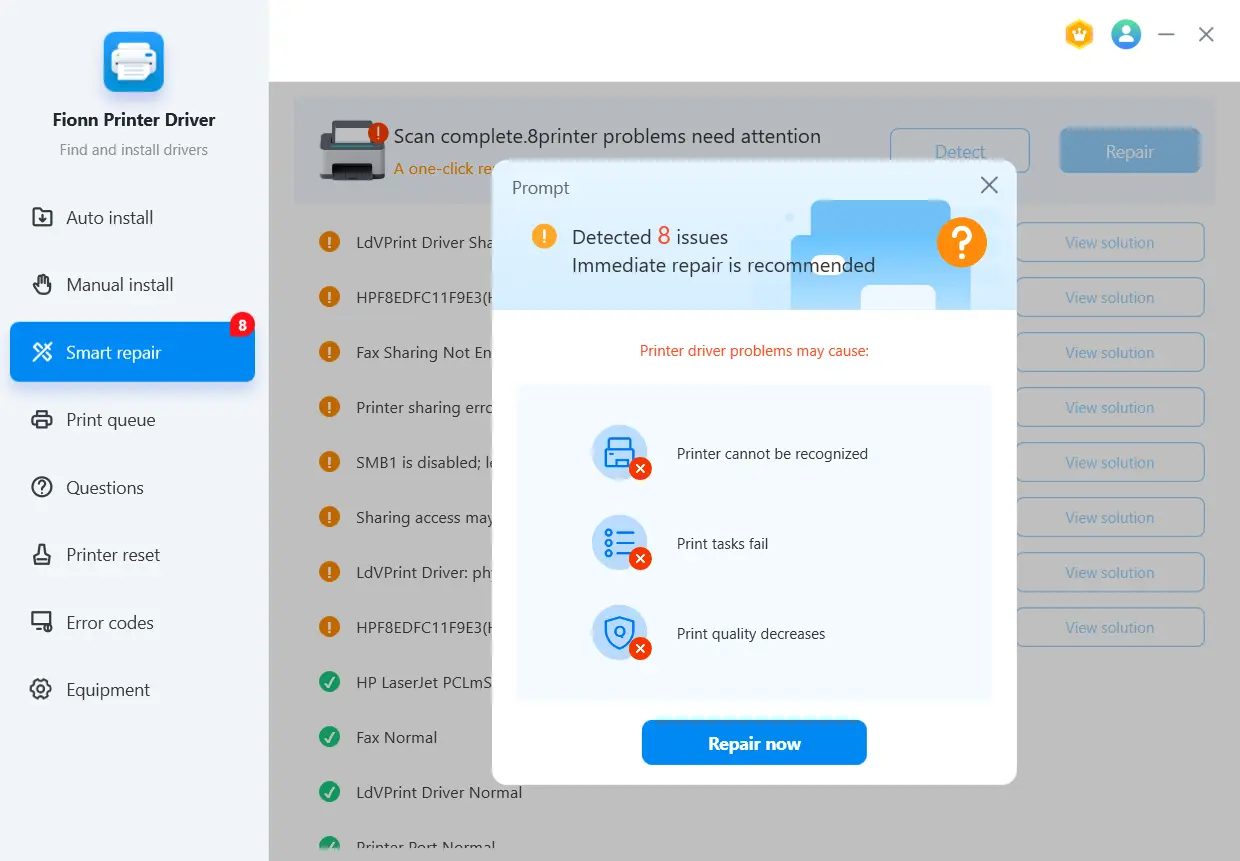
- Check the repair result, then print a test page to see whether the original issue is resolved. If the issue persists, restart the printer or reconnect its USB cable if applicable, then try printing again.
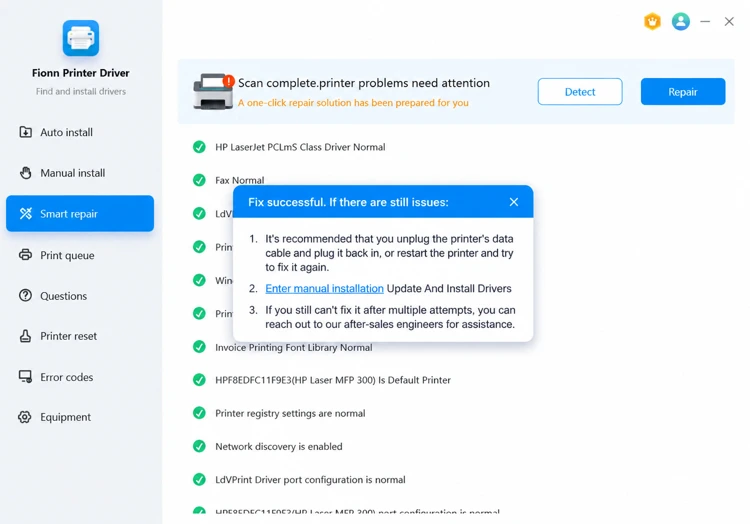
Check the result: Look for both outcomes: the unavailable-driver label disappears, and a document actually prints. If Smart repair finds no applicable issue, or the driver is missing or incompatible, continue with the exact-model installation below. Do not repeatedly run the same repair with no change in symptoms.
Method 3: Install the Exact Manufacturer Driver
Best for: No suitable Windows Update driver, an incomplete installation, or missing model-specific features.
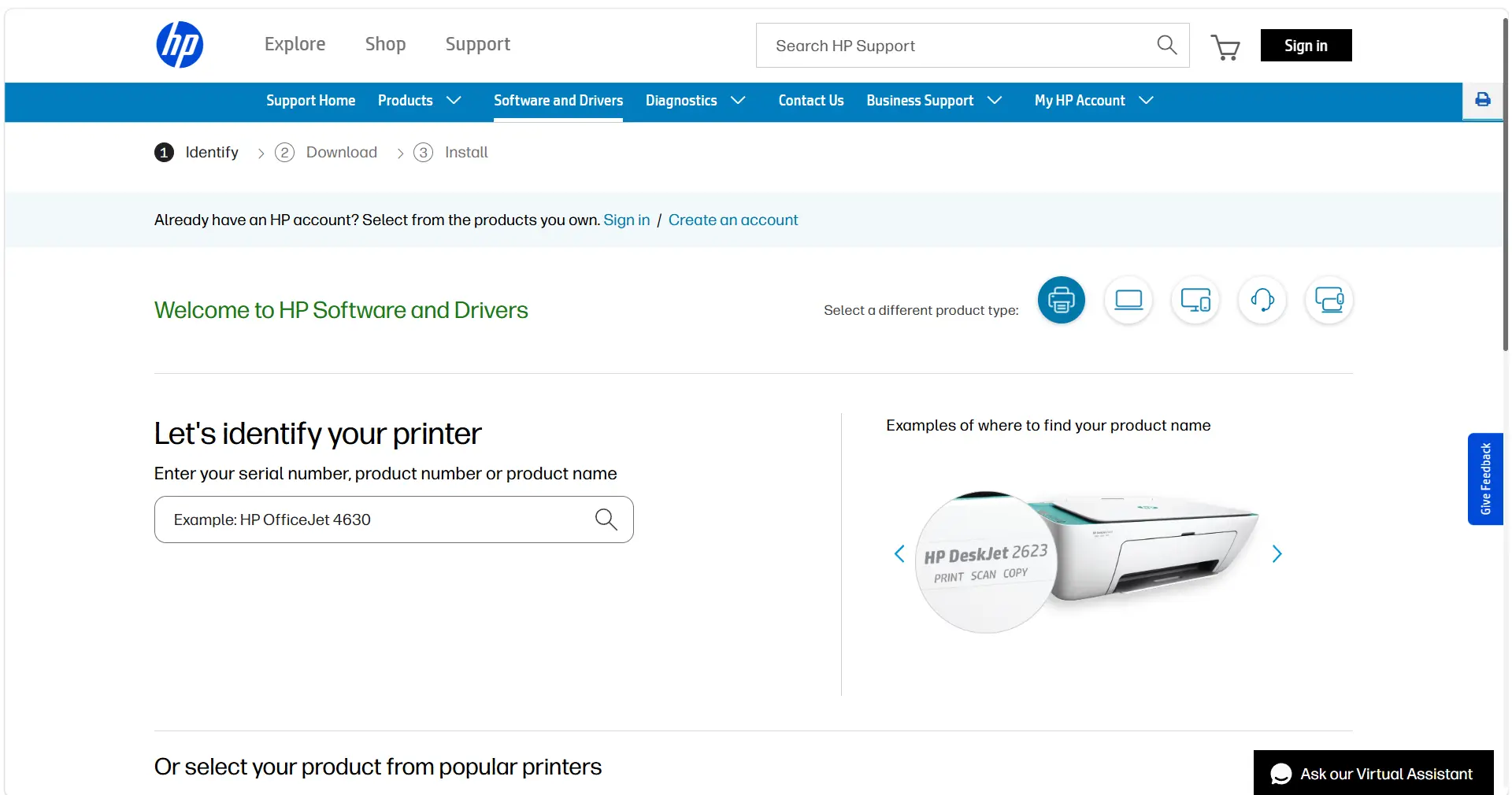
Confirm three things before downloading: the full printer model , your Windows version , and the supported processor architecture . A similar model name is not enough.
- Open your printer manufacturer's official support page and search the exact model.
- Check the selected operating system. Automatic website detection can be wrong; change it if necessary.
- Choose a supported printer driver or software package. For scanning as well as printing, check whether separate scanner software or the full package is required.
- Run the installer and follow its connection prompts. Connect the USB cable when instructed rather than repeatedly disconnecting it during setup.
- Restart if requested, then select the intended printer in Windows and print a test page.
| Brand | Driver support | Before installation |
|---|---|---|
| HP | HP printer drivers | Match the entire LaserJet, DeskJet, OfficeJet, or other model designation. |
| Canon | Canon support | Choose your region and exact PIXMA, imageCLASS, or other model. |
| Epson | Epson printer support | Check the model suffix and the supported Windows version. |
| Brother | Brother support and downloads | Select the correct model and review printing and scanning requirements separately. |
If You Downloaded a Driver Folder Instead of an Installer
A ZIP archive or an extracted driver folder is not necessarily a clickable installer. Follow the manufacturer's instructions. Where it supplies an appropriate extracted driver, open Device Manager , locate the printer under Printers or Print queues if listed, and choose Update driver > Browse my computer for drivers . Point Windows to that folder. Do not select an arbitrary INF file from another model.
If You Have an ARM-Based PC
Some manufacturer installers fail on ARM PCs even when Windows can add the printer. Microsoft recommends trying Settings > Bluetooth & devices > Printers & scanners > Add device , unless the manufacturer gives specific Windows on ARM instructions. Do not assume an x64 installer will provide a compatible ARM printer driver.
Check the result: Test the features you use, such as color, duplex printing, and scanning. Basic printing alone does not confirm that every feature is installed.
Reference: Microsoft's printer driver installation guidance and ARM notice .
Method 4: Remove the Printer and Add It Again
Best for: A printer entry that still shows the old error after you have confirmed a compatible driver is available.
Record the printer name, connection, and any settings you need to restore. Removing a printer entry and deleting a driver package are different actions; start with the printer entry.
- Open Settings > Bluetooth & devices > Printers & scanners in Windows 11, or Settings > Devices > Printers & scanners in Windows 10.
- Select only the affected printer. Choose Remove or Remove device and confirm.
- Restart the PC. Keep the printer powered on and connected by the intended USB or network connection.
- Return to Printers & scanners and choose Add device or Add a printer or scanner .
- Select the matching device and finish setup. If it is not found, use Windows' manual-add options or the manufacturer's connection instructions.
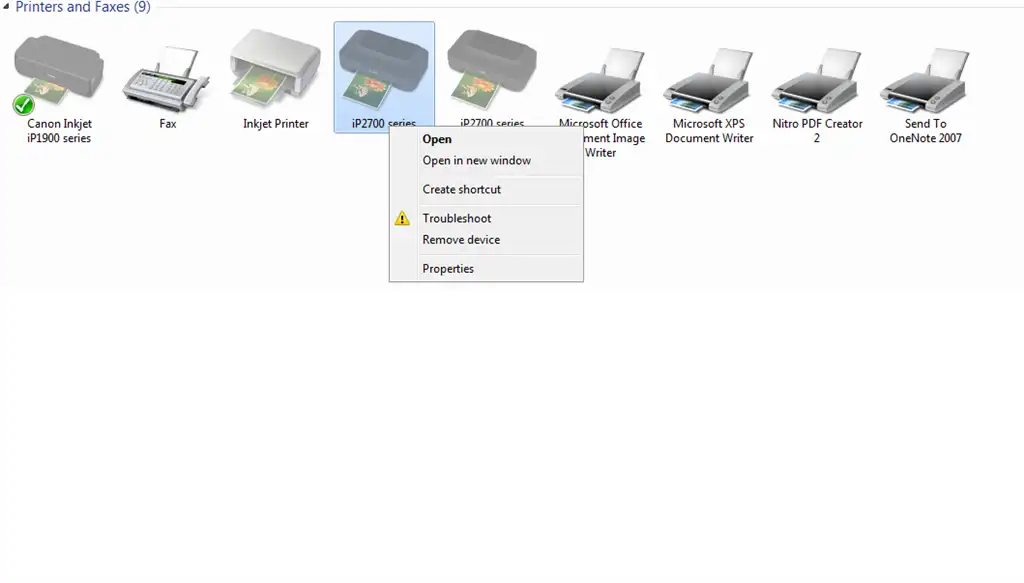
Check the result: Confirm that you are printing to the newly added entry, not a leftover copy. Print a test page before restoring custom defaults.
If a Network Printer Is Not Discovered
Find its current IP address on the printer's network report or display. In Windows' manual-add options, choose the IP-address or hostname route if offered, enter that confirmed address, and follow the prompts for a compatible driver. An address from an old setup may no longer belong to the printer. For a shared office queue, use the server path supplied by IT instead of inventing a direct connection.
If Reinstallation Keeps Reusing a Broken Driver
Repeatedly adding the printer may reuse an existing driver package. Advanced cleanup can be appropriate, but first obtain a supported replacement. In Windows, Print server properties > Drivers lets an administrator review installed packages. Remove only a confirmed obsolete package for the affected device, following manufacturer or IT instructions. Other printers may share that driver. If Windows reports it is in use, investigate the queues using it instead of force-deleting driver files.
Reference: Microsoft's printer-add instructions .
Method 5: Roll Back a Driver That Recently Broke Printing
Best for: The printer worked before a specific driver update and failed immediately afterward. Skip this method for a printer that has never worked on this PC.
- Search Start for Device Manager and open it.
- Expand
Printers
or
Print queues
. If the affected printer is listed, right-click it and open
Properties
.
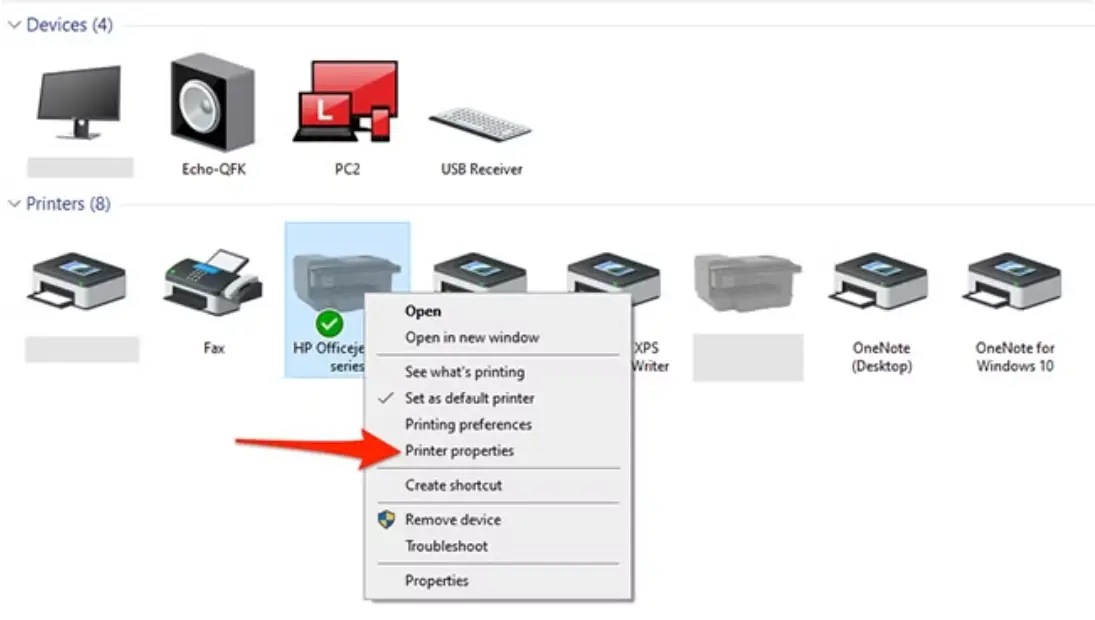
- On the Driver tab, choose Roll Back Driver if available, and follow the prompts.
- Restart the PC and test printing.
If rollback is unavailable: Windows may not have retained an earlier driver. Look for a manufacturer-approved compatible package instead. A missing button is not a reason to download an old driver from an unfamiliar website.
Check the result: Note which driver version restores printing. If the problem returns, share the version and Windows build with the manufacturer or IT. Avoid disabling all Windows updates as a permanent workaround.
Reference: Microsoft's compatibility and rollback guidance .
Method 6: Check Windows Protected Print Mode
Best for: A Windows 11 printer whose third-party driver disappears or cannot be reinstalled after protected printing was enabled.
Windows protected print mode uses Microsoft's modern print system and removes printers that rely on third-party drivers. Reinstalling the same vendor package while this mode is active can fail for that reason.
- Open Settings > Bluetooth & devices > Printers & scanners .
- Look under printer preferences for
Windows protected print mode
, if available.
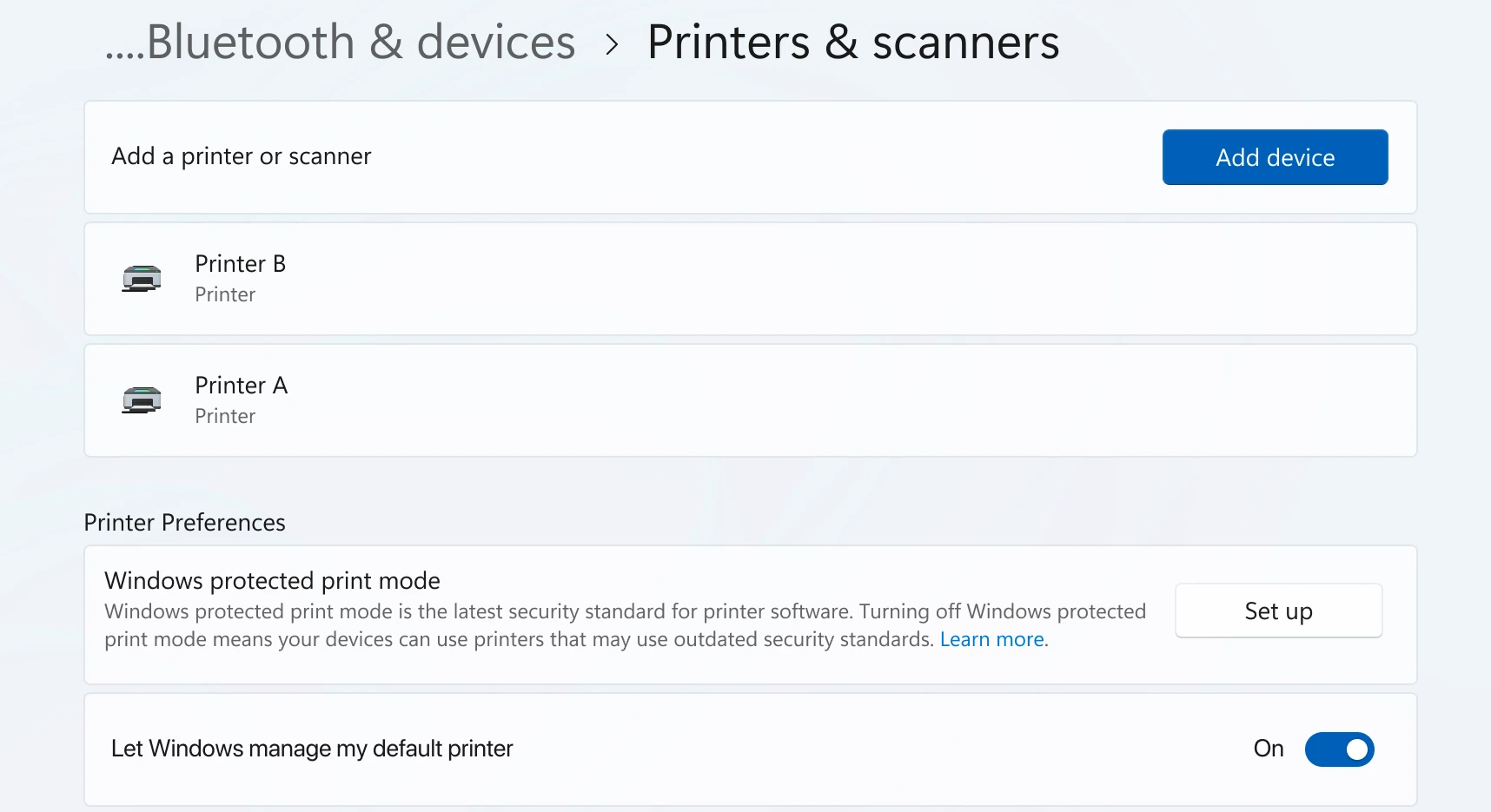
- If it is enabled, check whether your model supports protected printing. A compatible printer may be added again through Add device using the modern Windows print system.
- If your device requires a third-party driver, review the manufacturer's guidance. On a personal PC, you can choose to turn the mode off and then reinstall the supported vendor package. On a managed PC, ask IT to make that decision.
Check the result: Confirm both printing and scanning, if needed. Printer compatibility does not automatically establish scanner compatibility. Keep protected printing enabled when it meets your needs; turning it off changes the printing security model.
References: Microsoft's protected print mode overview and device and scanner compatibility FAQ .
Method 7: Clear Stuck Jobs and Restart Print Spooler
Best for: A queue that will not clear, a Print Spooler error, or applications that hang when printing. This is a different branch from installing a missing driver.
- Open the affected printer in Printers & scanners , then open its print queue.
- Cancel stuck jobs you no longer need. You will have to send those documents again later.
- Press
Windows + R
, enter
services.msc, and press Enter.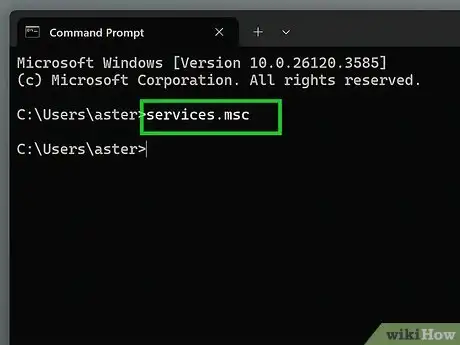
- Find Print Spooler . Right-click it and choose Restart , or Start if it is stopped. Administrator access may be required.
- Send one small test document before resubmitting a large batch.
Check the result: The document should print and leave the queue. Restarting the service does not install a missing driver. If Driver is unavailable remains, return to driver installation. If the service immediately stops again, record the error and investigate the driver or service failure.
Reference: Microsoft's Print Spooler troubleshooting .
Method 8: Repair Windows System Files as a Later Step
Best for: Persistent printing trouble alongside other Windows errors after driver and connection checks. Skip this if your only finding is that the manufacturer does not support your printer on this PC.
- Save your work, install applicable Windows updates, and restart.
- Search Start for Command Prompt and choose Run as administrator .
- Run the following command and wait for it to complete successfully:
DISM.exe /Online /Cleanup-image /Restorehealth - Then run System File Checker and allow the scan to finish:
sfc /scannow - Read the reported result, restart Windows, and test the printer again.
Check the result: These tools repair Windows components; they do not create support for an incompatible printer. If DISM fails, record its error before proceeding. If SFC cannot repair files, follow Microsoft's recovery guidance rather than repeatedly reinstalling the printer.
Reference: Microsoft's DISM-then-SFC instructions .
Verification Checklist: Is the Printer Actually Fixed?
A successful installation message is only one checkpoint. Before you stop troubleshooting:
- Confirm that Driver is unavailable no longer appears for the intended printer.
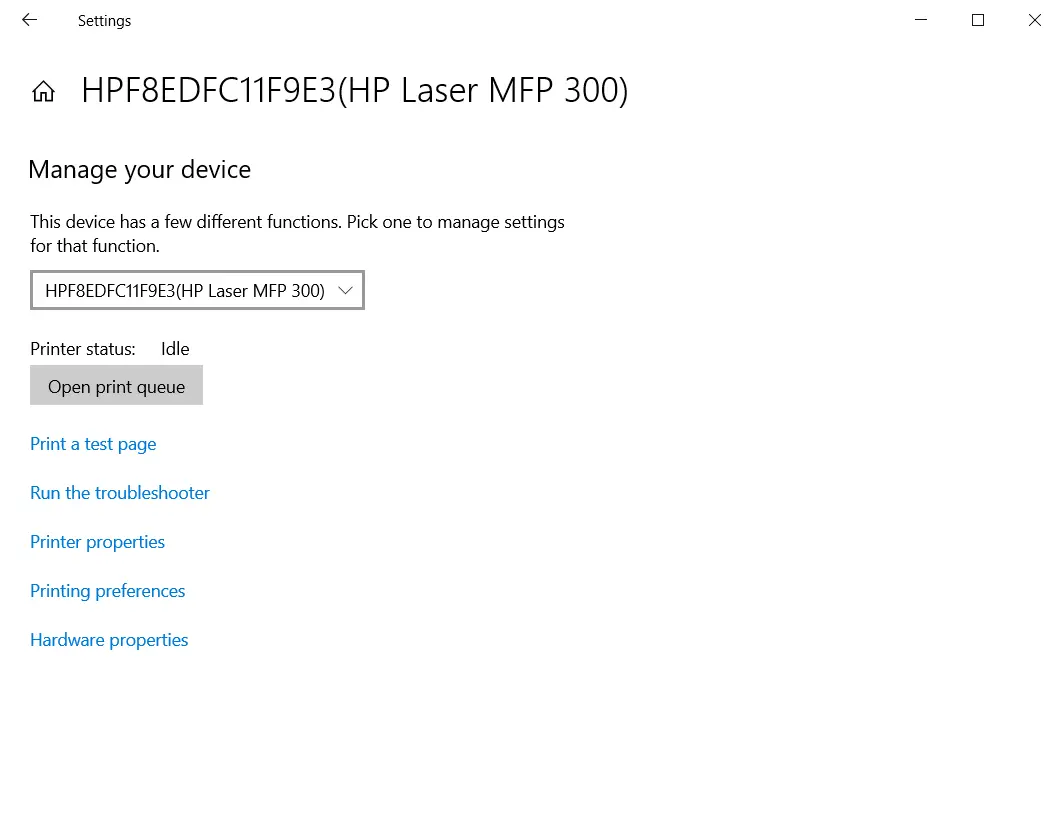
- Open its
Printer properties
and choose
Print Test Page
, where available. Check that paper actually comes out.
- Print a one-page document from the app you normally use and check that the job leaves the queue.
- Test color, two-sided printing, and scanning if those features matter to you.
If the Windows test page prints but one application fails, investigate that app's printer selection, paper settings, or document. Reinstalling every printer driver again is unlikely to be a useful first move.
Still stuck? Give support the full printer model, Windows version, system type, connection method, exact status or error code, and the last method you tried. Mention whether another device can print. This helps distinguish an unsupported driver from a queue, network, or Windows problem.
Conclusion
Fixing a printer driver unavailable error starts with choosing the right branch. Use Windows Update for an available compatible driver, try the guided Smart repair check for an existing printer, or install the exact manufacturer's package. Rebuild the printer entry when necessary, and use rollback, protected-print checks, spooler repair, or Windows system repair only when your symptoms fit.
Make one change at a time and finish with a real print test. That makes it easier to find what worked and avoids replacing a printer that only needed its Windows setup corrected.
Frequently Asked Questions
Why does my printer say driver unavailable even though it is connected?
Windows can detect a device or remember a printer entry without having a usable driver for it. Check the exact model, Windows version, and system type. Then look for a compatible driver through Windows Update or the manufacturer's support page.
Why did the error appear after a Windows update?
The timing can point to a driver compatibility change, but it does not prove the update is the only cause. Check for an updated compatible driver. If a specific driver update broke a previously working setup, try rollback when available. On Windows 11, also check whether protected print mode was enabled.
Can I use a generic driver or Microsoft IPP Class Driver?
Only when your printer supports that printing method. Compatible printers can use Microsoft's IPP-based print system, and some manufacturers provide universal drivers for specified models. Check the supported-device list. Do not assume an unrelated generic driver will work, and verify any features you need afterward.
Does this error mean my HP, Canon, Epson, or Brother printer is broken?
No. The message identifies a Windows driver problem, not a confirmed hardware failure. Start with the same diagnosis for all four brands, then use the exact brand and model's support page. If the printer cannot produce its own built-in report or no device can print, investigate the printer itself as well.
What if there is no Windows 11 driver for my older printer?
Check the manufacturer's compatibility guidance and whether Windows can add it with a supported built-in driver. Use an older package only when the manufacturer explicitly supports that combination. Microsoft's driver servicing changes do not mean every existing third-party driver has stopped working. If no supported route exists, ask the manufacturer about your options.
Do I have to pay to fix a printer driver unavailable error?
Windows Update, Get Help, and official manufacturer driver downloads provide routes you can try without buying a repair utility. A guided tool is optional. Review its current terms before choosing paid features; no tool can guarantee support for every printer or Windows configuration.
Further Technical References
- Microsoft: printer connection checks and Get Help troubleshooting
- Microsoft: what the printer driver servicing changes do and do not affect
Windows 10's standard support ended on October 14, 2025. Its printer settings are included for existing users; check your applicable support and security-update options separately.


