 Emily CarterPrinter Drivers
If Windows does not detect the HP LaserJet Pro M1132 MFP, printing does not start, or you need a driver after reinstalling the operating system, start with the official HP package. If the model is already connected, Windows may add it and find updates automatically. This guide provides four standalone methods: the official HP website, adding the device in Windows, updating it through Device Manager, and Fionn Printer Driver . After each method, print a test page—it is more reliable than relying only on the absence of errors.
What to prepare before installation
- Turn on the printer and connect it to the computer using the cable you use.
- Make sure you select HP LaserJet Pro M1132 MFP, not a similar model in the series.
- Check your Windows edition and system type in
Параметры > Система > О системеif the website requests this information. - Clear jobs that remain in the print queue before testing the new driver.
Brief comparison of installation methods
| Method | Best for | When to use it | User effort |
|---|---|---|---|
| Official HP page | You need a package for a specific model | When you need the package HP offers for the model | Moderate |
| Add through Windows | The printer is connected and detected by the system | When Windows detects the connected printer | Low |
| Device Manager | The device appears with an error | When the device appears with a warning icon | Moderate |
| Fionn Printer Driver | It is unclear whether the driver is preventing printing | When you need to check the driver and related printing components | Low |
Choose the HP website first when you need the full package for the model. Use Windows if the printer is already detected. Device Manager is useful when the device has an error. Fionn Printer Driver is convenient when you also need to check the queue, print service, or port.
How to install the HP LaserJet M1132 MFP driver from the HP website
When to use it: you know the exact model, Windows did not install it automatically, or you need the software and driver package offered by HP.
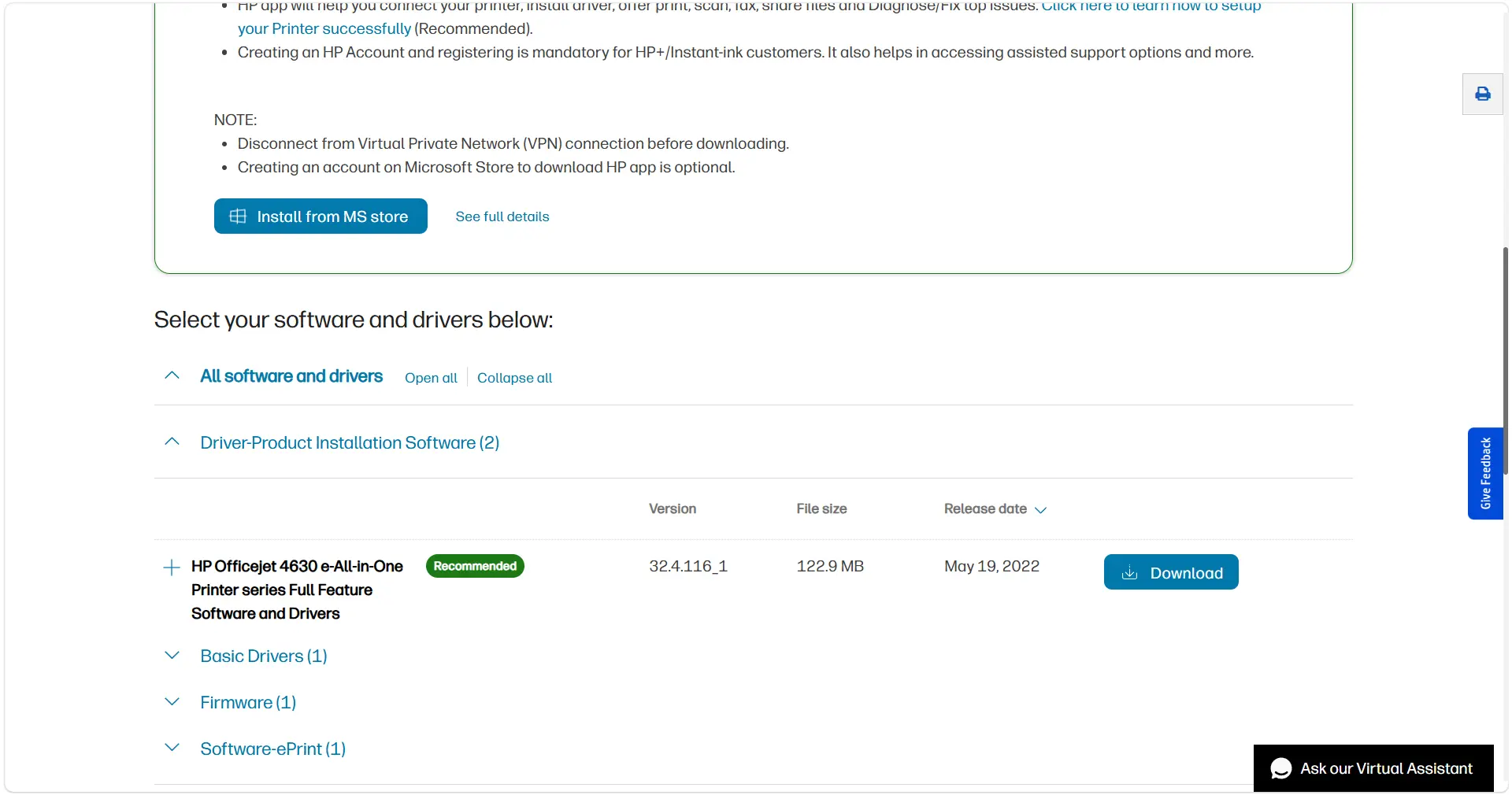
- Open the official HP driver download page for the HP LaserJet Pro M1132 MFP .
- Select your installed version of Windows and its system type if the page did not detect them correctly.
- Select the software and driver package available for the model, then download it to your computer.
- Run the downloaded installer and follow the on-screen instructions.
- When it finishes, open the Windows printer list and print a test page.
Verification:
HP LaserJet Pro M1132 MFP appears in
Параметры > Bluetooth и устройства > Принтеры и сканеры
, and the test job does not remain in the queue.
Method 2: add the HP LaserJet Pro M1132 MFP through Windows
When to use it: the printer is turned on and connected but is not yet shown among installed devices. Windows 10 and Windows 11 may automatically install a driver for a connected printer; after adding it, you can also check Windows Update.
- Open
Параметры > Bluetooth и устройства > Принтеры и сканеры. - Select
Add device
next to the printer-addition section.
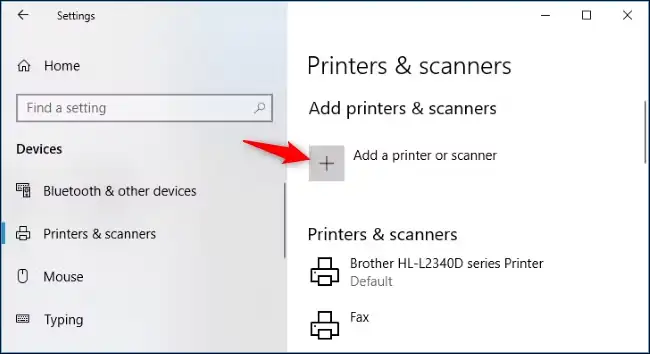
- Wait for HP LaserJet Pro M1132 MFP to appear in the list and select
Add device
.
- Open Windows Update and install any offered driver updates.
- Select the added printer and print a test page.
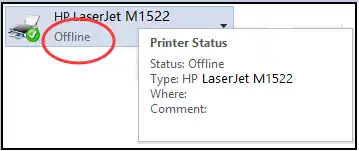
Verification: the device shows a Ready status or is available for printing. If Windows finds the printer but its functions are limited, check the HP page for the full driver.
Method 3: update the driver through Device Manager
When to use it: HP LaserJet Pro M1132 MFP or an unknown device is visible in Device Manager with a warning icon, or the problem began after a driver change.
- Right-click the Start button and open Device Manager .
- Find the printer or related unknown device in the appropriate category.
- Right-click the device and select Update driver .
- Select automatic driver search and wait for the Windows result.
- Restart the computer only if Windows or the installer asks you to do so, then print a test page.
Verification: the warning icon disappears, and you can send a test job in the printer properties. If the automatic search did not find a driver, return to the official HP package.
Method 4: fix the issue with Fionn Printer Driver
When to use it: the required driver is unknown or printing still does not work after installation. This is the recommended option for checking the related chain: device detection, driver, print service, port, and queue. Fionn Printer Driver supports automatic detection of common brands and models, searching by brand or model, driver installation and restoration, plus diagnostics for the service, port, and queue.
- Launch Fionn Printer Driver and select Scan Now to check the computer for printer drivers and related issues.

- Wait while Fionn Printer Driver checks installed printers, drivers, and common printing issues.

- After the scan finishes, select One-Click Fix to automatically install or restore the required printer driver.

- Wait for the fix to finish and confirm that the printer issue is resolved.

Verification: when it finishes, send a small test page again. If the program reports a device, queue, or service status, resolve the identified issue and repeat the check.
How to avoid the problem happening again
- Do not disconnect the printer while the installer is running unless it asks you to change the connection.
- Check that the print window has HP LaserJet Pro M1132 MFP selected rather than a virtual printer or an old queue.
- If a document is sent but does not print, check the queue status: this differs from a missing driver.
- If the problem affects scanning only, make sure the installed HP package includes the required multifunction-device components.
Conclusion
For the HP LaserJet Pro M1132 MFP driver, the sensible order is to first download the package from the official HP page, then use Add device and Windows Update if the printer is connected. When Device Manager shows an error, update the driver there. If the cause is unclear or printing does not recover after installation, Fionn Printer Driver can check the driver and related printing components. In every case, the final verification is the same: the printer appears in Windows, the test page prints, and the job does not get stuck in the queue. If it does not, record the exact error message and contact HP Support.
Frequently asked questions
Where can I safely download the HP LaserJet Pro M1132 MFP driver?
Use the official HP page for this model and select your version of Windows. Unofficial download sites do not verify that a package matches the model and operating system.
Can I install the driver through Windows without downloading it from HP?
Yes. If Windows detects the connected printer, open Printers & scanners, add the device, and then check Windows Update for available driver updates.
Why is the printer installed but printing does not start?
The cause may not be the driver alone: check the job queue, printer status, print service, and port. These signs help you choose the next step instead of reinstalling the same package again.
What should I do if HP does not offer my version of Windows?
Do not install a random package for another operating system. First try adding the device through Windows and checking Windows Update; if no suitable driver is available, contact HP Support with the model and your version of Windows.


